What is this?
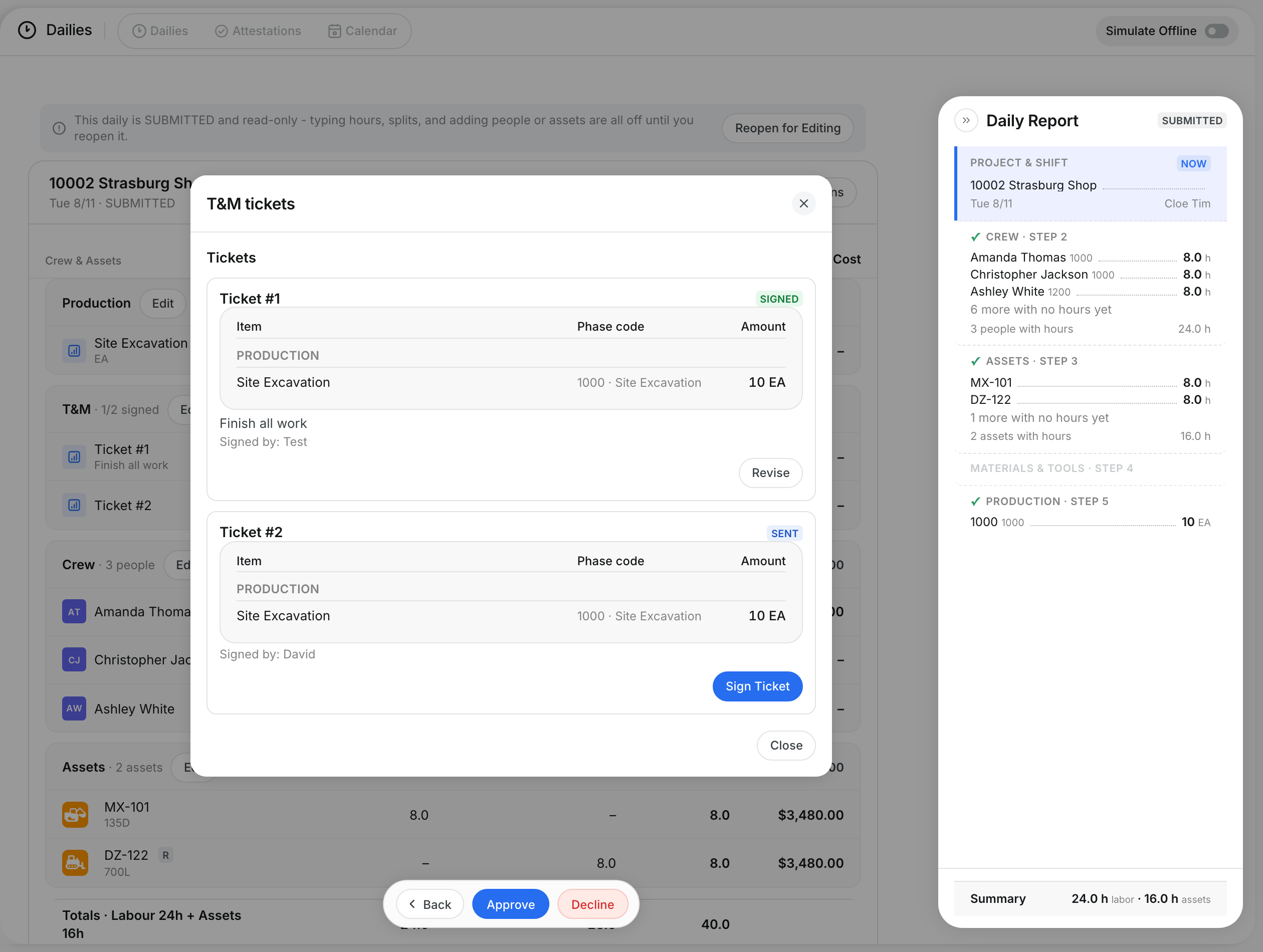
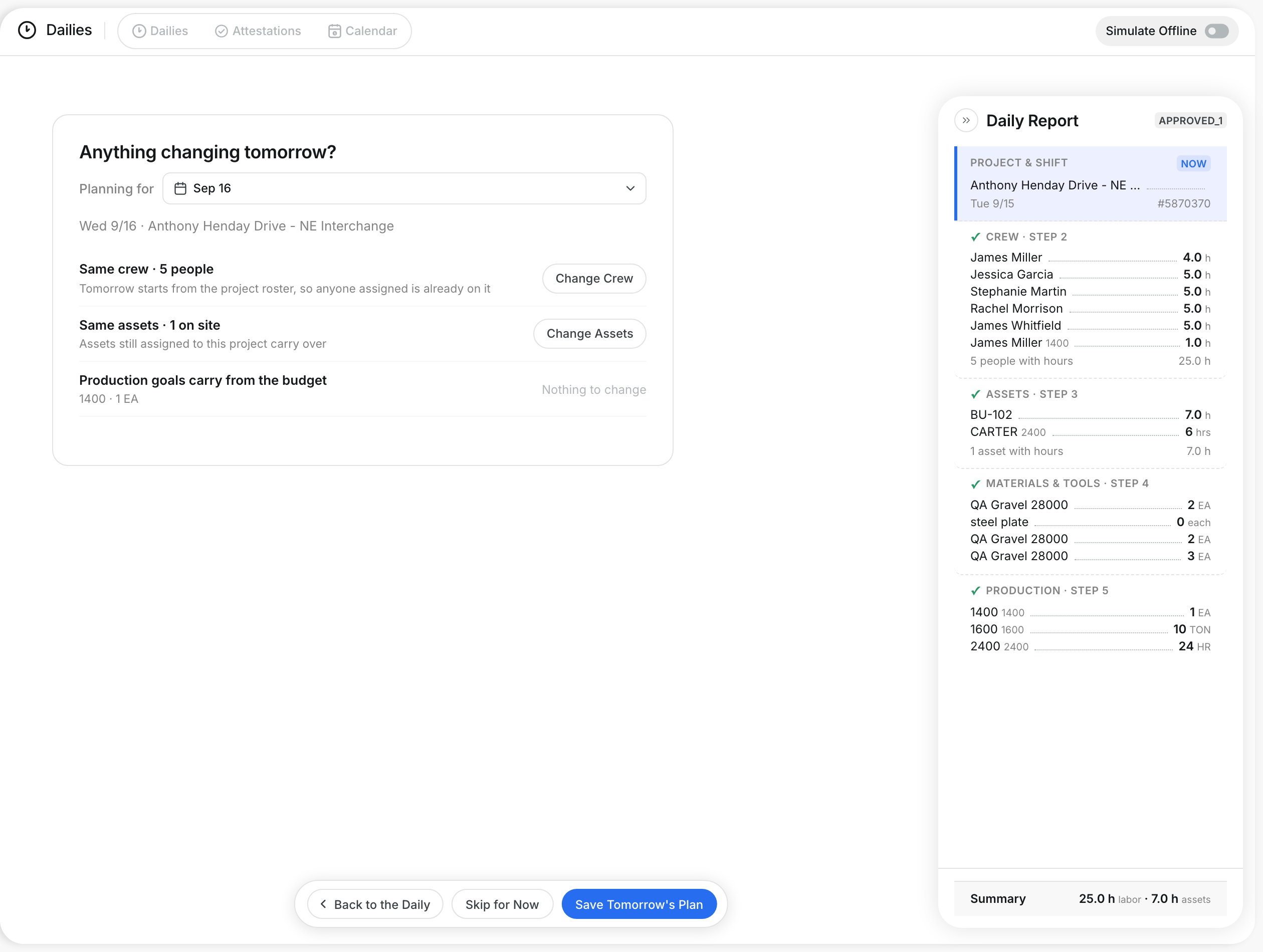
The Export Center sends finalized dailies to payroll or your accounting system. You pick an export format, a date range and the dailies. CLUE shows which days already went out. Exported dailies lock, so the numbers stay the same.
Who's this for?
- Payroll, who send hours to the payroll system each week.
- Project managers, who send job costs to accounting.
How to use it
Step 1: Open the Export Center
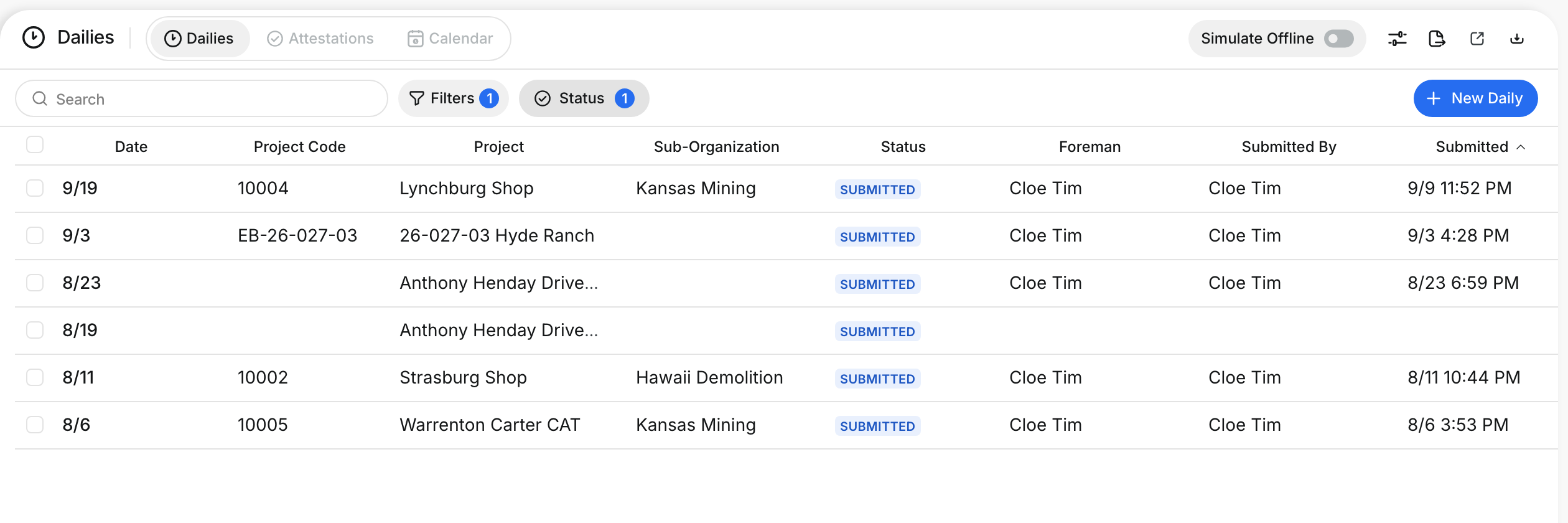
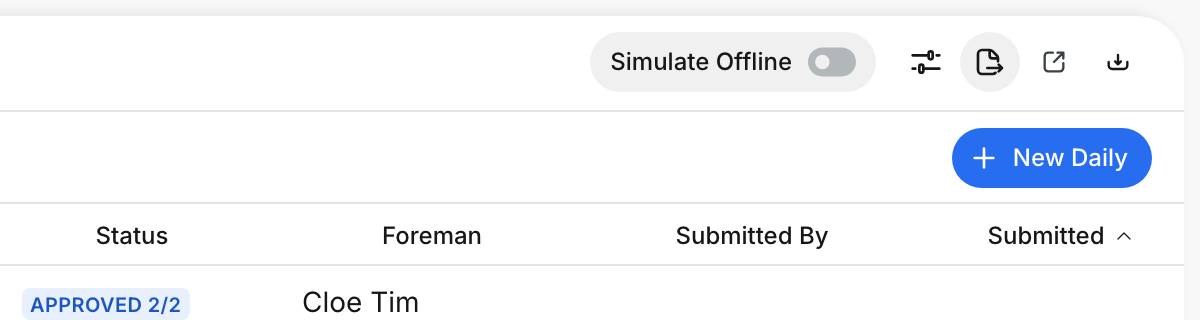
Go to Operations > Dailies. Click the Export icon at the top right.
Step 2: Review the dailies
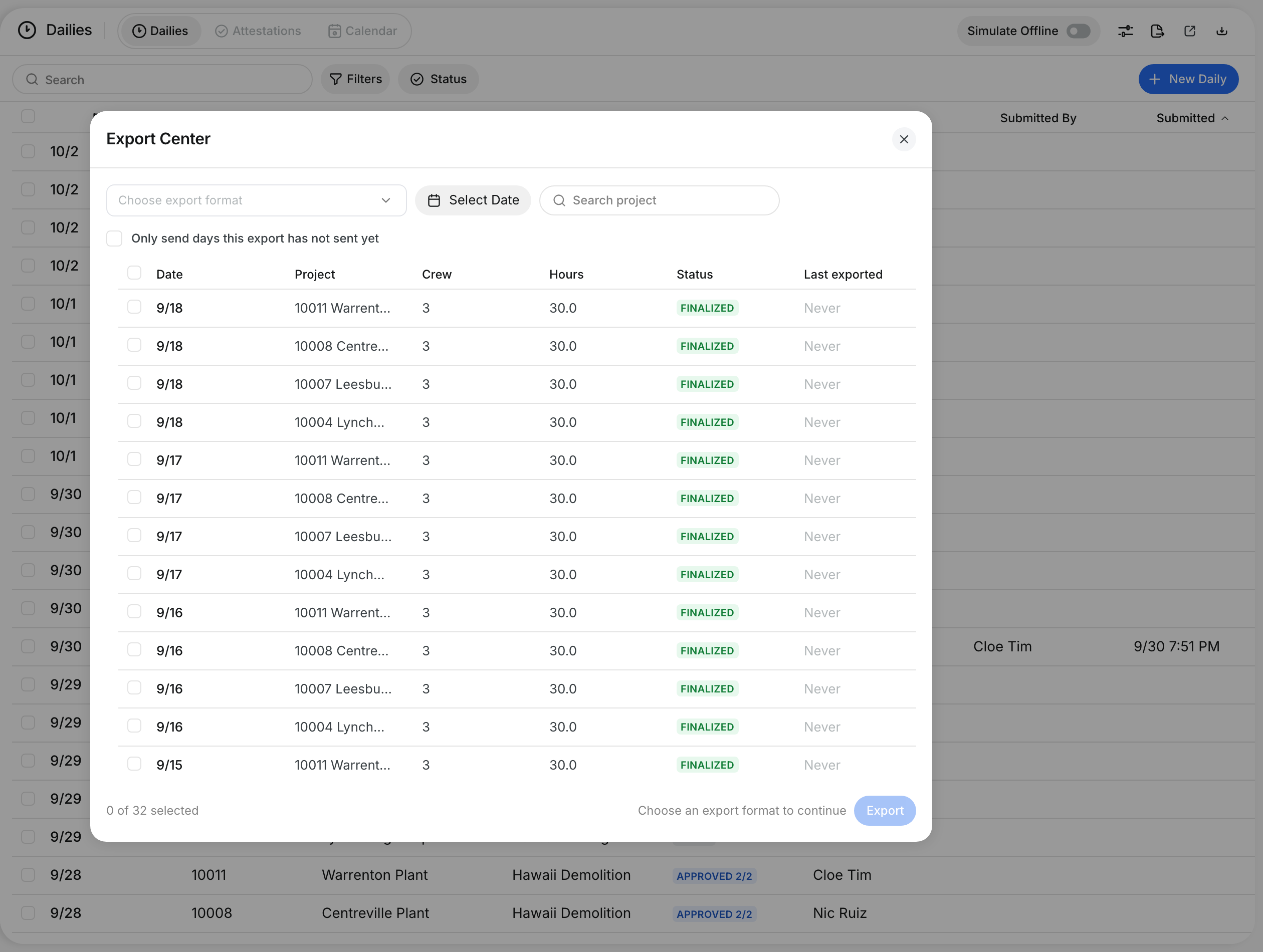
The Export Center lists each daily with its date, project, crew, hours and status. Last exported shows Never for a daily that has not gone out.
Step 3: Choose the export format
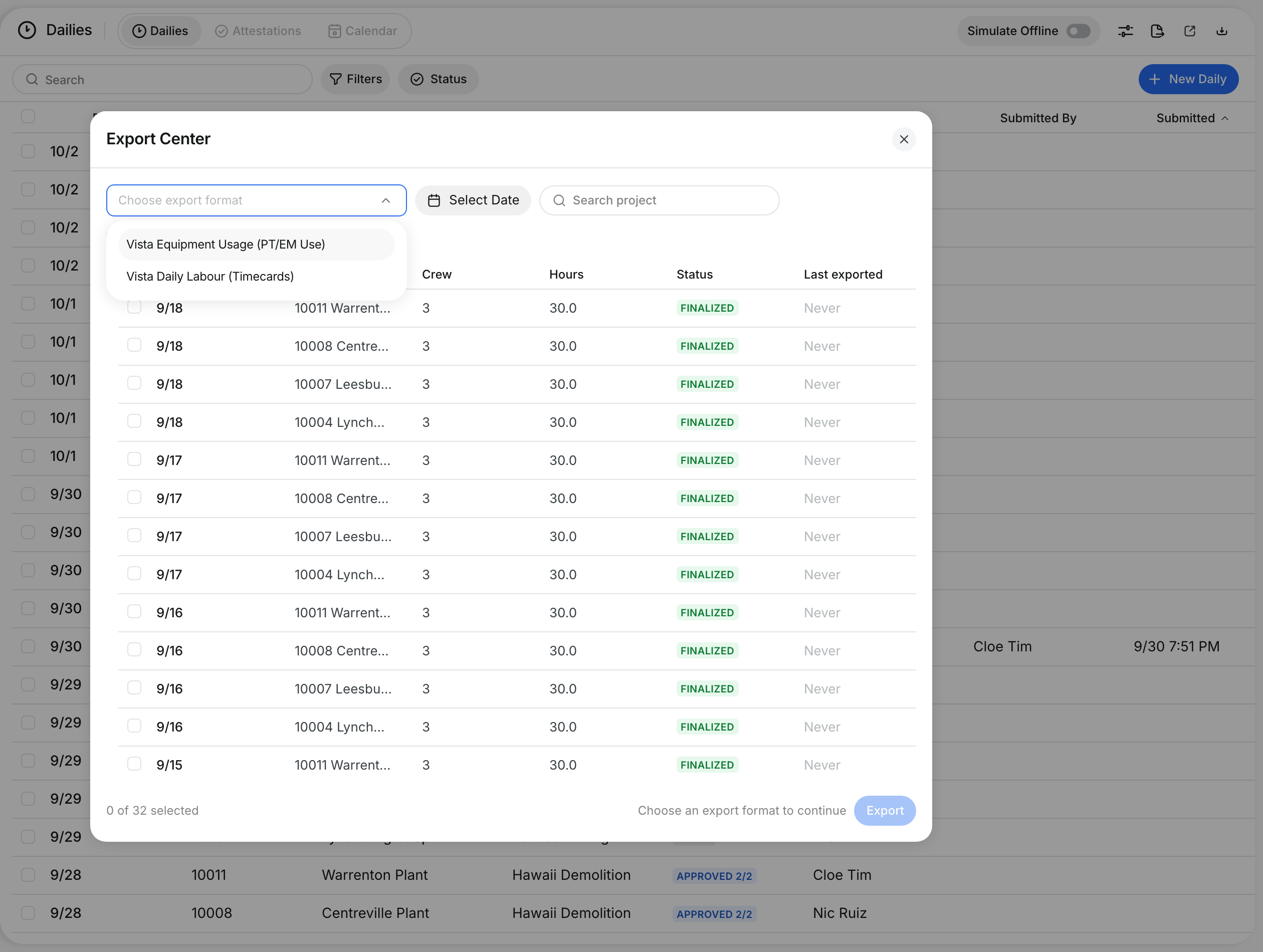
Click Choose export format and pick the format for your system.
Step 4: Pick the date range
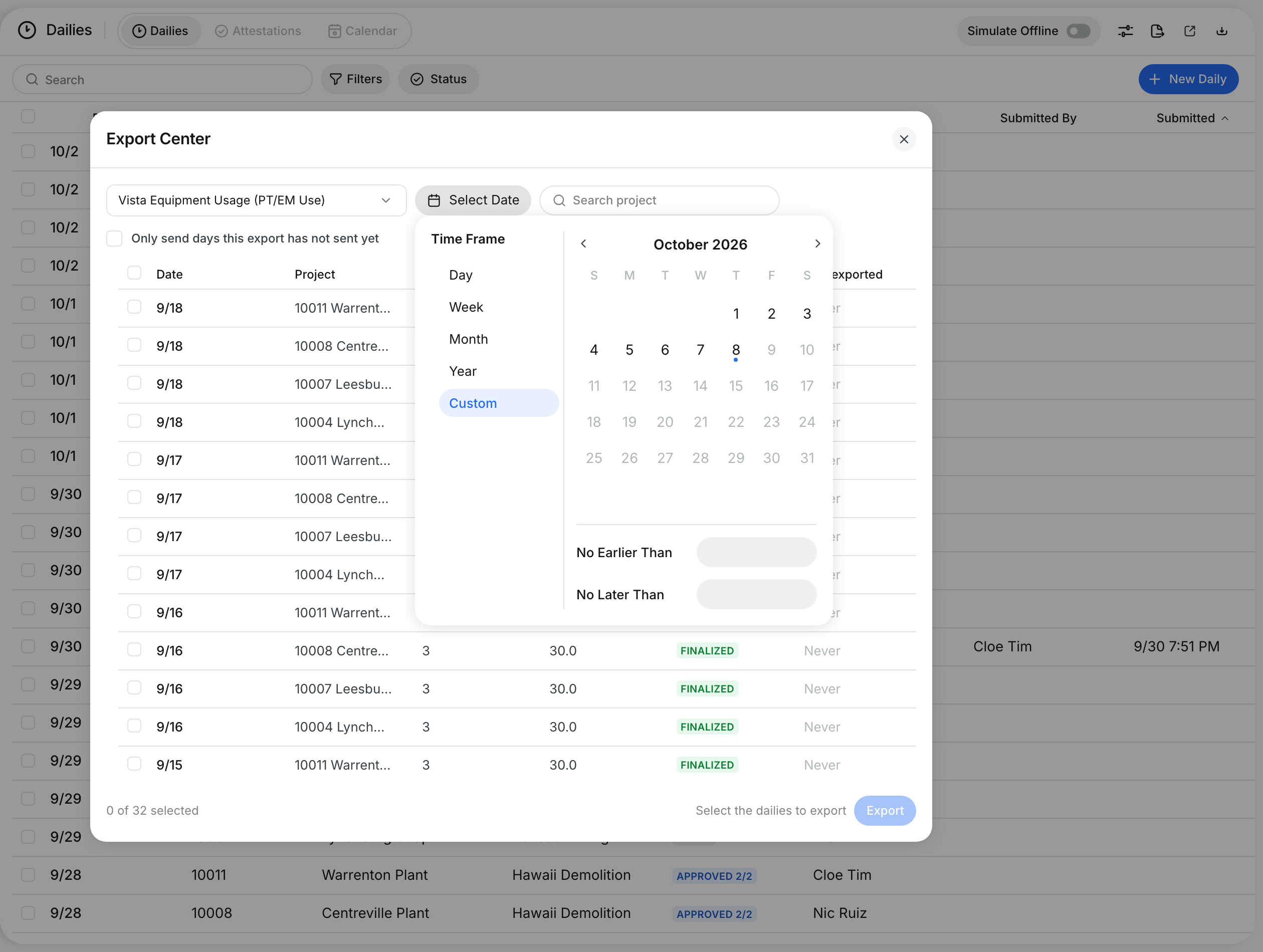
Click Select Date. Pick Day, Week, Month, Year or Custom.
Step 5: Select the dailies and export
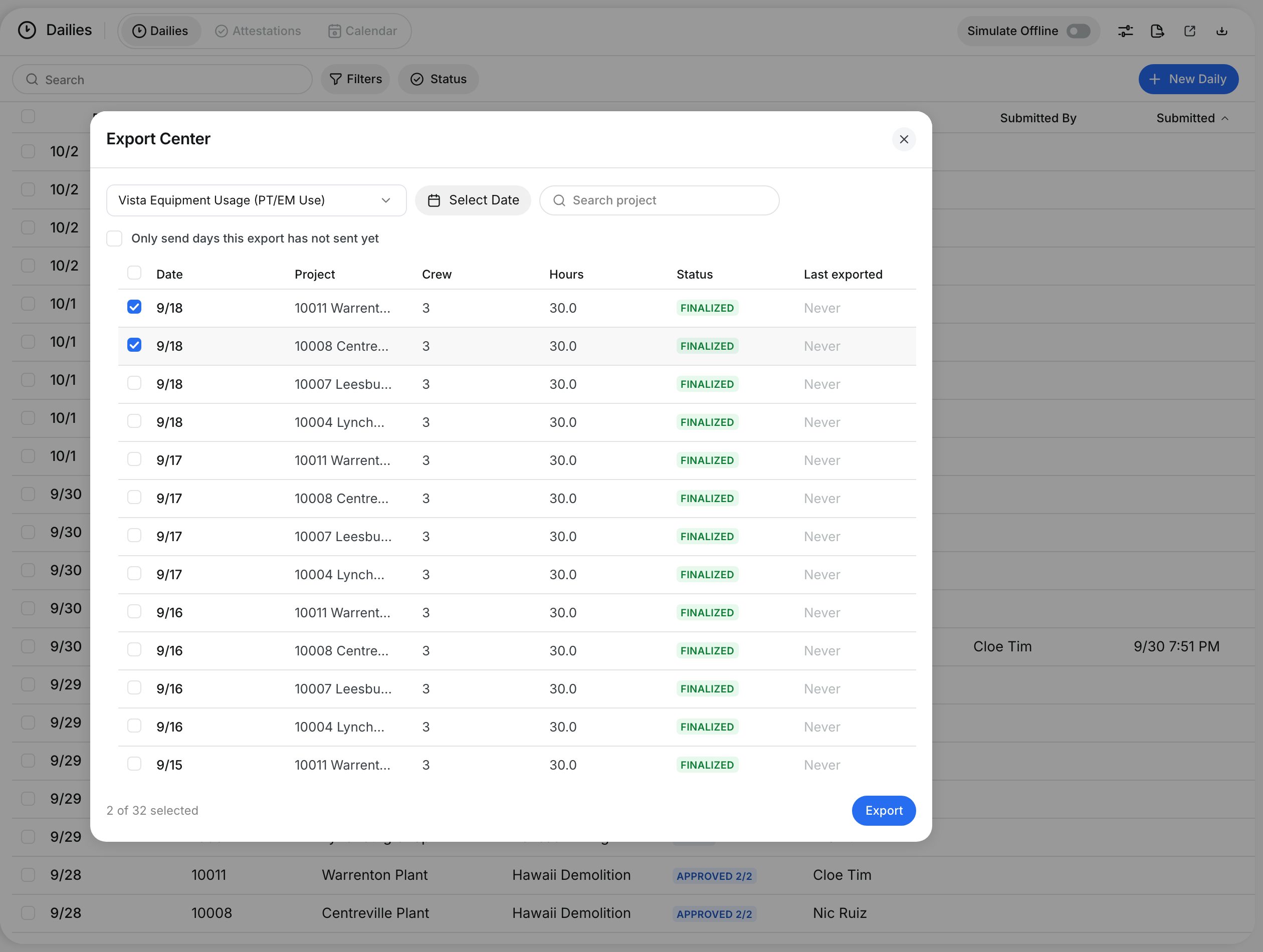
Tick the dailies you want. The count shows at the bottom. Click Export.
Step 6: Find exported dailies
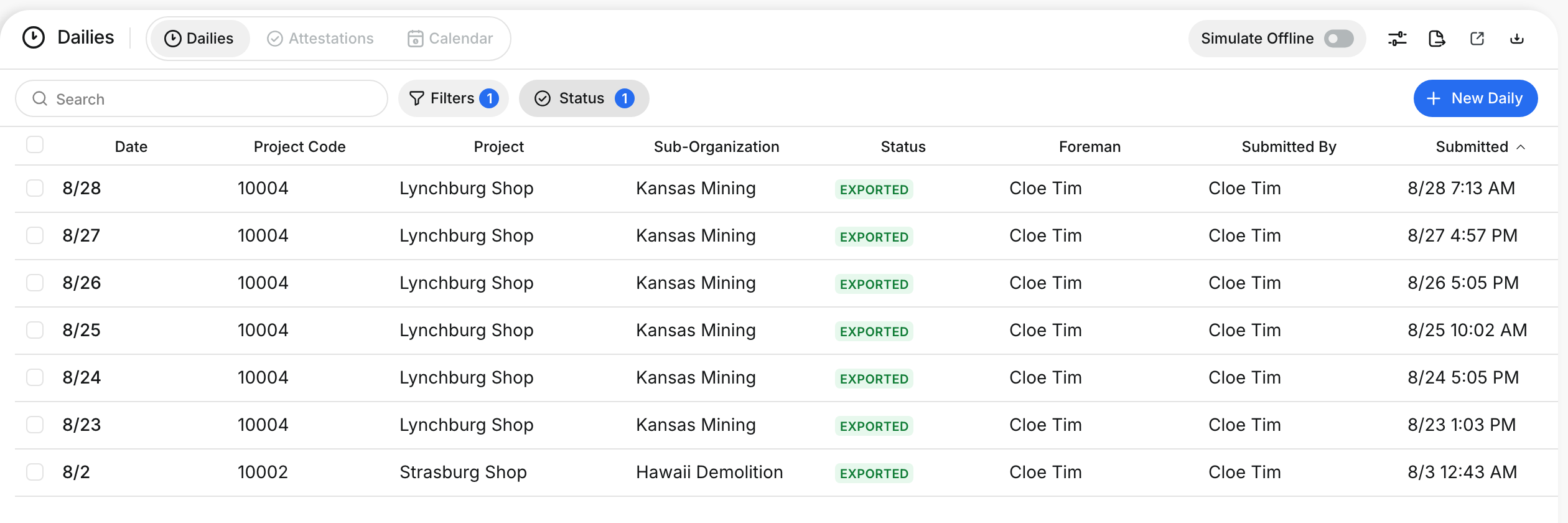
On the list, click Status and tick Exported. These dailies are locked.
Step 7: Export from the list
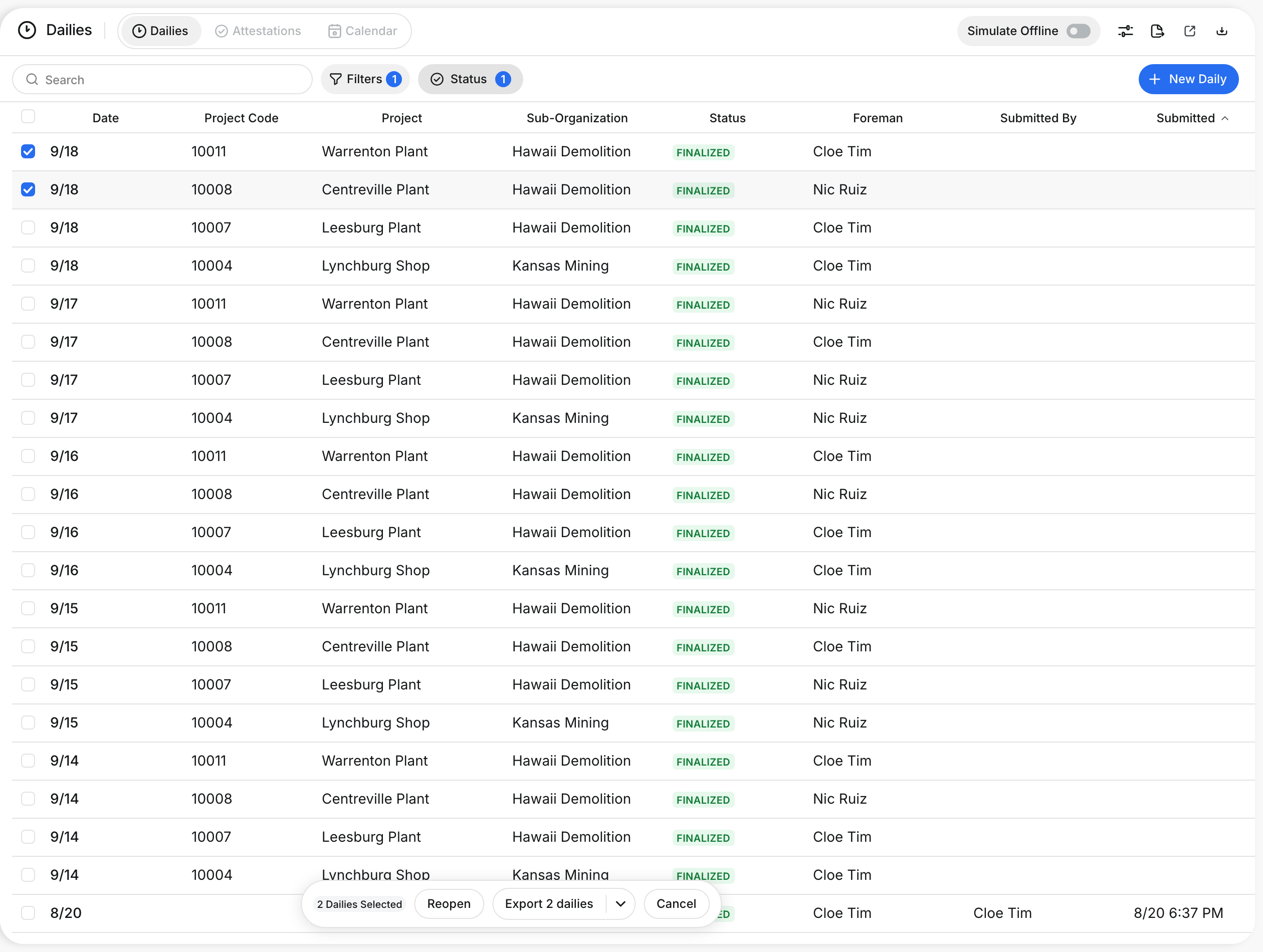
You can also tick dailies on the list. Click Export in the bar at the bottom.
The full details
- Only send days this export has not sent yet: Hides days that this format already sent.
- Not approved yet: A daily that is not approved cannot be selected.
- Finalize before exporting?: Shows when your selection has dailies that are not finalized.
- Finalize and export: Finalizes those dailies, then exports them all.
- Export the N finalized: Exports only the dailies that are already finalized.
- Some crew are not in the system yet: People with no user record are left out of the export.
- Export without them: Exports everything else in the selection.
- Exported: The daily is locked. Its figures cannot change.
Tips
- Match each temporary crew member to a real user on the crew step before you export.
- Export one week at a time. It matches your payroll week.
- Check Last exported before you send a day again.