What is this?
Approvals move a submitted daily through review before payroll sees it. A reviewer checks the hours, then approves the daily or sends it back. After the last approval, someone finalizes the daily. You can approve one daily at a time or many from the list.
Who's this for?
- Superintendents, who check each foreman's daily and approve it.
- Project managers, who give the second approval and finalize the day.
- Payroll, who need to know when a daily is final.
How to use it
Step 1: Find the dailies that wait for you
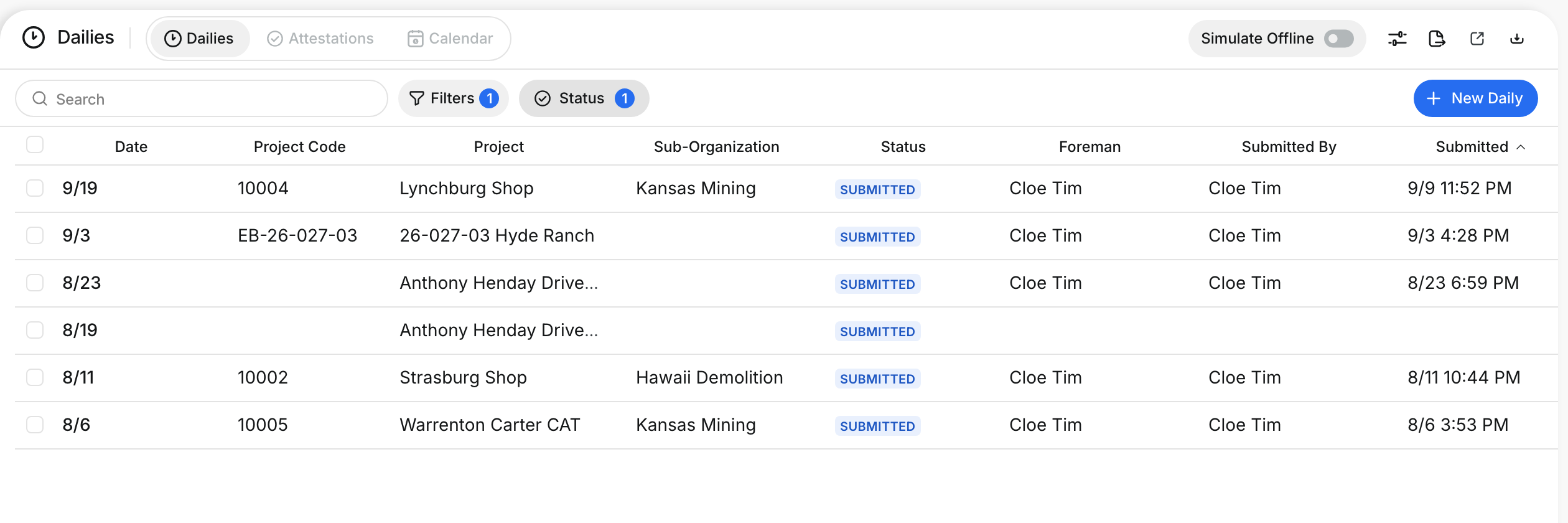
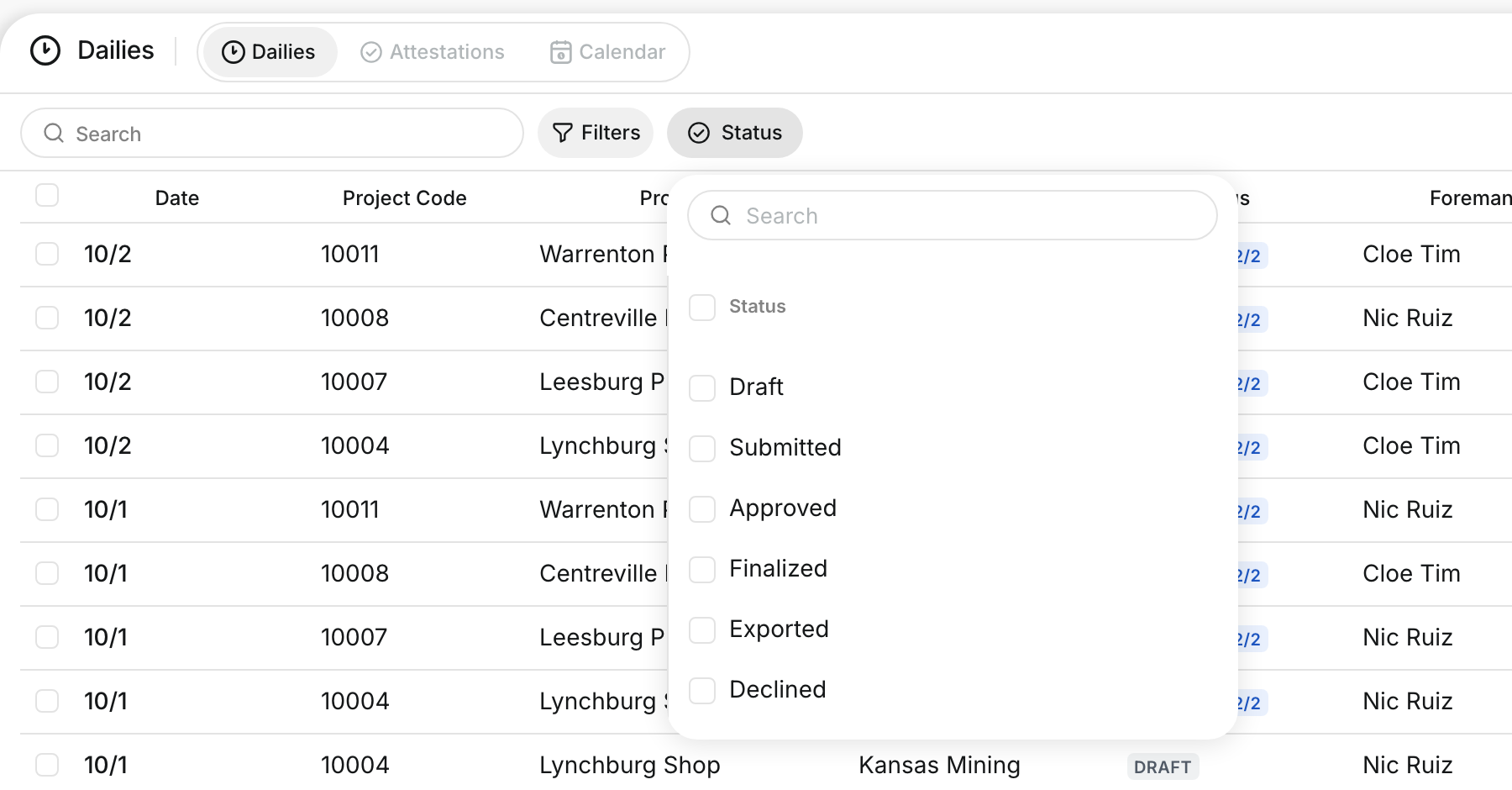
Go to Operations > Dailies. Click Status and tick Submitted.
Step 2: Open the review
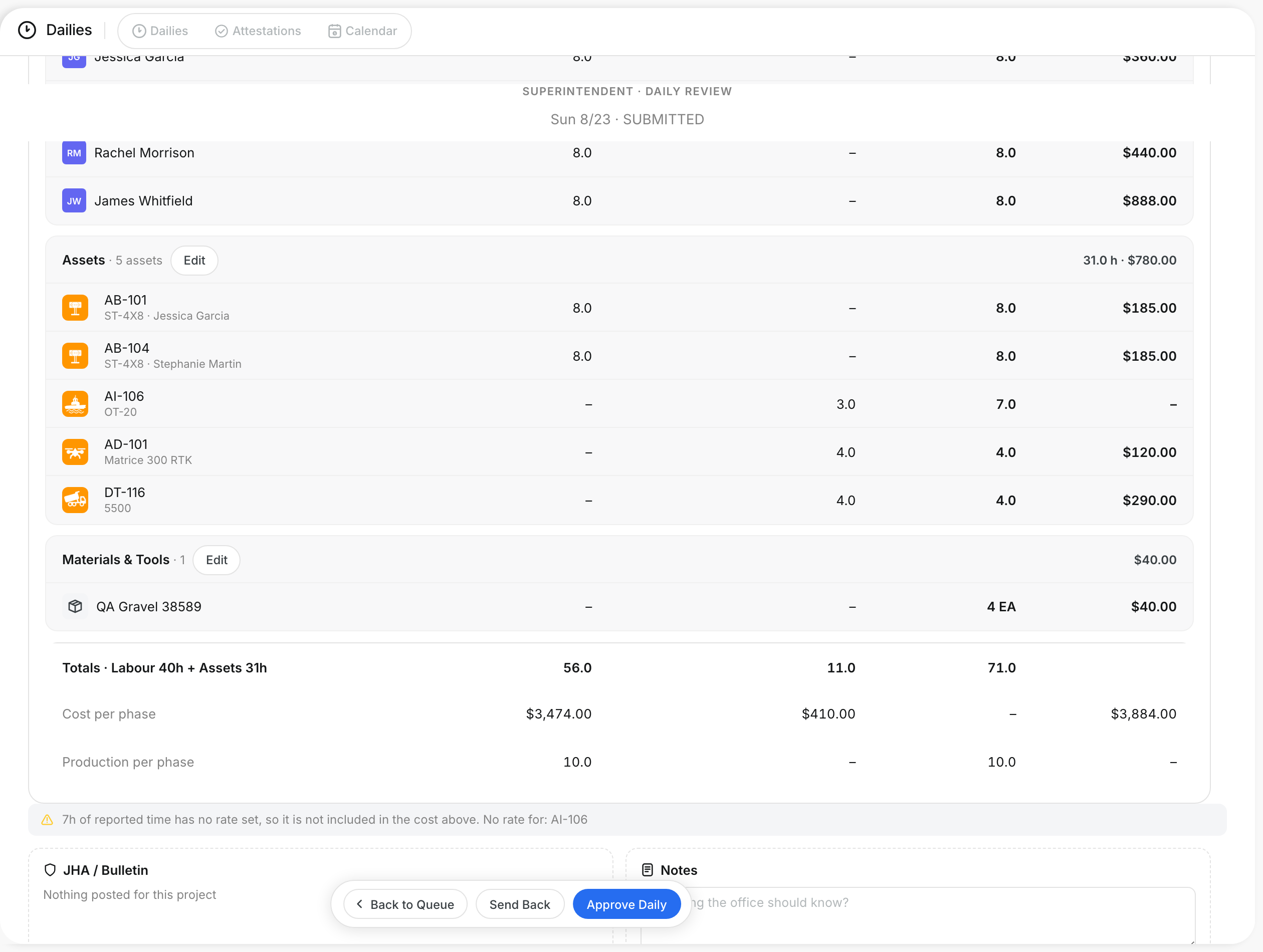
Open a submitted daily to see the Superintendent · Daily Review. It shows the crew, assets, materials, totals and cost per phase.
Step 3: Approve the daily
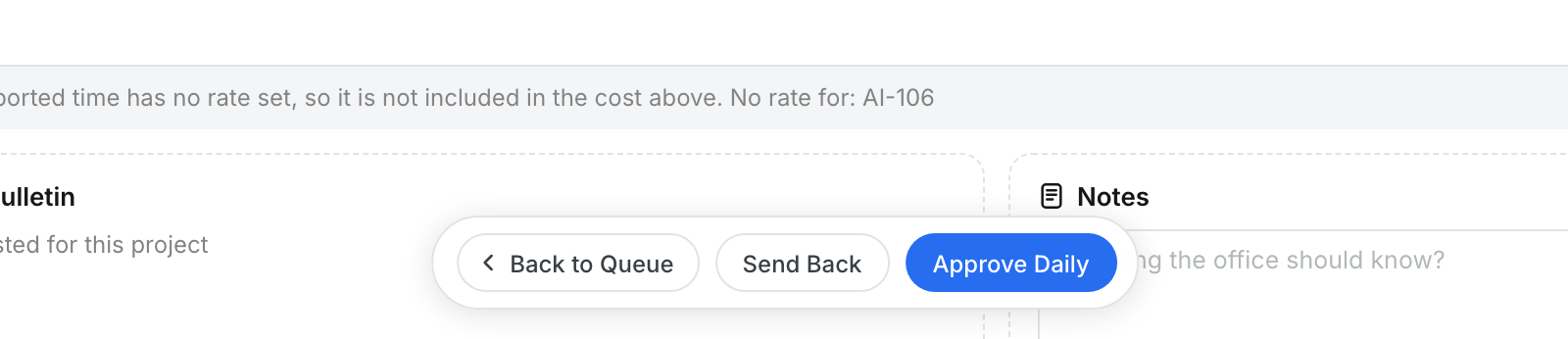
Check the hours and the notes. Click Approve Daily. Click Back to Queue to return to the list without a change.
Step 4: Send a daily back
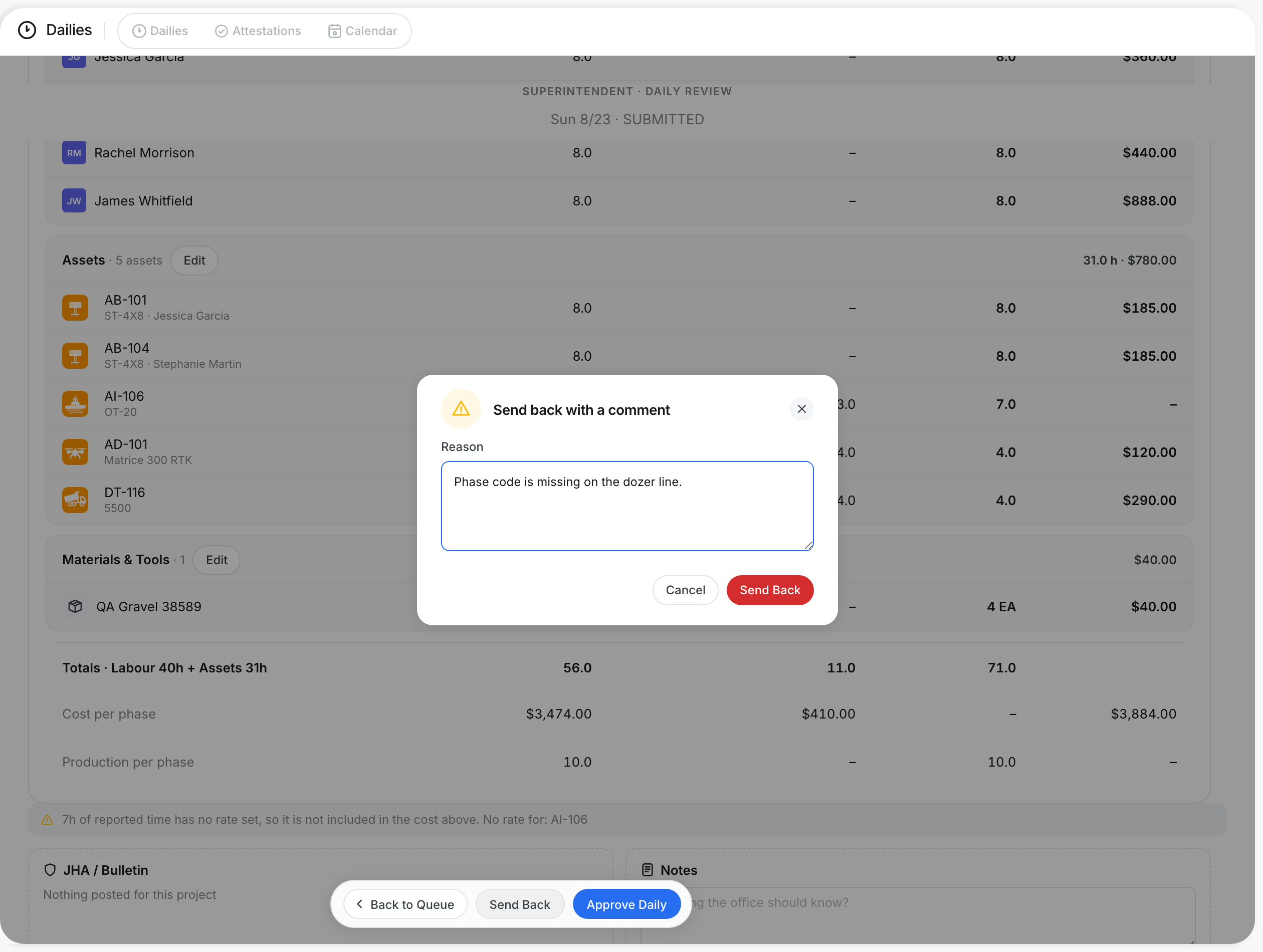
Click Send Back when something needs a fix. Type the Reason and click Send Back. The foreman sees your comment on the daily.
Step 5: Approve from the report
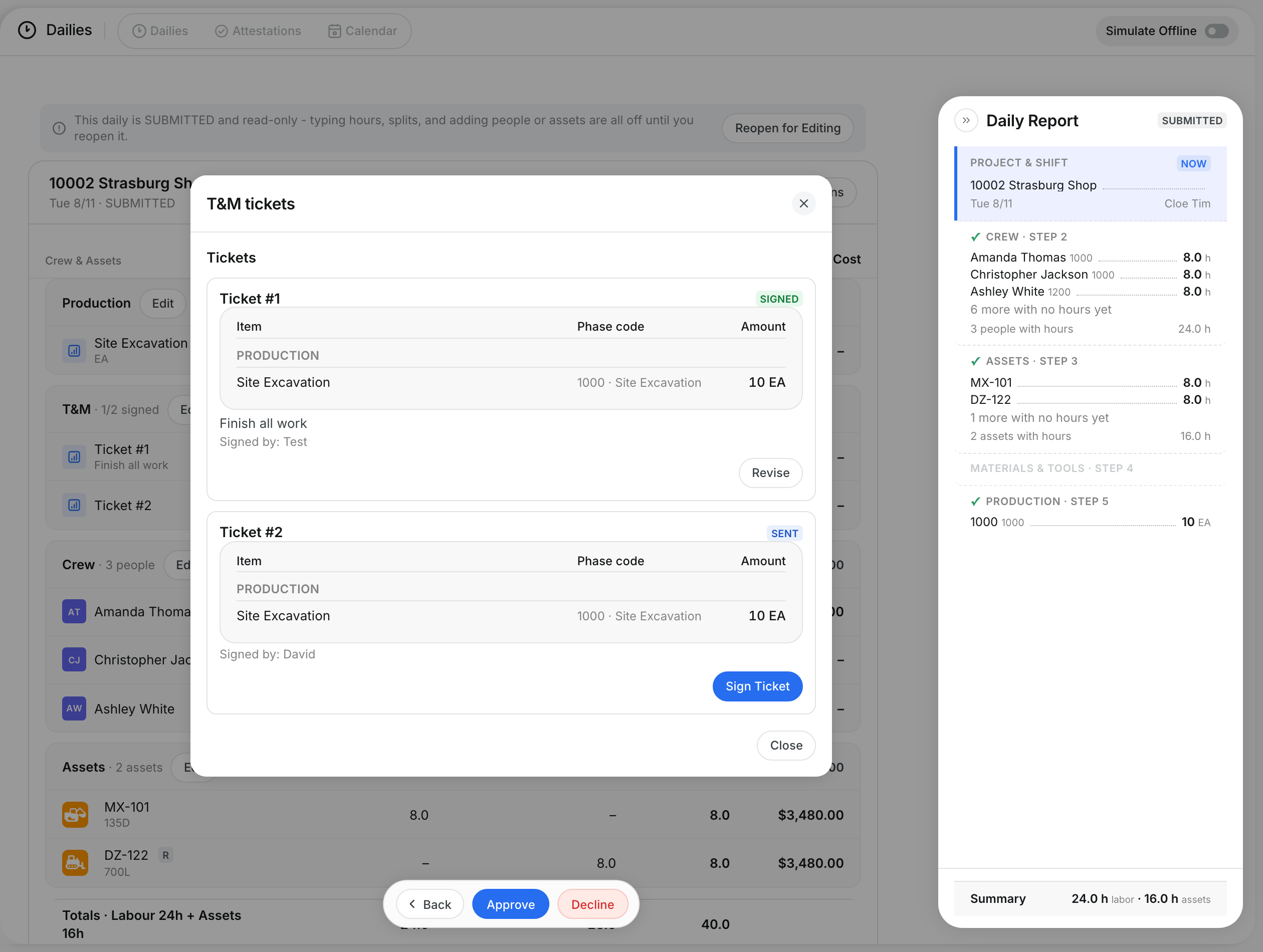
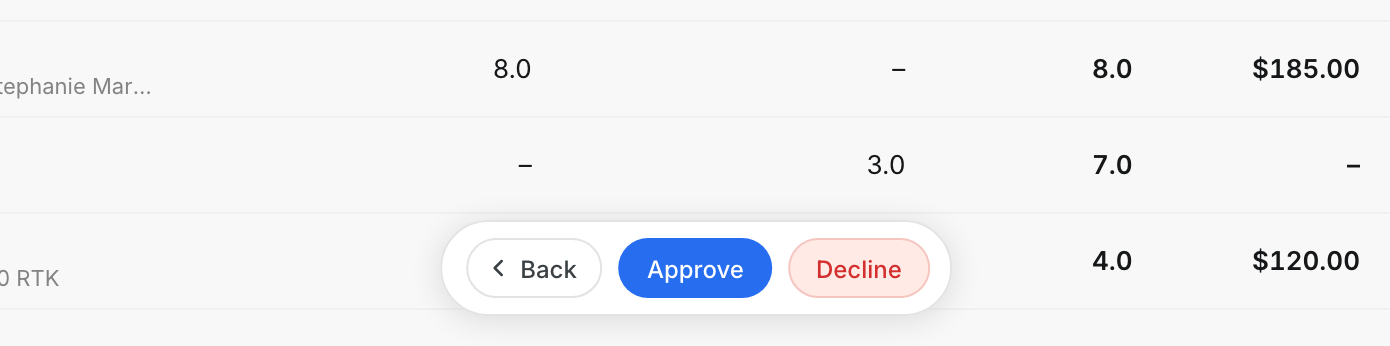
You can also act from the report step of a daily. A submitted daily shows Approve and Decline at the bottom.
Step 6: Finalize the daily
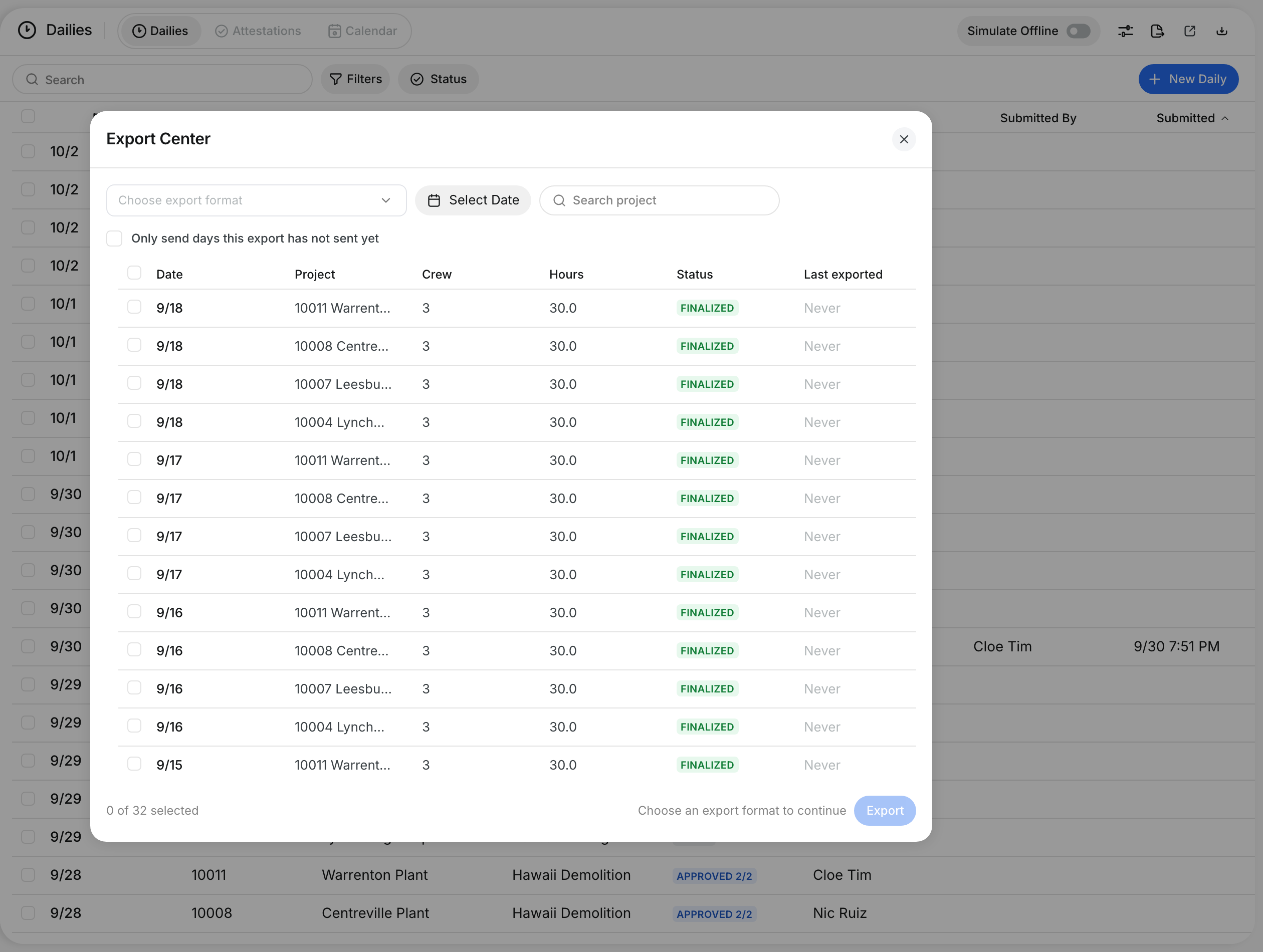
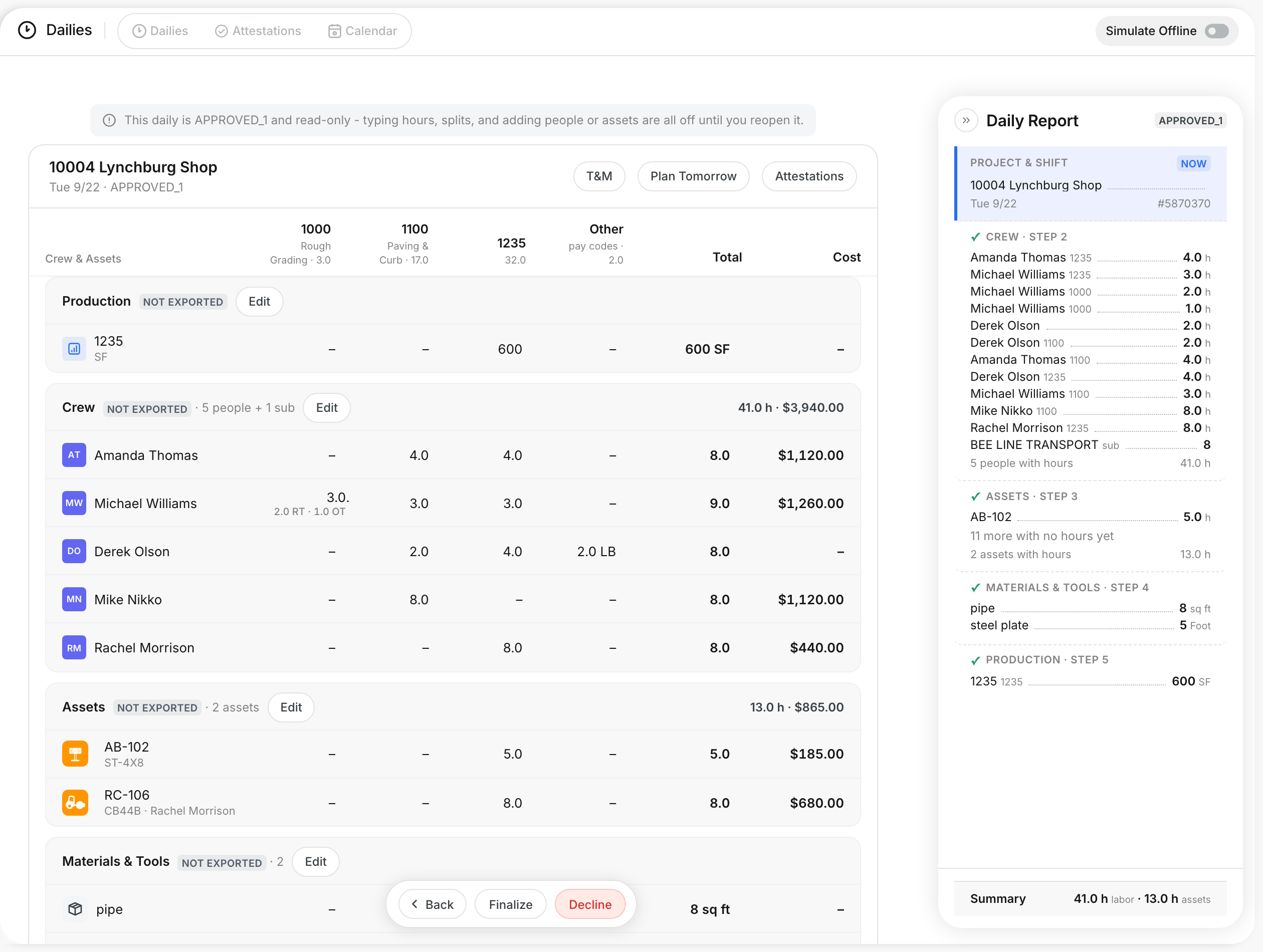
After the last approval level, the daily shows Finalize. Click Finalize to lock the daily for export.
Step 7: Decline a daily
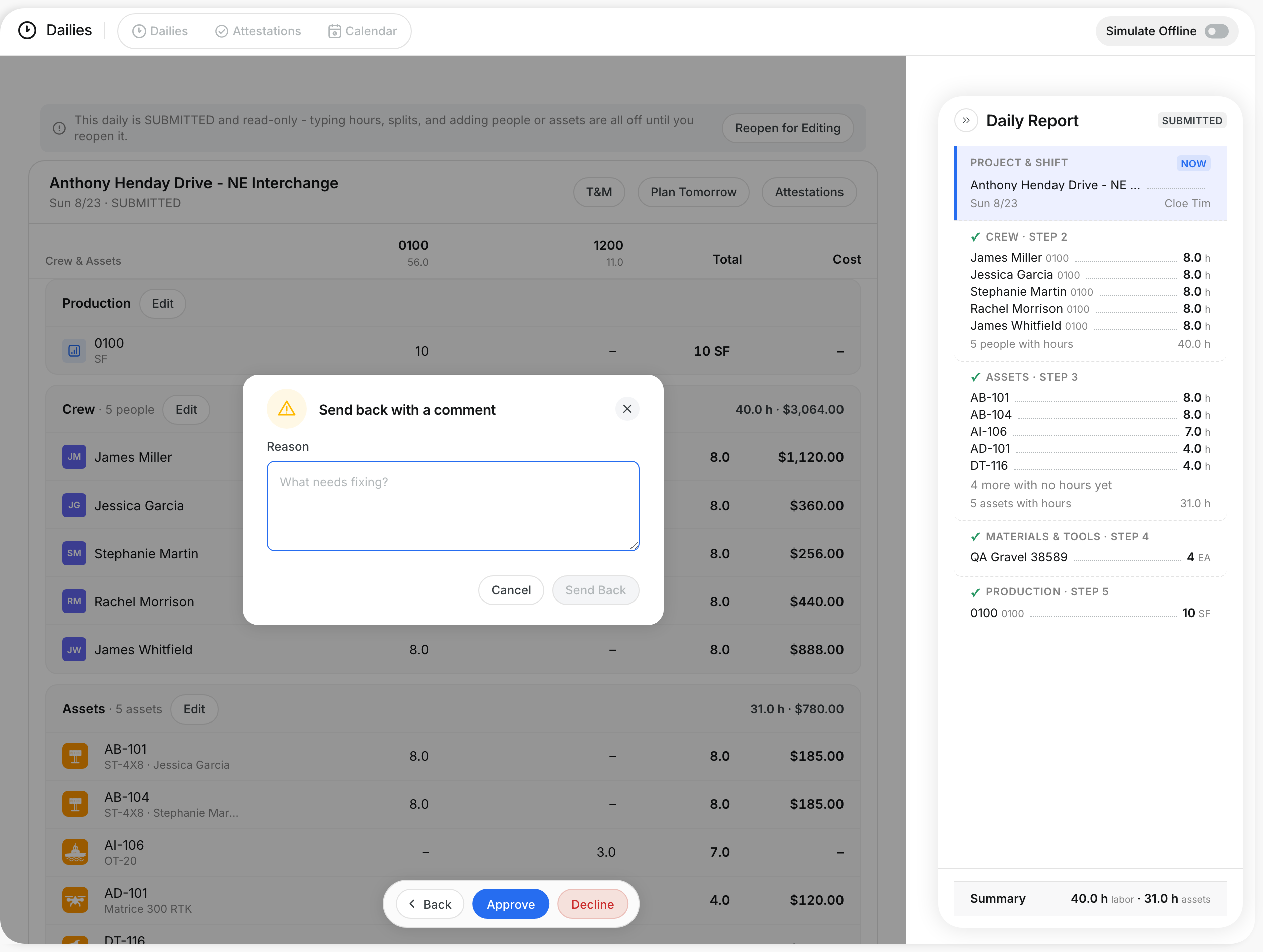
Click Decline to return the daily to the foreman. Type the Reason and click Send Back. Click Cancel to keep the daily as it is.
Step 8: Reopen a submitted daily
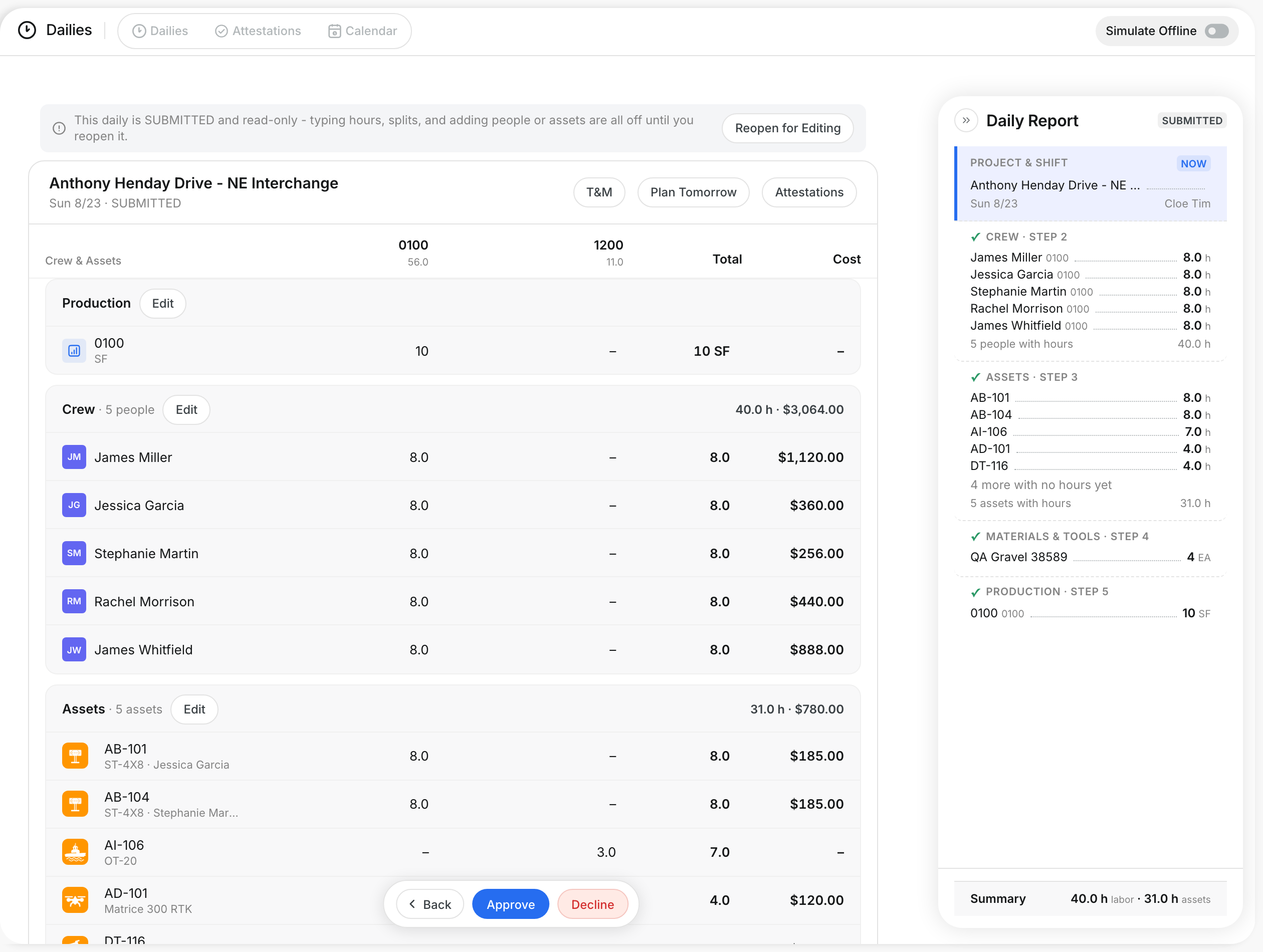
A submitted daily is read-only. Click Reopen for Editing at the top to change hours, splits, people or assets.
Step 9: Approve many dailies at once
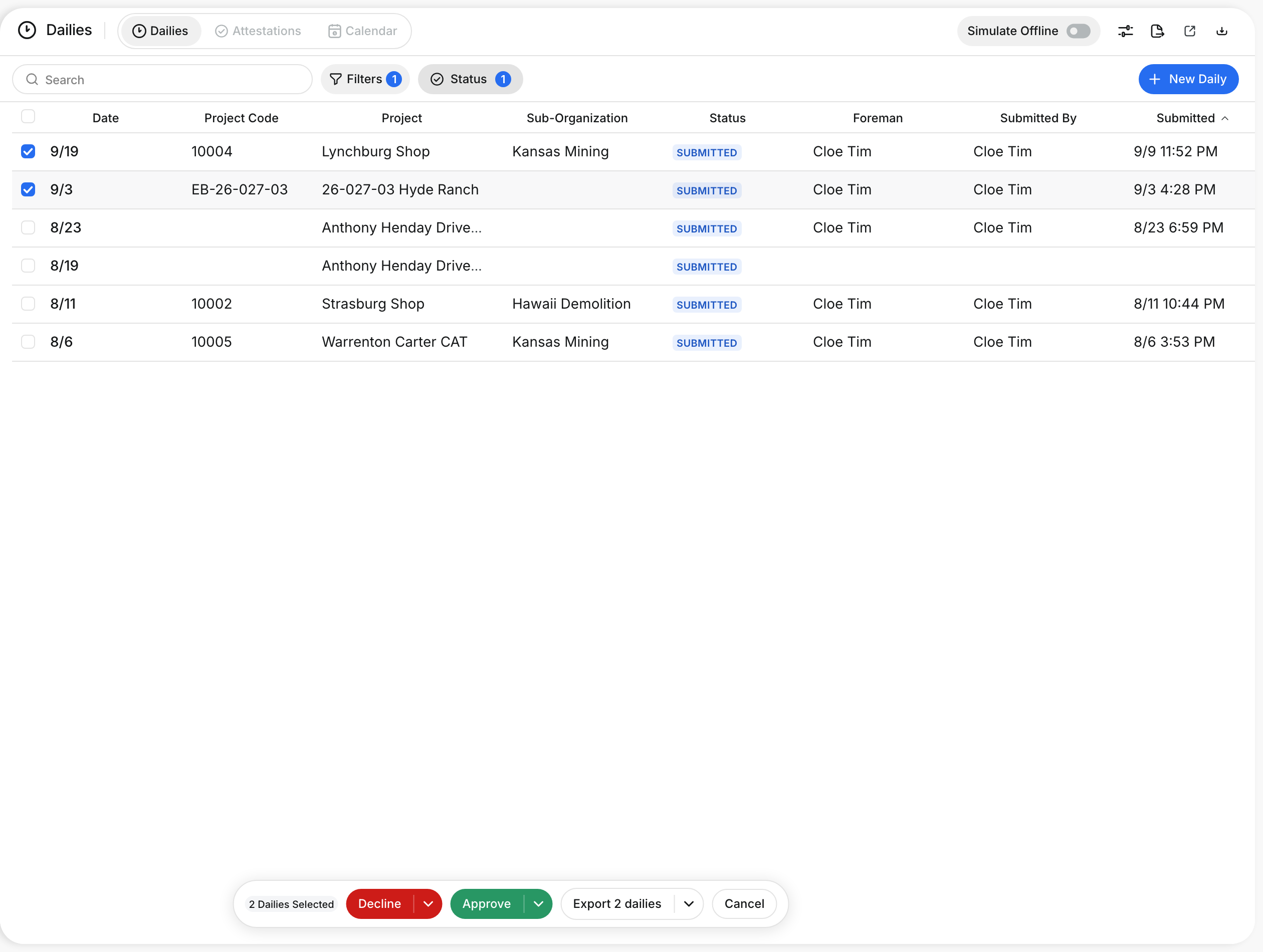
On the list, tick the boxes next to the dailies. Click Approve in the bar at the bottom. Use the arrow next to it for Finalize.
Step 10: Reopen a finalized daily
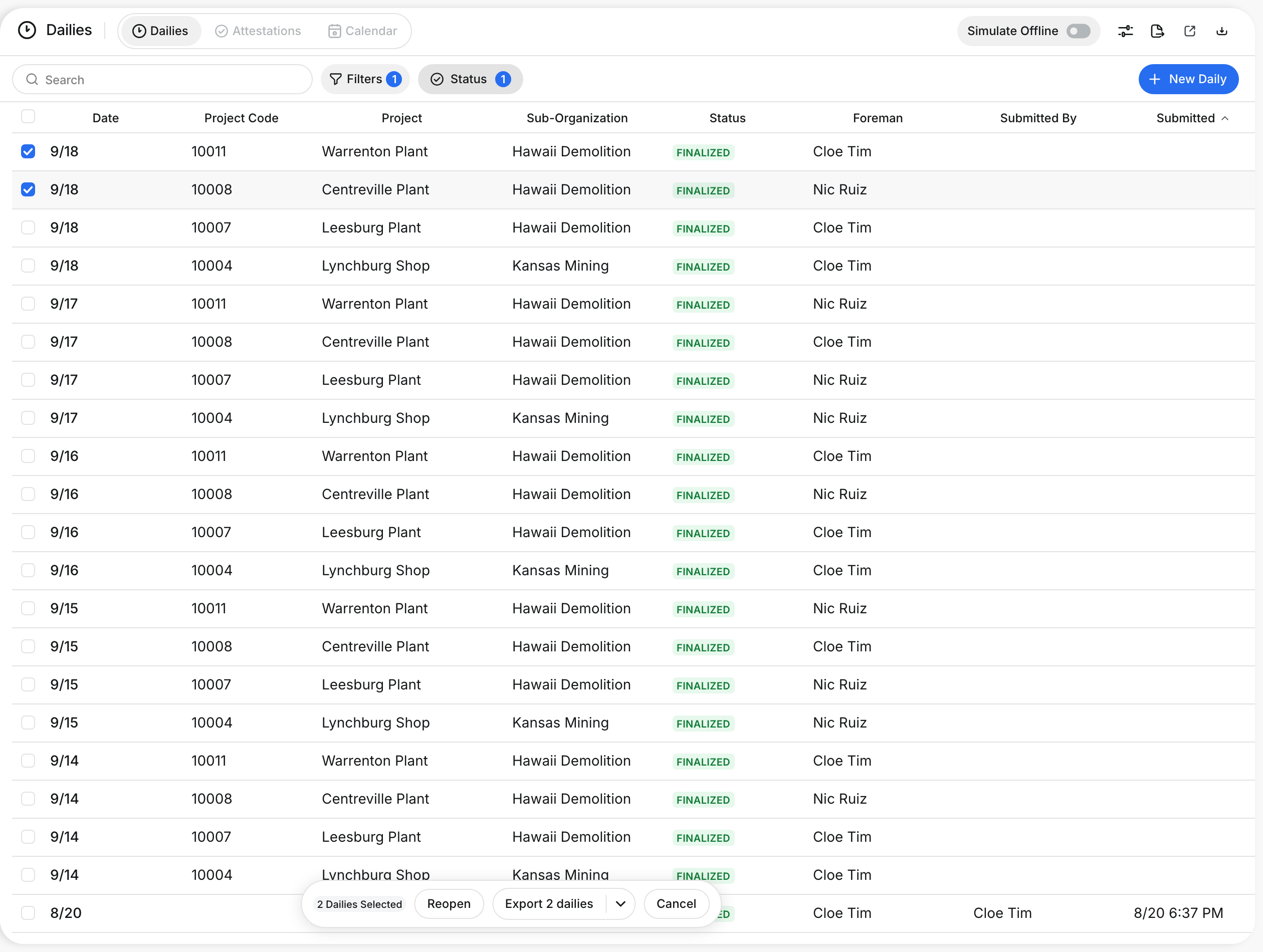
Filter the list to Finalized and tick the daily. Click Reopen in the bar at the bottom.
The full details
- Approval levels: Each project uses no approval, 1 level or 2 levels.
- Approved: The list shows this label when the project has 1 level.
- Approved 1/2 and Approved 2/2: The list shows these labels when the project has 2 levels.
- Hours conflict: The review flags an asset when its entered hours and machine hours differ by 0.25 h or more.
- Use: Puts the machine hours on the daily and its timecard.
- Keep: Keeps the hours the foreman entered. Your company can ask for a reason.
- Acknowledge: Clears other flags, such as open attestations or a missed meal break.
- Bulk actions: A button works only when every selected daily allows it.
- Sent back: The foreman sees who sent the daily back and the reason.
Tips
- Always type a clear reason. The foreman fixes the daily faster.
- Check the warning about missing rates before you approve. Hours with no rate are not in the cost.
- Filter by Submitted each morning to clear your queue.