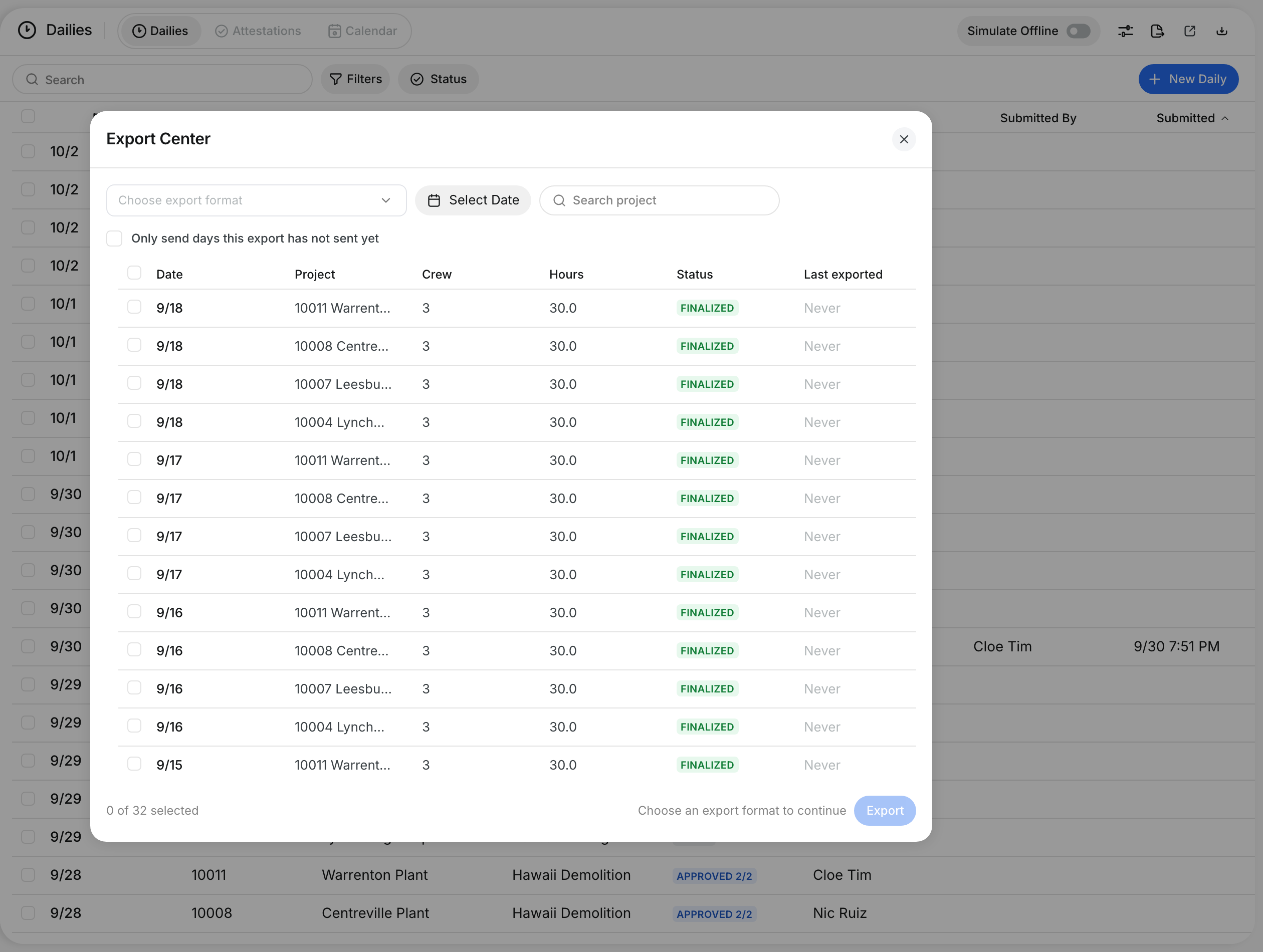
What is this?
A T&M ticket records extra work that the owner pays for by time and material. You build the ticket from the lines on a daily. The owner's representative signs it on your device. Each daily keeps its tickets, their status and who signed them.
Who's this for?
- Foremen, who create the ticket and get it signed on site.
- Superintendents, who check that extra work has a signed ticket.
- Project managers, who bill the owner for the extra work.
How to use it
Step 1: Find the T&M button
Open a daily from Operations > Dailies and go to the report step. Click T&M in the report header. The number shows how many lines are marked T&M.

Step 2: Review the tickets
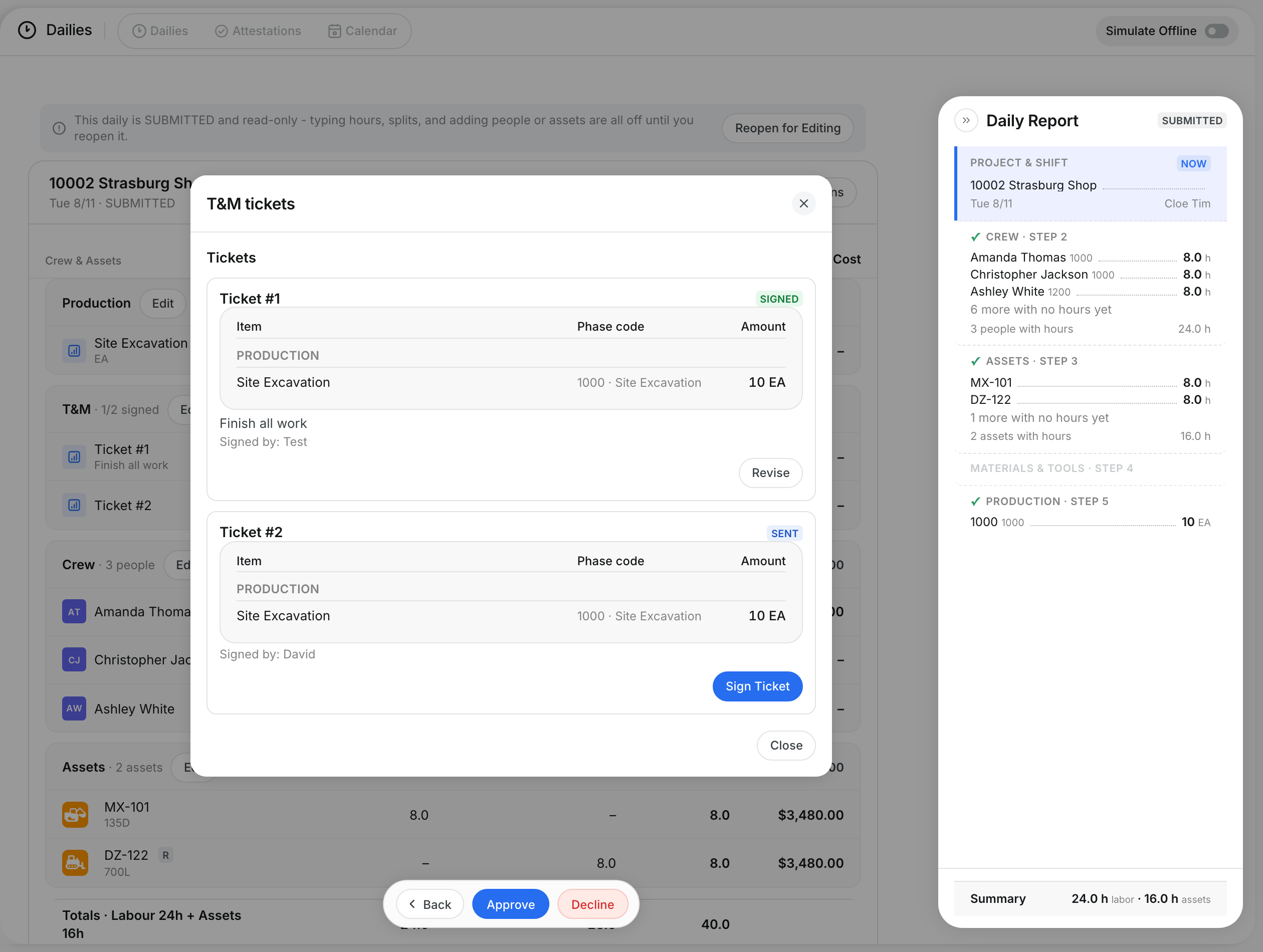
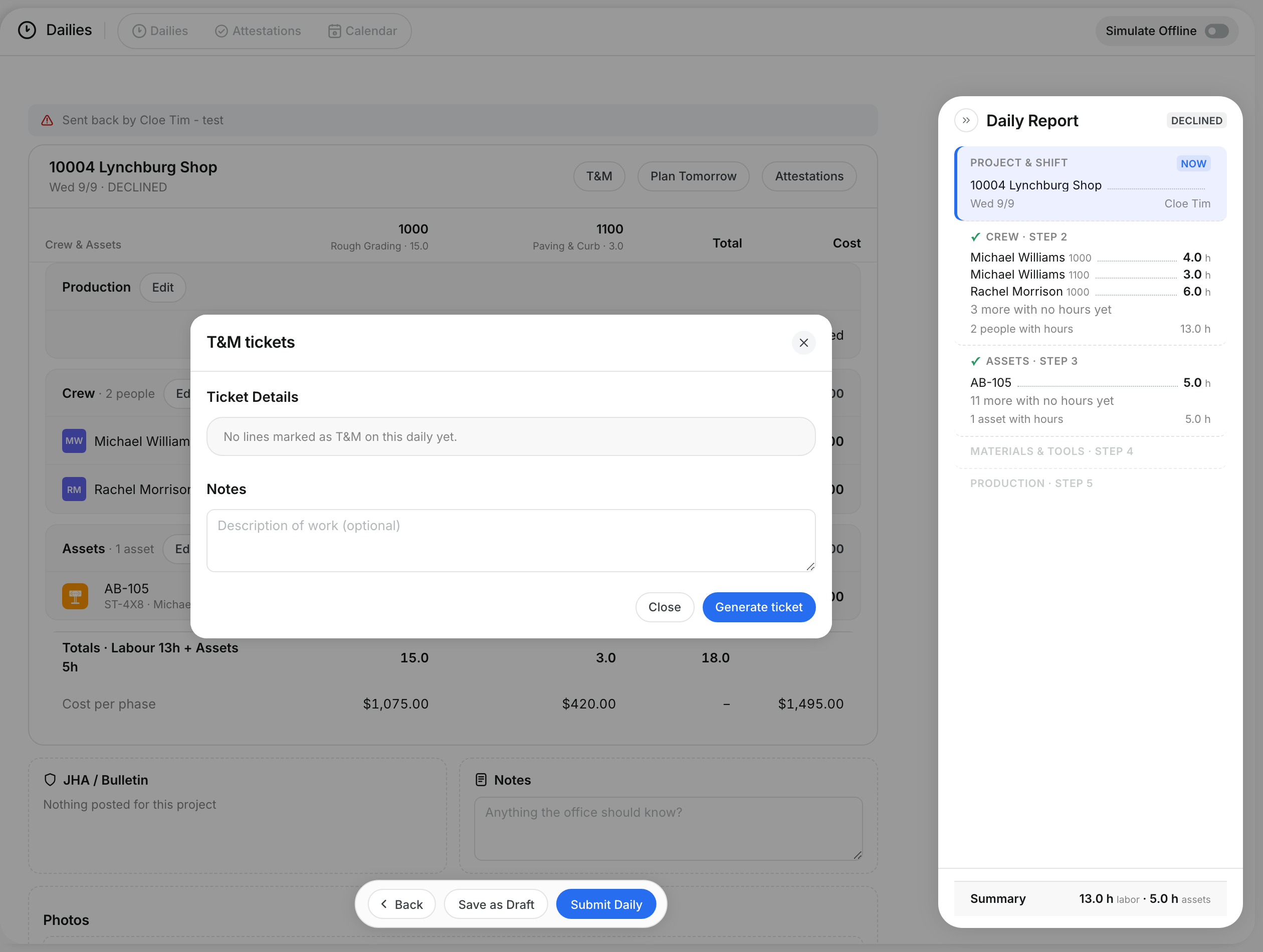
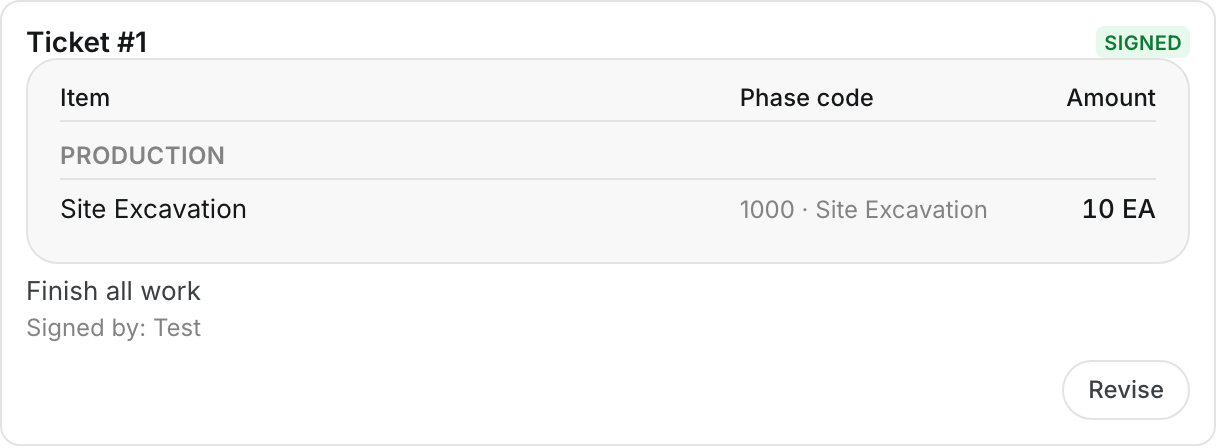
The T&M tickets window lists each ticket. Each ticket shows the Item, Phase code and Amount, its status and who signed it.
Step 3: Generate a ticket
On a draft or declined daily, the window shows Ticket Details and Notes. Type a description of the work. Click Generate ticket.
Step 4: See tickets on the report
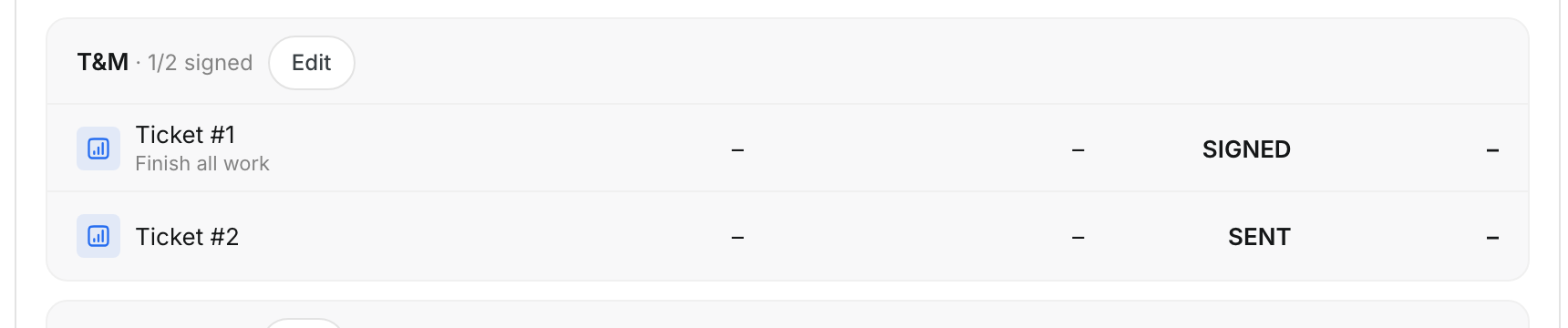
The T&M section of the report shows each ticket and its status. The header shows how many tickets are signed.
Step 5: Get the owner's signature
Click Sign Ticket. Type the Owner rep name and let the owner's representative sign in the box. Click Sign.

Step 6: Revise a signed ticket
Click Revise on a signed ticket when the work changes. The new revision shows its number next to the ticket.
The full details
- DRAFT: The ticket exists but has no signature.
- SIGNED: The owner's representative signed the ticket.
- SENT: The ticket went to the owner.
- Generate ticket: Shows only on a draft or declined daily with no draft ticket.
- Discard: Removes an unsigned ticket. The lines stay marked T&M.
- Sign: Needs a name or a signature.
- Sign T&M tickets: When you submit a daily with draft tickets, CLUE asks for each signature in turn.
- Skip for now: Leaves the ticket as a draft and moves to the next one.
- Marked lines with no ticket: On submit, CLUE asks you to Create the ticket or Remove the marks.
Tips
- Get the signature on site, the same day. The owner's representative sees the real work.
- Write a short description of the work in Notes.
- Use Revise instead of a new ticket when the same work changes.