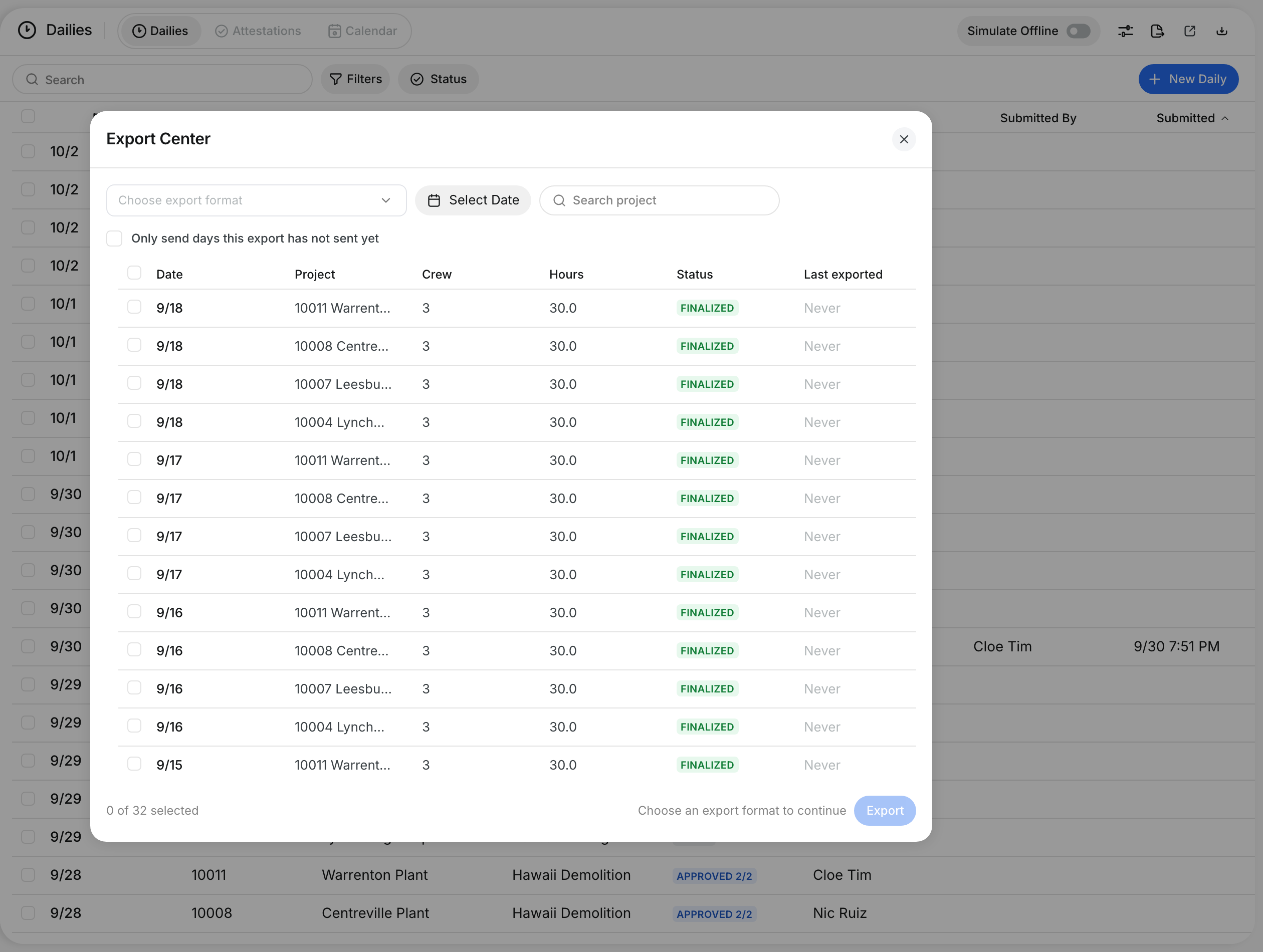
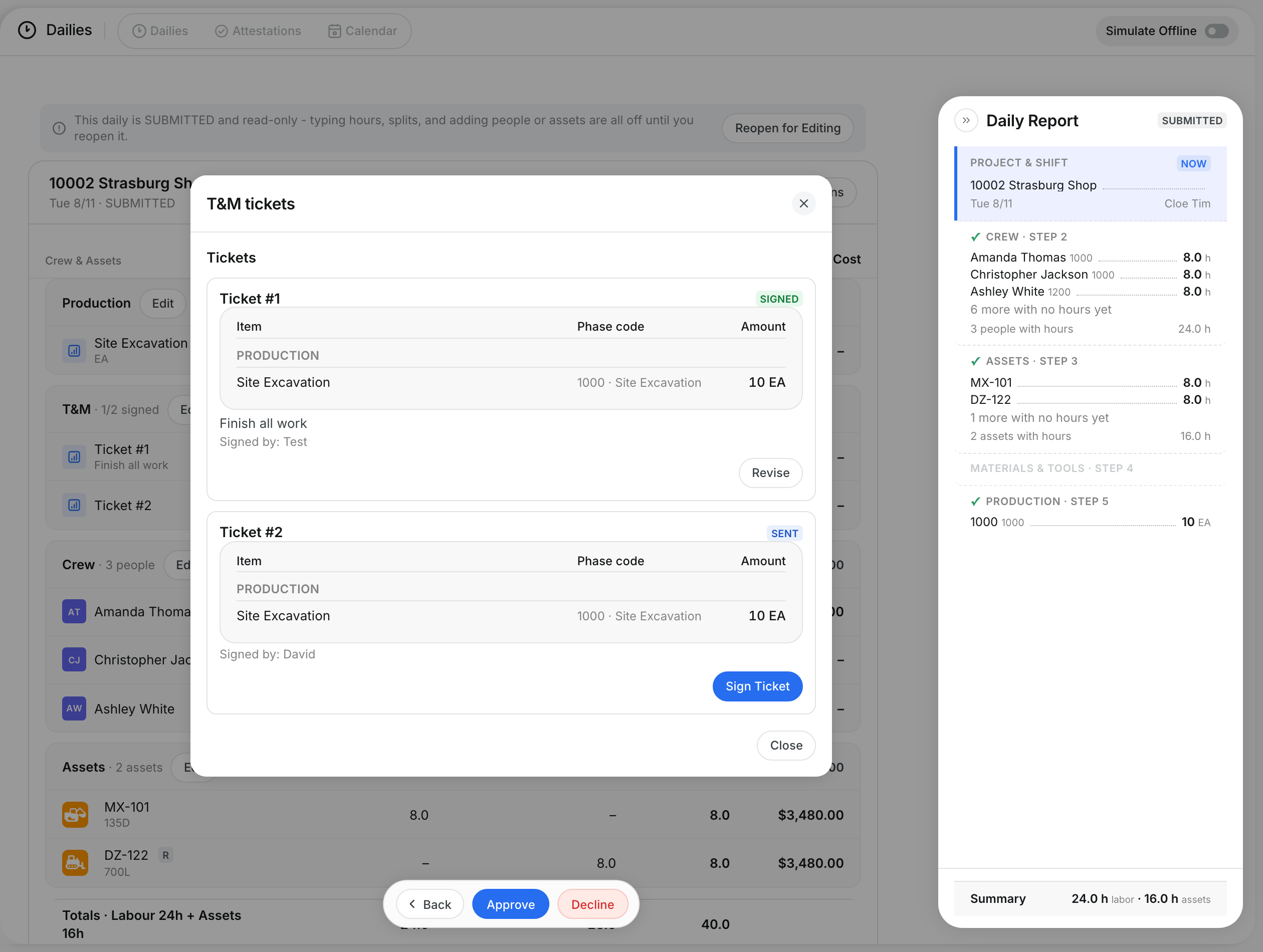
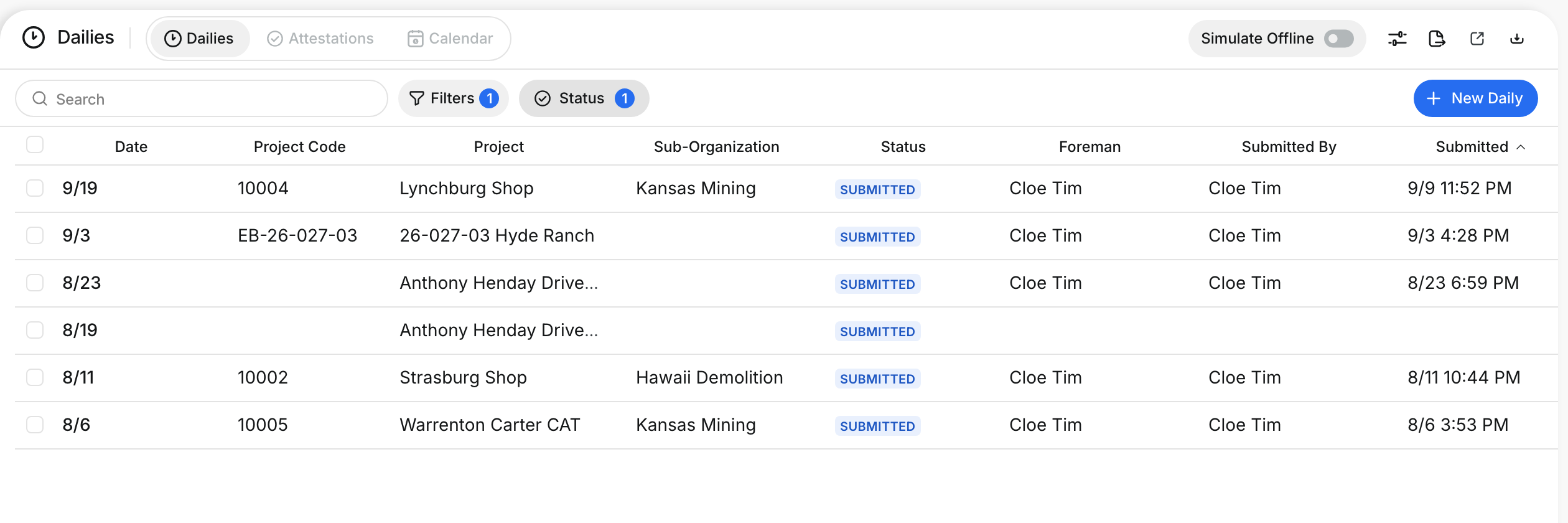
What is this?
Plan Tomorrow starts the next day's daily from today's daily. Today's crew and assets carry over, so the foreman does not start from zero. You change only what is different. Production goals come from the project budget.
Who's this for?
- Foremen, who set up tomorrow's crew and machines before they leave the site.
- Superintendents, who check who is on which job tomorrow.
How to use it
Step 1: Click Plan Tomorrow
Open a daily from Operations > Dailies and go to the report step. Click Plan Tomorrow in the report header.

Step 2: Read the plan
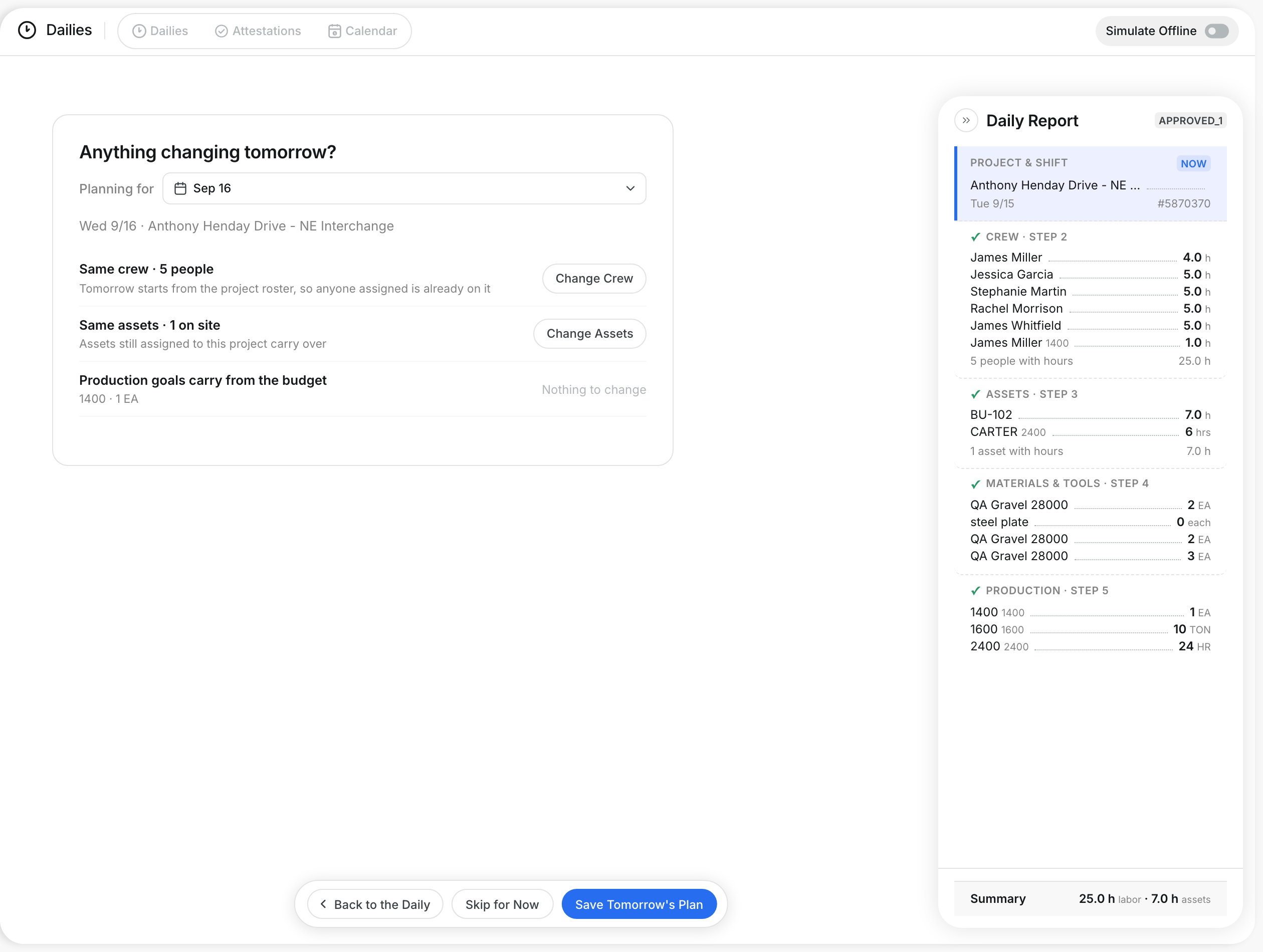
The page asks Anything changing tomorrow? It shows the crew, the assets and the production goals for the next day.
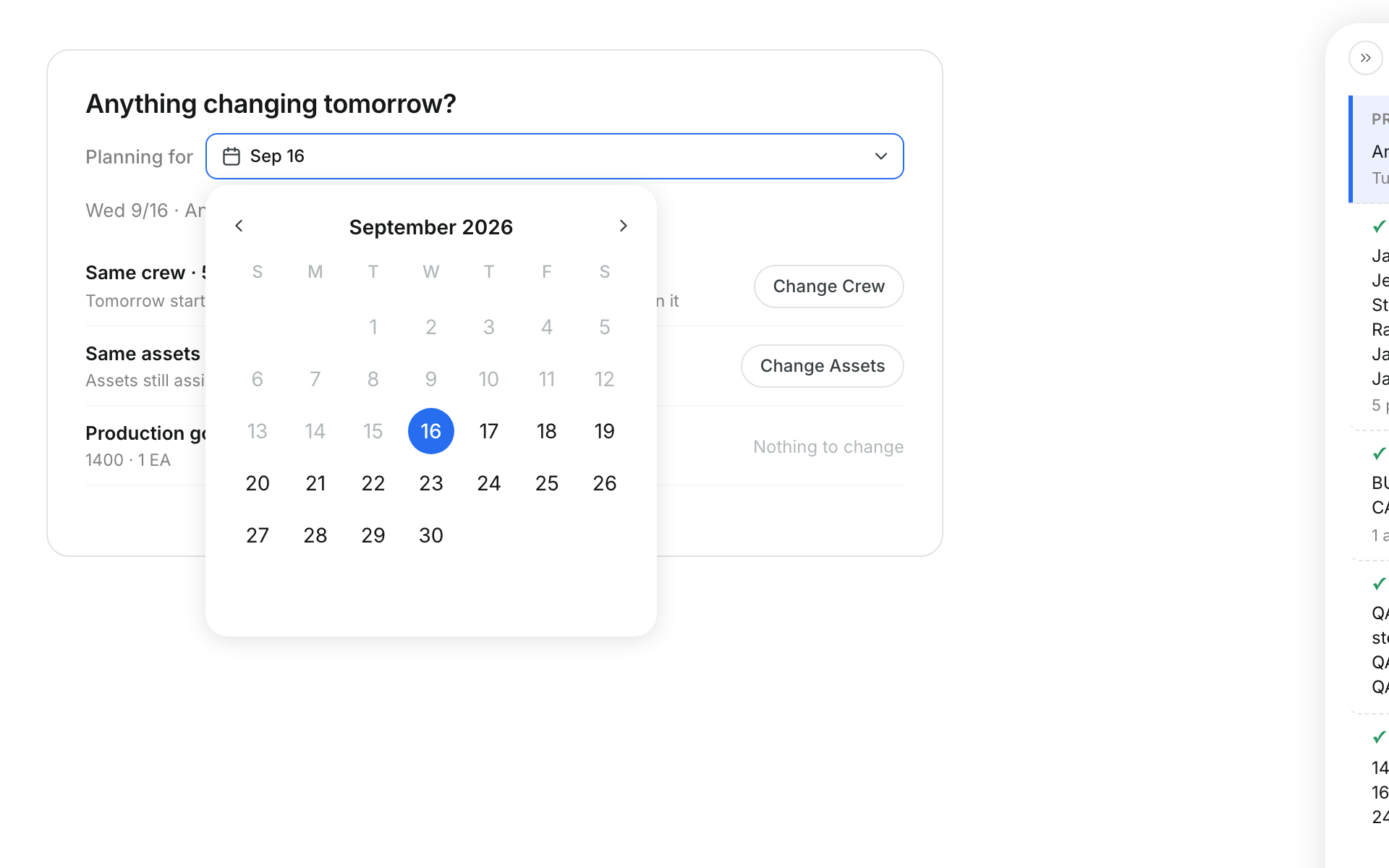
Step 3: Pick the day
Click the Planning for date to plan a later day. You cannot pick a day before tomorrow.
Step 4: Change the crew
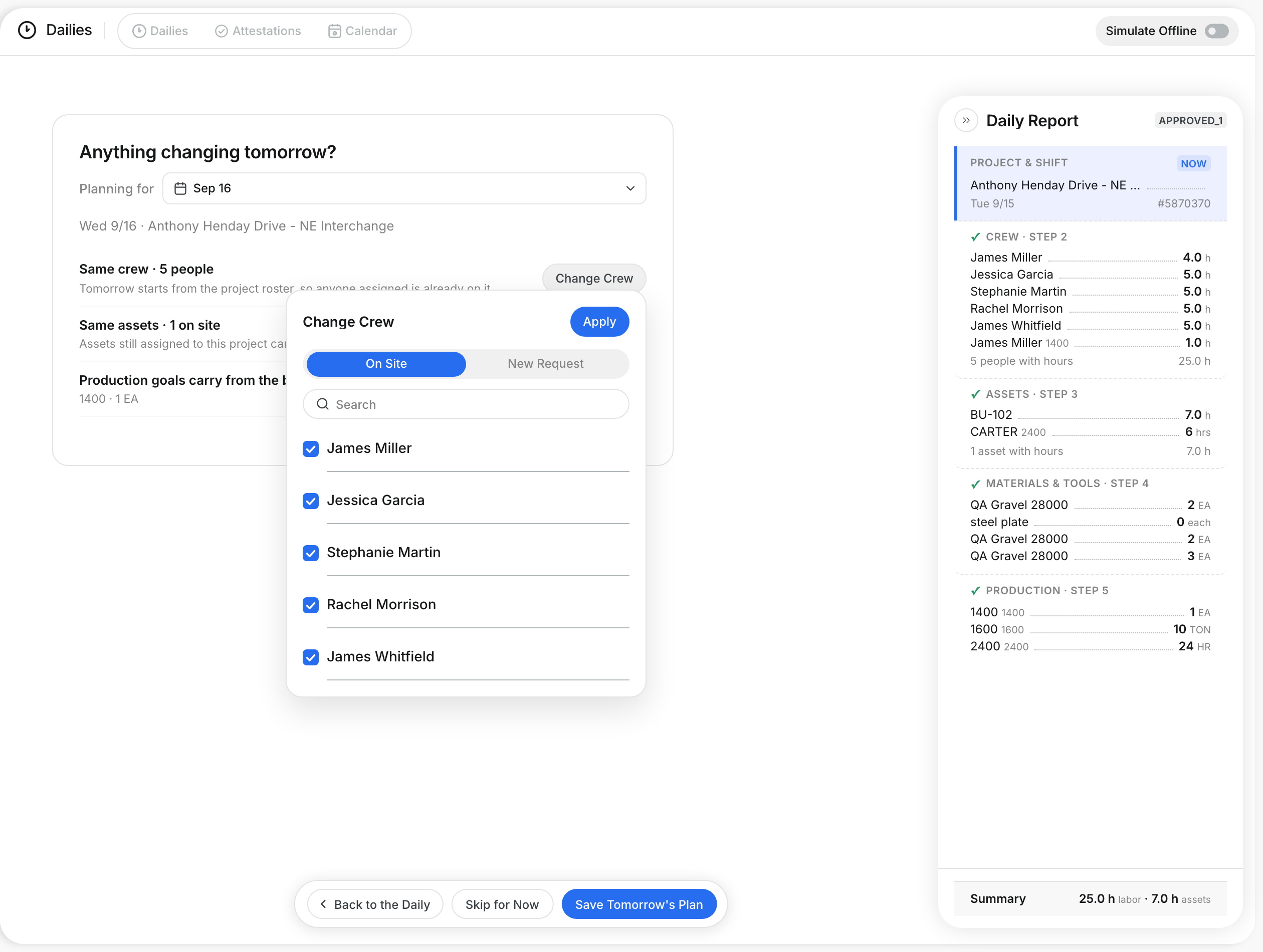
Click Change Crew. Clear the box next to each person who is off tomorrow. Click Apply.
Step 5: Change the assets
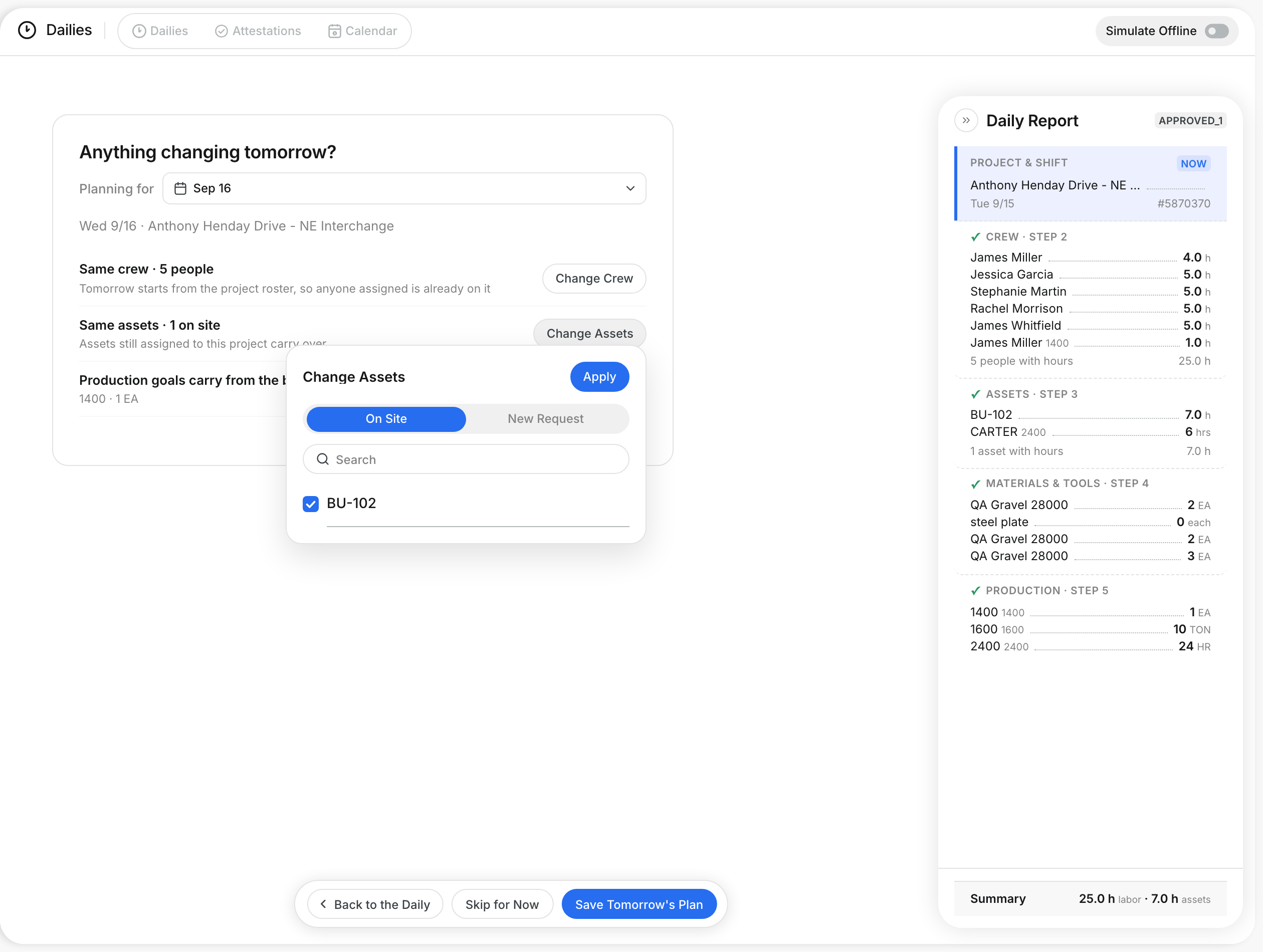
Click Change Assets. Clear the box next to each asset you release. Use New Request to ask for a machine you need.
Step 6: Save the plan
Click Save Tomorrow's Plan. Click Skip for Now to leave without a plan, or Back to the Daily to return.

The full details
- Same crew: Tomorrow starts from the project roster, so anyone assigned is already on it.
- Same assets: Assets still assigned to this project carry over.
- Production goals: They carry from the budget, so there is nothing to change.
- Called off: A person or asset you clear does not carry over.
- Arriving: A person or asset you request shows as arriving.
- Another date: The save button changes to Save Plan for the day you pick.
- Day already submitted: CLUE adds nothing and tells you the status of that day's daily.
Tips
- Plan tomorrow before you leave the site. The crew and machines are fresh in your mind.
- You also see Plan tomorrow's work right after you submit a daily.