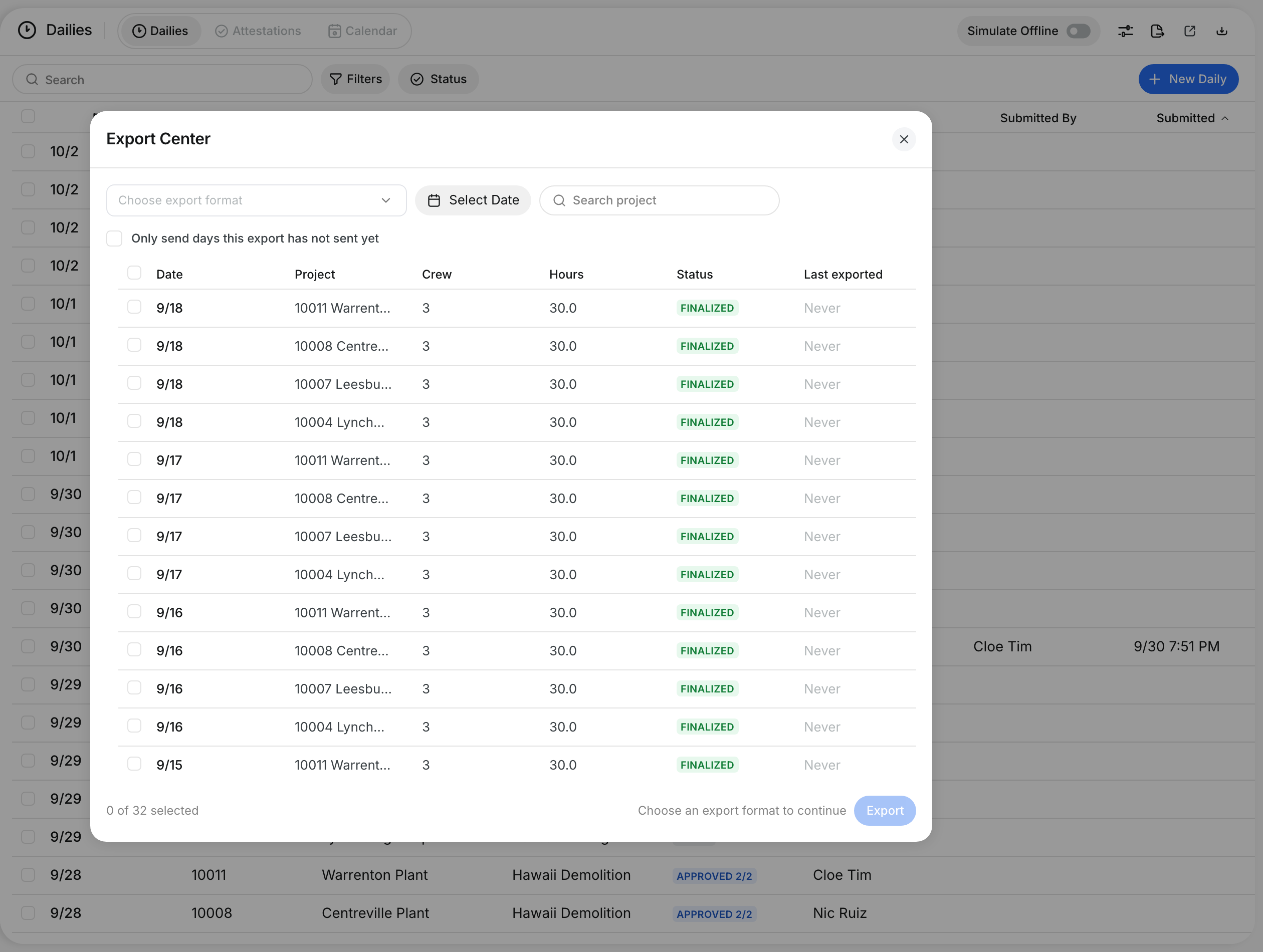
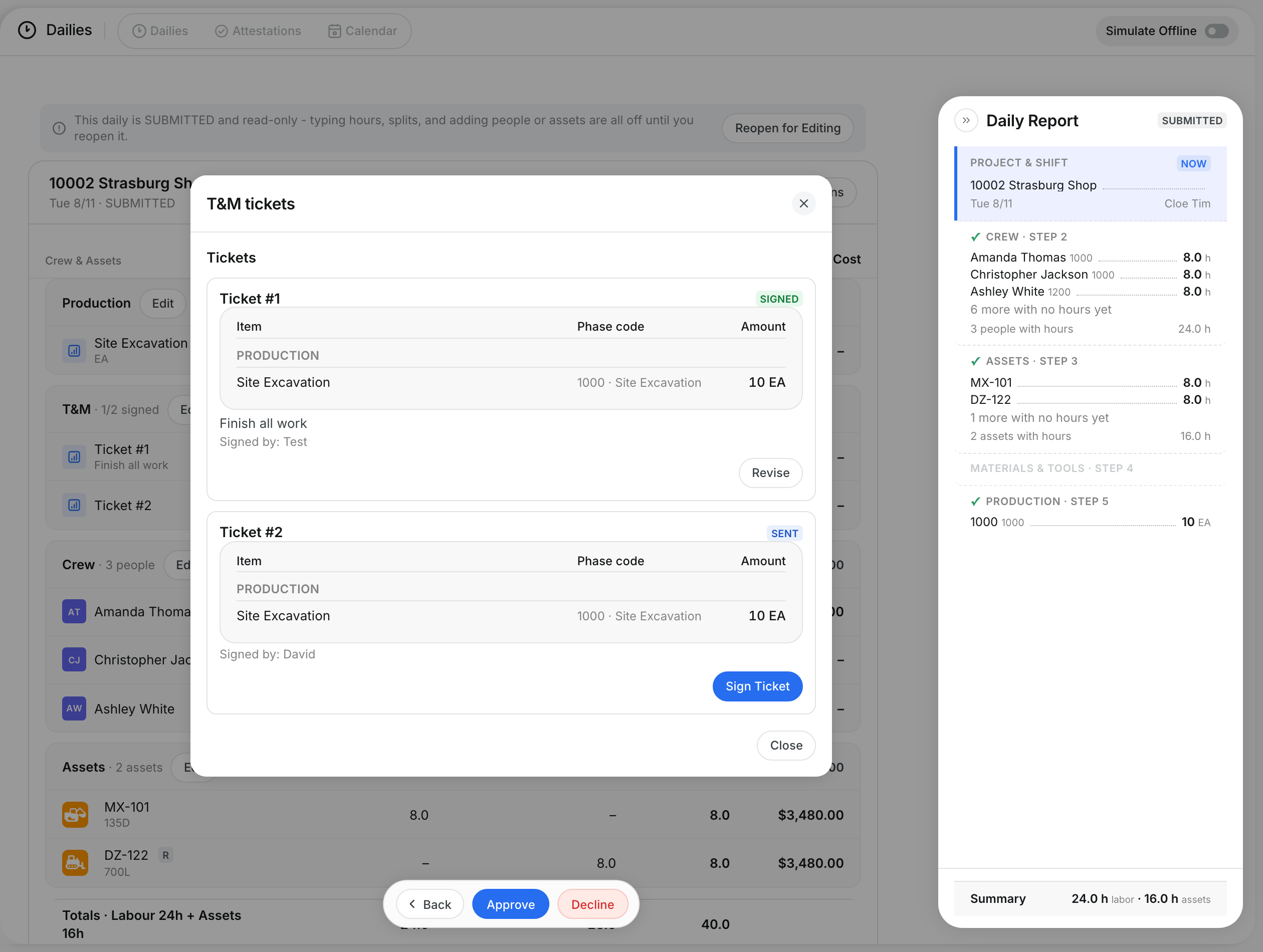
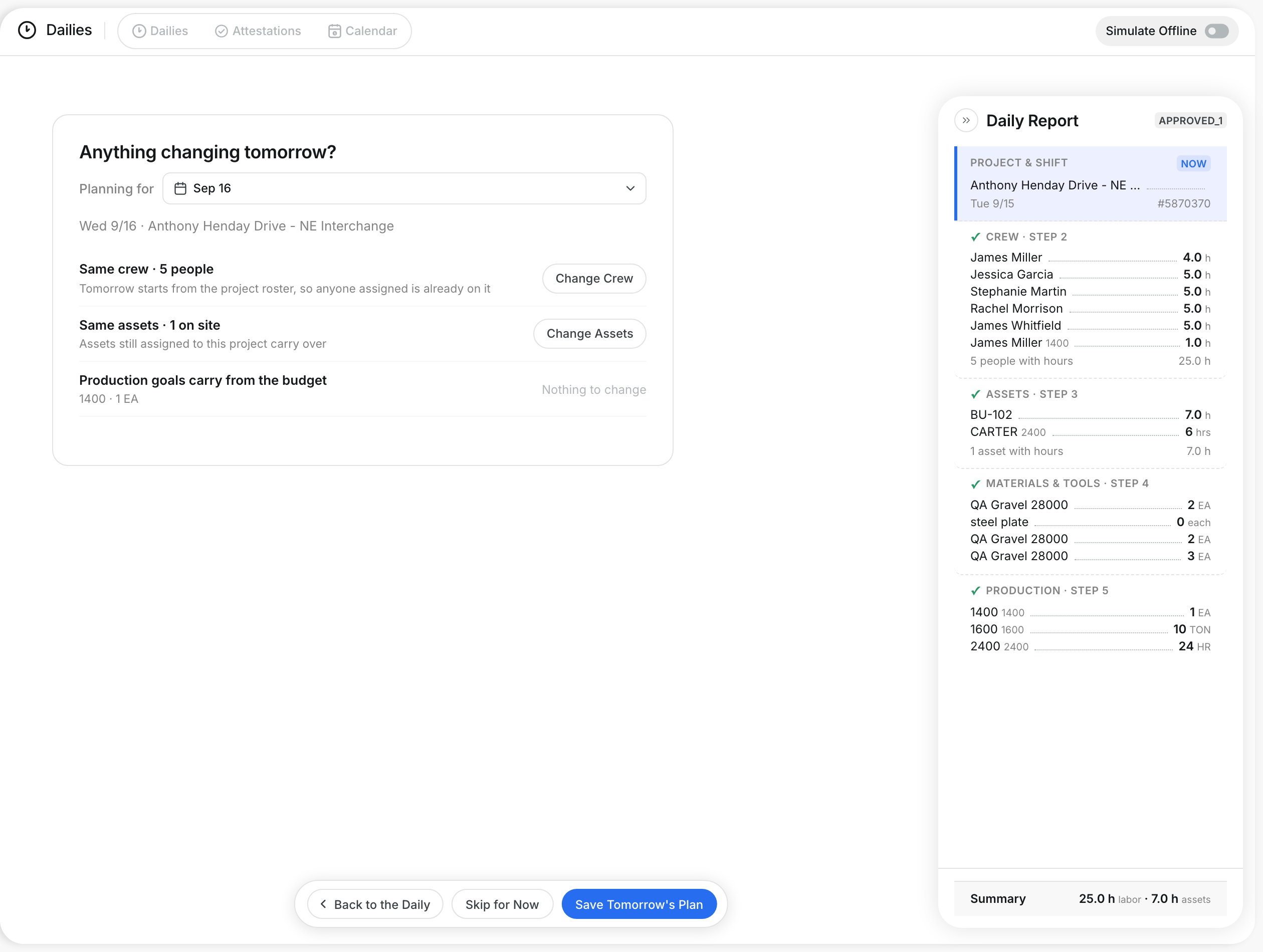
Available now on Beta, This feature is in beta testing and will roll out to everyone soon.
What is this?
The Dailies page lists every daily report your crews file. Each row shows the date, project, foreman and status. You can filter the list, see the month on a calendar, and act on many dailies at once. Open it from Operations > Dailies.
Who's this for?
- Foreman, see your own drafts and finish them.
- Superintendent, review and approve the dailies your crews submit.
- Payroll, find approved dailies that are ready to finalize.
- Project manager, check that every working day on a job has a daily.
How to use it
Step 1: Open the Dailies page
Go to Operations > Dailies. The Dailies tab shows one row per daily, with its status.

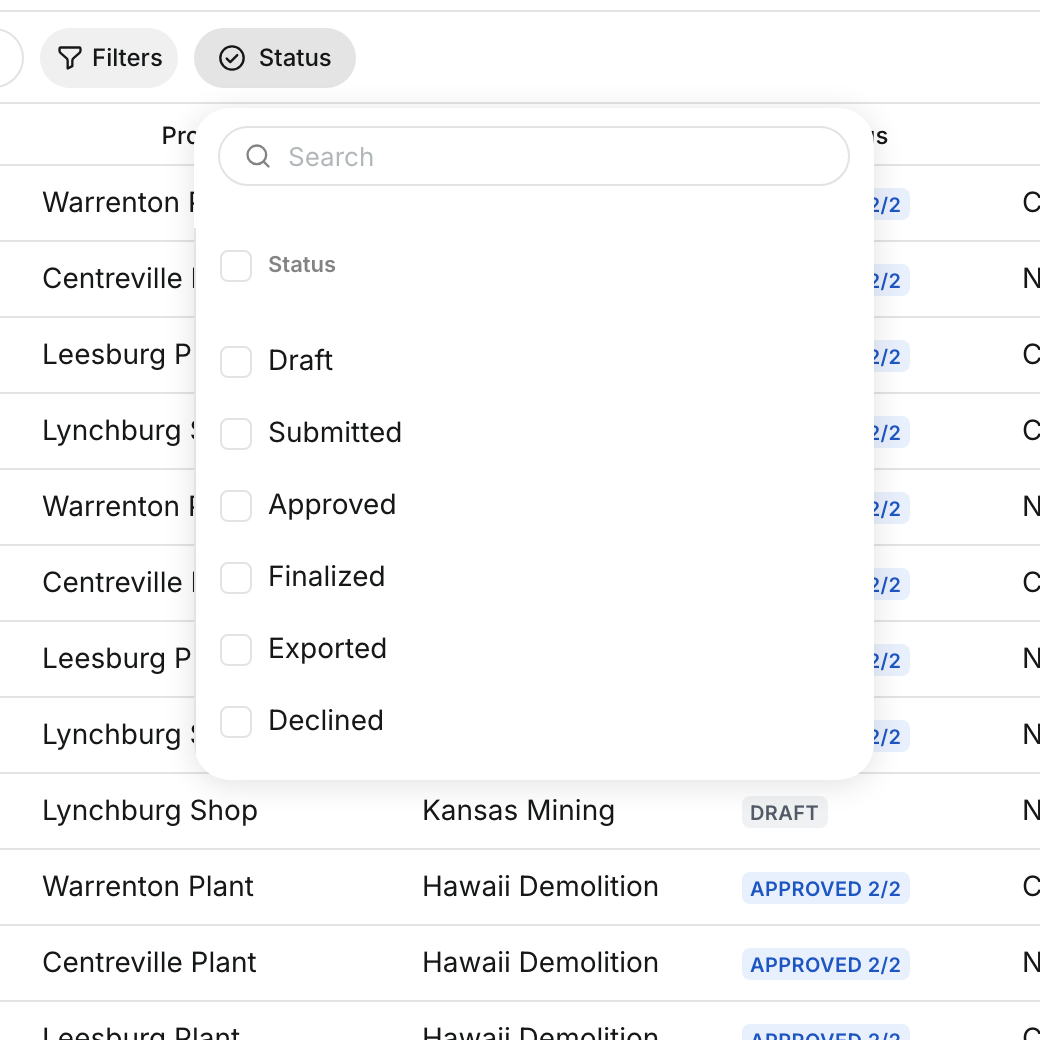
Step 2: Filter by status
Click Status and tick one or more statuses. The list shows only the dailies that match.
Step 3: See the month on the calendar
Click the Calendar tab. Each day shows its dailies as Submitted, Draft or Missing.

Step 4: Act on many dailies at once
Tick the box on two or more rows. A bar opens with the actions that fit the dailies you picked, such as Submit Dailies or Discard Drafts.

Step 5: Check attestations
Click the Attestations tab. It lists the hours each worker confirmed, with the outcome and when they answered.

The full details
- Draft: The foreman is still filling in the daily.
- Submitted: The foreman sent the daily for review.
- Approved: A reviewer approved it. A badge such as APPROVED 2/2 shows how many approval levels are done.
- Finalized: The daily is locked for payroll.
- Exported: The daily was sent to your payroll or accounting system.
- Declined: A reviewer sent the daily back to the foreman to fix.
- Daily Actions: Each row has a menu with the actions its status allows, such as Submit, Reopen, Discard and Show History.
- Show History: Shows every status change on the daily.
- Selection bar: Shows only actions that the selected dailies allow. Reviewers also see Approve, Finalize and Decline.
- New Daily: Starts a new daily for a project and date.
Tips
- Use the calendar to spot days marked Missing. Those are working days with no daily filed.
- Combine Status with Filters to narrow a long list fast.
- Click any row to open that daily.