What is this?
Per diem is a daily allowance for crew who work far from home or far from the shop. You set the per diem rules one time, in Company Settings. Clue then reads each daily and suggests or adds per diem on the crew rows. A reviewer confirms, removes or adds per diem before approval. Added per diem goes out with the labor export.

Who's this for?
- Payroll and accounting, who set the rules one time and stop typing per diem each week.
- Daily reviewers, who see who gets per diem on each daily, and why, before they approve.
- Foremen, who do nothing. Per diem comes from the rules and the reviewers.
- Project managers, who see added per diem as labor cost on the job.
How to use it
Step 1: Open the per diem rules
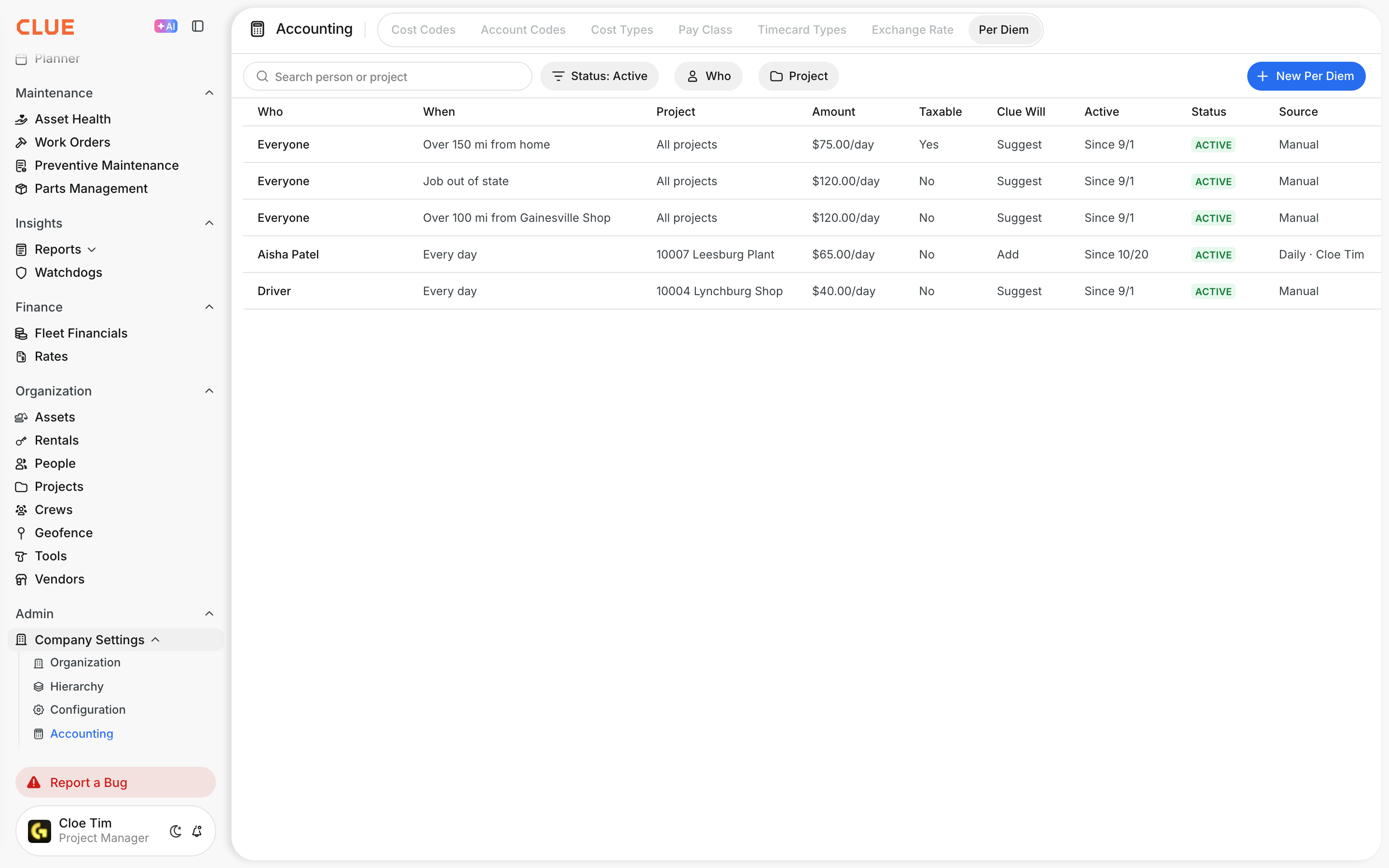
Go to Company Settings > Accounting > Per Diem. The table shows each rule: Who, When, Project, Amount, Taxable, Clue Will, Active, Status and Source.
Step 2: Create a rule
Click New Per Diem. Fill in the three sections, then click Save.
- Who: Everyone, Job Titles or People. Pick projects, or leave Projects empty for all projects.
- Rule: Pick When: Every day, Job out of state, Job far from shop or Job far from home. For a shop rule, pick the shop and type the distance. Then pick what Clue Will do (Suggest or Add) and what to do on Non-Work Days.
- Pay: Type the Amount, pick Per (Day or Hour), the From date and, if you need it, the To date. Tick Taxable for a taxable allowance.

Step 3: Pay by job title or by person
In Who, click Job Titles or People and pick one or more. Each choice shows as a pill. Every day is available only for job titles and people.

Step 4: See the change history
Click the menu (three dots) next to a rule. Click Show History. The list shows each change, who made it and when.

Step 5: See per diem on the daily
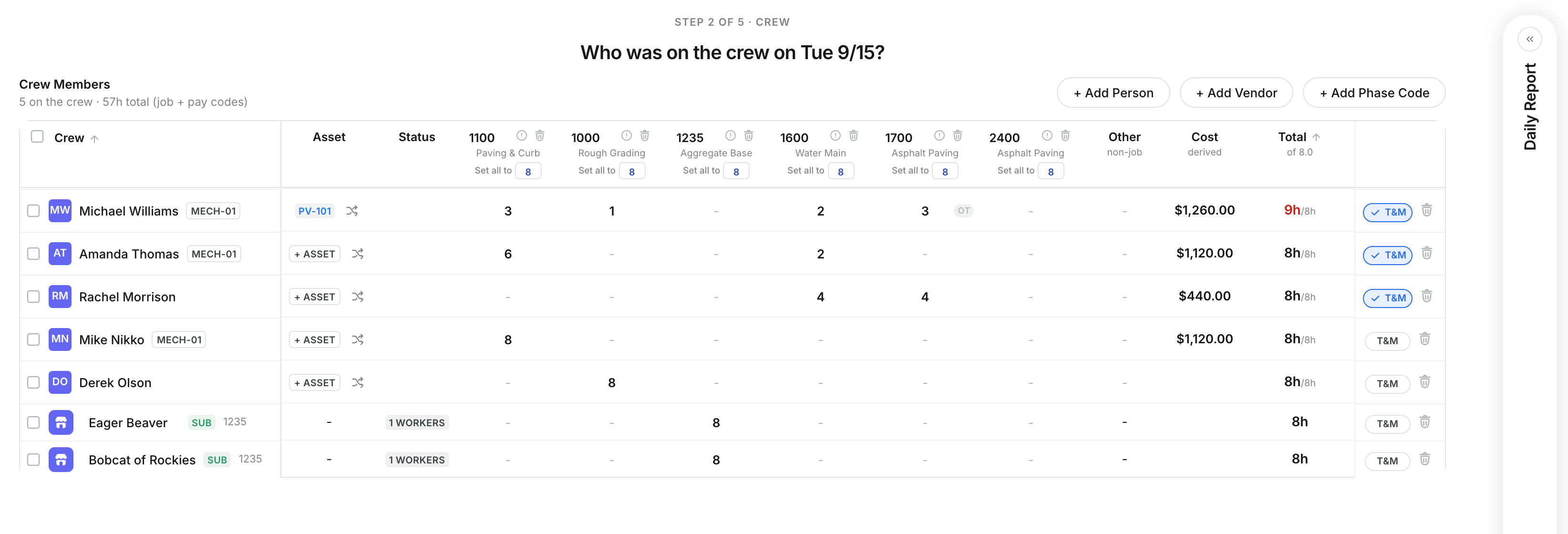
Open a daily and go to the Crew step. A dashed PER DIEM? chip is a suggestion. A solid PER DIEM chip is per diem that is added.
Step 6: See why Clue suggests it
Click a chip, then click Why?. Clue shows the date, the rule, the measured distance and the project.
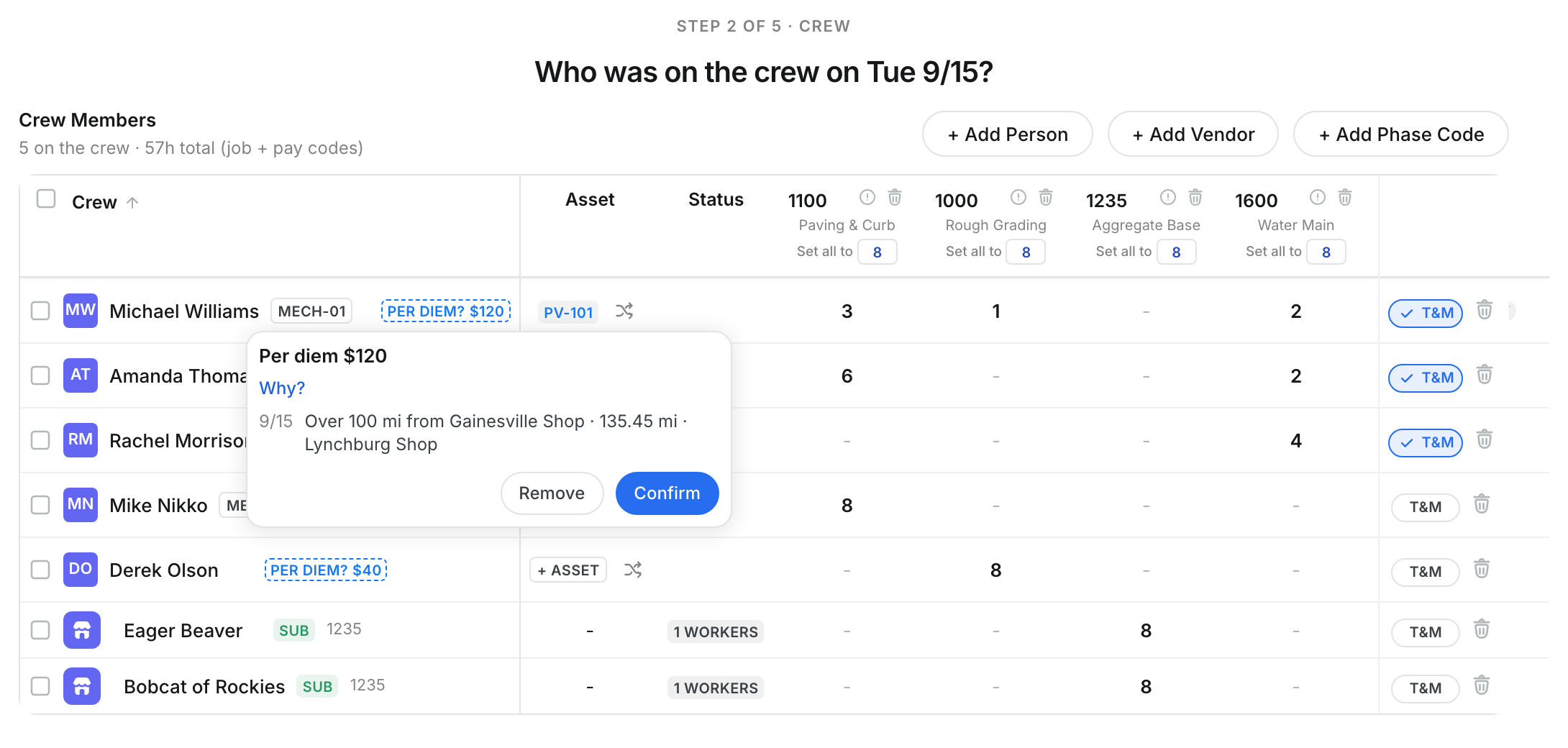
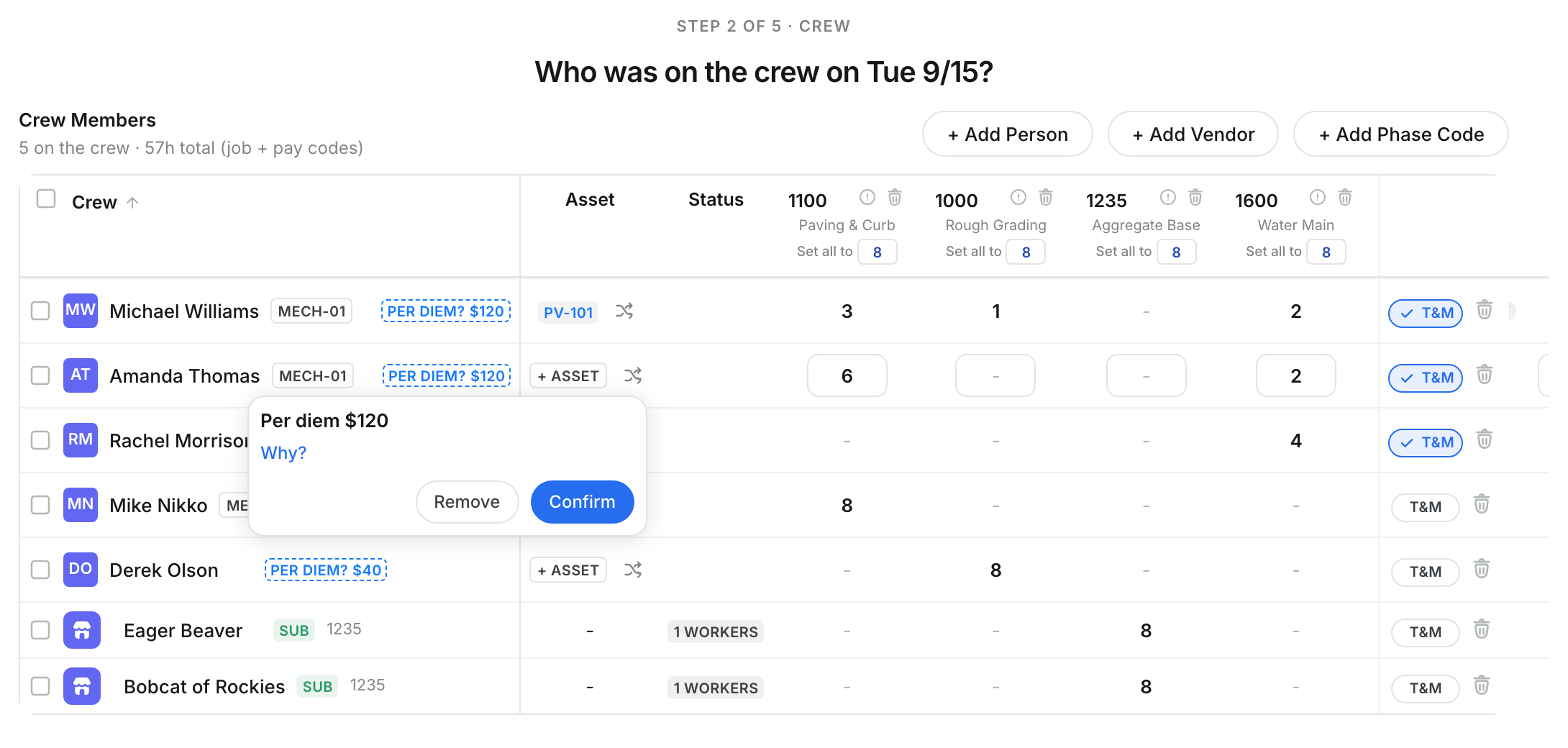
Step 7: Confirm or remove a suggestion
Click Confirm to add the per diem. The chip becomes solid. Click Remove to take the per diem off this daily.

Step 8: Add per diem by hand
Point to a crew row with no per diem. Click + PER DIEM.
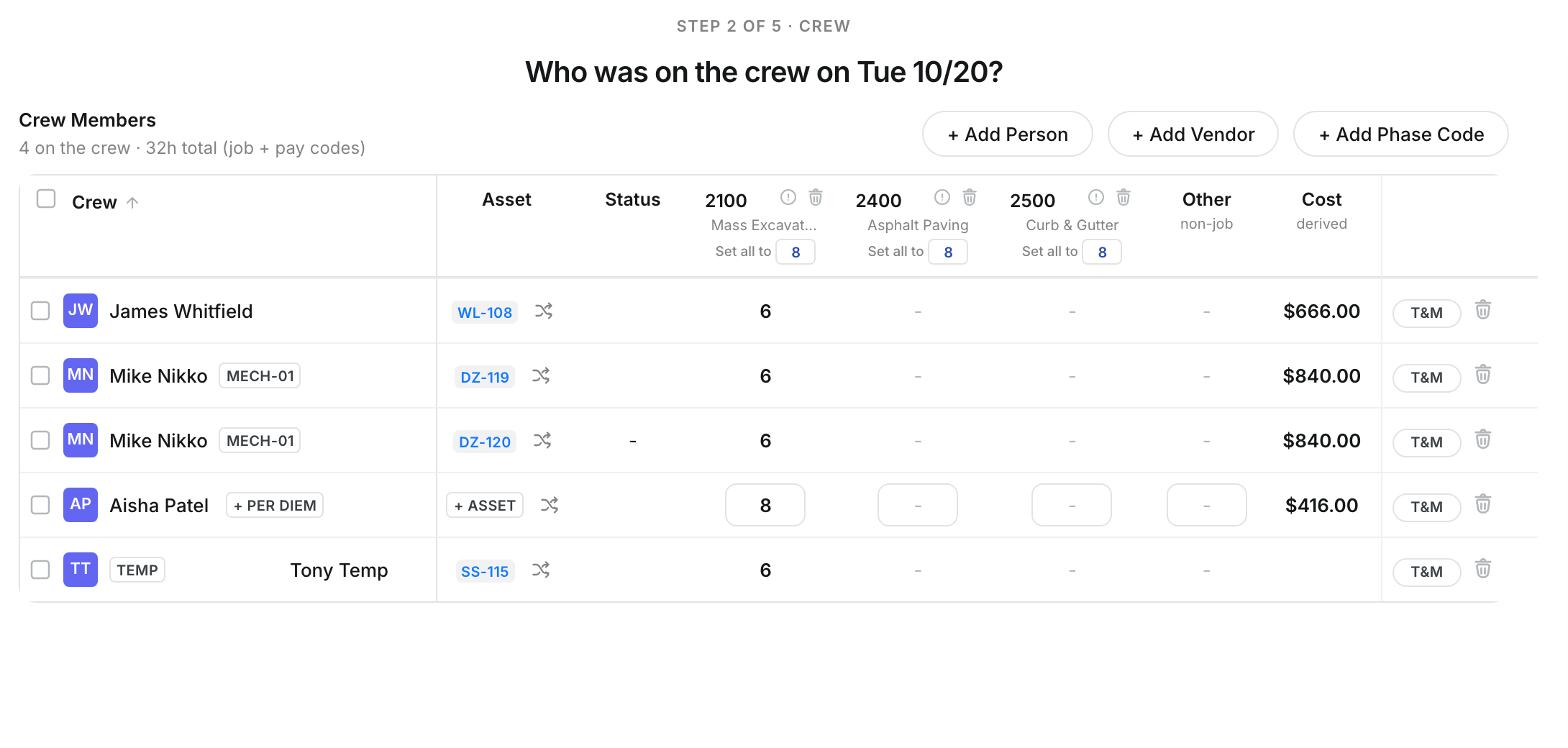
Type the amount per day, then click Next.

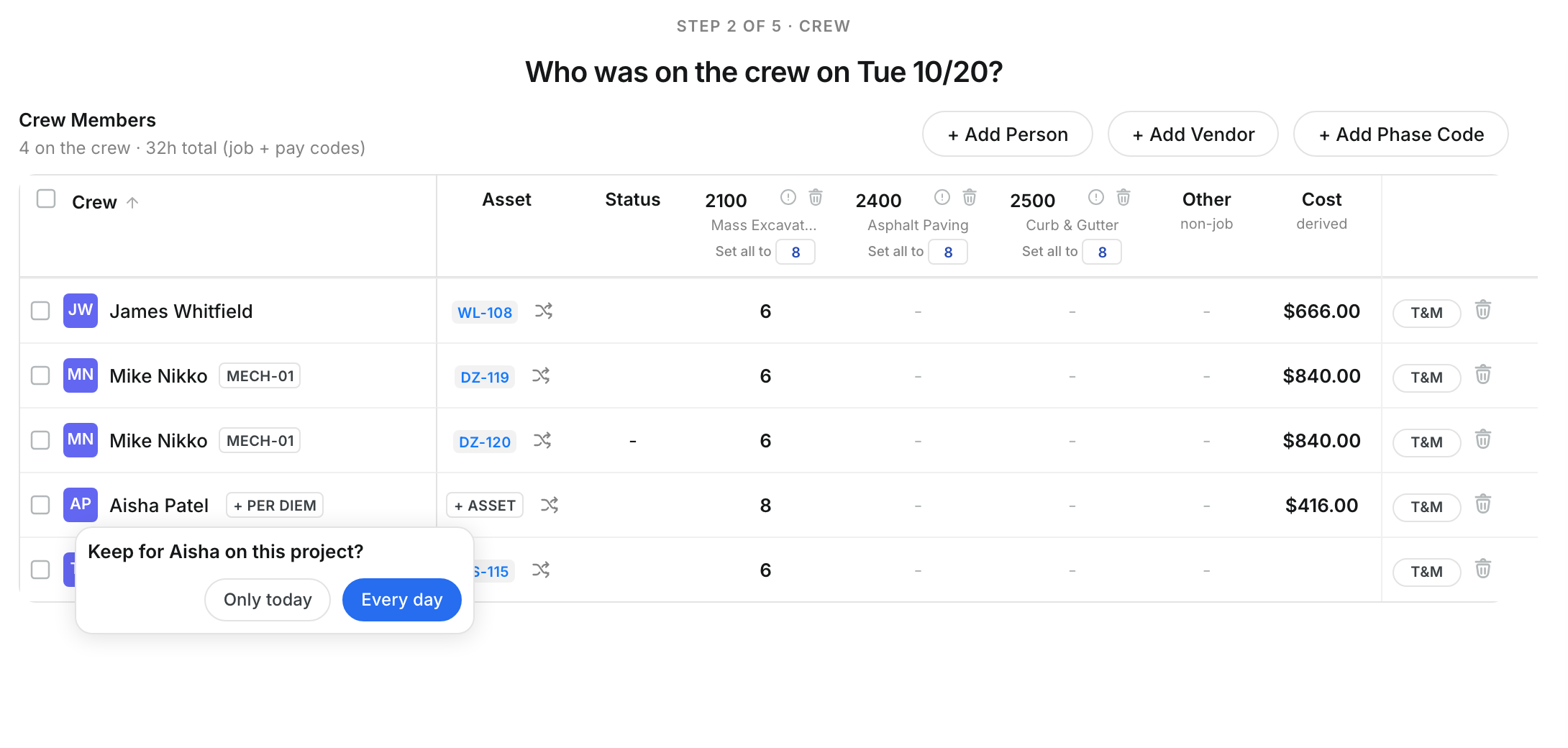
Step 9: Keep it for this daily or every day
Click Only today to add per diem to this daily only. Click Every day to also make a rule for this person on this project. That rule shows on the Per Diem tab with the source Daily.

Step 10: Check per diem in the export
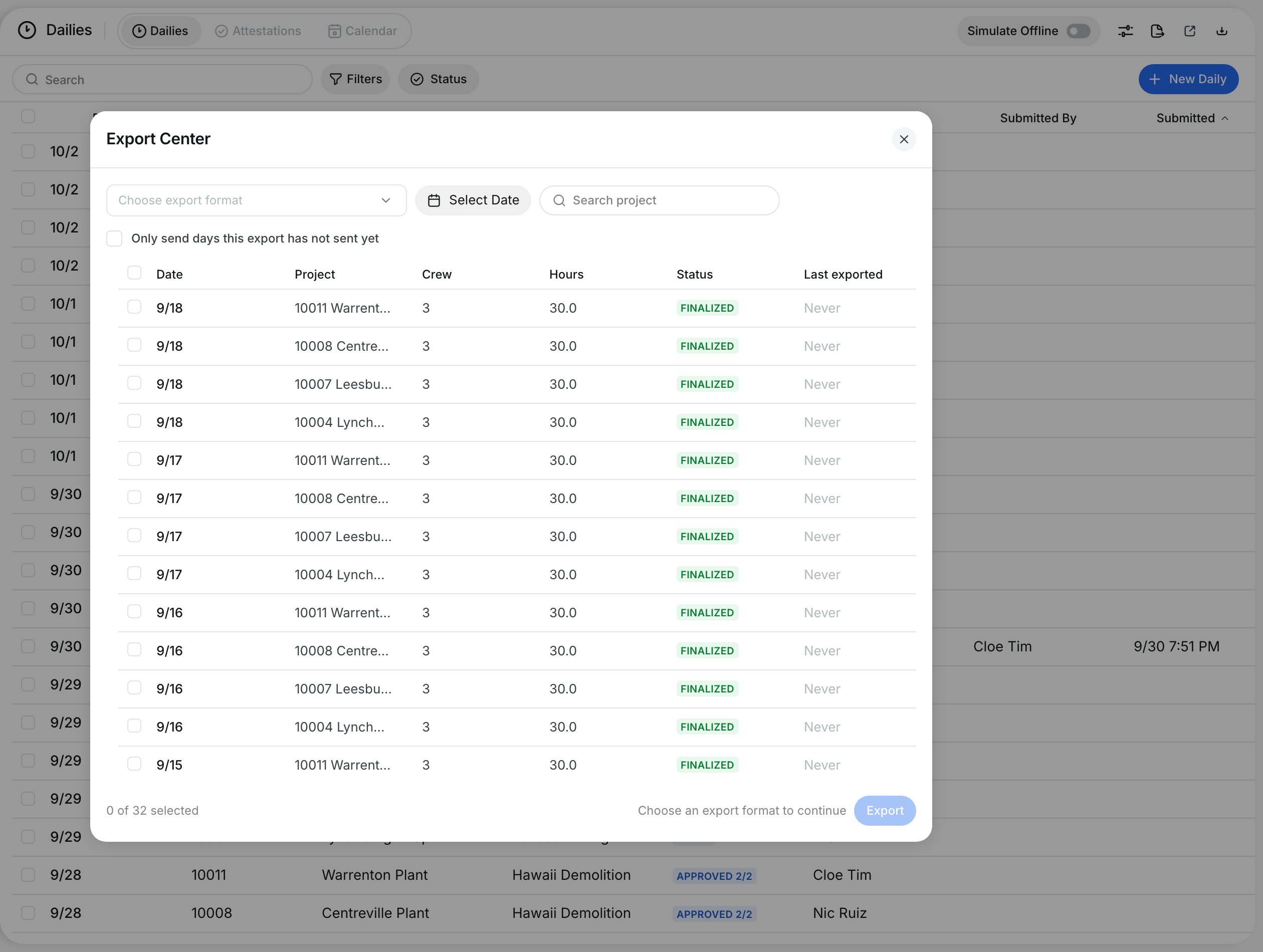
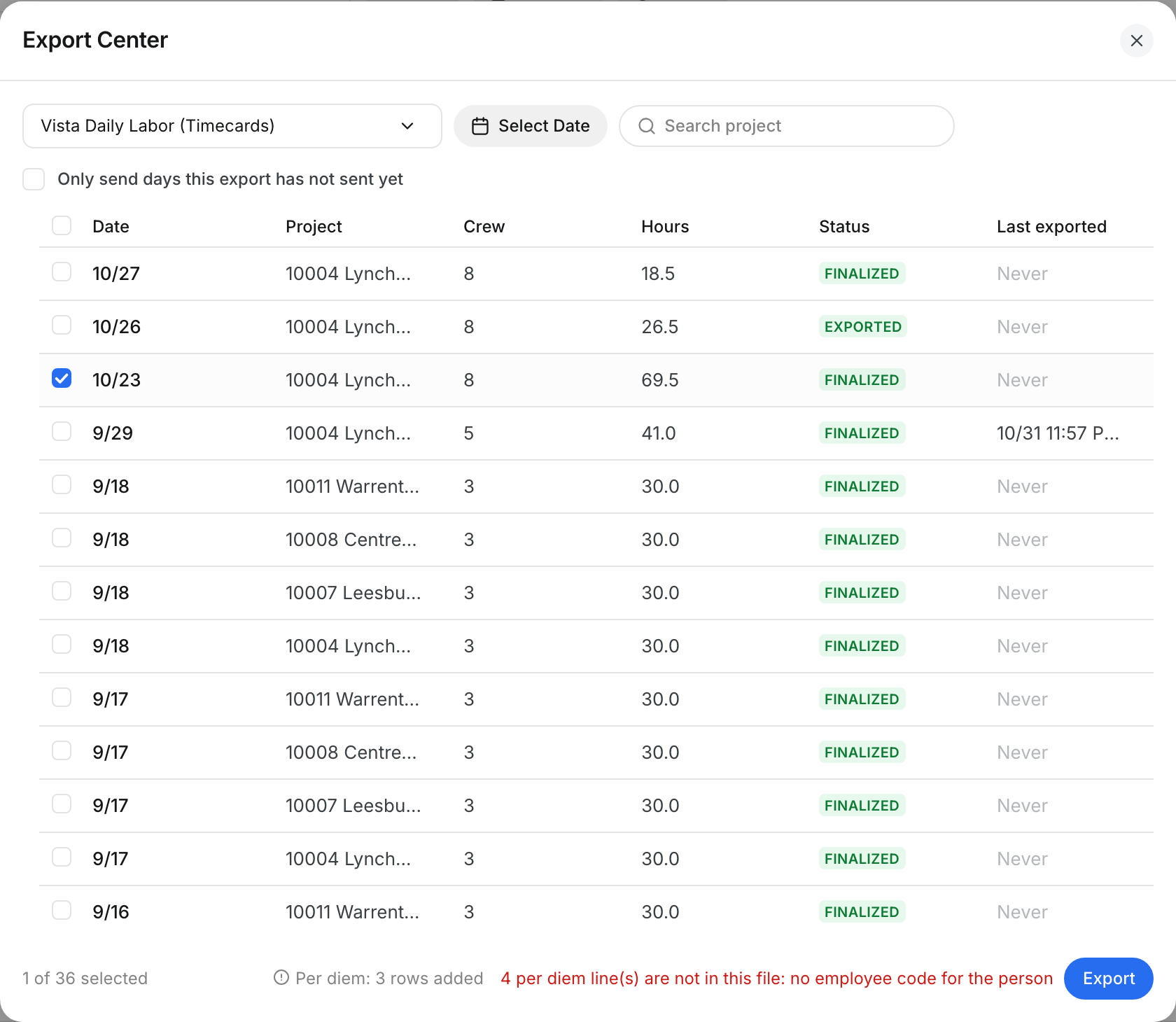
In the Export Center, pick a labor export format and select the dailies. The bottom line shows how many per diem rows go in the file. It also shows the per diem that cannot go in the file, and why.
The full details
- Turn it on: Per diem shows only when it is on for your company. Ask Clue support to turn it on.
- Money and distance: Amounts use your company currency. Distances use your distance unit. Clue measures a straight line from the shop or the home to the project.
- Job out of state and Job far from home: These rules use the home address that Clue keeps for each person. Clue keeps home addresses encrypted and does not show them on screen. A person with no home address does not match these rules.
- Which rule wins: A People rule wins over a Job Titles rule. A Job Titles rule wins over an Everyone rule. At the same level, a rule for this project wins over a rule for all projects, then the highest amount wins.
- Per Hour: The amount times the hours of the person on the daily.
- No hours: A person with no hours on the daily gets no per diem.
- Clue Will: Suggest makes a dashed chip that a reviewer confirms. Add makes a solid chip when your company lets Clue add per diem. If not, Clue suggests it.
- Non-Work Days: Do not pay gives per diem only on days with a daily. Pay between paid days also pays the non-work days between two paid work days on the same project. Clue adds those days to the later daily. A missed work day stops this.
- Two dailies on one day: Clue pays per diem one time for each person and day. The per diem window shows Paid on daily and the daily number. When no person decided the other per diem, click Pay It Here Instead.
- Decisions stay: A rule change does not change per diem that a person confirmed, removed or added. Removed per diem stays removed for that daily.
- Cost and export: Only added per diem counts. Suggestions do not count in cost or in the export.
- Delete a rule: Click the menu (three dots) next to the rule, then click Delete.
- Who can do what: Only roles with the per diem settings permission see the Per Diem tab and Why?. Only roles with the per diem update permission see Confirm, Remove and + PER DIEM. Other people see the chips with no buttons.
Tips
- Start with Suggest. Change a rule to Add when its suggestions are always right.
- Make one shop rule for each shop. A company with two shops needs two rules.
- Click Why? before you remove a suggestion. It shows the distance that Clue measured.
- Confirm or remove all per diem before you approve. A dashed chip does not go in the export.