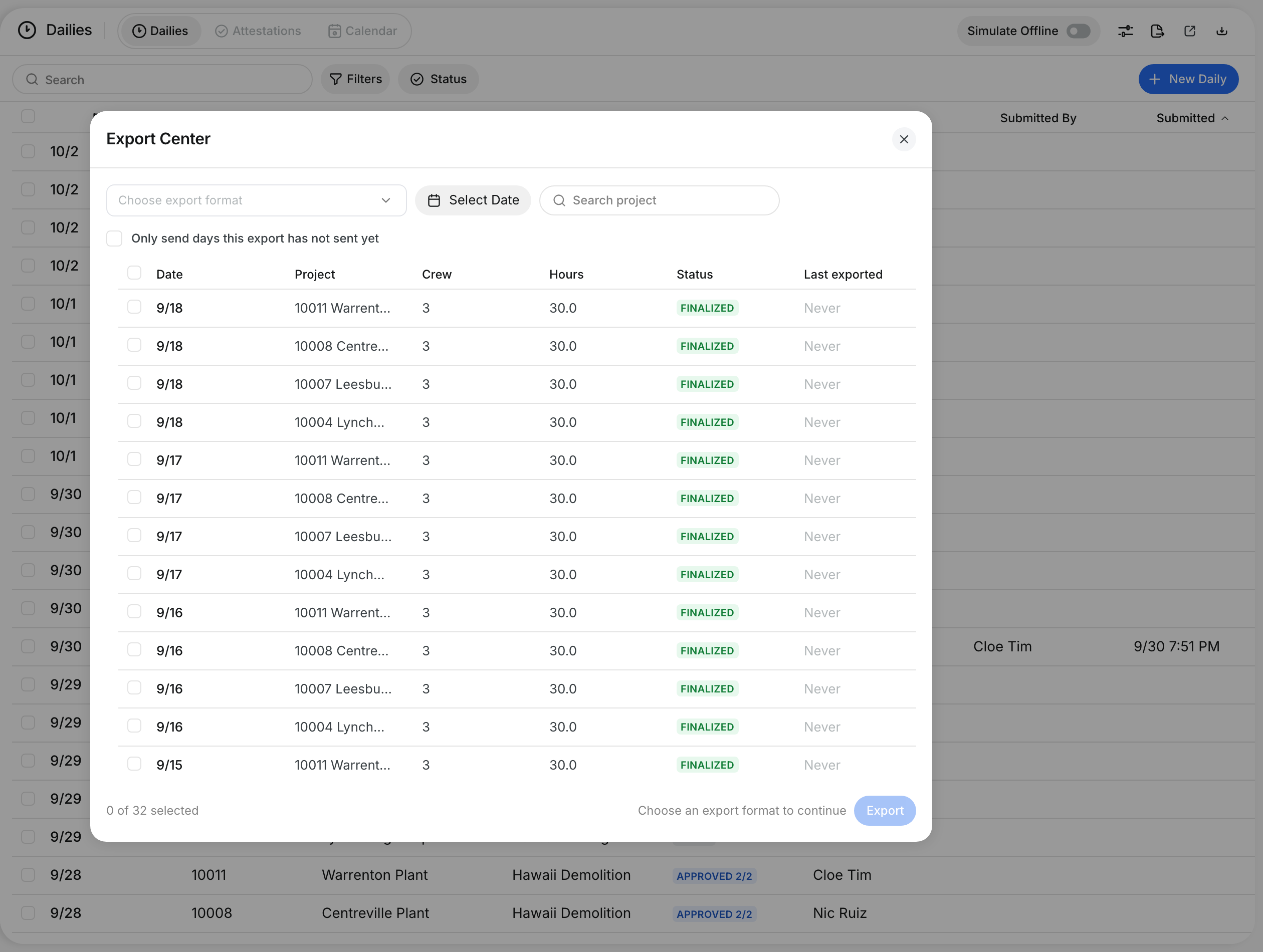
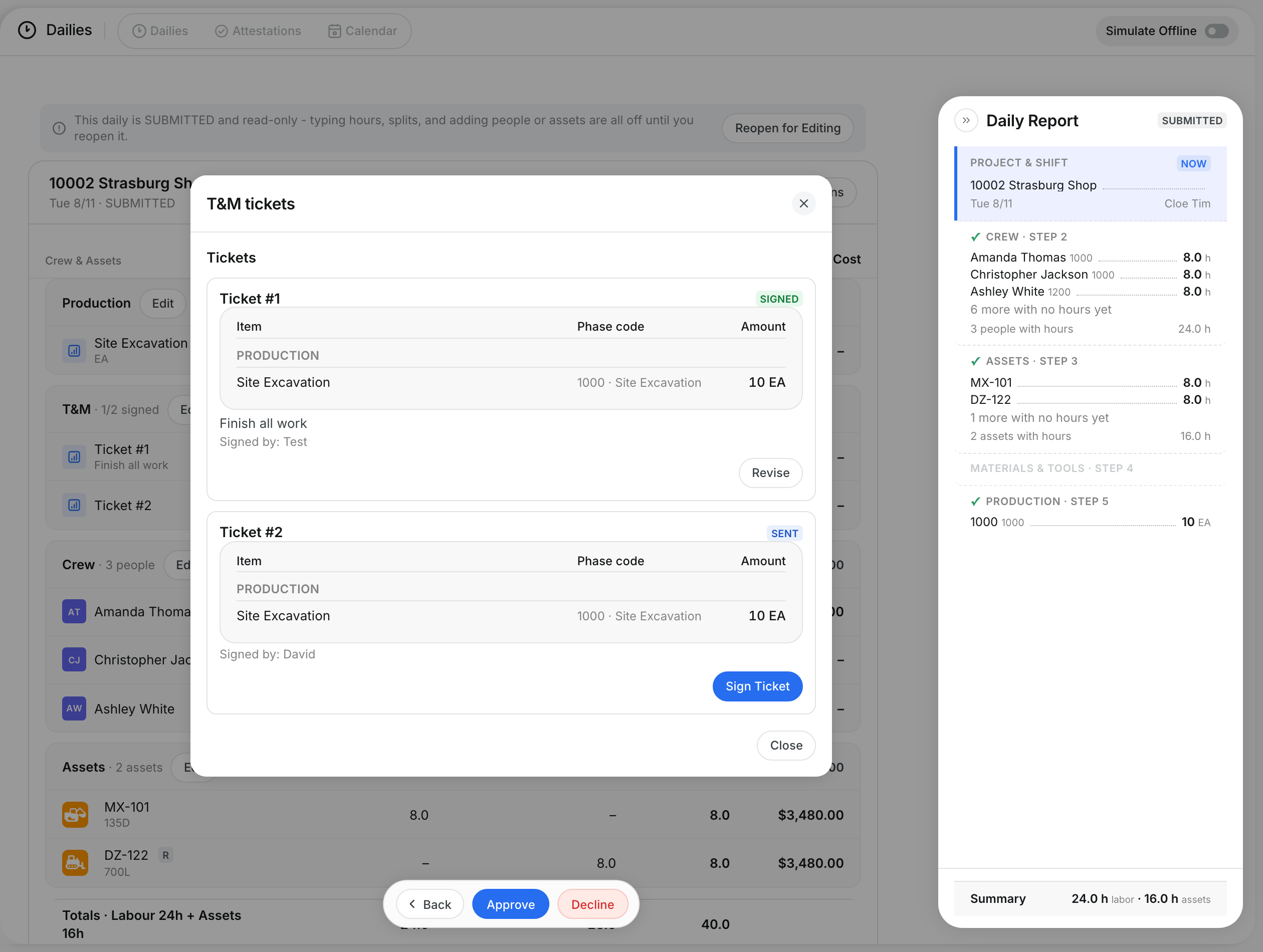
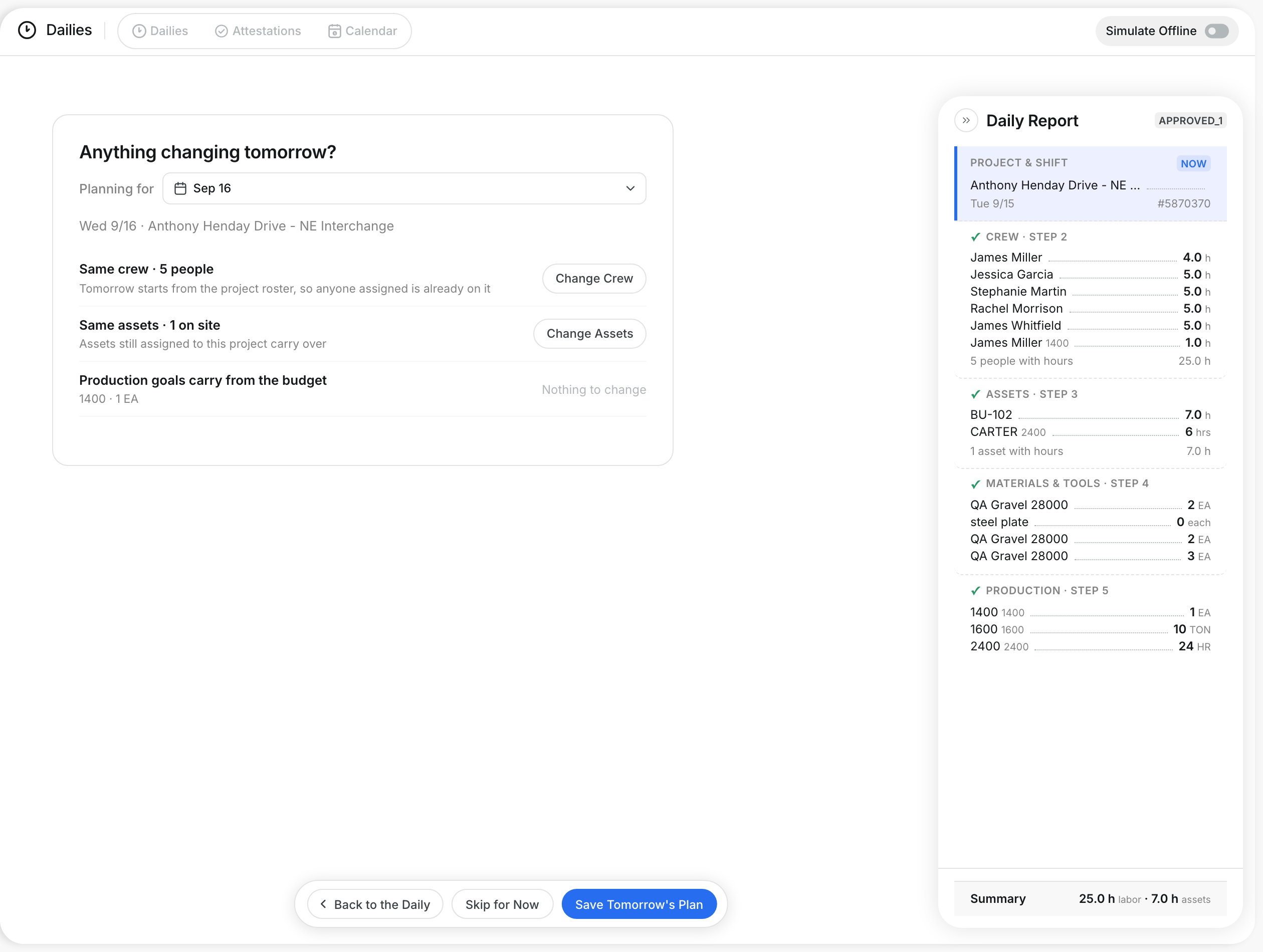
What is this?
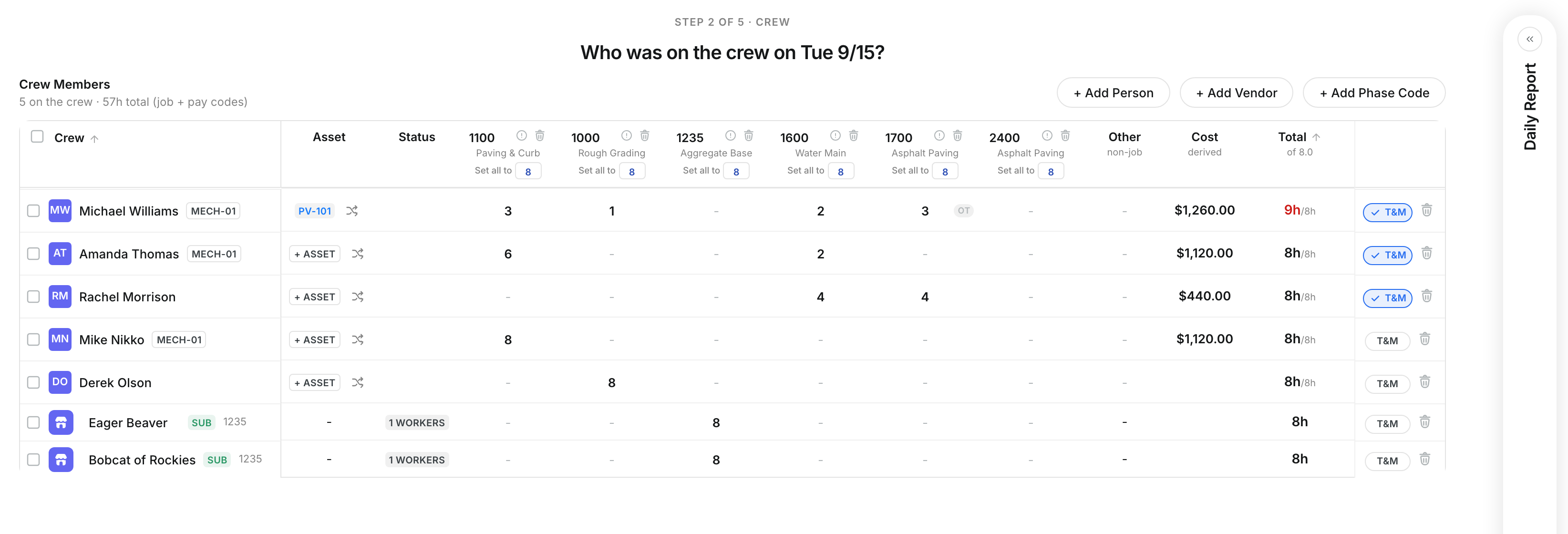
The crew step records who was on site and how long they worked on each phase code. Each person is a row. Each phase code is a column. Clue adds up the hours and the cost as you type.
Who's this for?
- Foreman, enter your crew hours by phase code at the end of the shift.
- Payroll, see total hours and pay codes for each worker.
- Project manager, see where labor hours went on the job.
How to use it
Step 1: Open the crew step
Open a draft daily and go to Step 2 of 5 · Crew. The title asks Who was on the crew for that date.
Step 2: Type hours by phase code
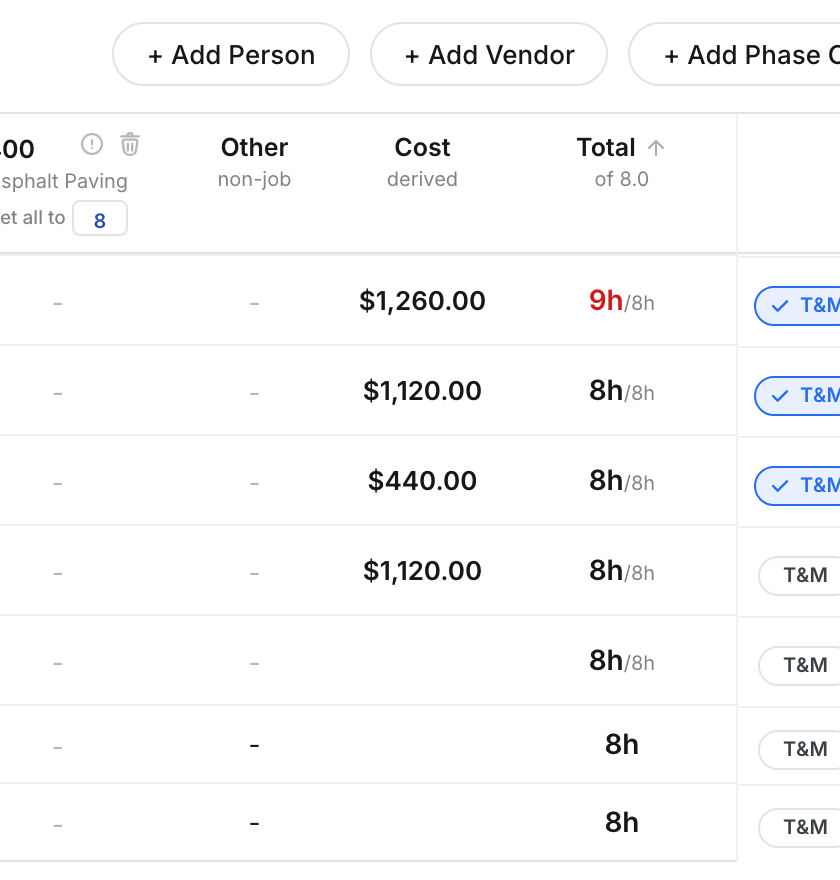
Type each person's hours under the phase code they worked. To give everyone the same hours on a code, use Set all to under the code.

Step 3: Check totals and T&M
Total shows each person's hours against a normal day, such as of 8.0. Hours over a full day show in red. Click T&M to mark a row as extra work.
Step 4: Add a person
Click + Add Person. Search, tick the people who worked, and click Apply.

Step 5: Add a phase code
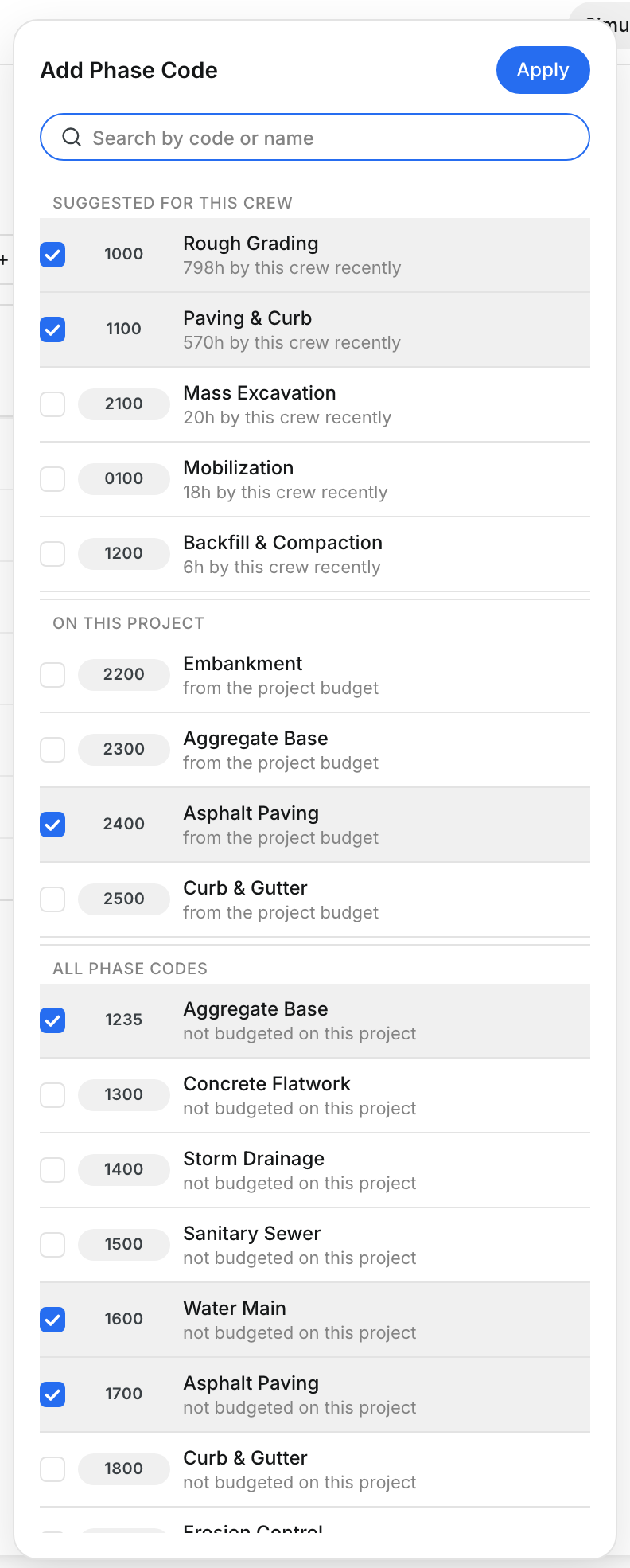
Click + Add Phase Code. Pick from codes suggested for this crew, codes on this project, or all phase codes.
Step 6: Check the Daily Report panel
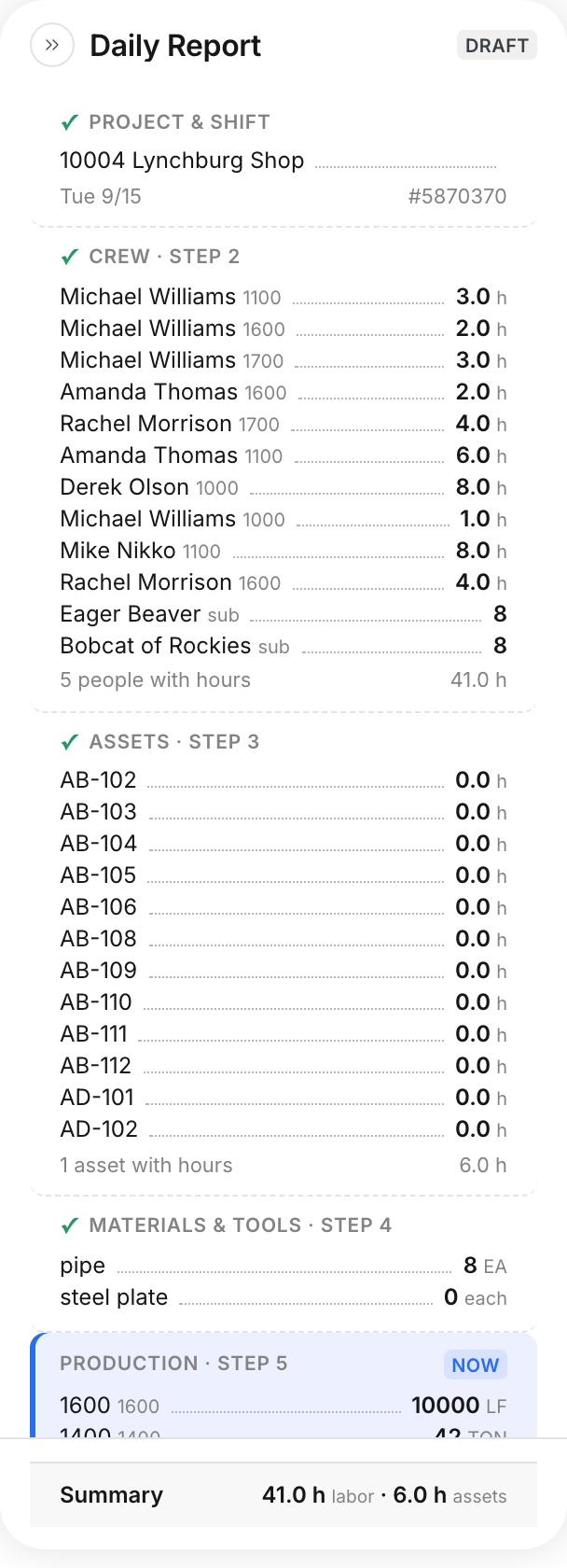
Open the Daily Report panel on the right. It lists each person, code and hours under CREW · STEP 2.
The full details
- Crew Members: Shows how many people are on the crew and the total hours, job and pay codes together.
- Phase code column: Shows the code and its name. The info icon shows what the code was bid at.
- Set all to: Fills the same hours for every person in that code.
- Other: Non-job pay codes, for time not billed to a phase code.
- Cost: Labor cost from each person's rate.
- Total: Hours for the person against a normal day.
- T&M: Marks the row as extra work, outside the contract prices.
- Asset: Links a person to the asset they ran.
- + Add Vendor: Adds a subcontractor crew. Vendor rows show SUB.
- MANUAL: A code typed by hand that is not on the project. The office maps it during review.
Tips
- Use Set all to first, then change only the people who differ.
- Click Save as Draft to finish later. Click Save Crew to move to the assets step.