What is this?
Overtime rules give hours over a limit a different earning code in your export file. For example, hours over 40 in a week can go out as overtime. A rule can count hours per day or per week, and can have more than one limit. A rule can apply only to projects in a given state. Clue's team sets up the rules for your company.
Who's this for?
- Payroll, who need overtime coded correctly before the file reaches the payroll system.
- Office managers, who run crews in more than one state with different overtime laws.
- Foremen, who enter plain hours and let the export apply the pay rules.
How to use it
Step 1: Choose your payroll format
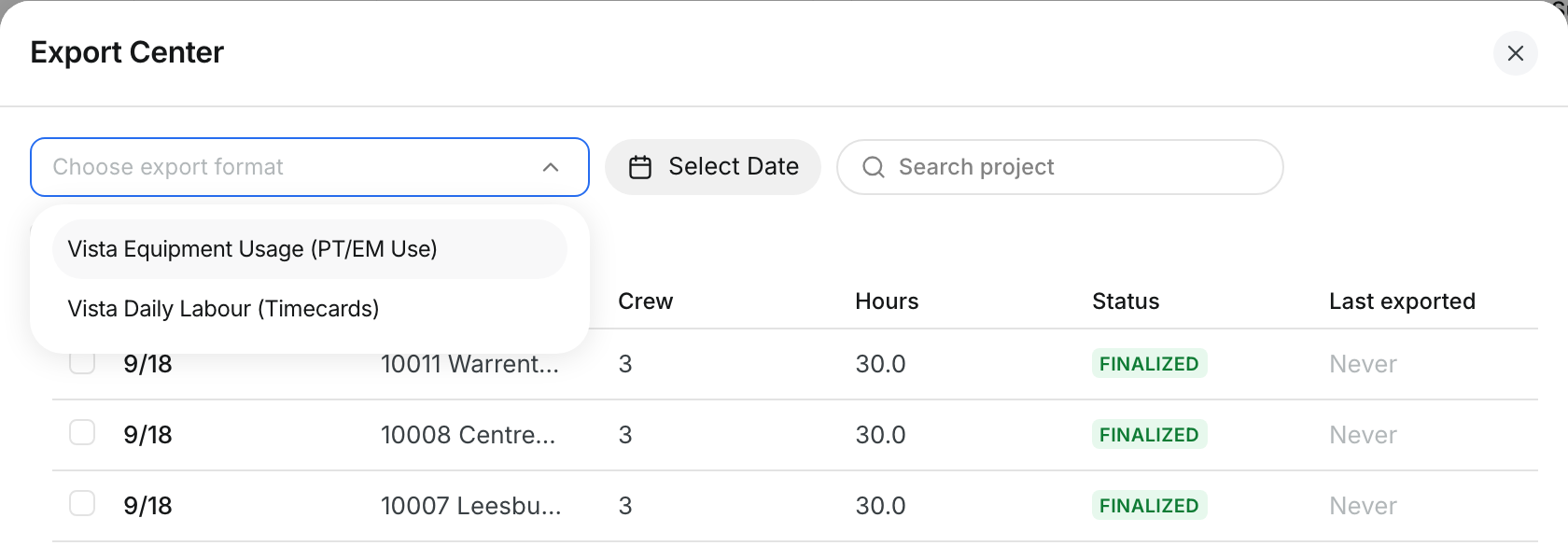
Open the Export Center and choose the format that has your overtime rules, usually the labor format.

Step 2: Select the dailies and read the summary
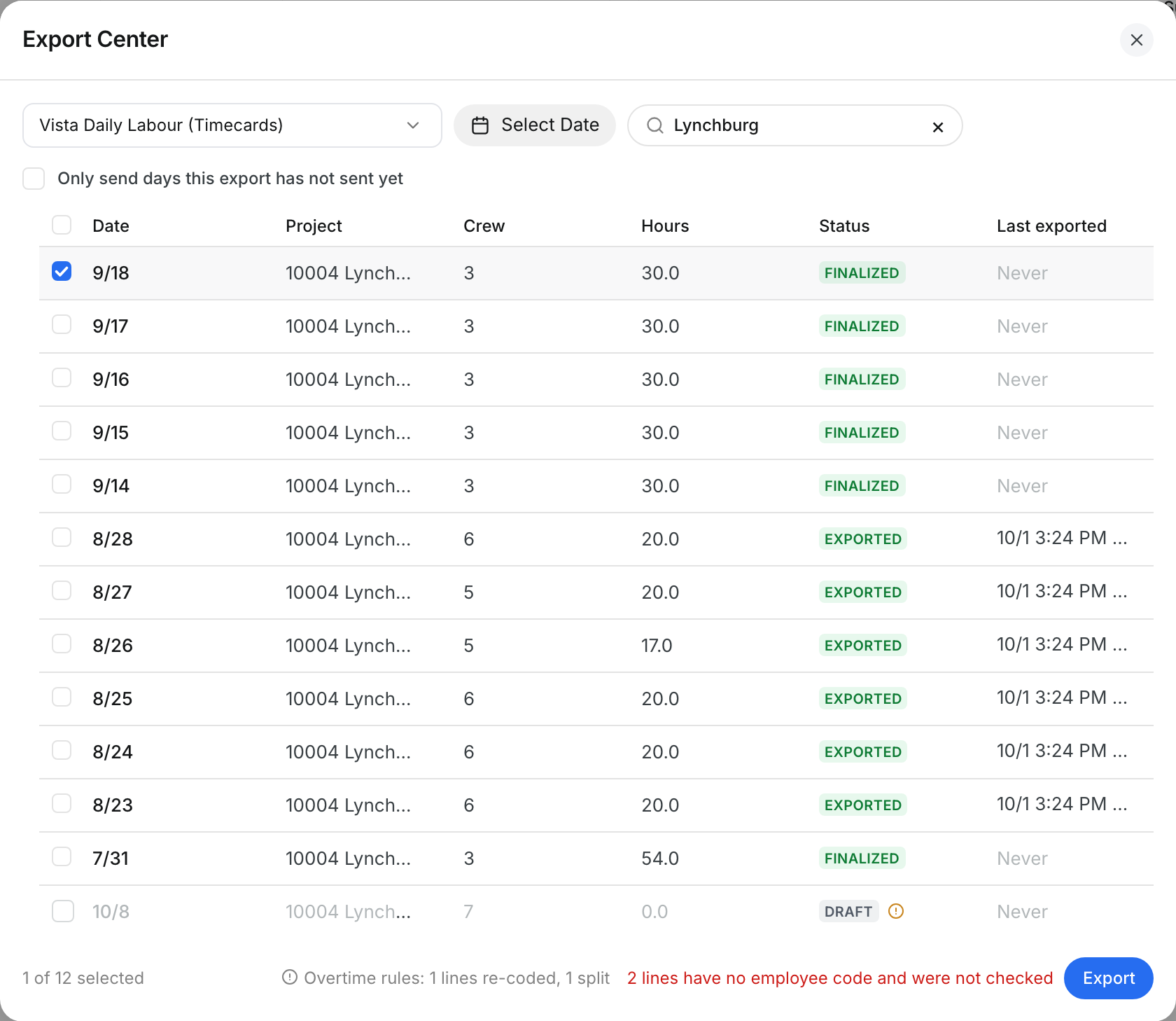
Tick the dailies. The line at the bottom says how many lines the rules re-code and how many they split. Nothing is sent yet.
Step 3: Fix lines with no employee code
A red note shows lines with no employee code. The rules cannot tell whose hours those are, so they go out unchanged. Add the employee code to each person, then export.

The full details
What a rule can do
- Daily limit: hours over a number in one day get an overtime code. Example: over 8 hours is code 2.
- Several limits: each limit can have its own code. Example: over 8 hours is code 2, over 12 hours is code 3.
- Weekly limit: hours over a number in one week get an overtime code. Example: over 40 hours is code 2.
- Daily and weekly together: a daily rule can also cap regular hours per week. Hours already coded as daily overtime do not count twice.
- By state: a rule can apply only to projects in a given state. The state comes from the project.
- Your week: a week starts on the day your company's week setting says.
- Per person: hours are counted per employee. Two projects on the same day count together.
How Clue counts and splits hours
- Order: hours are counted by date, then in the order of the file.
- Split lines: a line that crosses a limit becomes two or more lines. Each has the same job, phase and date.
- Exact totals: the pieces always add up to the original hours.
- Example, one day: a 13 hour day under an 8 and 12 hour rule goes out as 8 regular, 4 at code 2 and 1 at code 3.
- Example, one week: five days of 8.8 hours under a 40 hour rule go out as 40 regular and 4 overtime. Friday splits into 4.8 regular and 4 overtime.
- Overtime you entered: hours already entered as overtime keep their code. They still count toward the limits.
- Line numbers: if your file numbers its rows, Clue numbers them again after a split.
Limits to know
- One export at a time: Clue counts the hours in the file you export now. Days sent in an earlier export do not count.
- Projects with no state: state rules do not apply to them. The same goes for a job number used by two projects.
- Rules that cannot run: Clue stops the export and shows a message. Payroll never gets uncorrected codes.
- Who sets it up: Clue's team. There is no settings screen for overtime rules.
Tips
- Export a full payroll week in one file. Then weekly limits see every day of the week.
- Set the state on every project, so state rules apply to it.
- Read the summary before you click Export. If it says no changes on a long week, check the project states.
- Send Clue your pay rules in plain words, for example "over 40 hours a week is code 2". The team turns them into rules.