Real-Time Productivity Overview
What is this?
Real-Time Productivity shows how much work each project moves in a shift. Clue counts truck loads, volume and cycle times from your assets. You see the results for one project on one page. Use it to check progress during the shift and to review past days.
Who's this for?
- Superintendents, check loads and volume for each project during the shift.
- Project managers, review production by day, week or month.
- Foremen, see how the crew performs against the daily plan.
- Estimators, compare real production with the bid.
How to use it
Step 1: Open Real-Time Productivity
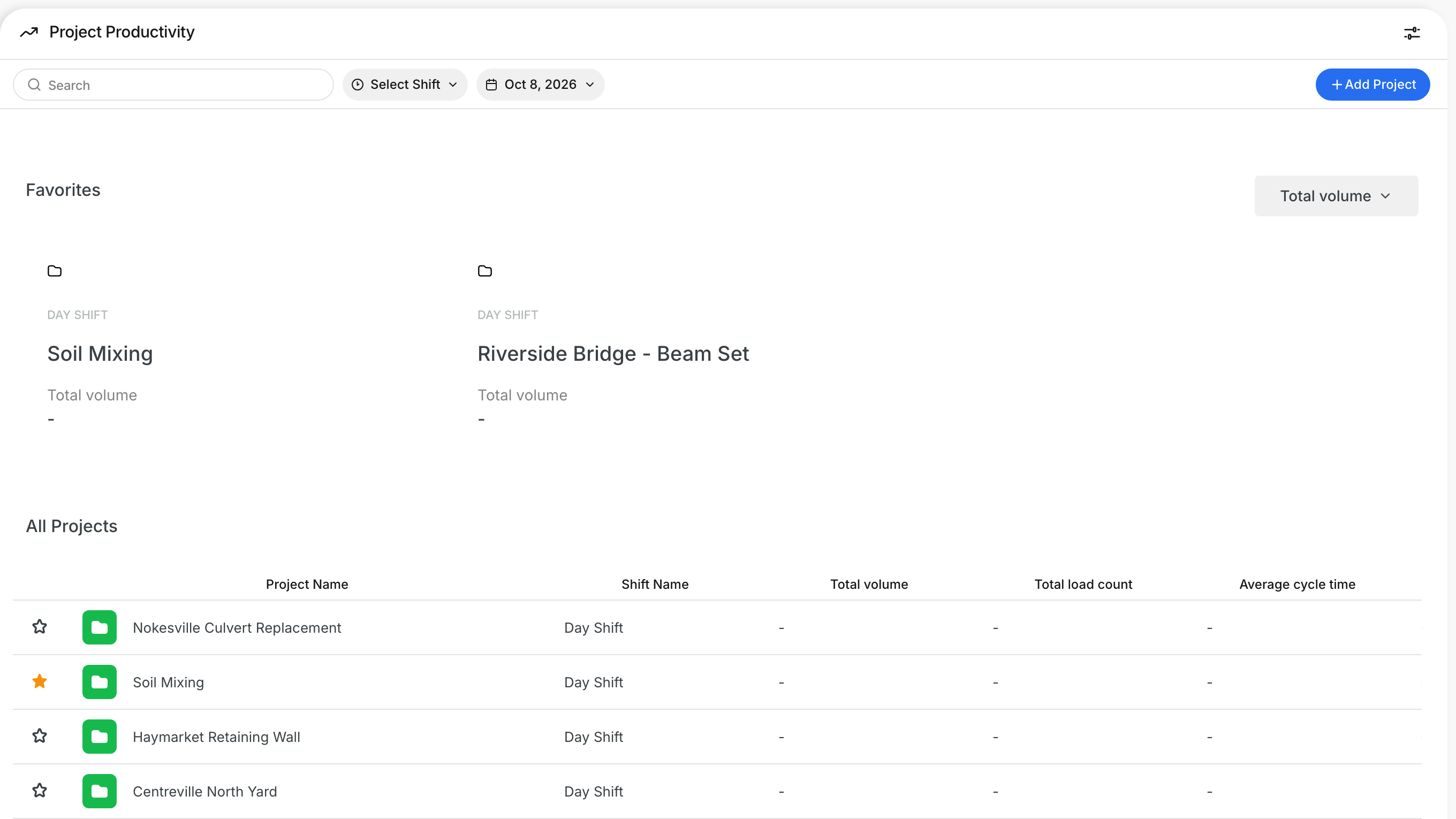
Go to Operations > Production. The Project Productivity page lists your projects under All Projects, with your starred projects in Favorites.
Step 2: Open a project
Click a project name in All Projects. The project page opens with its widgets and the Productivity Alerts list on the right.
Step 3: Pick the date
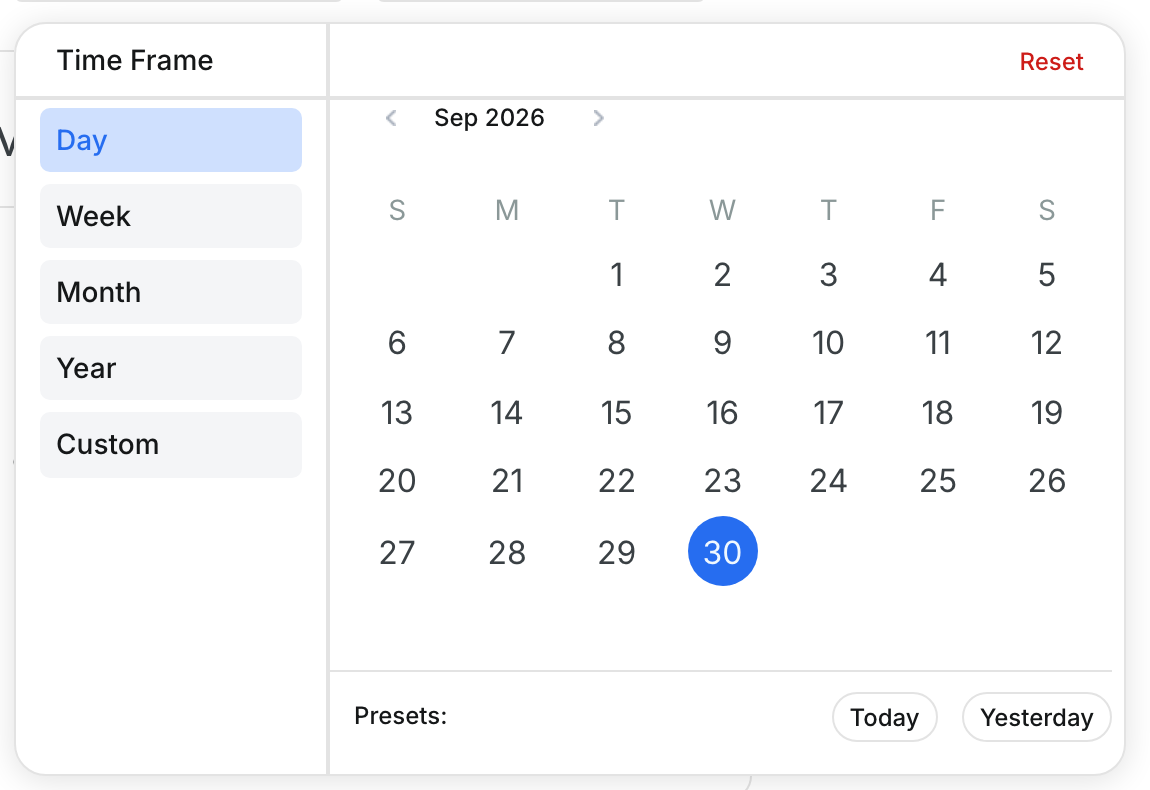
Click the date next to the shift. Under Time Frame, pick Day, Week, Month, Year or Custom, then pick a date in the calendar.
Step 4: Read the widgets
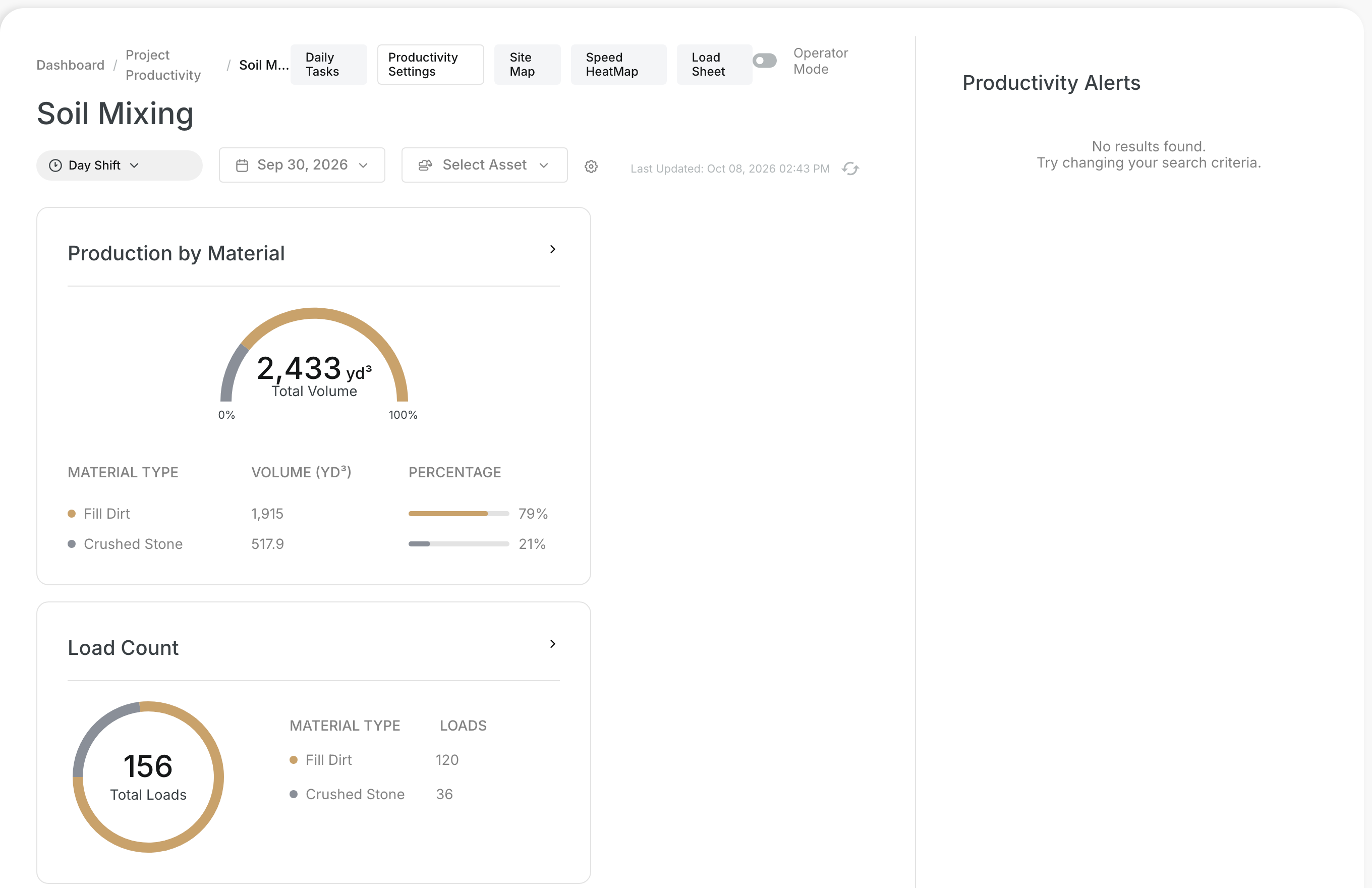
Each widget shows one KPI for the shift and date you picked. Production by Material shows the total volume and the share of each material.

Step 5: Find the project tools
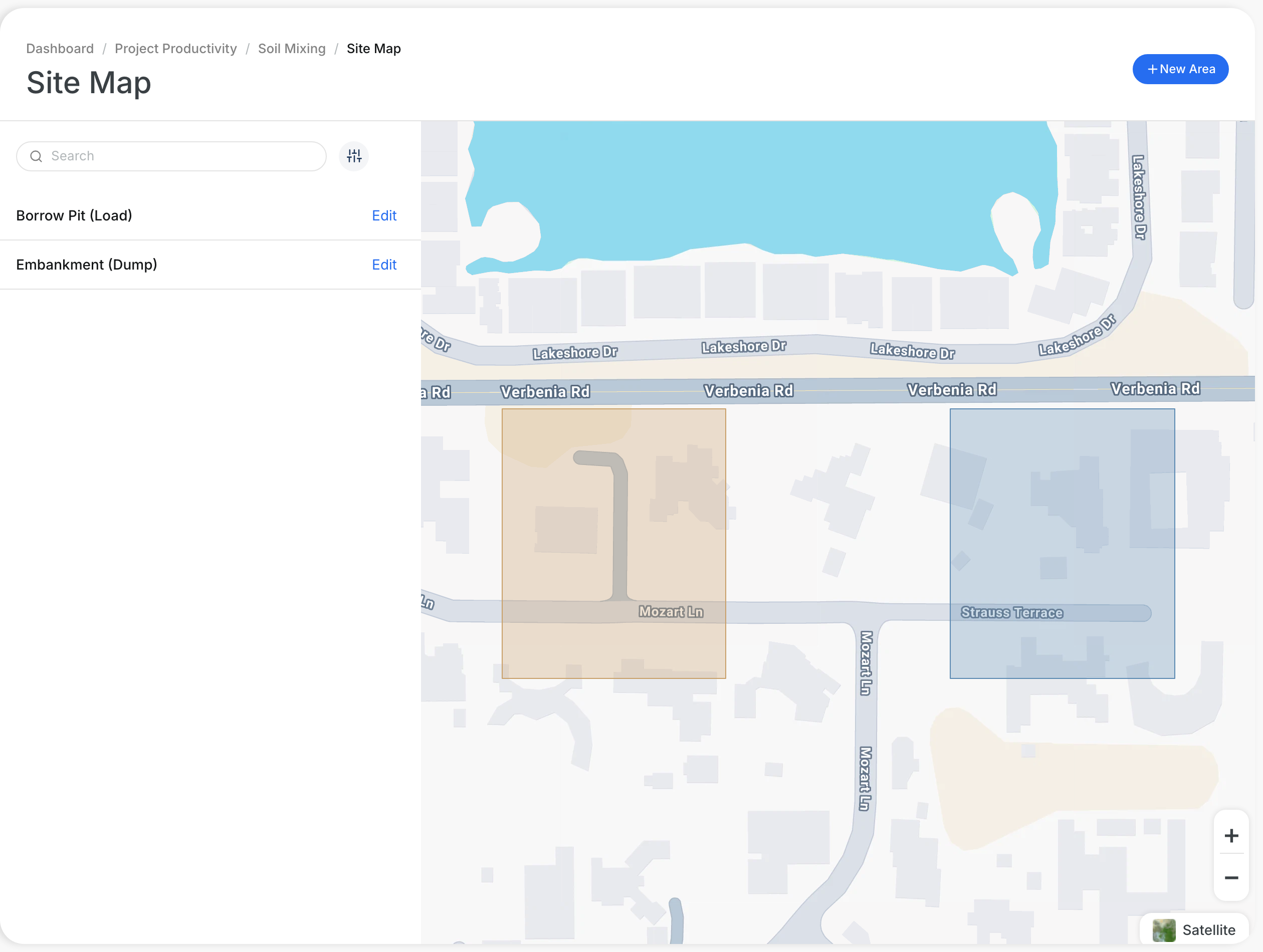
The buttons at the top open the other tools: Daily Tasks, Productivity Settings, Site Map, Speed HeatMap, Load Sheet and the Operator Mode switch.

The full details
- Shift: Pick the shift in the first menu. Each project has its own shifts.
- Date: Pick the date in the date picker.
- Presets: Today and Yesterday set the date in one click. Reset clears your choice.
- Select Asset: Shows the widgets for the assets you pick.
- Last Updated: Shows when the numbers were last updated. Click the refresh icon to reload them.
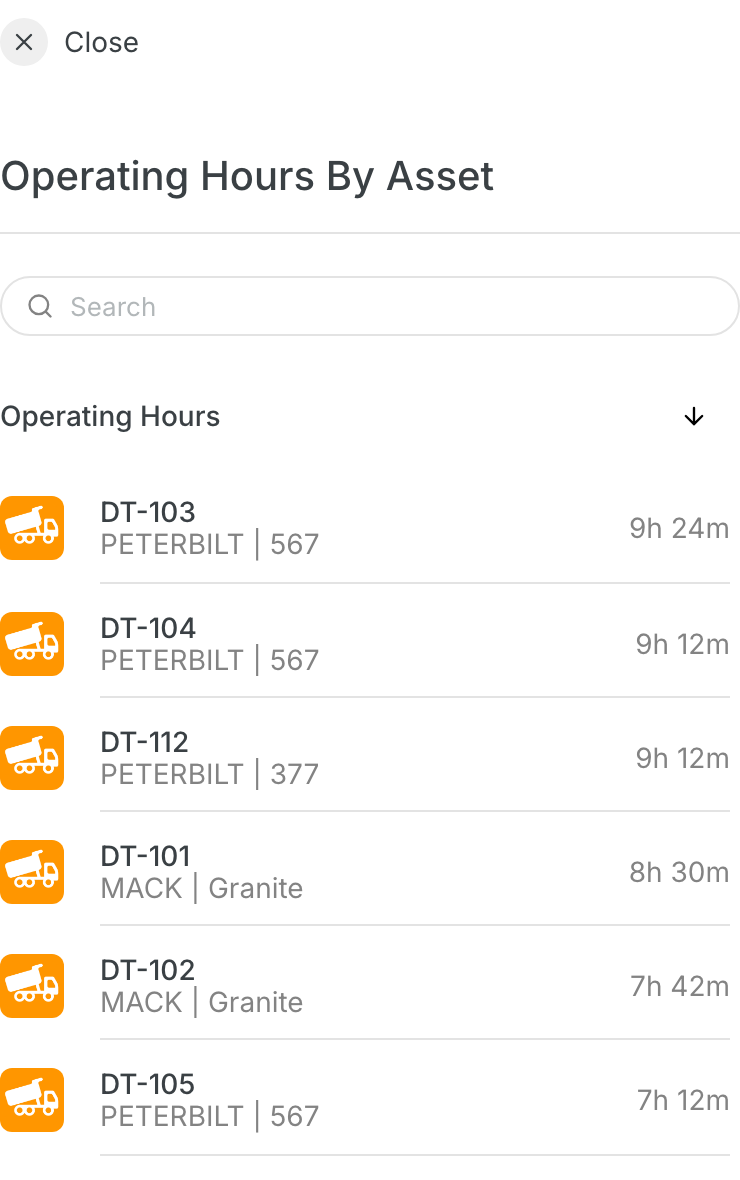
- Widgets: Production by Material, Load Count, Cycle/ Swing time, Operating Asset, Cycle Time by Phase, Profitability and Average Cost by Asset. You turn them on in Productivity Settings.
- Productivity Alerts: Lists the alerts for the project. It says "No results found" when there are none.
- Need to setup: A project with this label needs its Productivity Settings first.
Tips
- Click the star next to a project to add it to Favorites.
- Use Week or Custom to see a trend over many days.
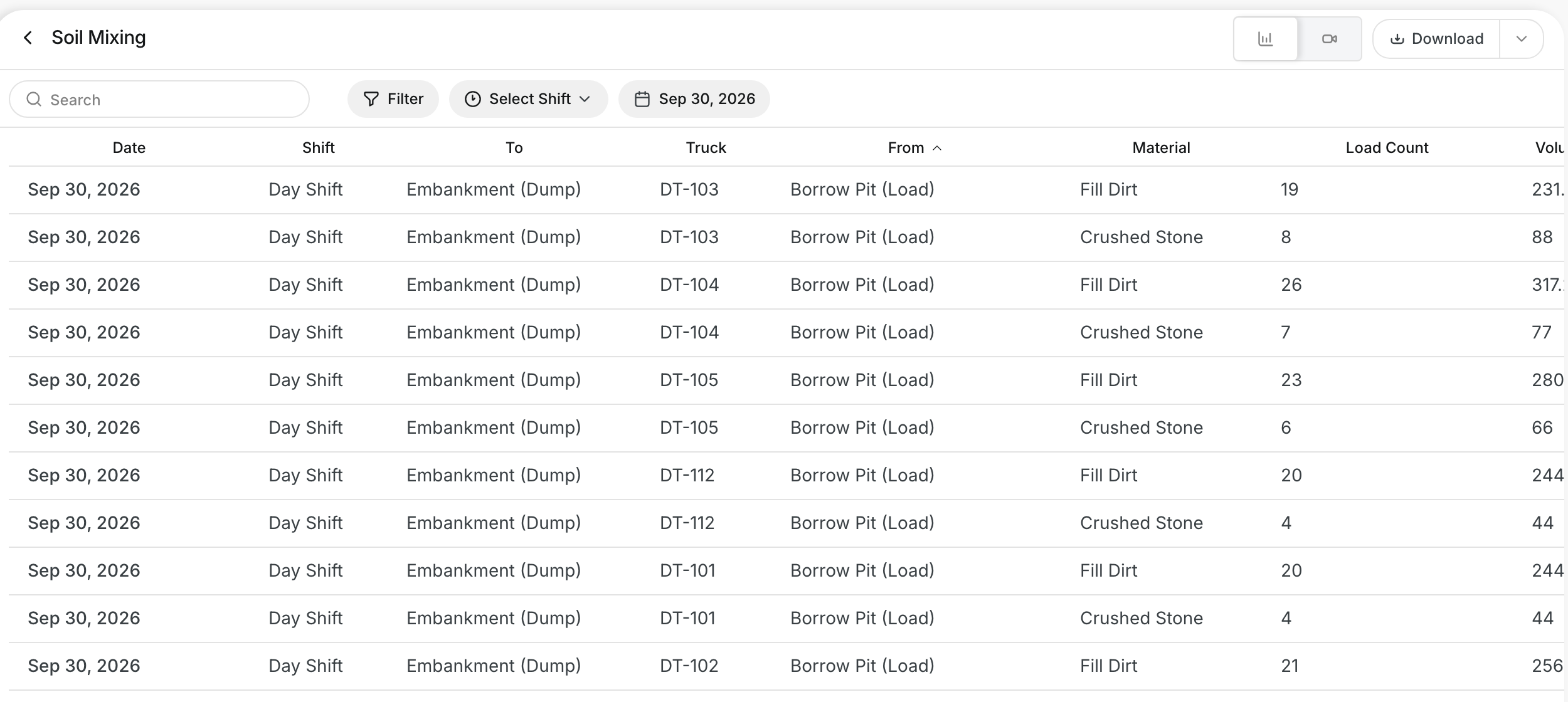
- Click Load Sheet to see the loads for each truck.