Replay a Project with Game Tape
What is this?
Game Tape replays how the assets on a project moved. You select a day and a time window. Clue then plays the GPS points of all the assets on one clock, on the project map.
You can see a full shift in a few minutes. Game Tape uses only GPS points. The project does not need production setup.
Who's this for?
Game Tape helps the people who plan and run the job.
- Project managers, see how the job ran during a shift and where the machines waited.
- Superintendents and foremen, check which machines worked, and in which area of the site.
- Equipment managers, check when a machine moved, how fast it went and when it stopped.
How to use it
Step 1: Open the project's Game Tape
Go to Track Everything and click a project. In the project panel, click the Game Tape icon at the top.
The project panel in Organization > Projects has the same icon.

Step 2: Read the page
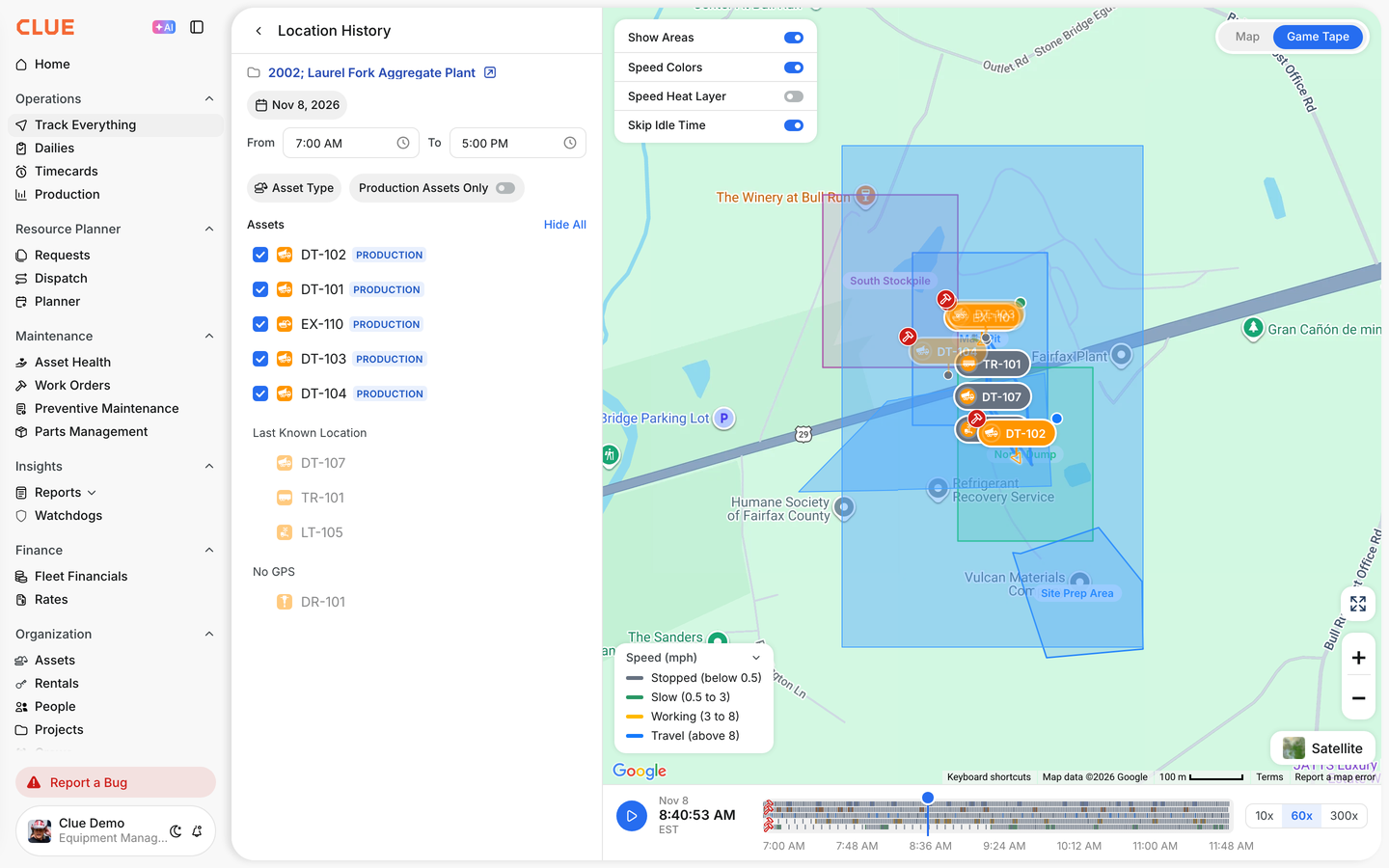
The page opens on today, for the project shift. The list on the left shows the assets of the project. The map shows each asset with its name.

Step 3: Play the replay
Click the Play button at the bottom left. All the assets move on one clock. Click the button again to pause.
Click 10x, 60x or 300x to change the speed. Click the timeline to go to a different time. Each asset leaves a trail. The trail color shows the speed.
Step 4: Check an asset
Put the pointer on an asset on the map. A card shows the asset name, the make and model, and the time. It also shows Moving or Stopped and the speed.
A red wrench shows an open breakdown. Its work order shows above the card. Click the asset to open its details.

Step 5: Follow one asset
Click an asset name in the list. The map follows that asset. Click the name again to stop.
Clear the check box of an asset to remove it from the map. Click Hide All or Show All to change all the assets.

Step 6: Filter by asset type
Click Asset Type and select one or more types. Turn on Production Assets Only to show only the production assets.

Step 7: Change the day and the time
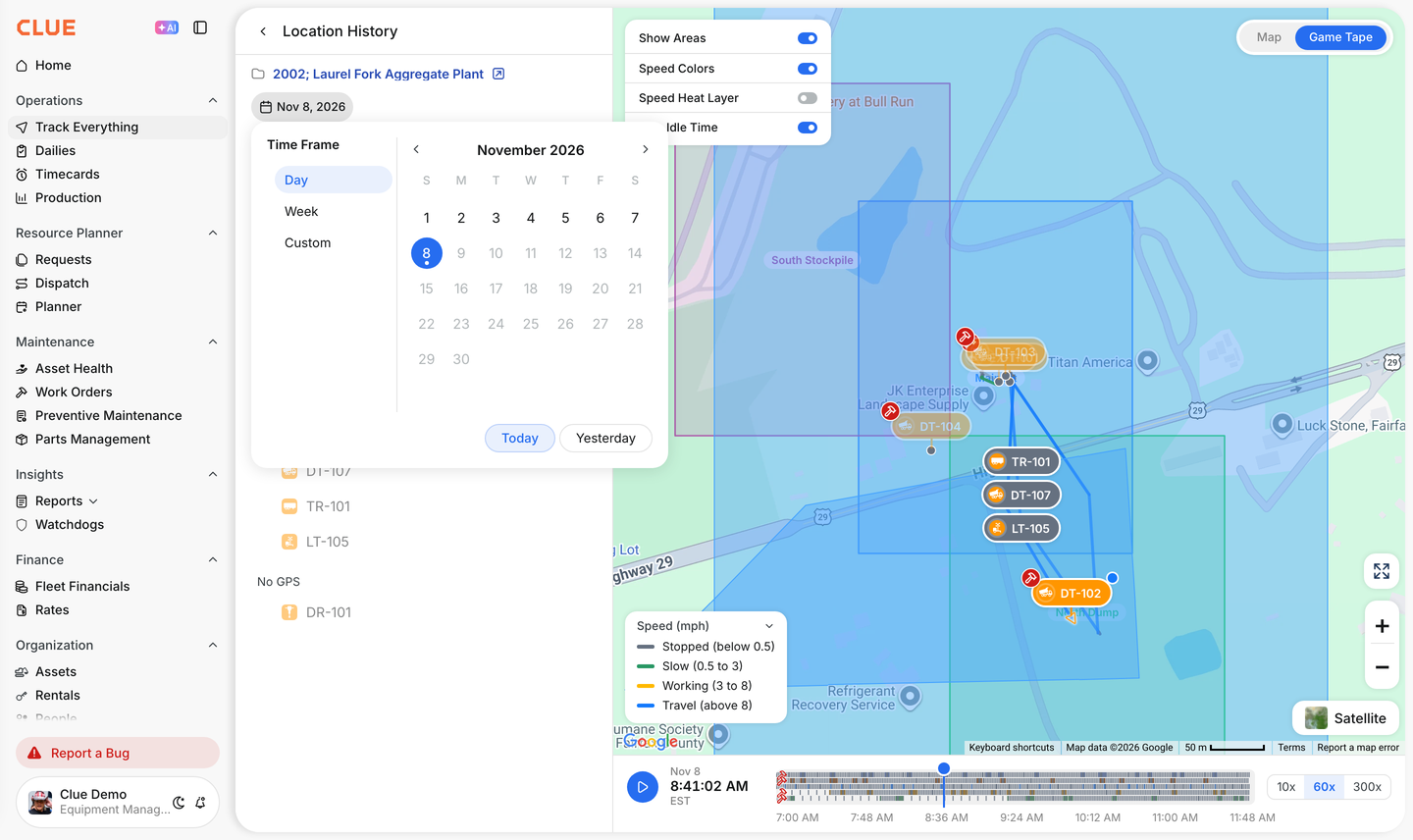
Click the date to select a different day. Click Week or Custom to replay more days, up to 7 days. Change From and To to replay a part of the day.
The full details
- Works on: Web app.
- Projects: every project. The project does not need production setup.
- Default window: today, from the start to the end of the project shift. A project with no shift shows the full day.
- Time zone: all times show in the project time zone.
- Longest window: 7 days.
- Number of assets: up to 150 assets at one time.
- Last Known Location: an asset with no GPS point in the window shows at its last known location, in gray.
- No GPS: an asset with no GPS points shows in this group.
- Speed bands in mph: Stopped below 0.5, Slow 0.5 to 3, Working 3 to 8, Travel above 8.
- Speed bands in km/h: Stopped below 0.8, Slow 0.8 to 5, Working 5 to 13, Travel above 13.
- Show Areas: shows the Site Map areas of the project. For a project with no areas, this option is Show Geofences.
- Speed Colors: colors each trail by speed. When it is off, each trail has the asset color.
- Speed Heat Layer: shows where the assets sent the most GPS points.
- Skip Idle Time: when no asset moves for more than 5 minutes, the replay goes to the next movement.
- Gaps: when two GPS points are more than 5 minutes apart, the map shows no line between them. When an asset sends no point for more than 15 minutes, its marker fades.
- Map: click Map at the top right to see the assets without the replay.
- Production: if your company uses Production, the project page in Production also has a Game Tape button.
Tips
- Start at 300x to find the active part of the shift. Then use 10x to look closely.
- Keep Skip Idle Time on. The replay then does not stop on long periods with no movement.
- Turn on Production Assets Only to see only the trucks and loaders that do the production work.
- To replay one asset over a few days, use its Location History. See Replay an Asset's Location History with Game Tape.


