Viewing Asset History on Map
Overview
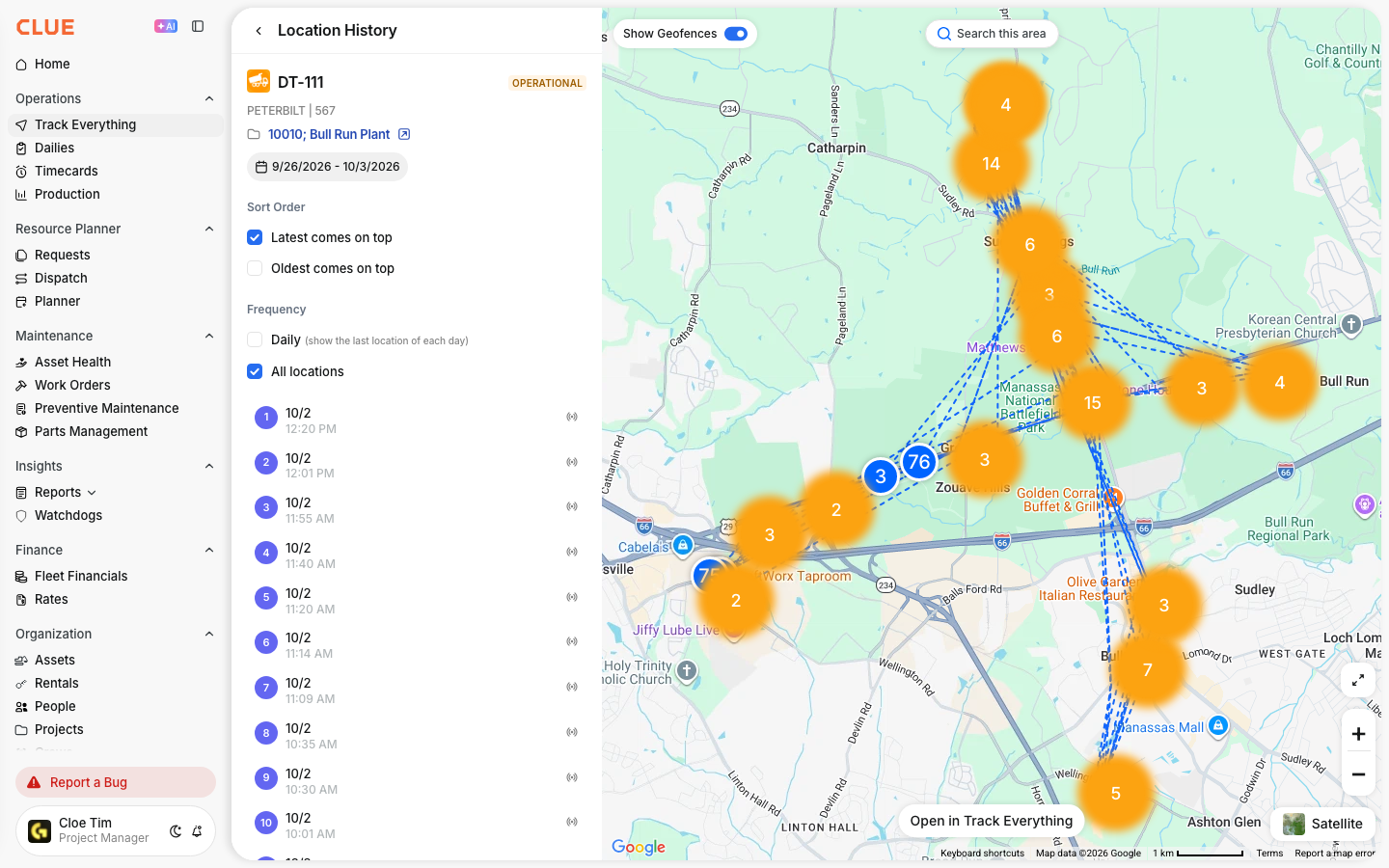
Construction asset tracking has been over time by viewing its location history on the map. This "breadcrumb trail" shows movement patterns, stops, and routes taken.
Accessing Location History
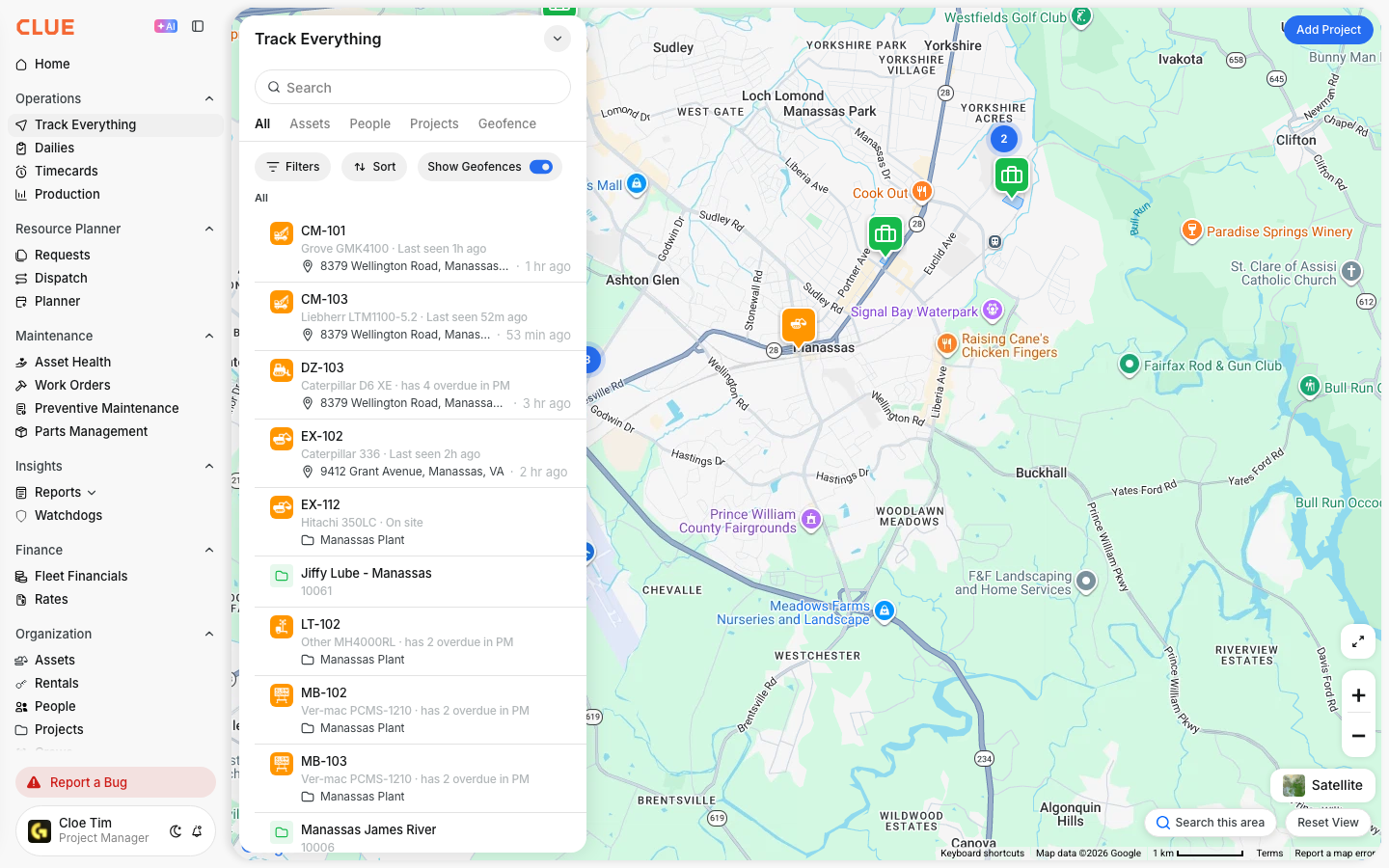
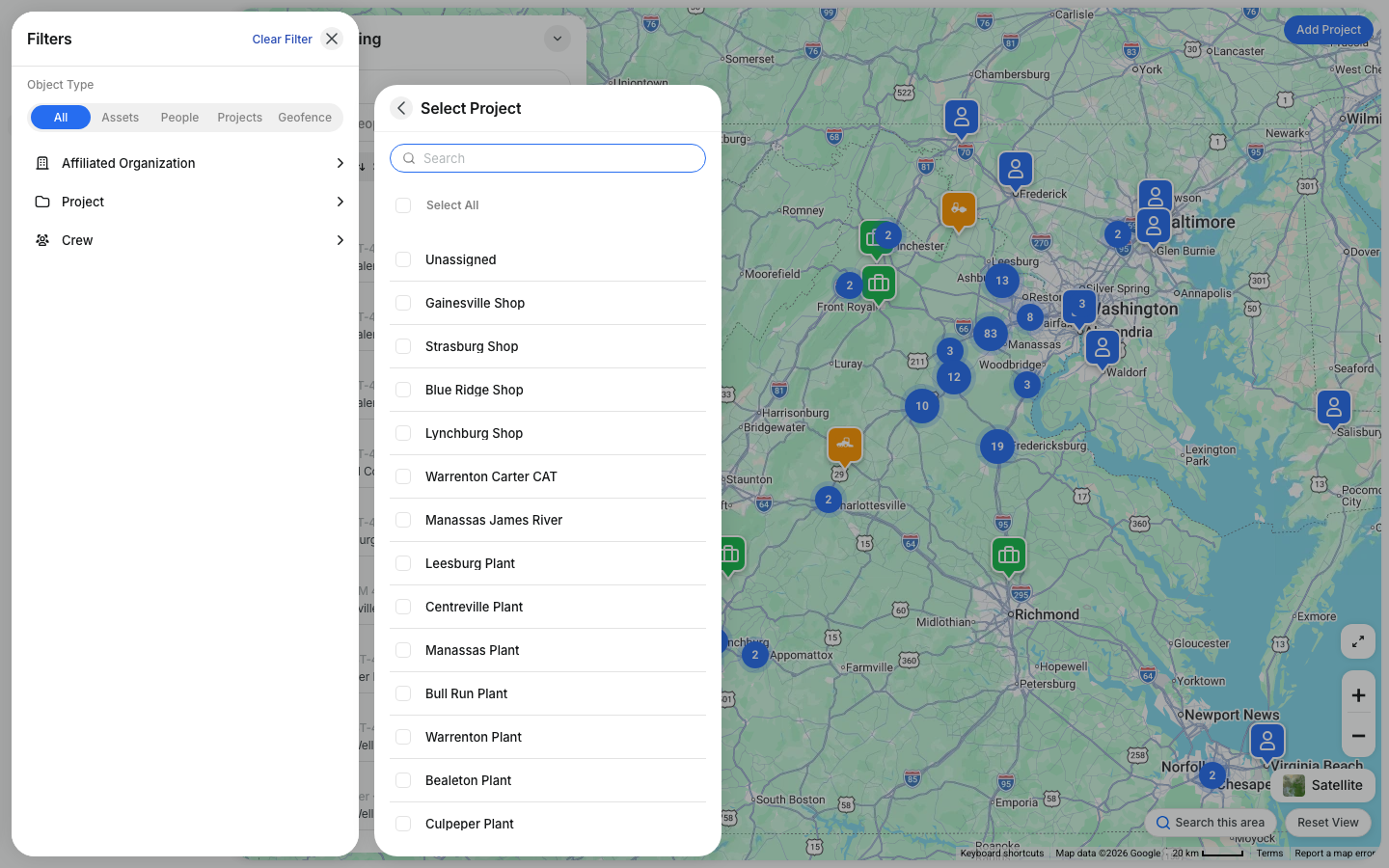
Step 1: Navigate to MAIN MENU → Track Everything.
Step 2: Click on an asset marker to select it.
Step 3: Look for "History" or "Trail" option in the asset detail panel.
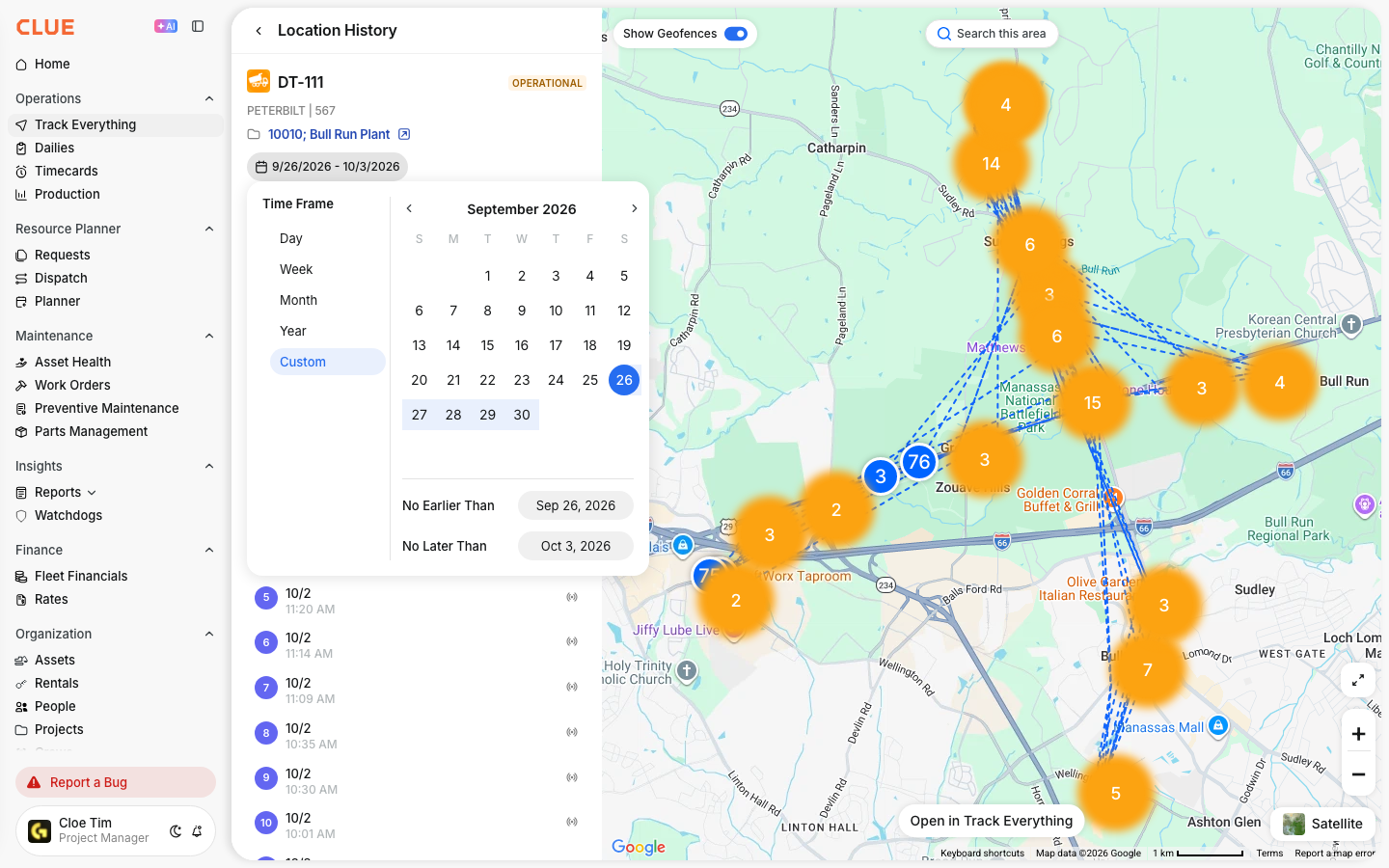
Step 4: Select a time range to view.

Understanding the History Display
The history view shows:
- Trail line - Path the asset traveled
- Time markers - Points along the route with timestamps
- Stop points - Where the asset was stationary
- Speed indicators - Color coding for travel speed

Selecting Time Ranges
Choose from:
- Last hour
- Today
- Yesterday
- Last 7 days
- Custom date range
Analyzing Movement Patterns
Location history helps you:
- Verify routes - Confirm equipment went where expected
- Identify stops - See where and how long it stopped
- Investigate issues - Review movement after incidents
- Optimize routing - Find more efficient paths
Playback Feature
Some views offer animated playback:
- Watch the asset "move" along its path
- Adjust playback speed
- Pause at specific times
Tips
- Use history to verify delivery completions
- Check routes after unauthorized use alerts
- Compare patterns across multiple days.