Using Track Everything
Available now in Beta - This feature is in beta testing and will roll out to everyone soon.
Overview
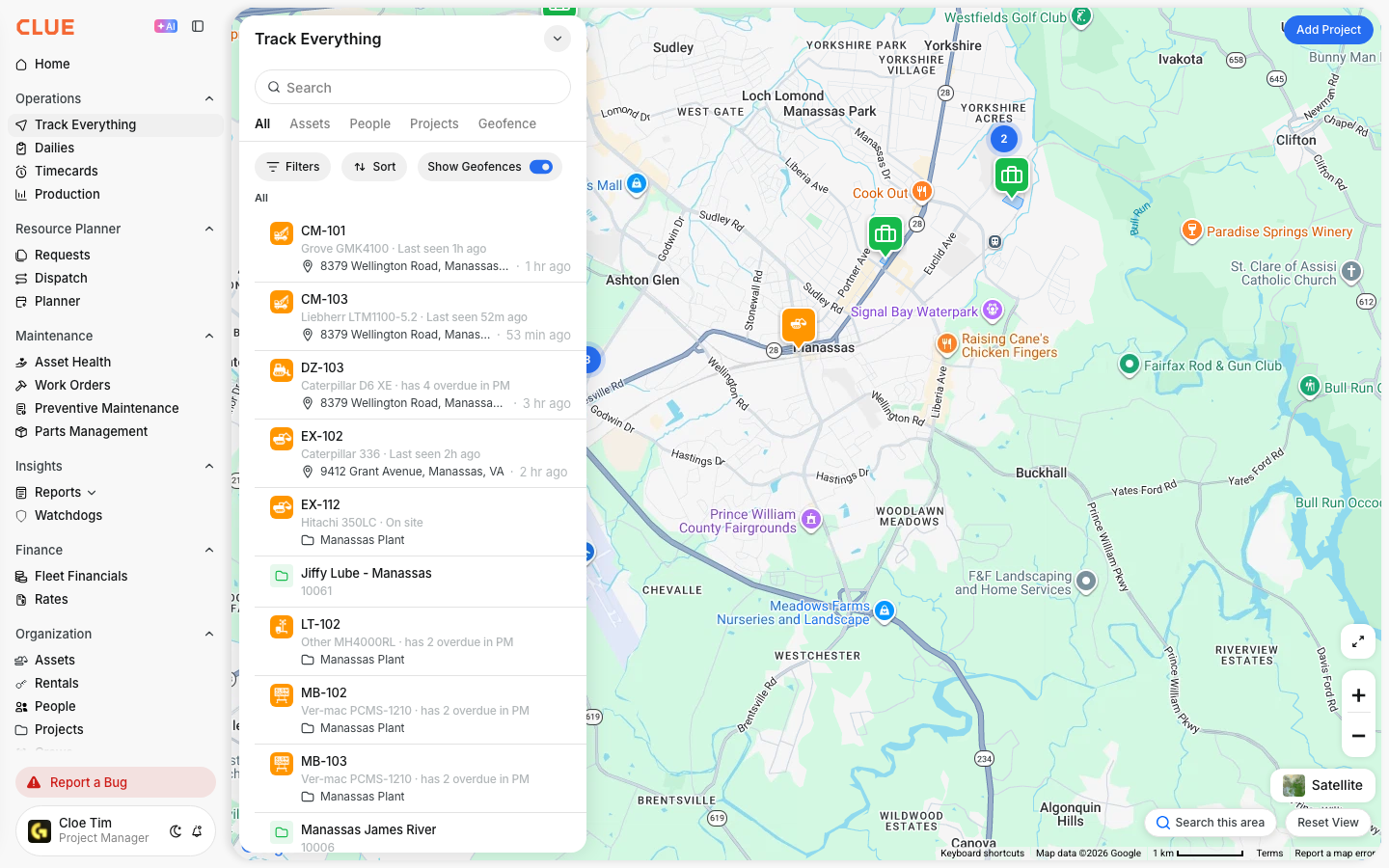
Track Everything is CLUE’s live map for tracking assets, people, projects, and geofences in one place. It helps you see where things are right now and switch between different views depending on what you want to check.
Track Everything showing All, Assets, People, Projects, and Geofence tabs
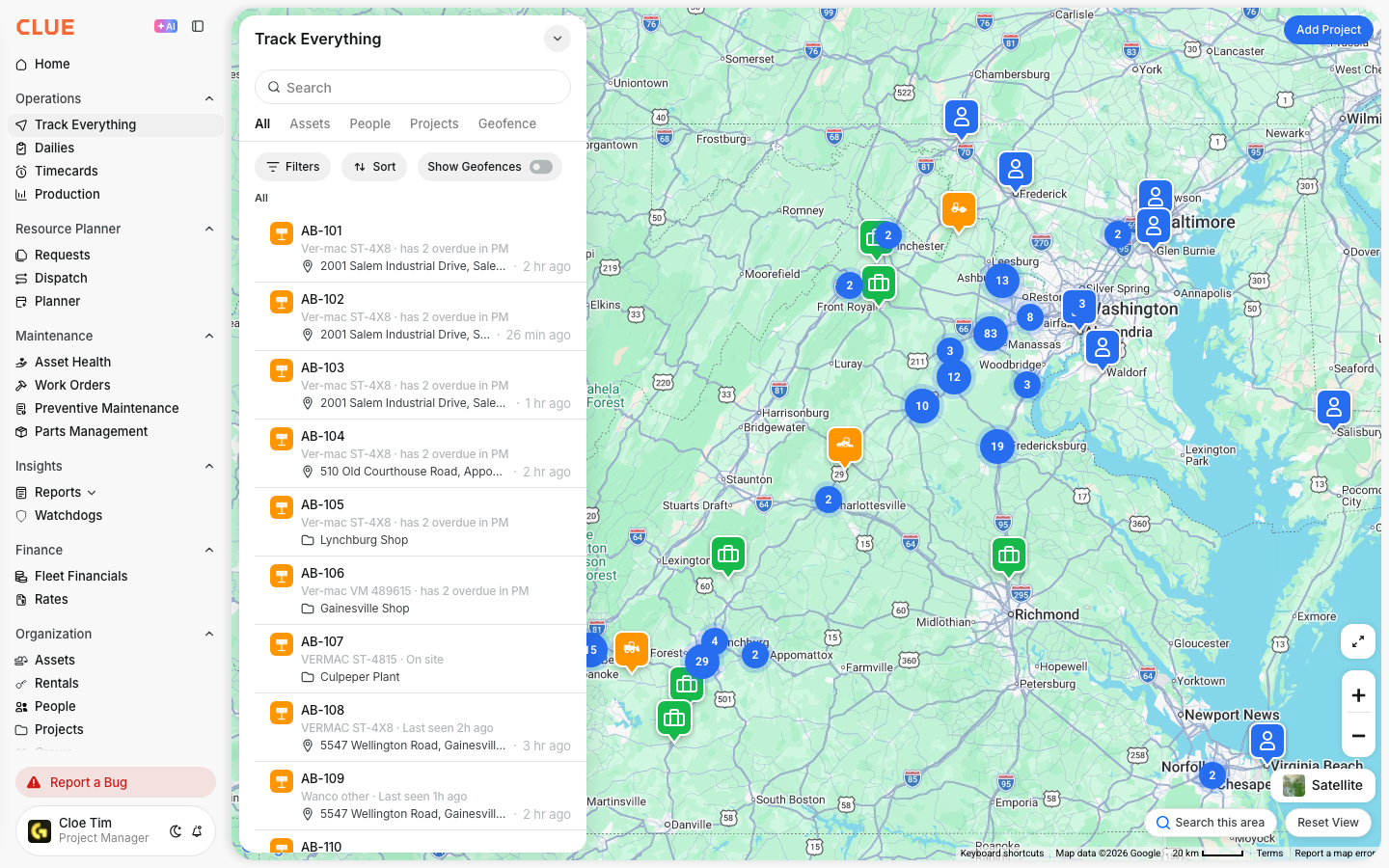
The Five Tabs
Track Everything has five tabs that help you control what shows on the map.
You can view everything together or switch to one tab to focus on a specific type of item.
All
The All tab shows assets, people, projects, and geofences together on one map. This is the default view when you open Track Everything.
Assets
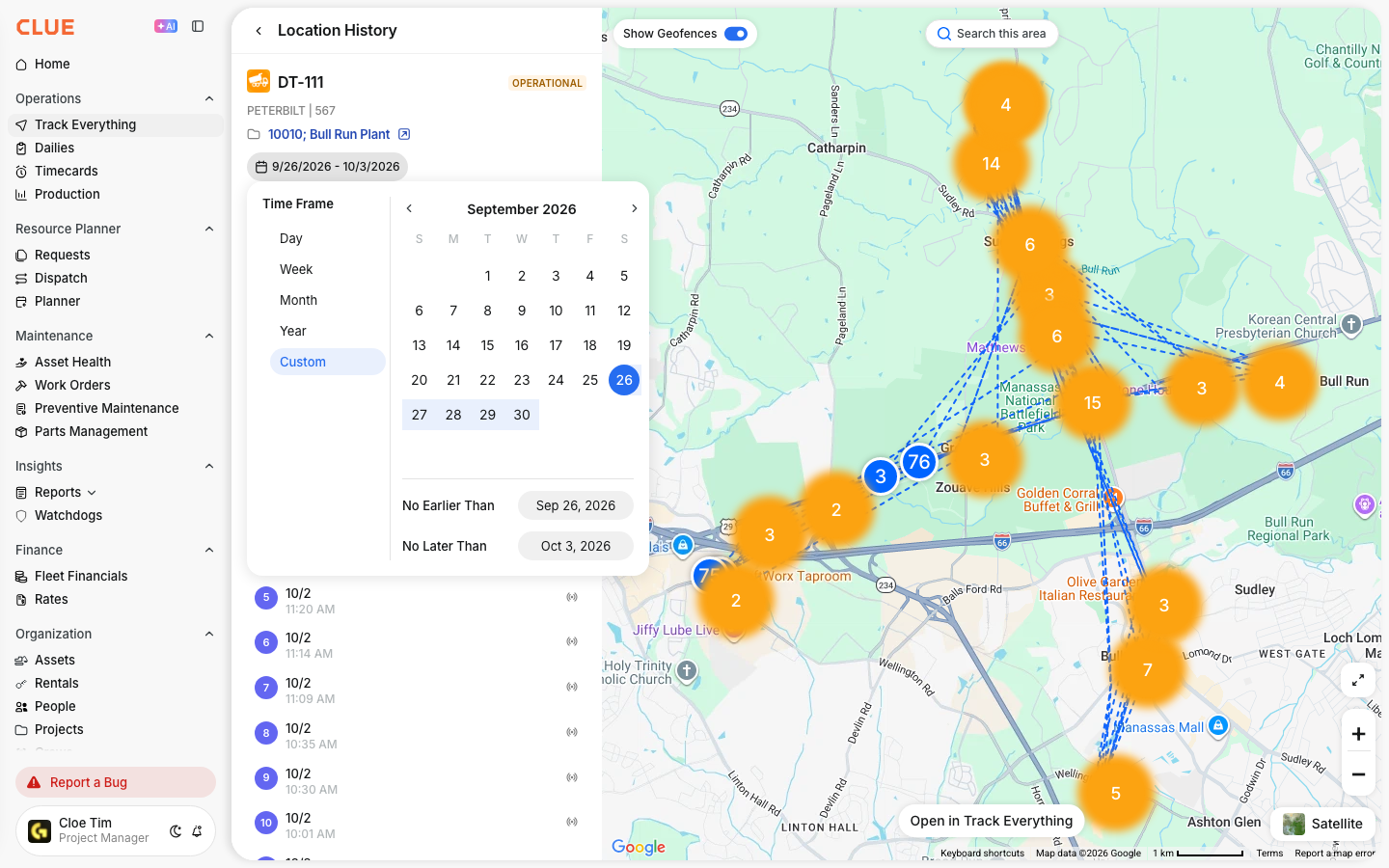
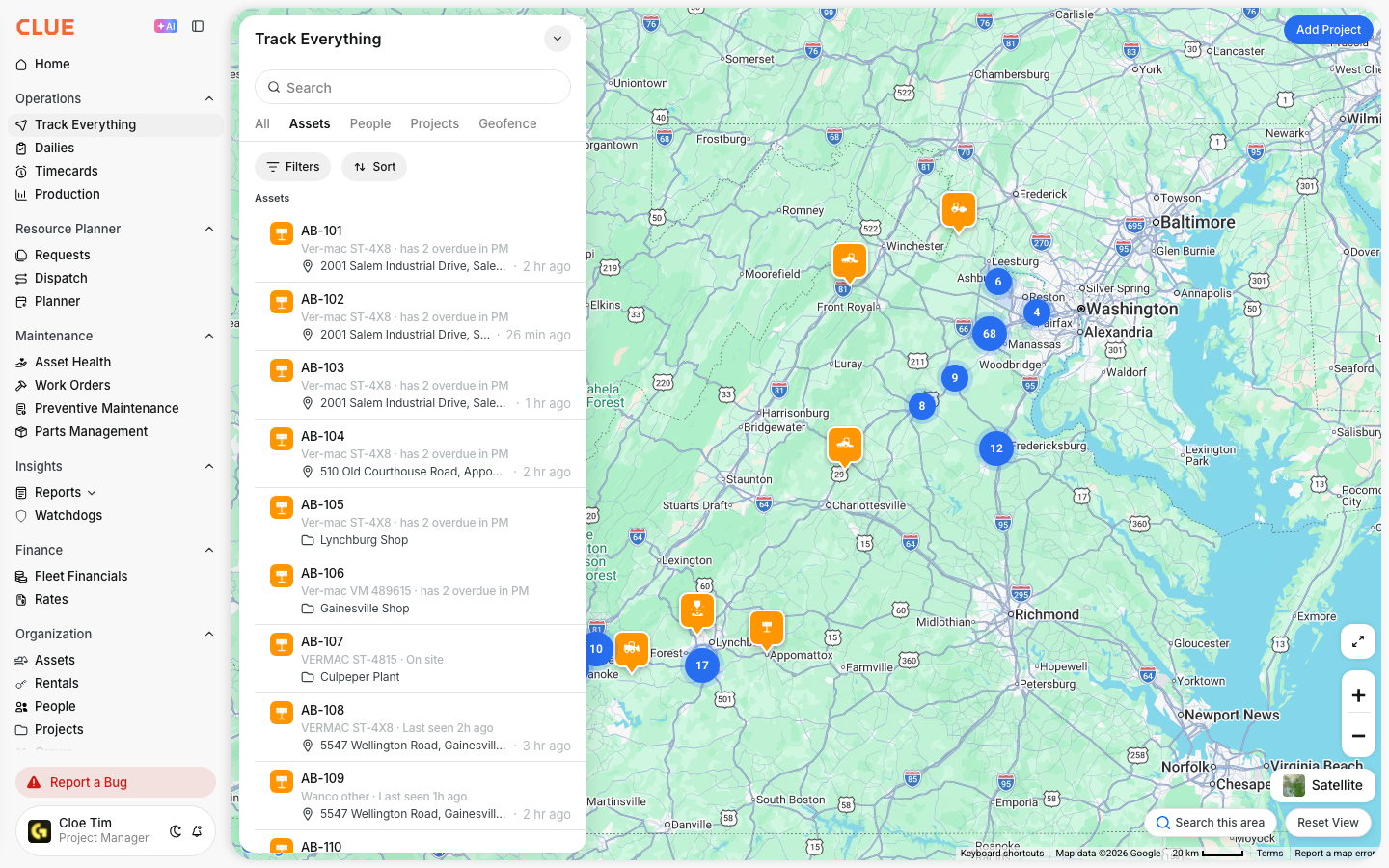
The Assets tab shows only equipment and vehicles. Each marker on the map represents one tracked asset. When you click a marker, you can see:
- Asset name and ID
- Current location address
- Last update time
- Status, such as moving, idle, or stopped
- Quick actions, such as View Details and Create WO
People
The People tab shows the location of tracked team members in the field. Use this view when you want to check where your crew is working.
Projects
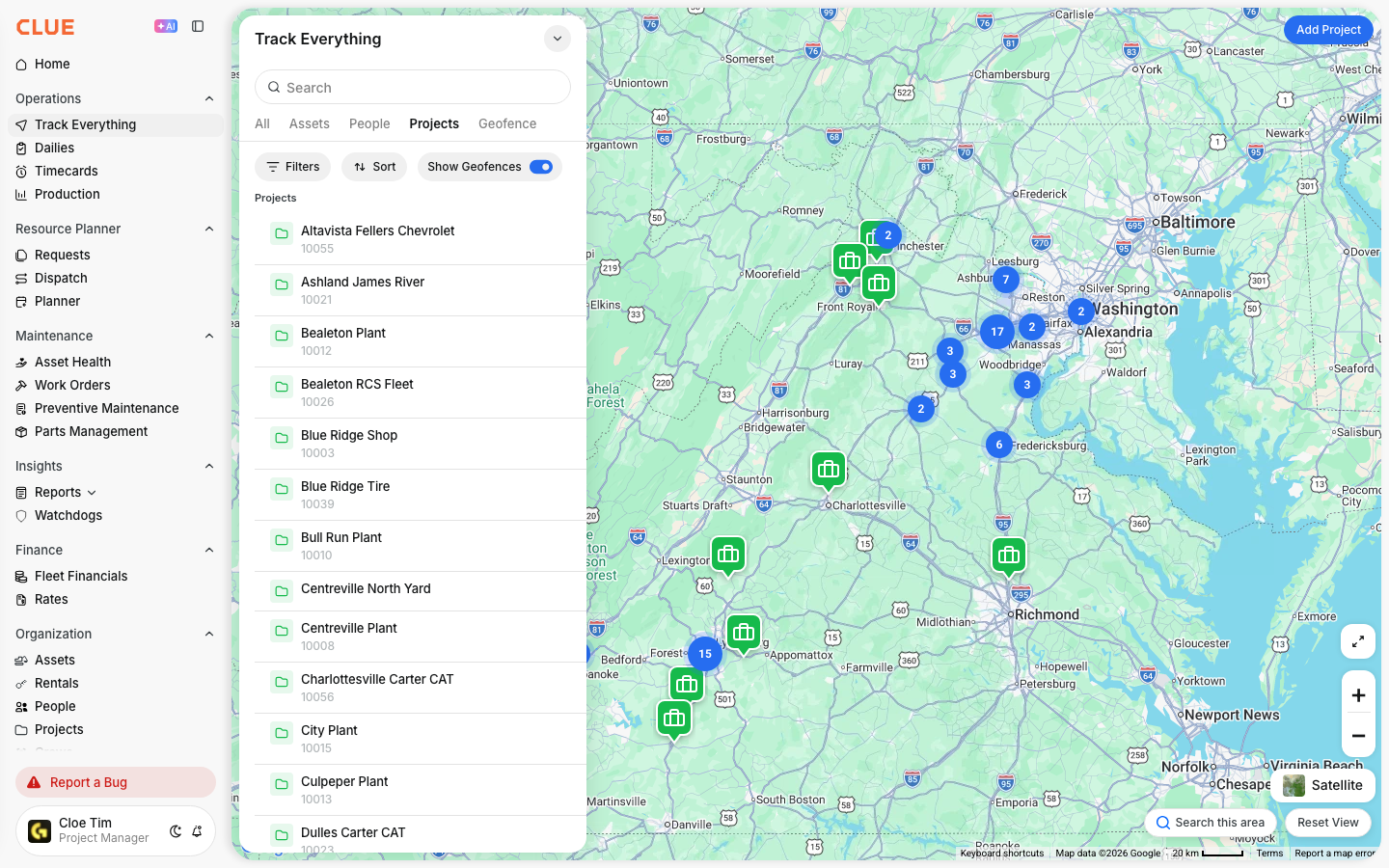
The Projects tab shows project or job site locations on the map. This helps you see where work is happening and where your resources are being used.
Geofence
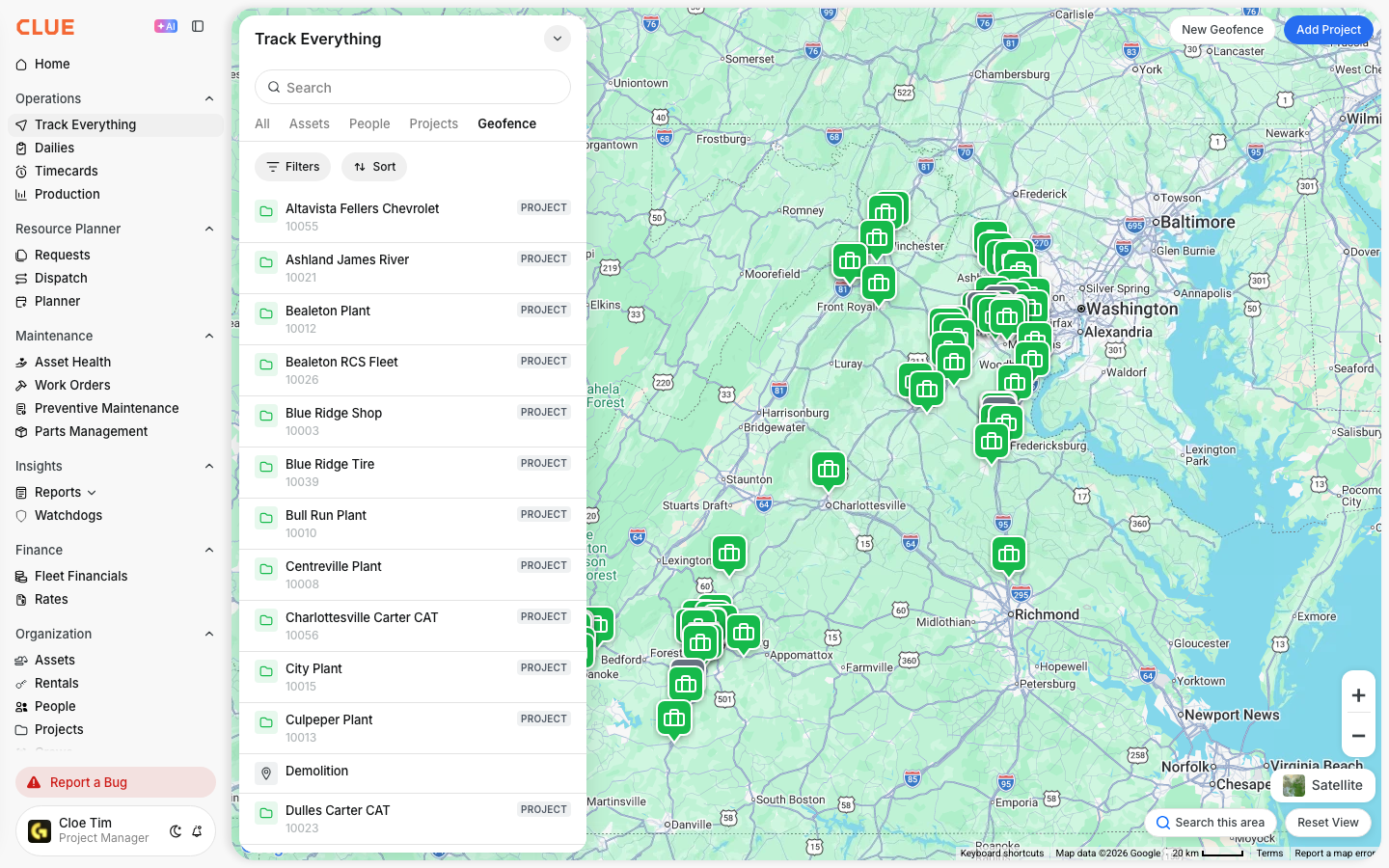
The Geofence tab shows your saved geofence areas. The left panel lists your geofences, and when you click one, the map zooms to that location. Geofences appear as shaded areas that show the boundary.
You can use geofences to:
- Set alerts when assets enter or leave an area
- Mark job site boundaries
- Create restricted zones
- Track time spent at a location
Map Controls
The map includes a few basic controls to help you find items and move around the view.
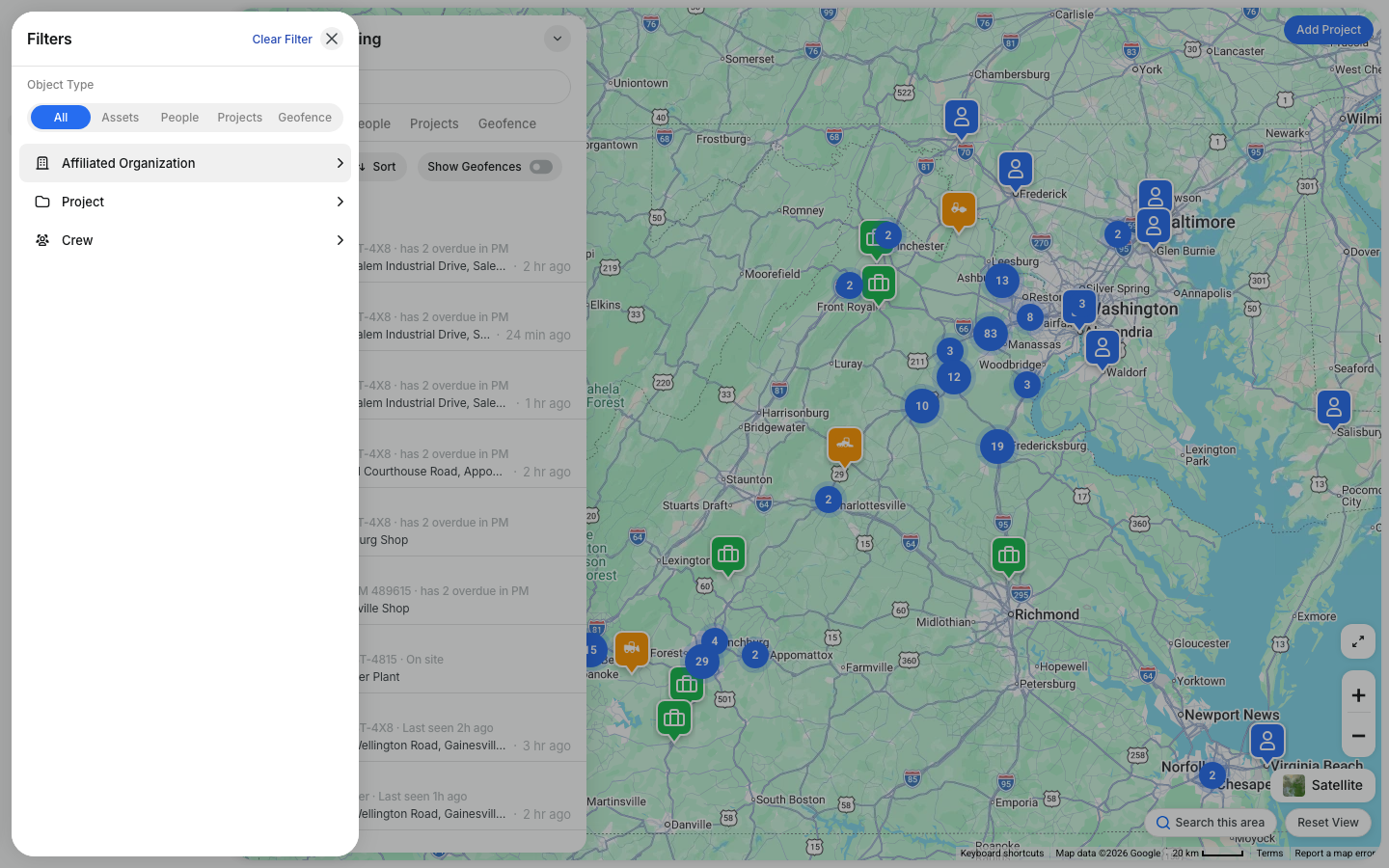
Use these tools to search, filter, zoom, and reload the area you are looking at.
- Search - find an asset, person, or geofence by name
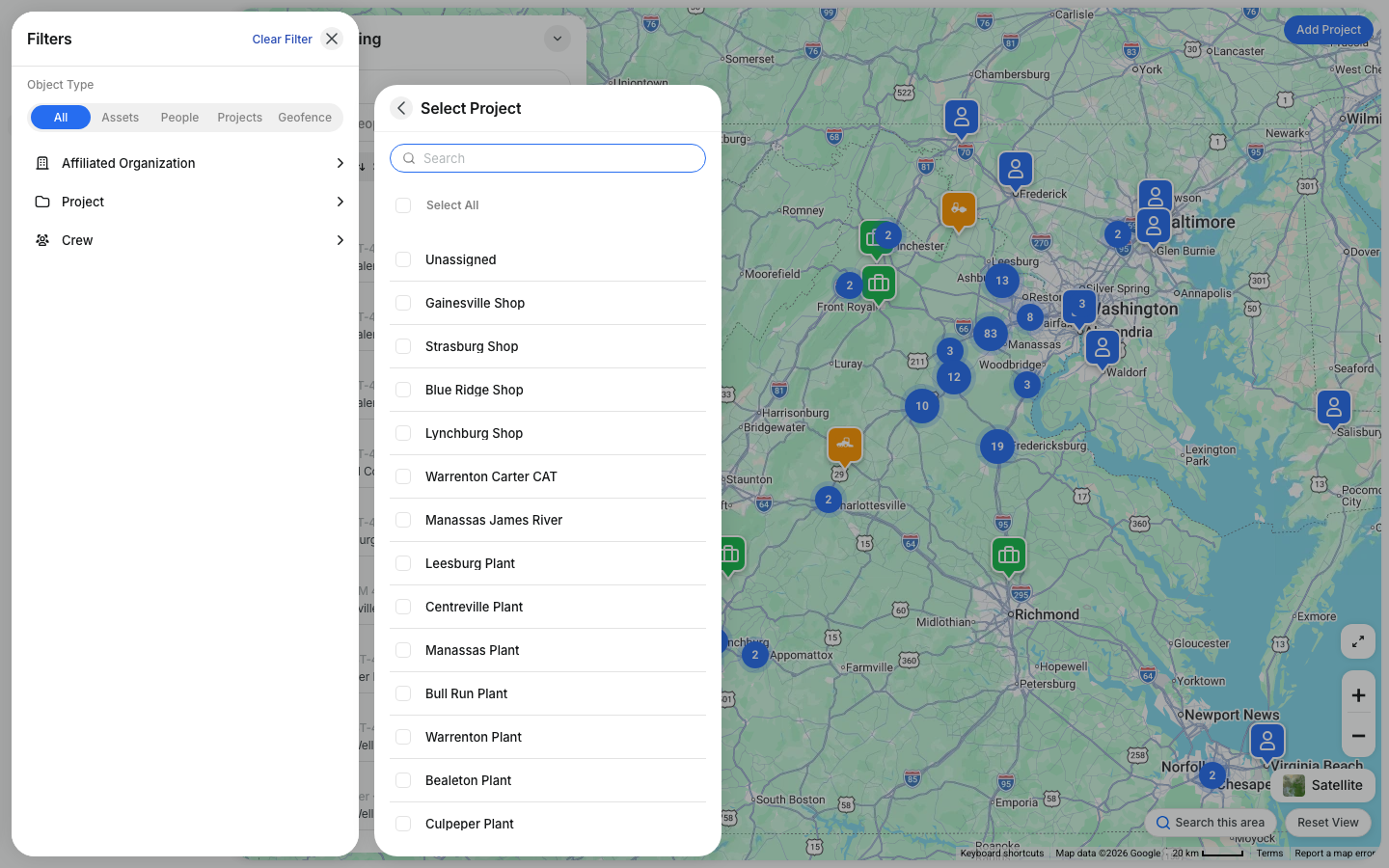
- Filters - narrow what shows on the map
- Zoom - use the + / - buttons or your scroll wheel
- Pan - click and drag to move around the map
- Search this area - load data for the part of the map currently on screen
- Reset View - return to the default map view
- Map, Satellite and Terrain - change the map style. Satellite works best for remote job sites.
Tips
A few simple habits can make Track Everything easier to use day to day.
- Click any marker or list item to open more details
- Use the Geofence tab to jump to saved areas faster
- Switch between tabs when you want to focus on one kind of item
- Pan and zoom the map to find the equipment, crew, or site you need
- Zoom in on a cluster to see each asset in it
- Check the last update time to make sure the location is current