Filtering Assets by Status

Overview
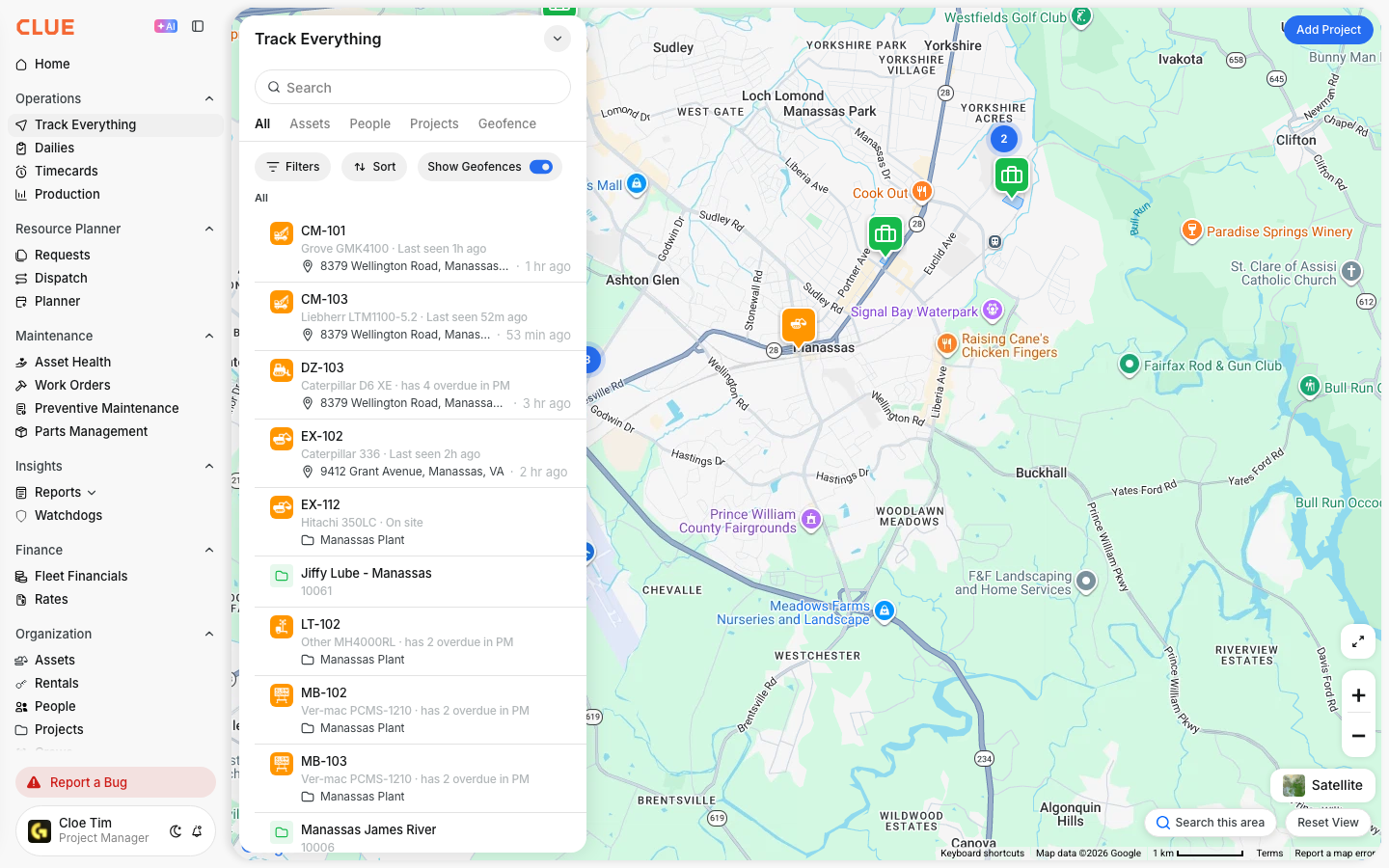
When tracking hundreds of assets, filters help you focus on what matters. Filter by asset type, project, status, or location to quickly find specific equipment on the map.
Accessing Filters
Step 1: Navigate to MAIN MENU → Track Everything.
Step 2: Look for the filter controls (typically left side or top of map).

Available Filter Options
Asset Type
Show only specific equipment categories:
- Vehicles
- Heavy Equipment
- Tools
- Trailers

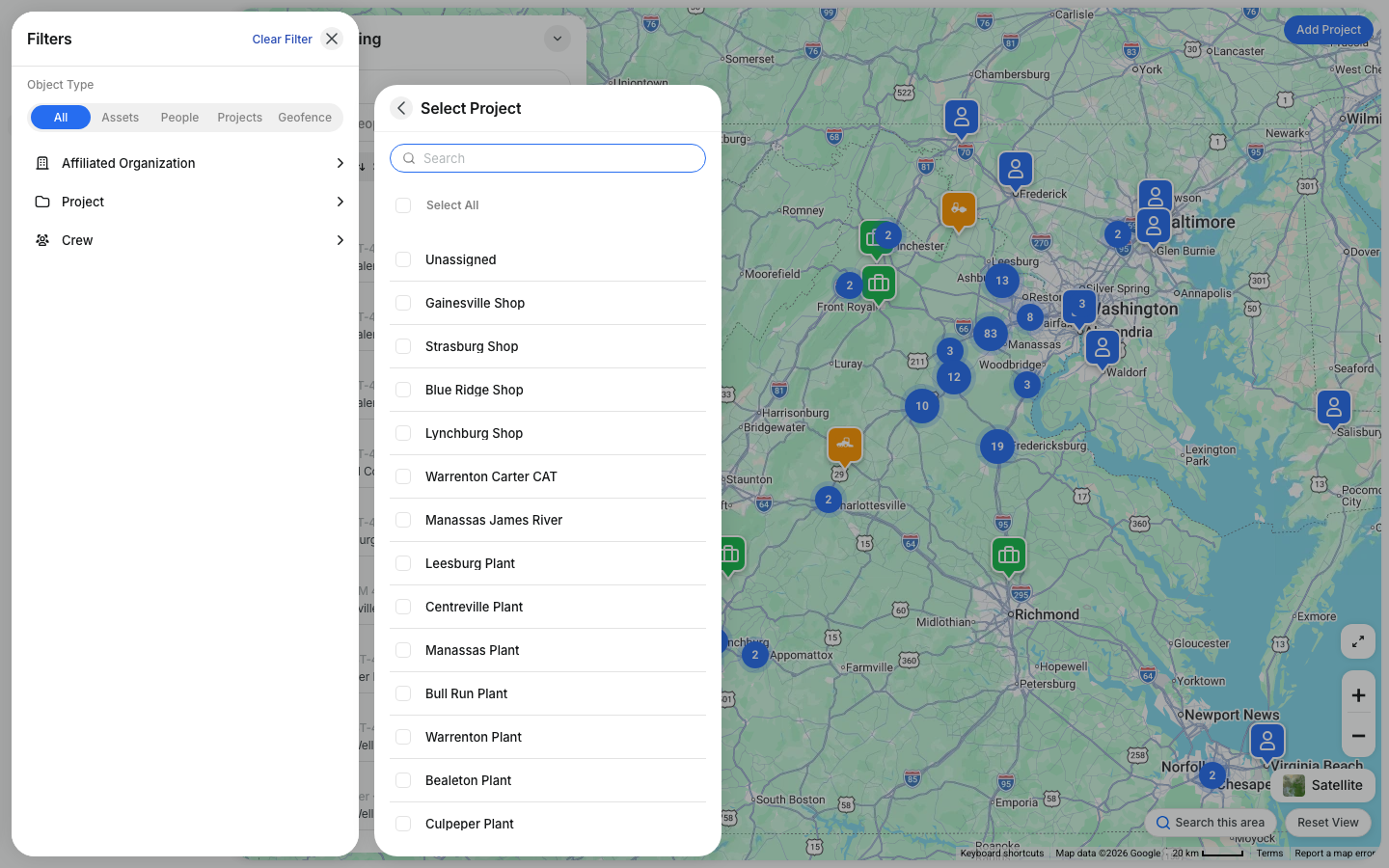
Project
Filter by assigned project:
- See all equipment at a specific job site
- Identify unassigned assets
Status
Filter by operational status:
- Moving - Currently in motion
- Idle - Engine on, not moving
- Stopped - Parked, engine off
Geofence
Show assets by location:
- Inside specific geofence
- Outside all geofences
Combining Filters
Use multiple filters together:
- "Heavy Equipment" + "Project A" = excavators at Project A
- "Moving" + "After Hours" = equipment being used late
Clearing Filters
Click "Clear" or "Reset" to remove all filters and see the complete fleet.
Tips
- Save commonly used filter combinations
- Start broad, then narrow down
- Check filter state if expected assets aren't showing