Set Up Daily Tasks
Available now on Beta, This feature is in beta testing and will roll out to everyone soon.
What is this?
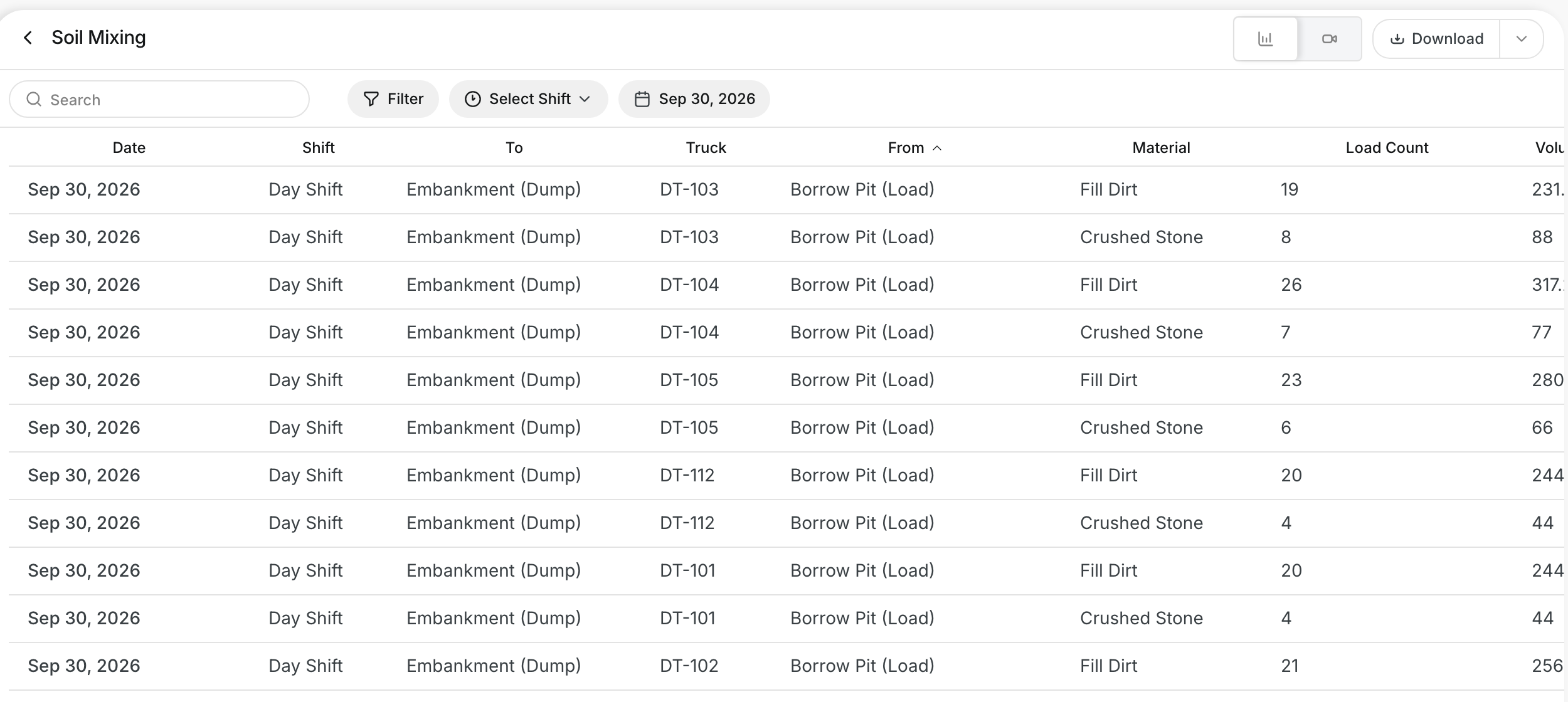
A daily task tells Clue what the trucks do in a shift. Each task has a load Area, a dump Area, a material and a time window. Clue uses the tasks to count loads and to sort them by material. You set the tasks for each date and shift.
Who's this for?
- Superintendents, plan the haul routes for each shift.
- Foremen, check where the trucks load and dump today.
- Project managers, keep the plan correct so the counts are correct.
How to use it
Step 1: Open Daily Tasks
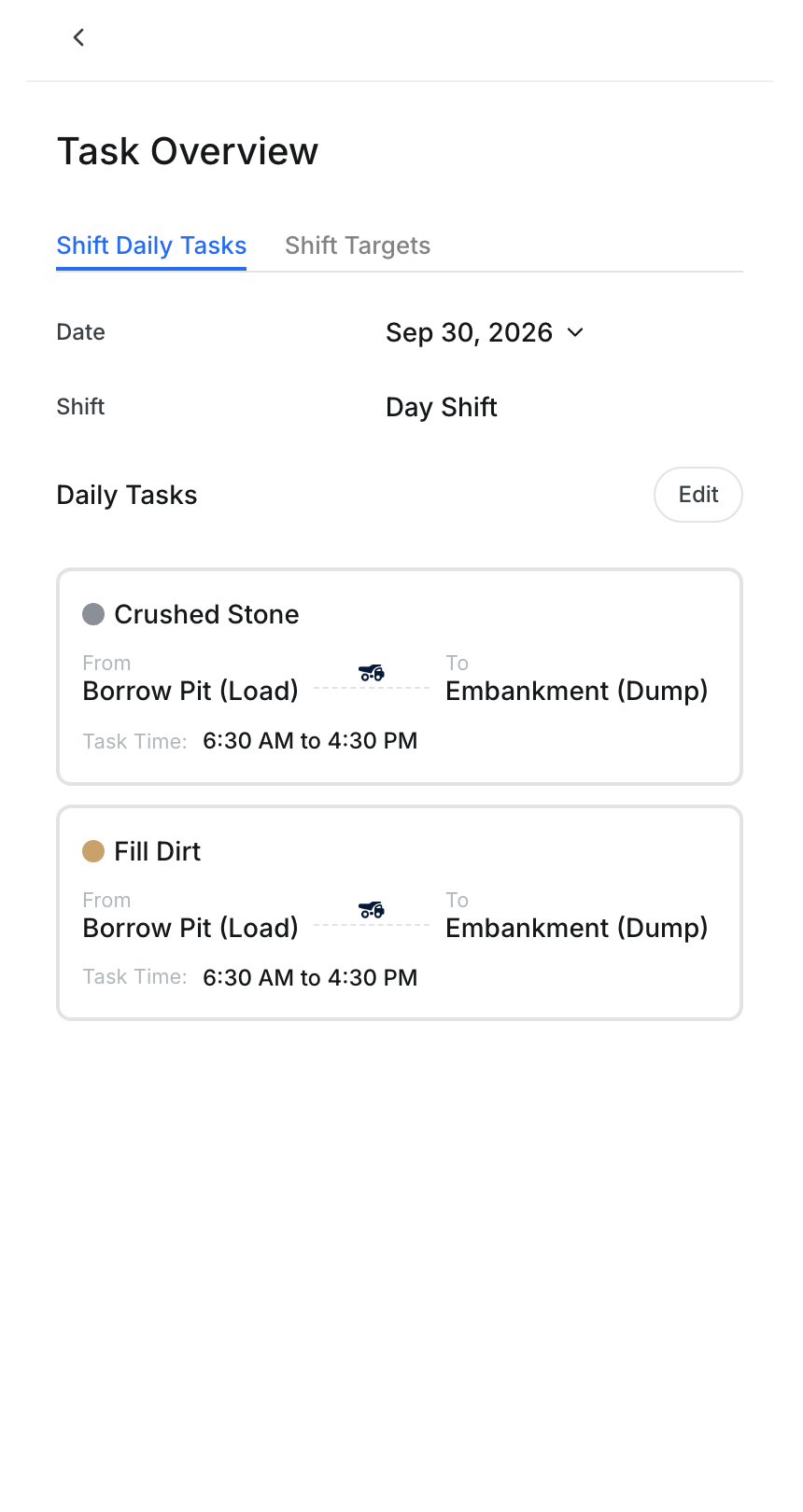
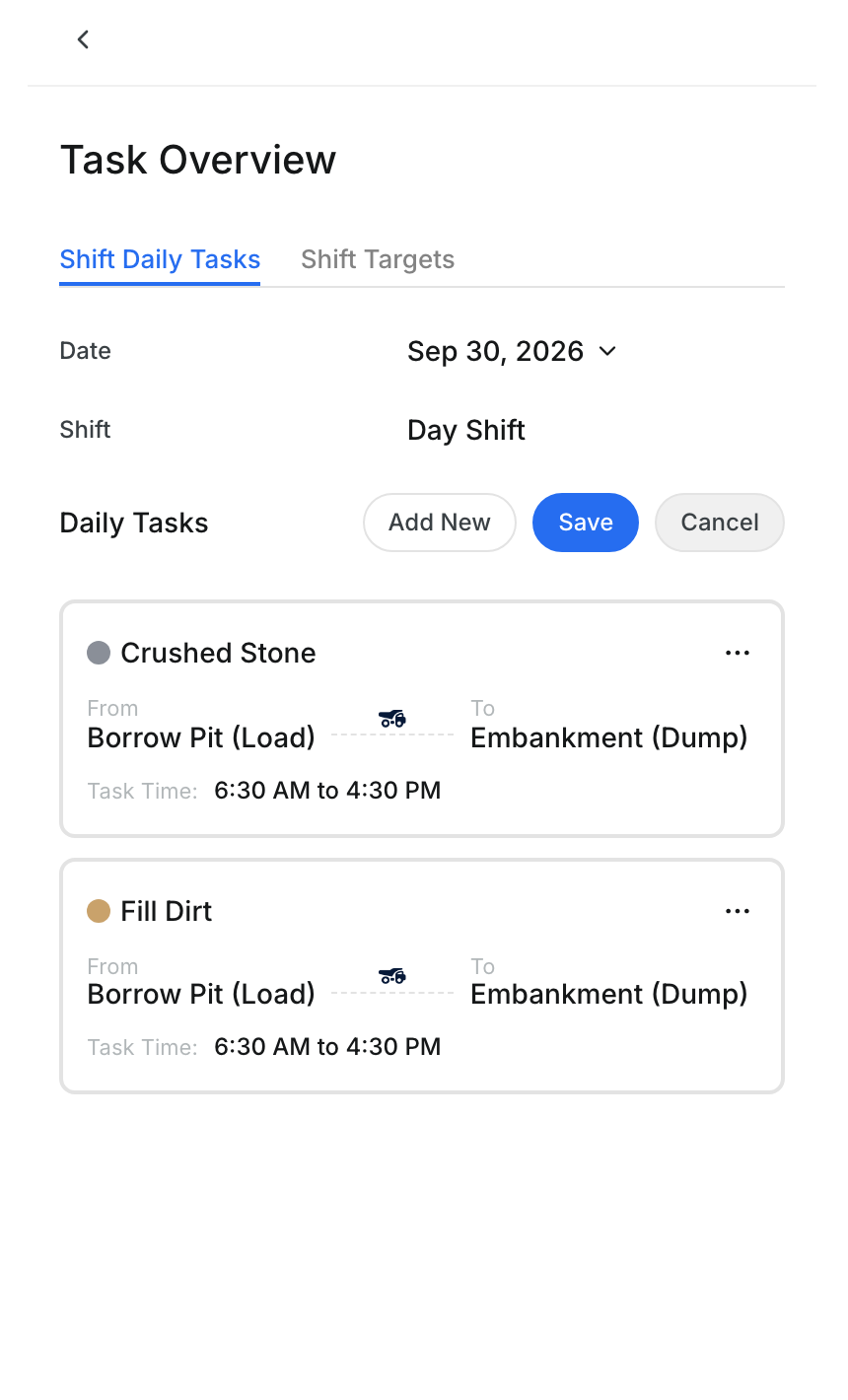
Open a project in Operations > Production and click Daily Tasks. The Task Overview panel shows the tasks for the date and shift.
Step 2: Edit the tasks
Click Edit. Click Add New to add a task. Use the ... menu on a task to change it.
Step 3: Set the route and material
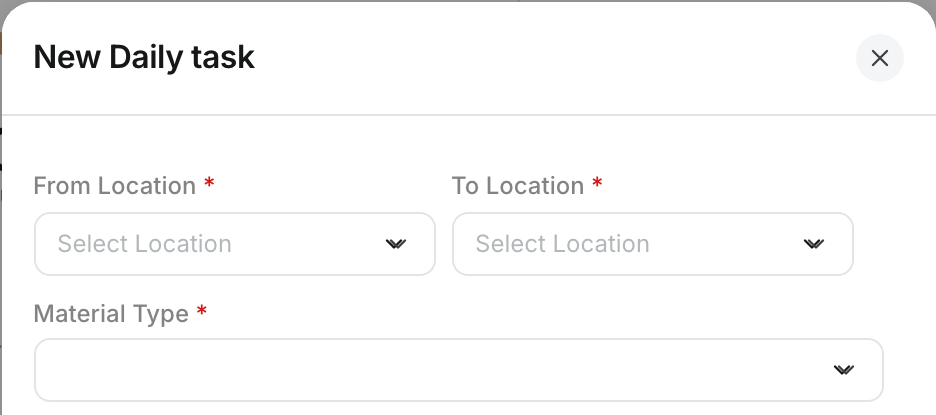
In New Daily task, pick the From Location where trucks load. Pick the To Location where they dump. Pick the Material Type.
Step 4: Set the time window
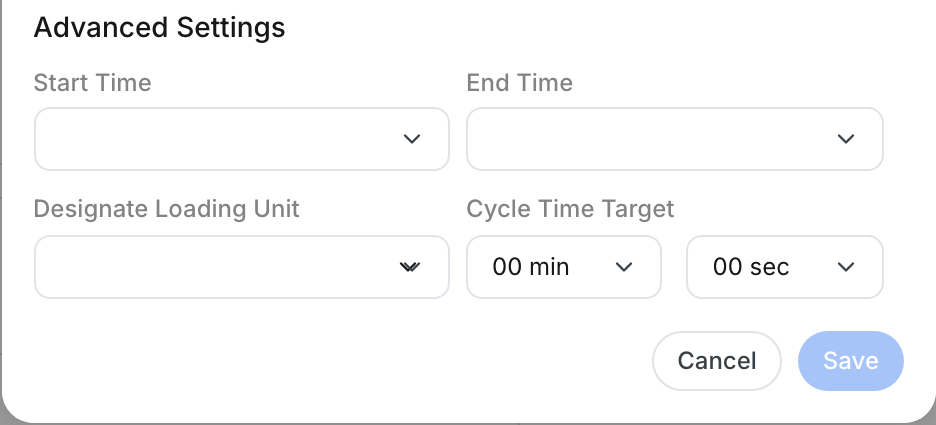
Under Advanced Settings, set the Start Time and End Time. You can also pick a Designate Loading Unit and a Cycle Time Target. Click Save, or Cancel to close.
The full details
- Date: The task date. It starts on the date of the project page.
- Shift: The shift for the tasks.
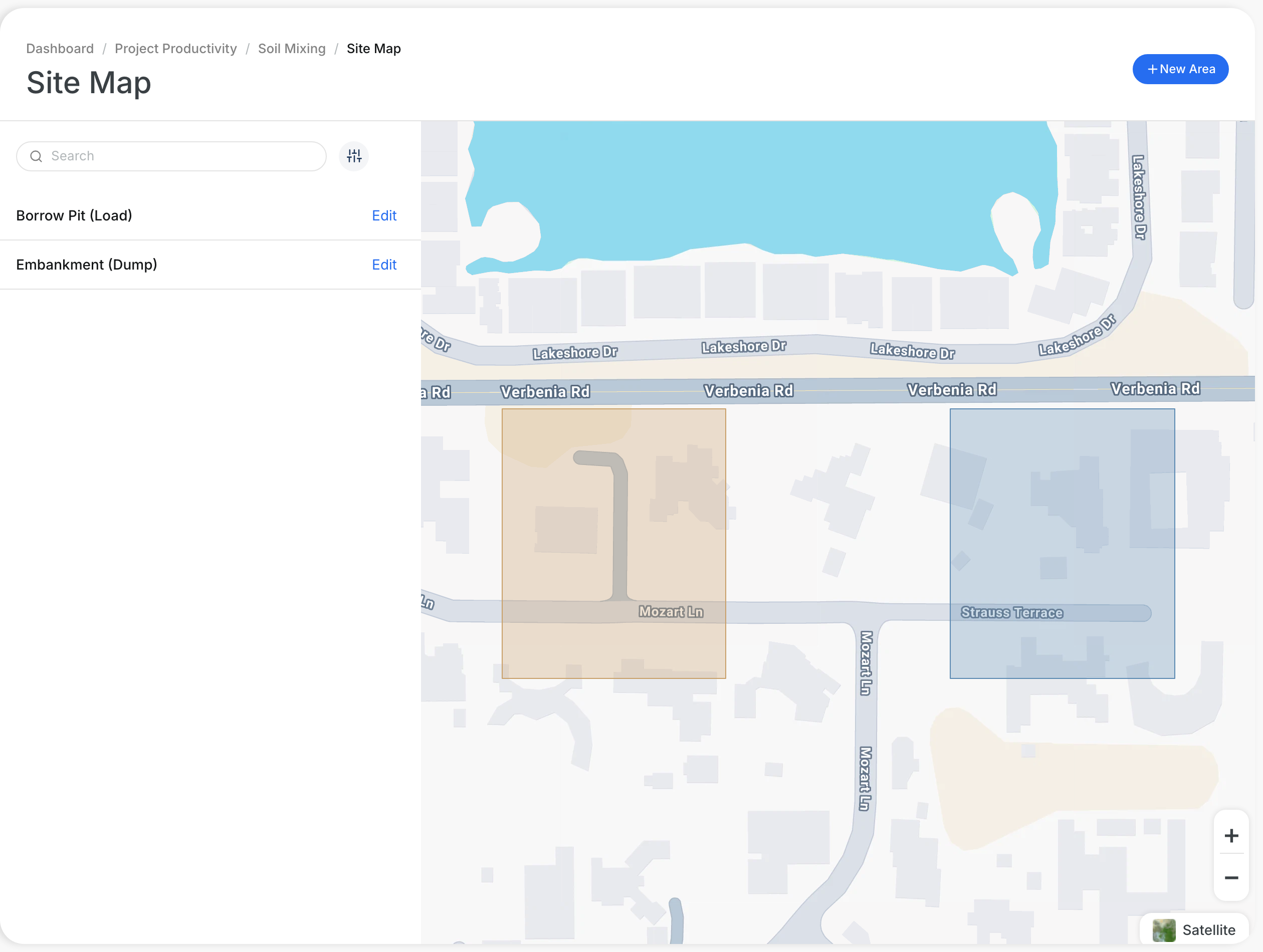
- From Location: The load Area. You draw Areas in Site Map.
- To Location: The dump Area.
- Material Type: The material the trucks haul on this route.
- Task Time: The time window of the task, for example 6:30 AM to 4:30 PM.
- Designate Loading Unit: The loader that fills the trucks on this task.
- Cycle Time Target: The planned time for one full truck trip.
- Change Task: When you change the tasks, Clue updates the productivity numbers for that date and shift.
Tips
- Draw the load and dump Areas in Site Map before you add tasks.
- Add one task for each material on the same route.
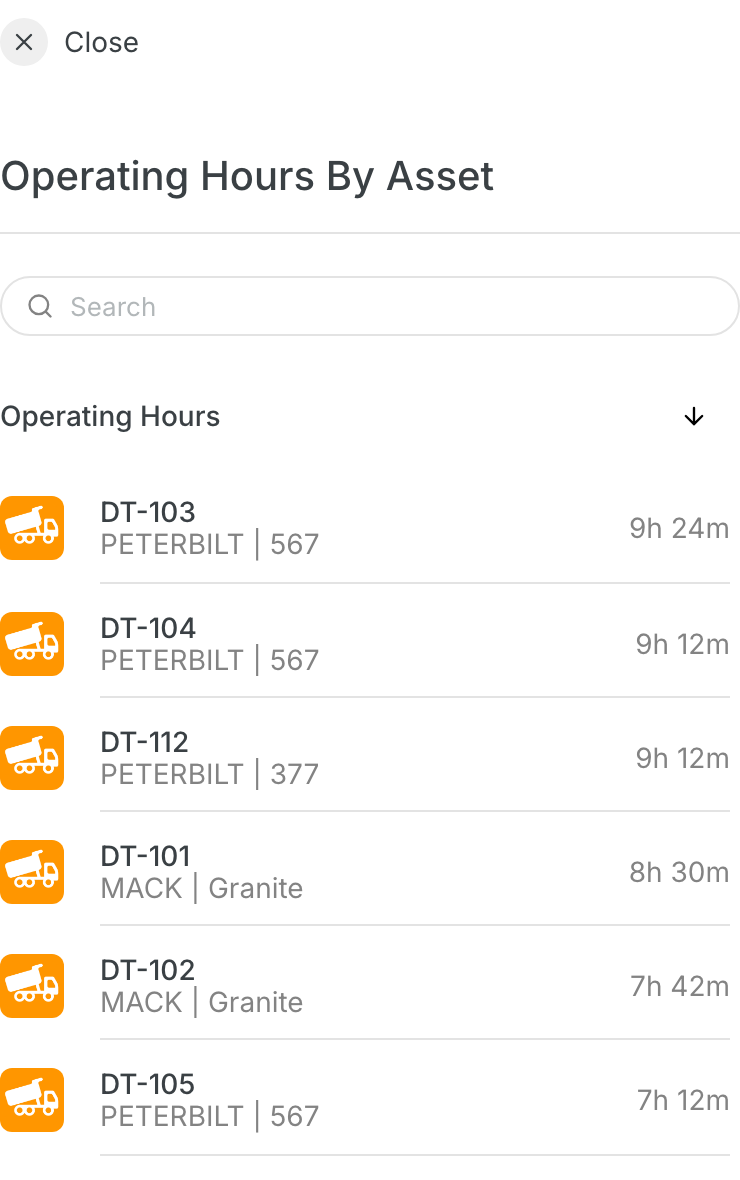
- Set targets for each truck in the Shift Targets tab.