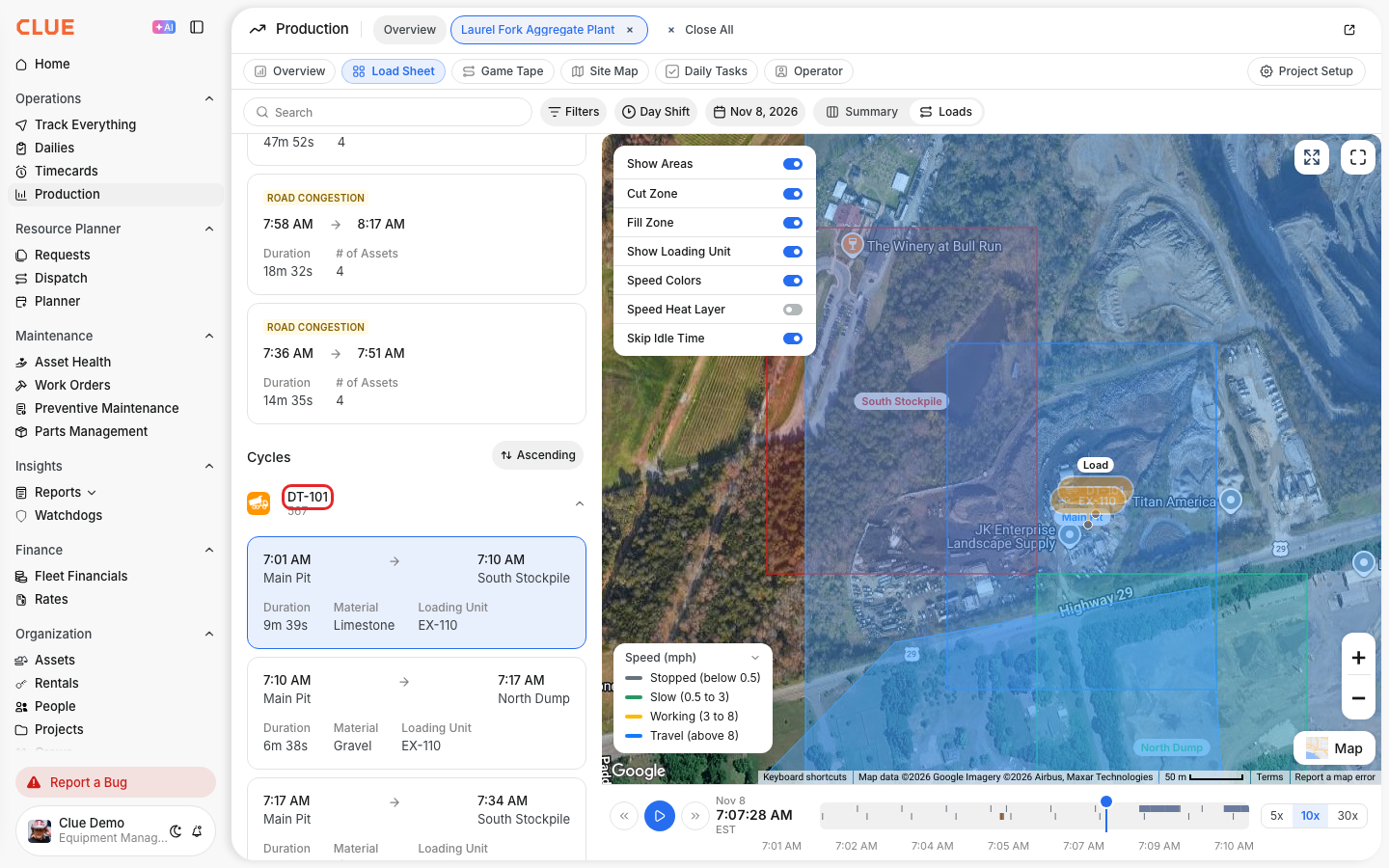
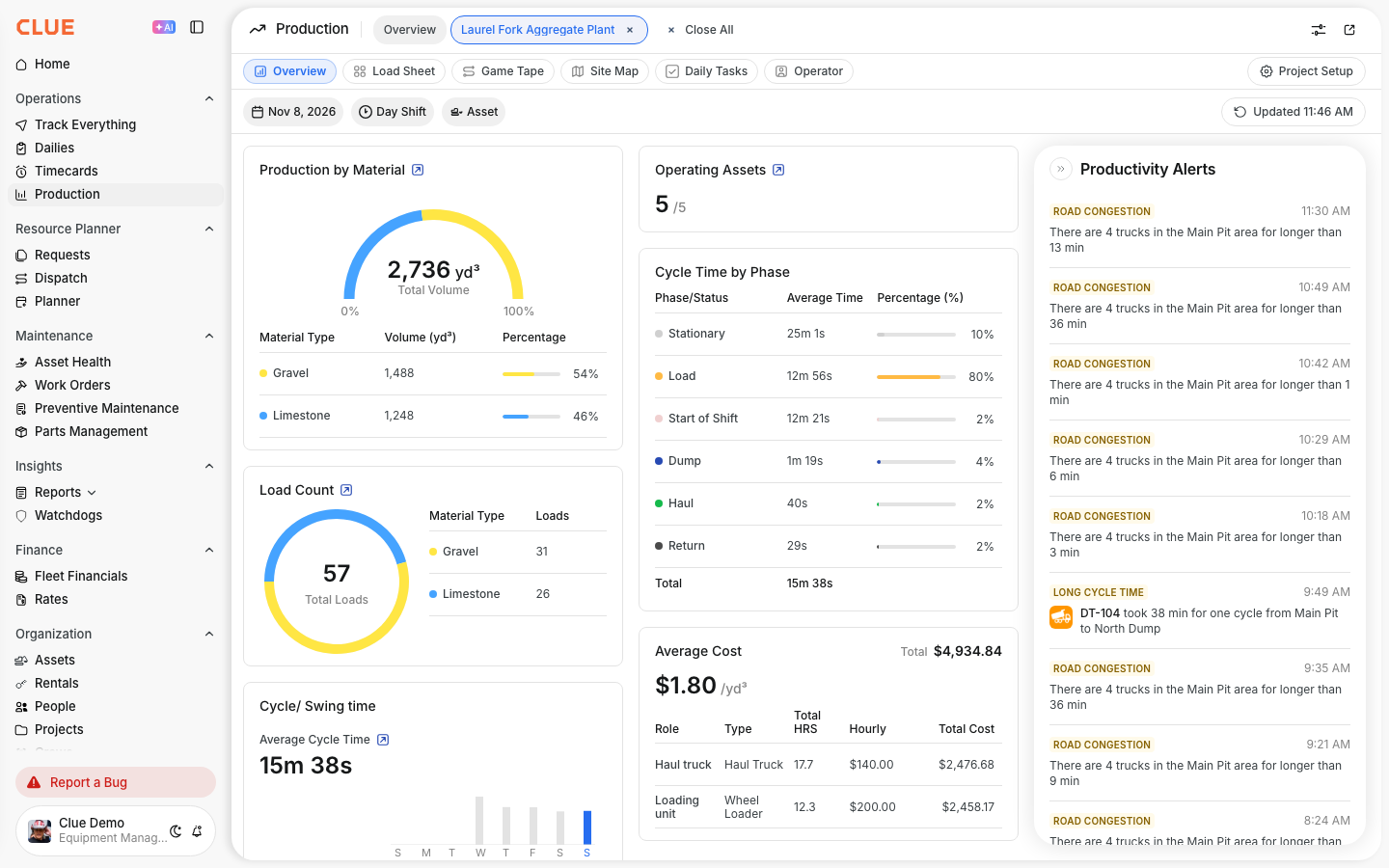
Measure Production in Tons
What is this?
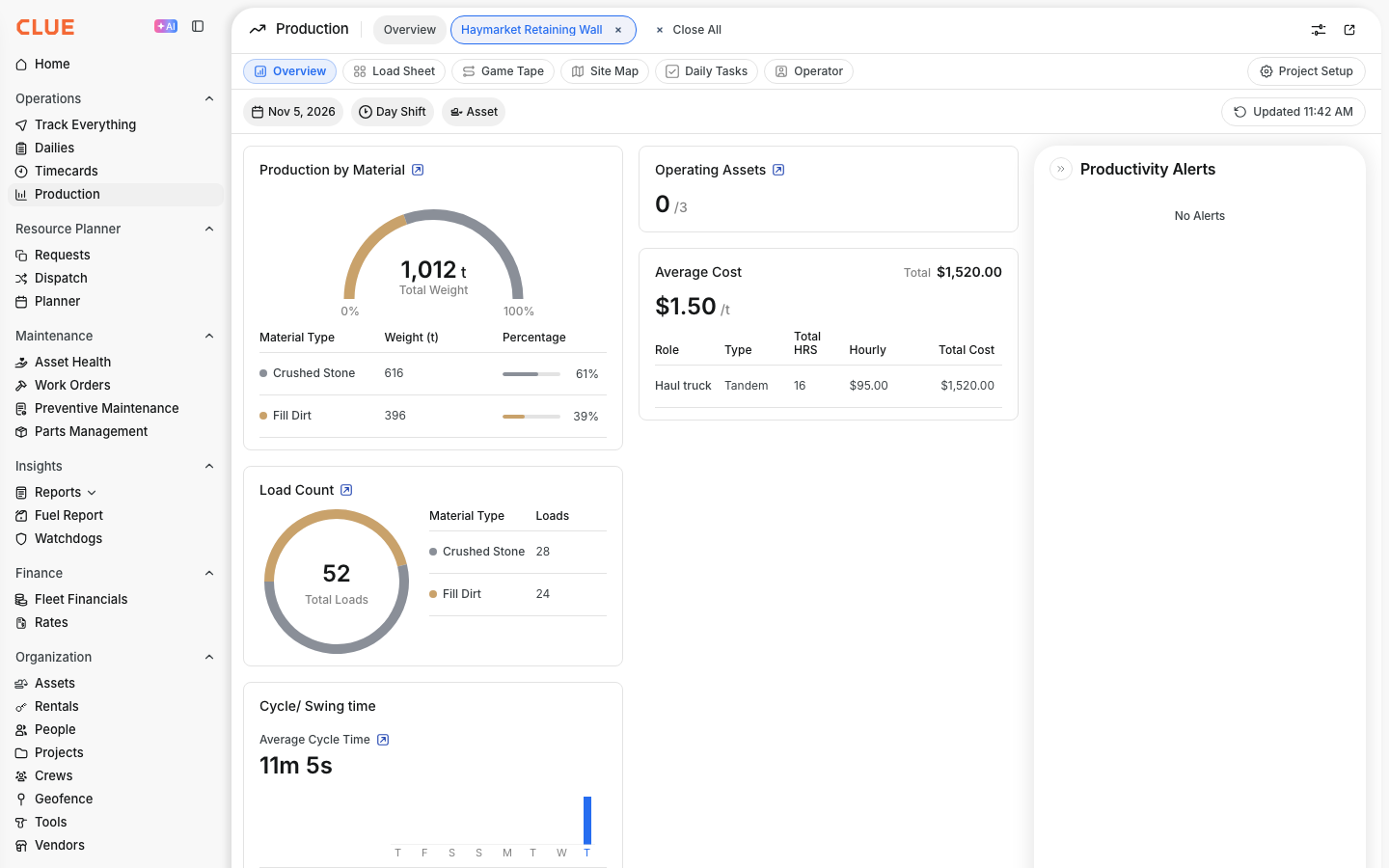
Each project has a Unit of Measure. You can show production in cubic yards, cubic meters or metric tons. When you pick Metric Tons, all users see the production, the cost and the fuel of the project per ton.
Clue counts the tons from the loads. You tell Clue how many tons each truck carries for each material. These are the tons per load.
Who's this for?
- Quarry and plant managers, see production in tons, the unit you sell and report in.
- Project managers, compare the cost per ton with your target.
- Office staff, match the Load Sheet with your scale tickets.
How to use it
Step 1: Set the Unit of Measure
Open the project and click Project Setup. On the Project Overview tab, open Unit of Measure and select Metric Tons.

Step 2: Confirm the change
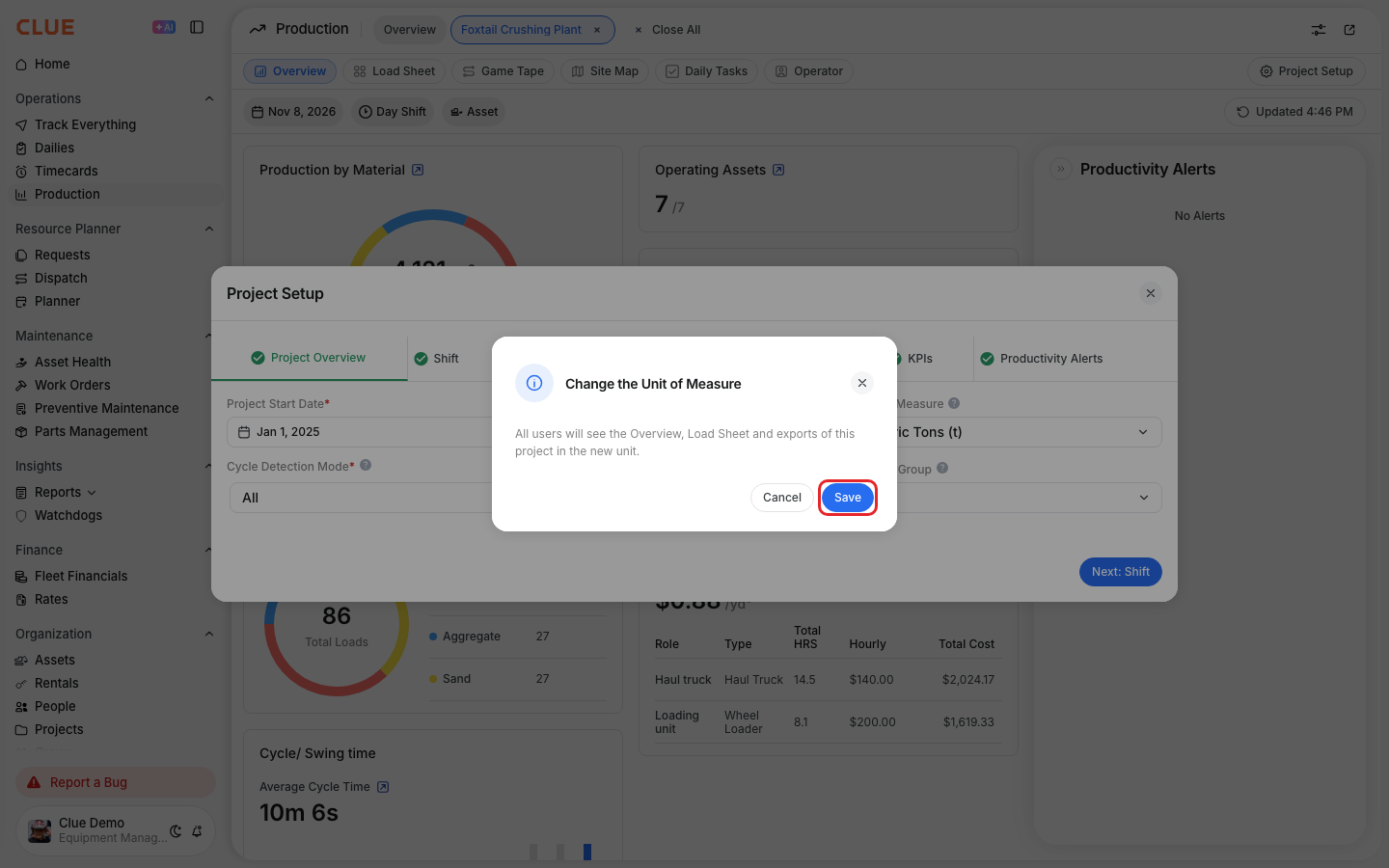
Click Next: Shift at the bottom. A message tells you that all users will see the project in the new unit. Click Save.
Step 3: Enter the tons per load
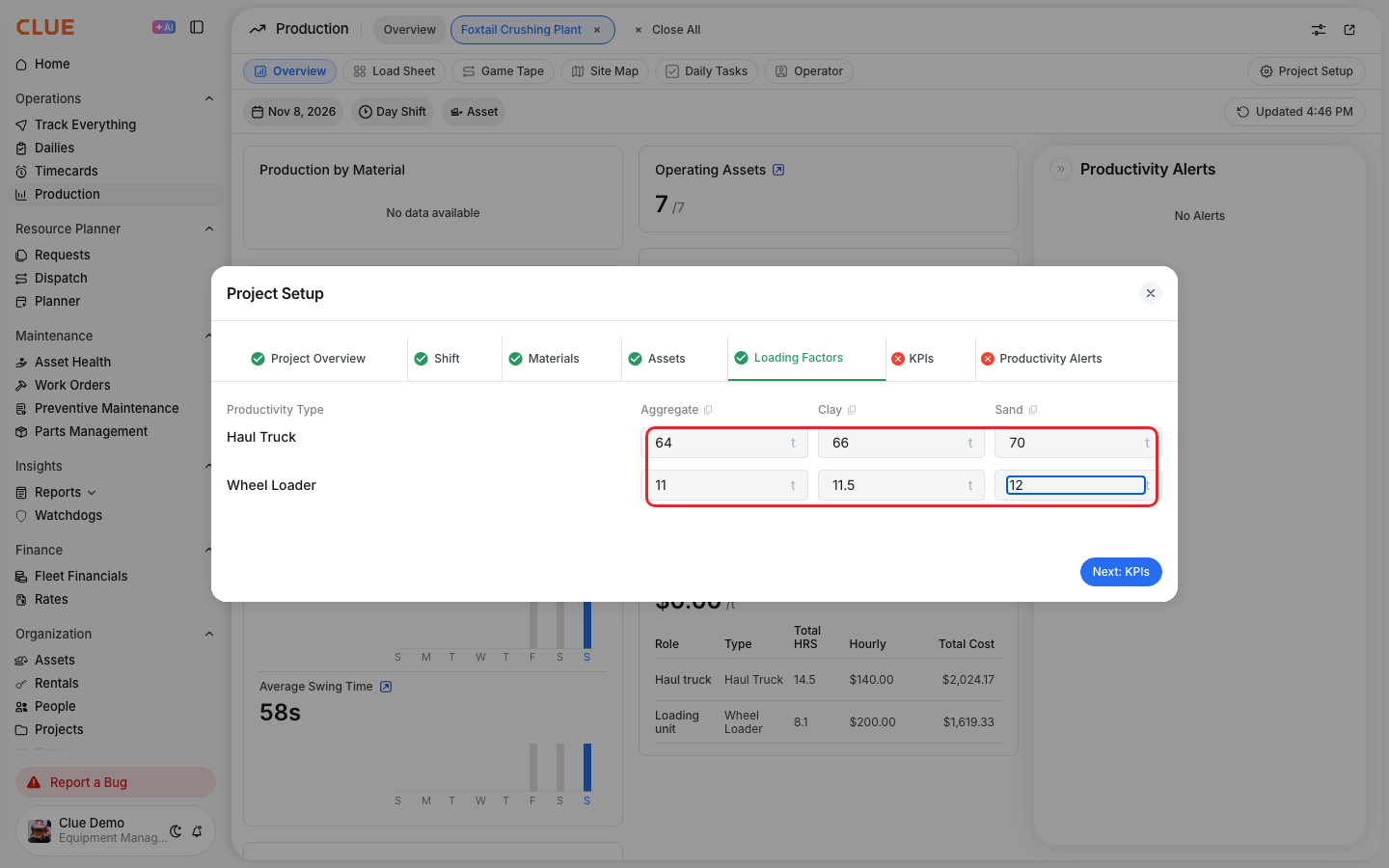
Open the Loading Factors tab. Each row is a machine type and each column is a material. Enter the metric tons that one load carries:
- Trucks: the tons in one full truck of that material.
- Loaders and excavators: the tons in one bucket of that material.
After a change to tons, the fields are empty and the tab shows a red mark. Every field needs a value more than 0. Click Next: KPIs at the bottom to save.
Step 4: Update the past days
After you save new tons per load, Clue asks from which day to use them. The date in Recalculate From is the first day of the week. Change it if necessary and click Save. Each day from that date to today takes the new tons. The days before it keep their tons.

Step 5: Check the results
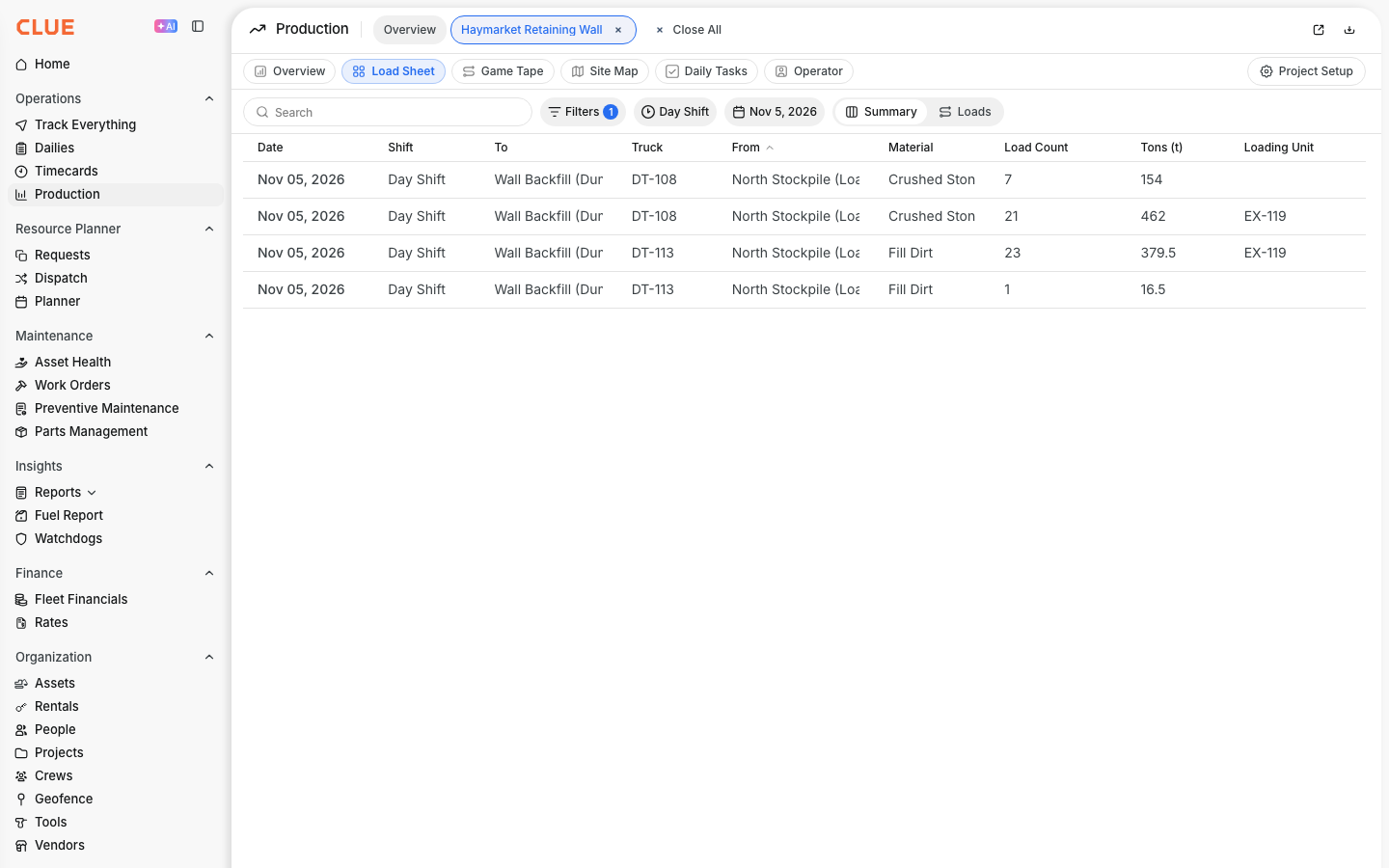
Open the Overview. Production by Material, the Average Cost and the Fuel Consumption card now show tons. The Load Sheet shows a Tons (t) column.
The full details
- Before you select a unit: each user sees the unit of their distance setting (miles: yd³, kilometers: m³). The field shows that unit.
- Who can change it: users who can change the Project Setup.
- A unit change converts nothing. Clue keeps the volume per load and the tons per load as two separate numbers. When you change the unit, each unit shows its own numbers.
- Back to cubic meters or cubic yards: the volume per load you had before comes back. A material or machine type that you added in tons has no volume yet. Enter it on the Loading Factors tab.
- Recalculate From: you can pick a day up to 28 days back. A day before the project start date is not used.
- Metric tons only: 1 t = 1,000 kg. 1 short ton = 0.907 t.
Tips
- Take the tons per load from your scale tickets. Use the average of many loads.
- Check each truck value against the rated payload of the truck. A value above it is a typing error.
- A quick check: tons per load = volume per load x the density of the material. For example, 28 m³ x 1.9 t per m³ = about 53 t.
- Pick the first day of the week in Recalculate From, so the whole week shows the same tons.