Load Count and Volume
Available now on Beta, This feature is in beta testing and will roll out to everyone soon.
What is this?
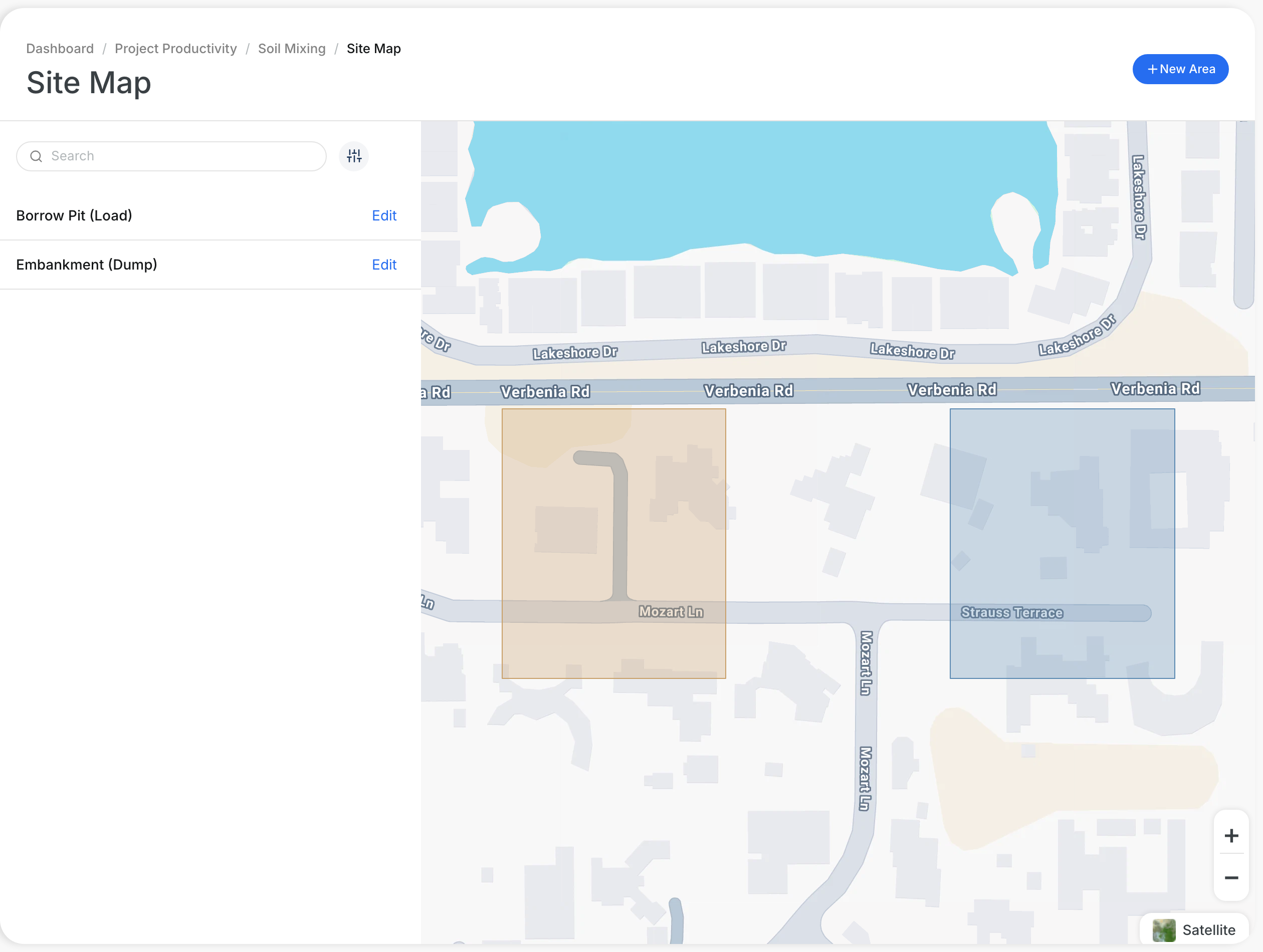
Clue counts a load each time a truck goes from a load Area to a dump Area. Clue then turns the loads into volume. Volume is the number of loads times the Loading Factor. You see the totals and the split by material.
Who's this for?
- Superintendents, see how many loads each material got in the shift.
- Project managers, track the volume moved each day.
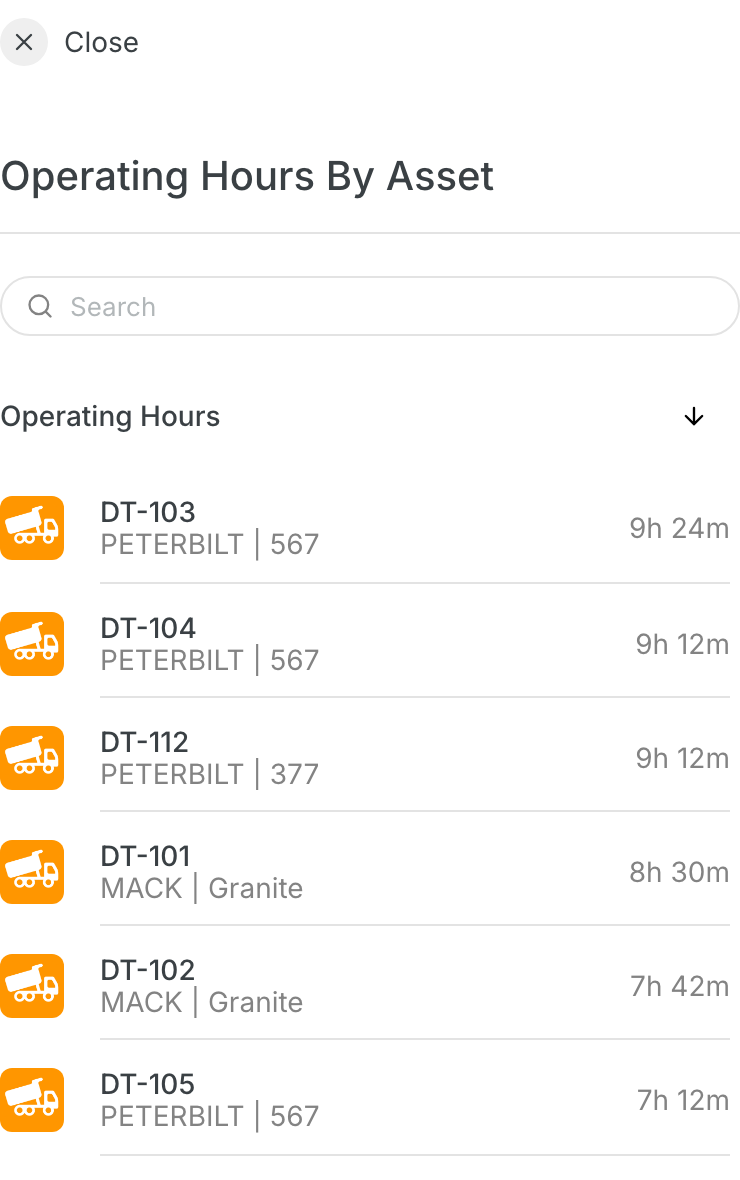
- Foremen, check the loads for each truck.
How to use it
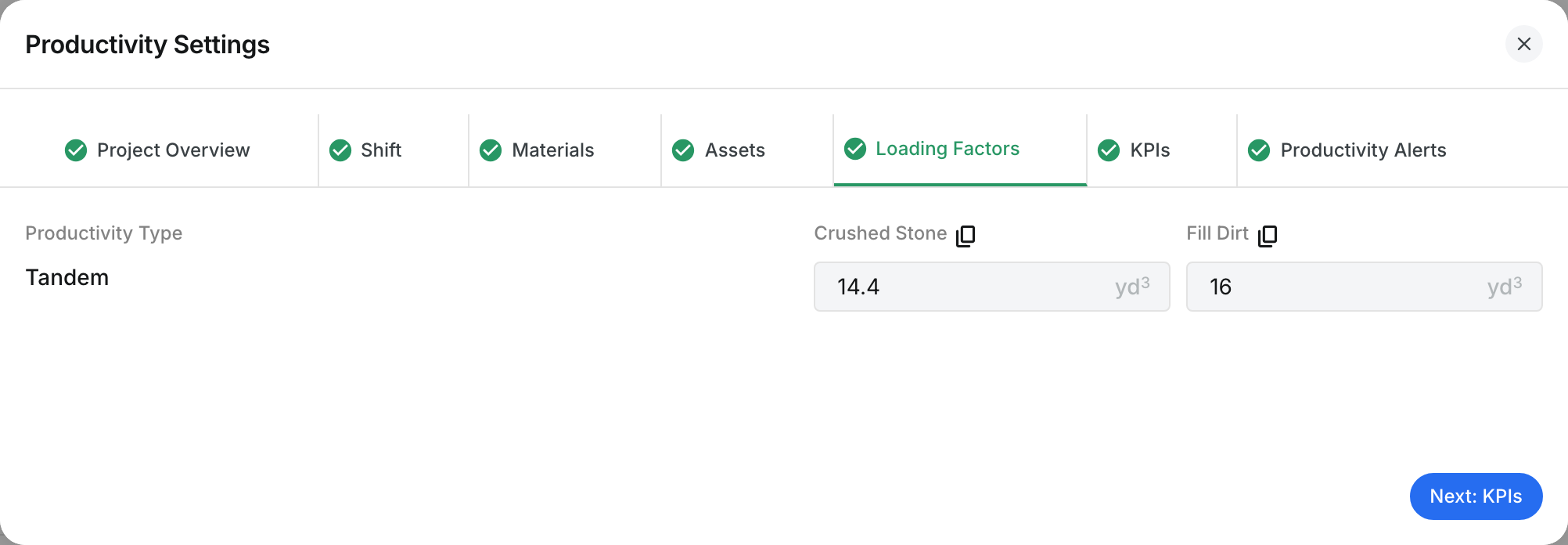
Step 1: Set the Loading Factors
Open a project in Operations > Production. Click Productivity Settings > Loading Factors. Enter how much one load holds for each material and truck type.
Step 2: Read the total loads
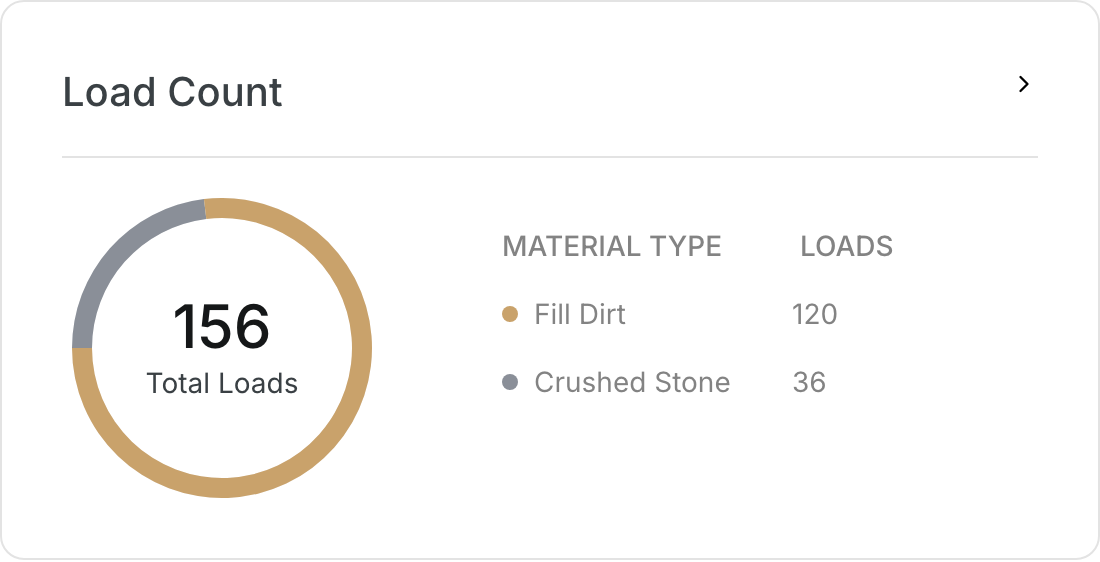
The Load Count widget shows the Total Loads in the ring. The table shows the loads for each material.
Step 3: Read the total volume
Production by Material shows the Total Volume. The table shows the volume and the percent for each material.

Step 4: See the loads for each truck
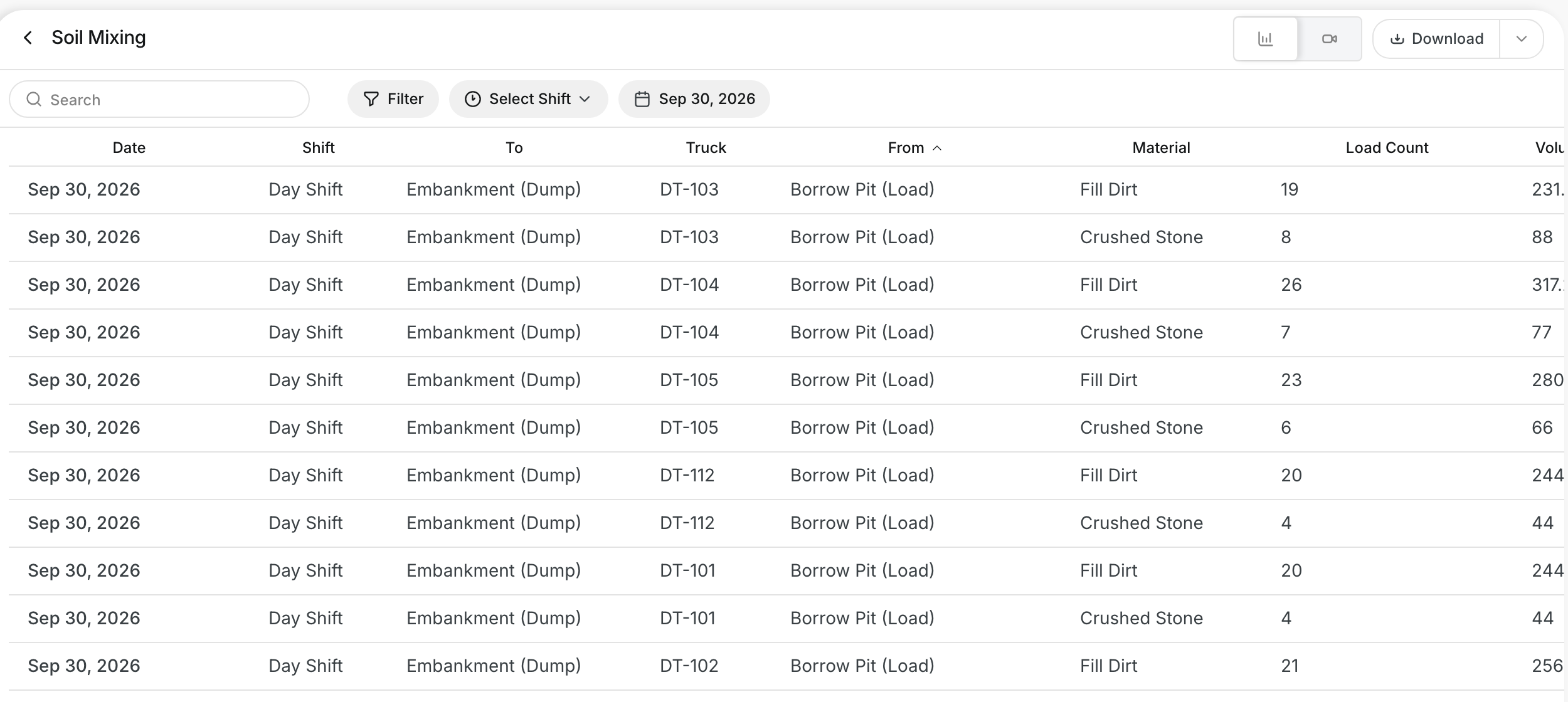
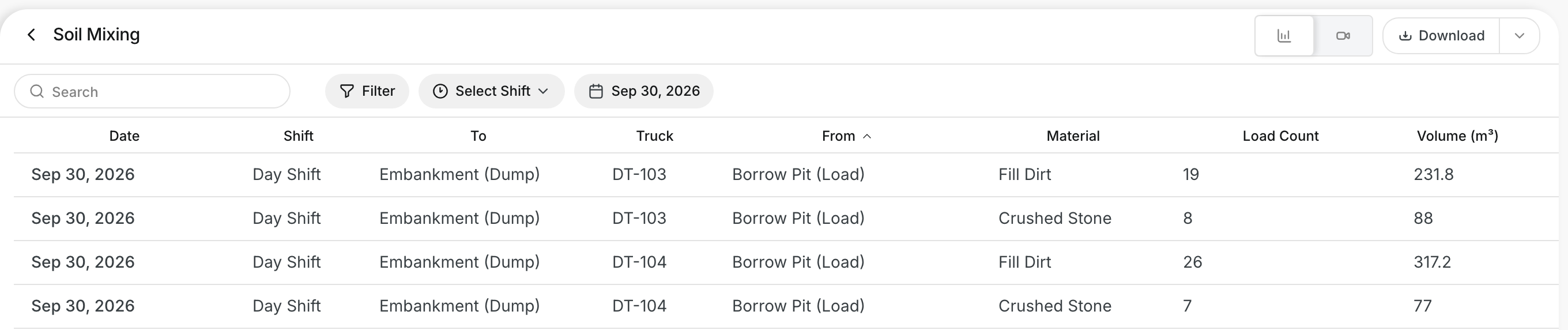
Click Load Sheet on the project page. The table lists the loads and volume for each truck, route and material.
The full details
- Load: One truck trip from a load Area to a dump Area.
- Load Area and dump Area: The From Location and To Location of a daily task.
- Material: Each load gets the material of its daily task.
- Volume: Loads times the Loading Factor.
- Unit: yd³ or m³, from the Unit in Productivity Settings > Materials.
- Total Loads: All loads for the shift and date you picked.
- Load Sheet columns: Date, Shift, To, Truck, From, Material, Load Count and Volume.
- Arrow: Click the arrow on a widget to see more detail.
Tips
- If the volume looks wrong, check the Loading Factors first.
- If loads are missing, check the daily tasks and the Areas in Site Map.
- Use Select Asset to see the loads for one truck.