Set Up Productivity Settings
What is this?
Productivity Settings tells Clue how to measure a project. You set the project dates, shifts, materials, assets and Loading Factors. You also pick the KPI widgets and the alerts. Clue uses these settings to count loads and calculate volume and cost.
Who's this for?
- Project managers, set up each project before the work starts.
- Superintendents, keep shifts, assets and materials current.
- Estimators, enter revenue, hourly costs and Loading Factors.
How to use it
Step 1: Open Productivity Settings
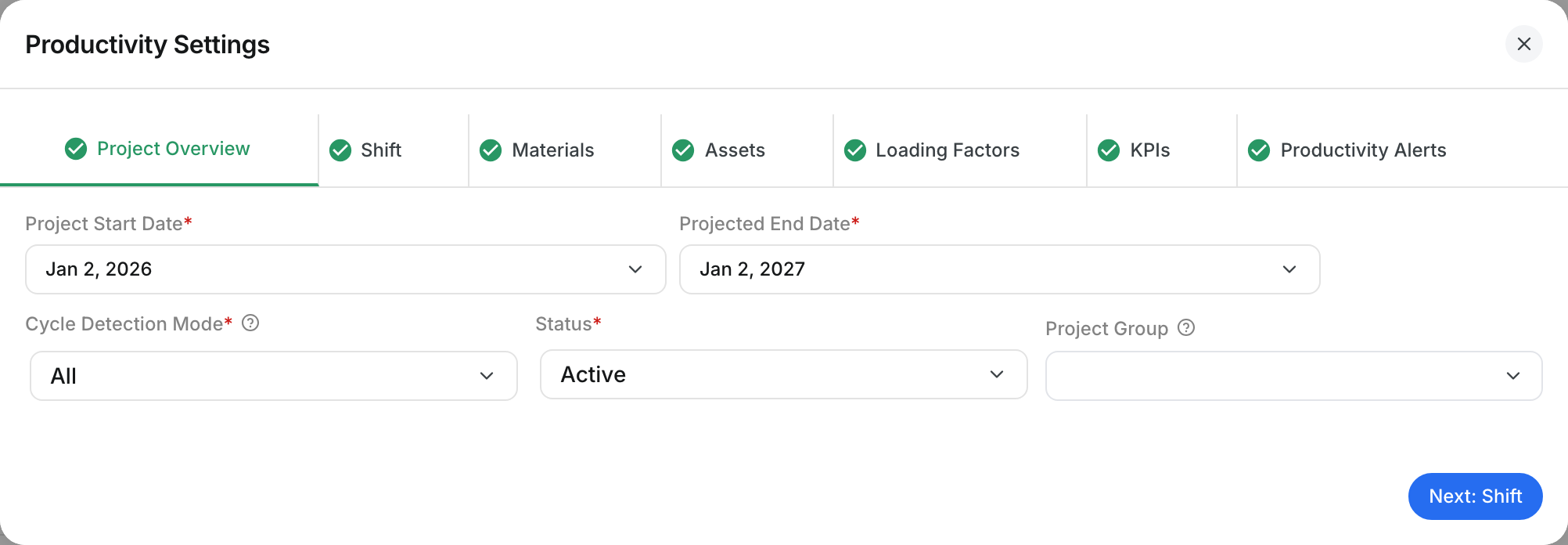
Open a project in Operations > Production. Click Productivity Settings. The Project Overview tab sets the project dates, the Cycle Detection Mode, the Status and the Project Group.
Step 2: Set the shifts
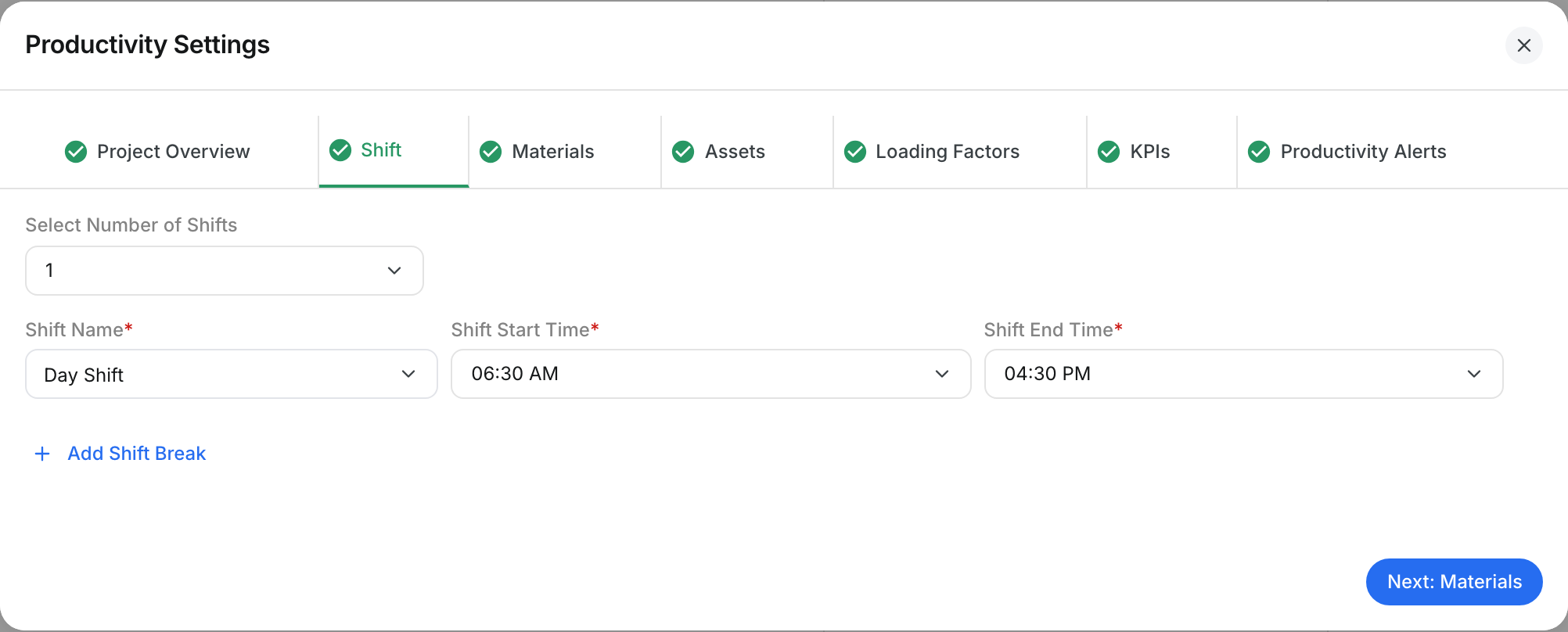
Click Shift. Pick the number of shifts. Enter each Shift Name, Shift Start Time and Shift End Time. Click Add Shift Break to add a break.
Step 3: Add the materials
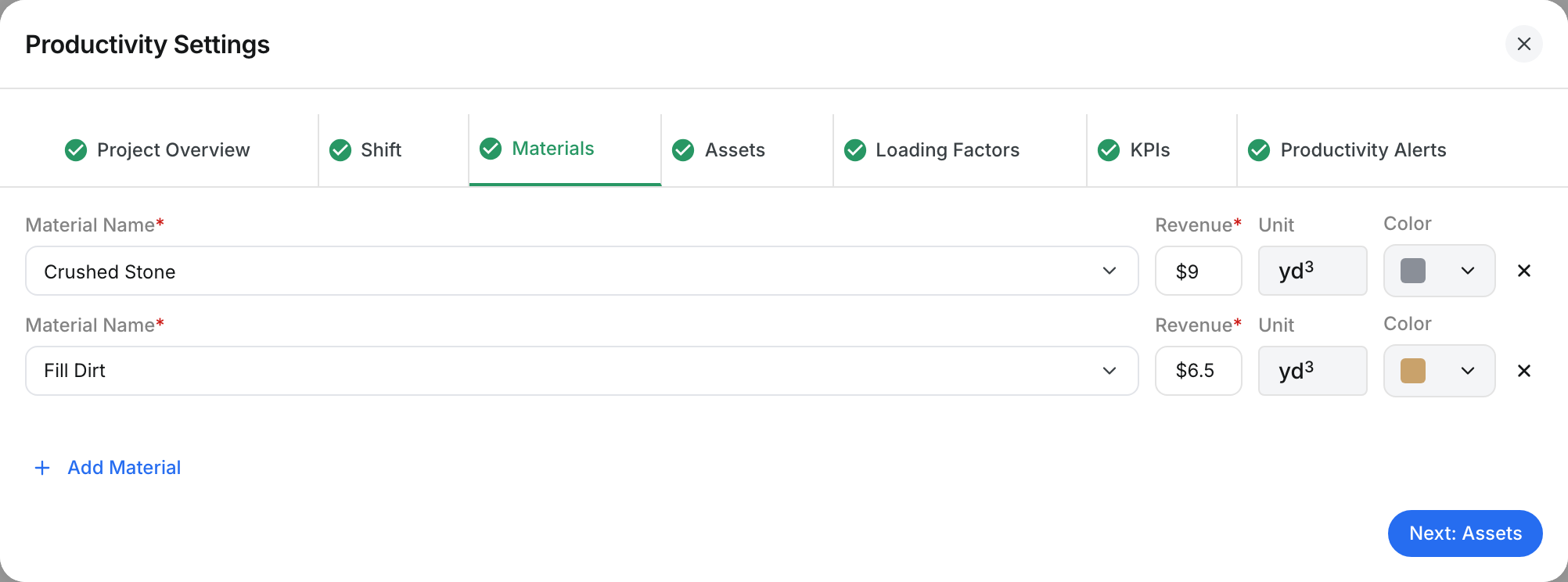
Click Materials. Add each material with its Revenue, Unit and Color. Click Add Material for another one.
Step 4: Set up the assets
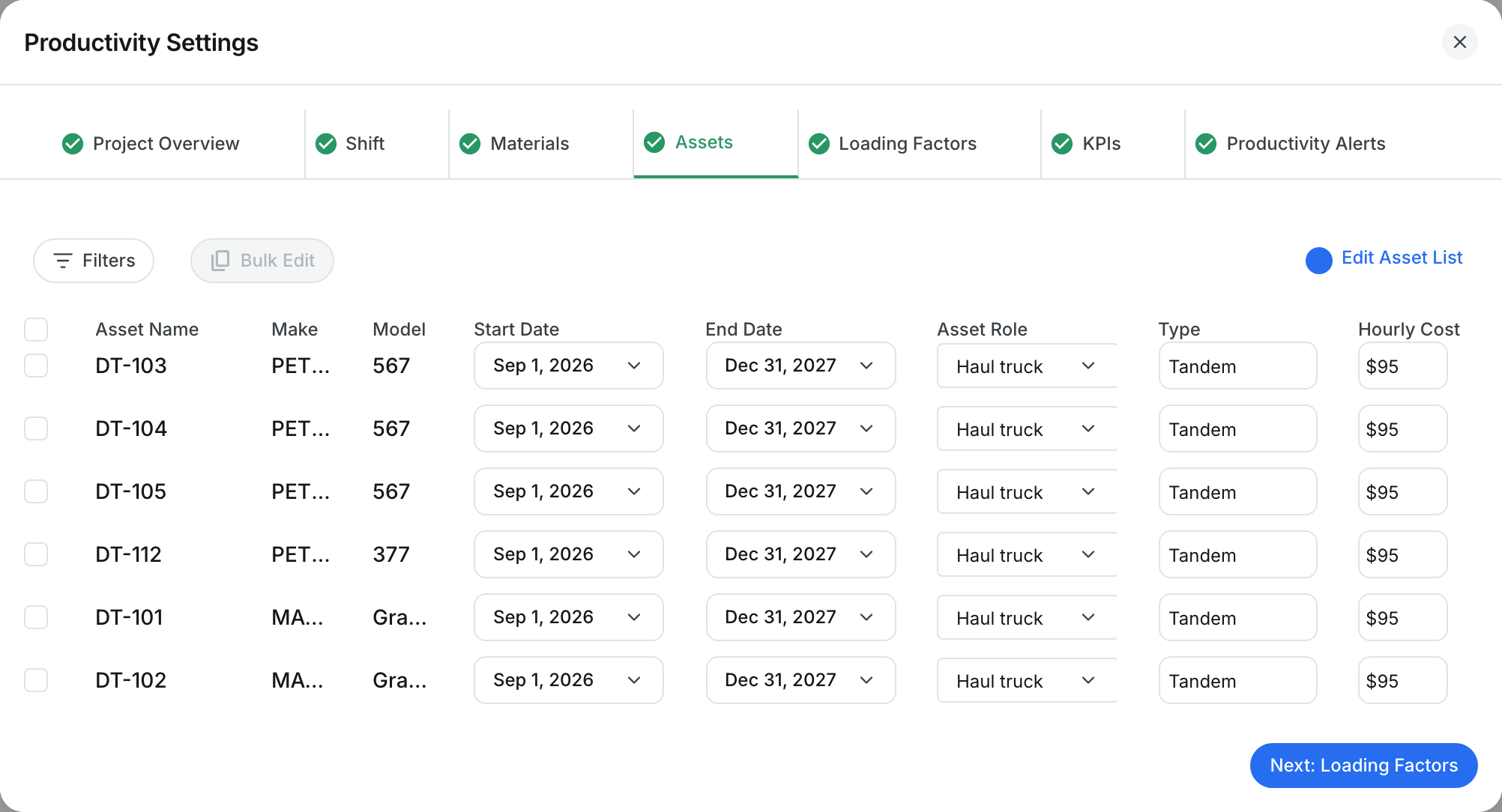
Click Assets. Each asset has a Start Date, End Date, Asset Role, Type and Hourly Cost. Click Edit Asset List to add or remove assets.
Step 5: Enter the Loading Factors
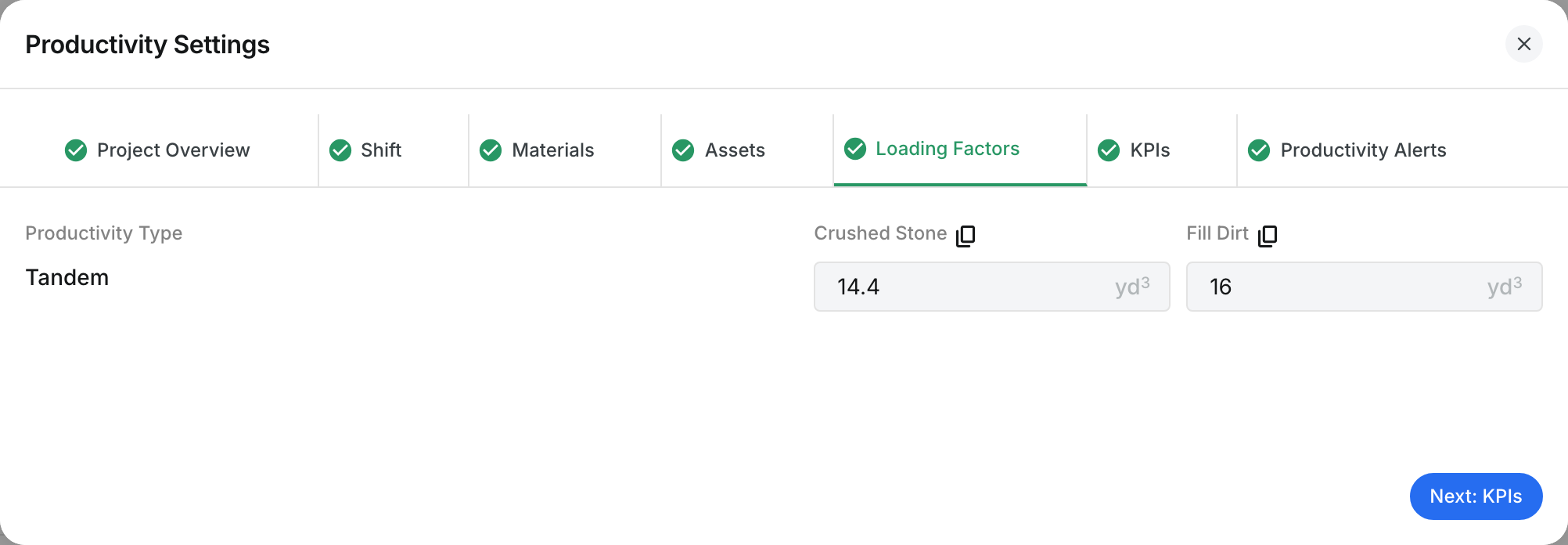
Click Loading Factors. Enter how much one load holds for each material and truck type. Clue multiplies the loads by this number to get the volume.
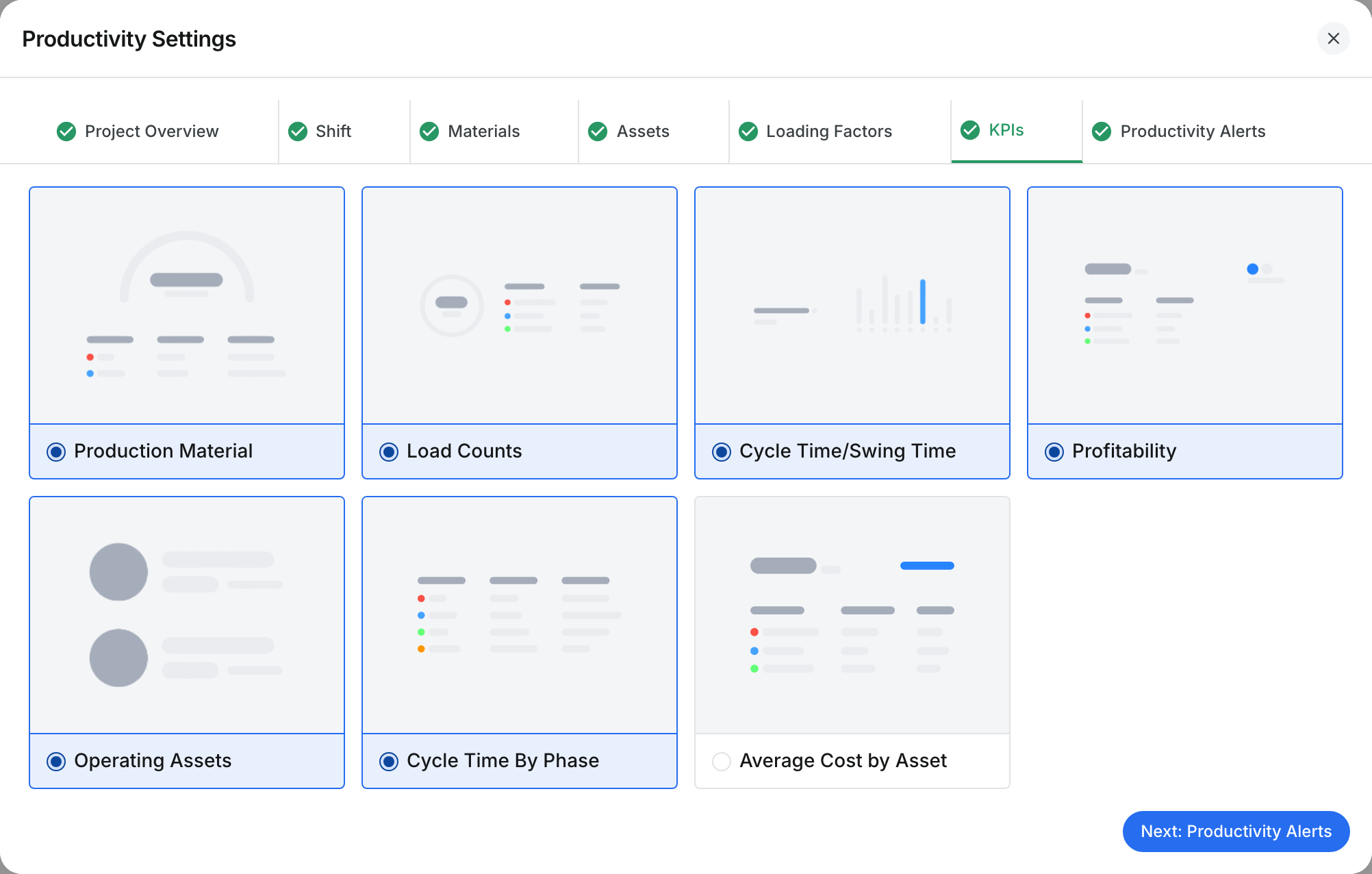
Step 6: Pick the KPI widgets
Click KPIs. Select the widgets you want on the project page. Clear a widget to hide it.
The full details
- Cycle Detection Mode: Pick All or Paired. This sets how Clue finds the truck trips.
- Status: Active or Inactive.
- Project Group: Groups projects together.
- Shift Break: A break with a Break Name, From and Until time.
- Revenue: The amount you earn for each unit of a material.
- Asset Role: The job of the asset, for example Haul truck. A truck needs a role.
- Hourly Cost: The cost of the asset for one hour.
- Bulk Edit: Select assets with the checkboxes, then click Bulk Edit. Set the Start Date, End Date, Asset Role, Type or Hourly Cost for all of them at once.
- Loading Factors: One box for each material and truck type. Fill in every box.
- Productivity Alerts: Pick the Alert Type to watch for this project. The alerts show in the Productivity Alerts list.
- Copy From: Copies the settings from another project.
- Save: Saves the tab. Next opens the next tab.
Tips
- Set up a new project in tab order, from Project Overview to Productivity Alerts.
- Use Bulk Edit when many trucks share the same cost or dates.
- Check the Loading Factors first when the volume looks wrong.