Available now on Beta, This feature is in beta testing and will roll out to everyone soon.
What is this?
The assets step records which machines worked and for how long. You split each asset's hours across phase codes and pick the operator. Where an asset reports telematics, Clue shows those hours next to yours.

Who's this for?
- Foreman, enter machine hours and operators for the shift.
- Superintendent, check that reported hours match the machine data.
- Equipment manager, see which assets worked and on which codes.
How to use it
Step 1: Open the assets step
Go to Step 3 of 5 · Assets. Each asset on site is a row. Type its hours under each phase code.
Step 2: Compare with telematics
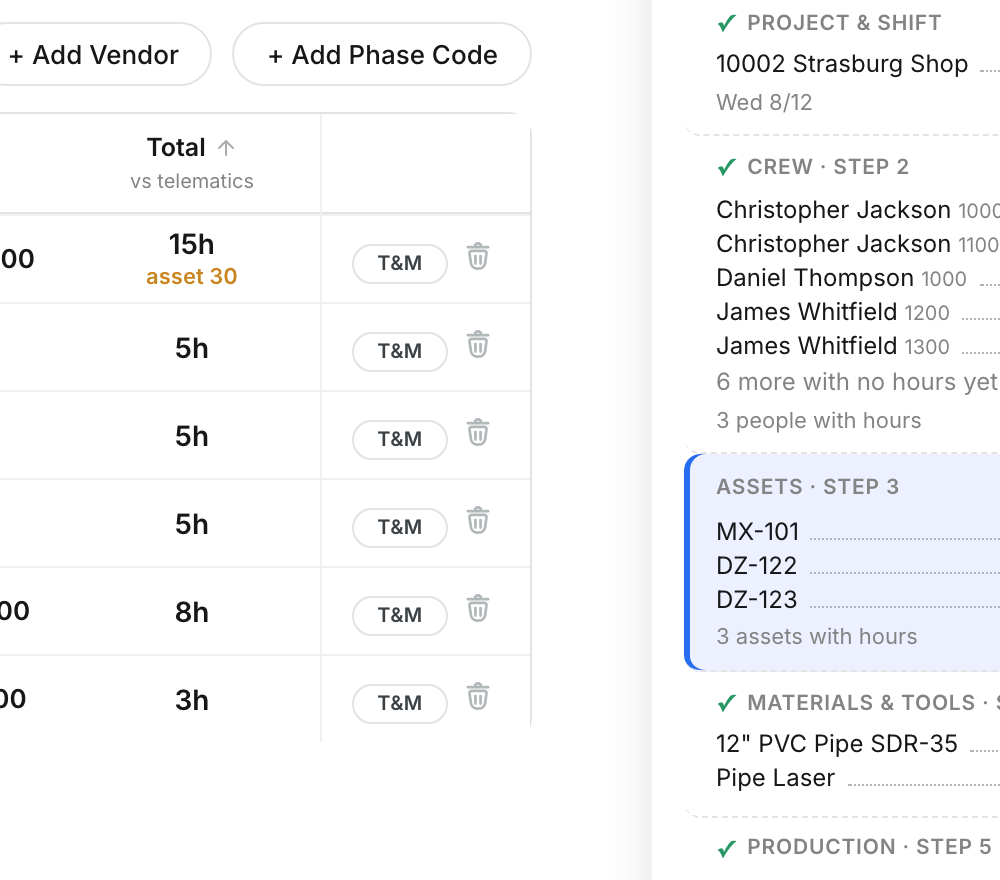
Look at Total. The line under it shows the asset hours from telematics, so you can see any gap.
Step 3: Pick the operator
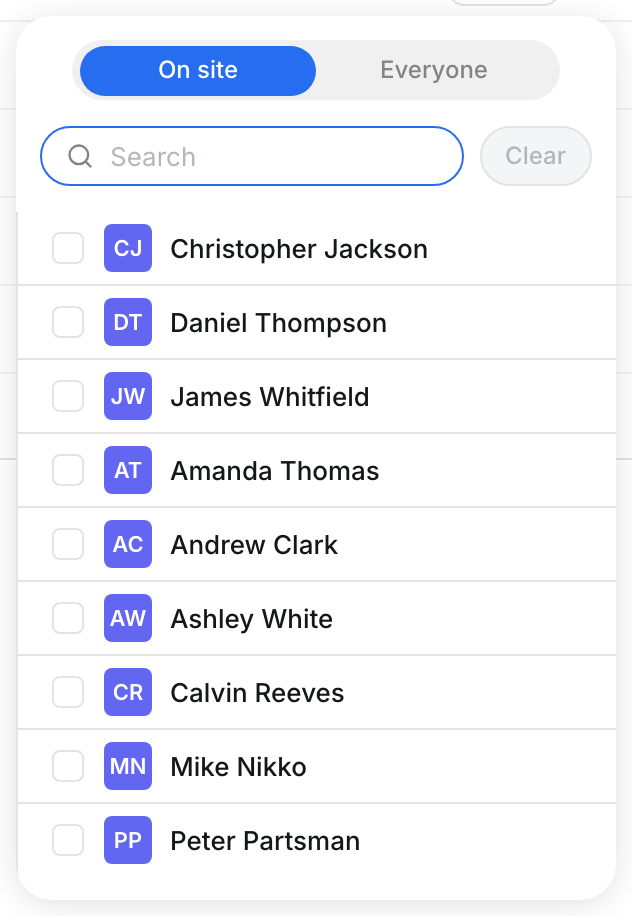
Click + Operator on a row. Choose On site or Everyone, then pick the person.
Step 4: Add an asset
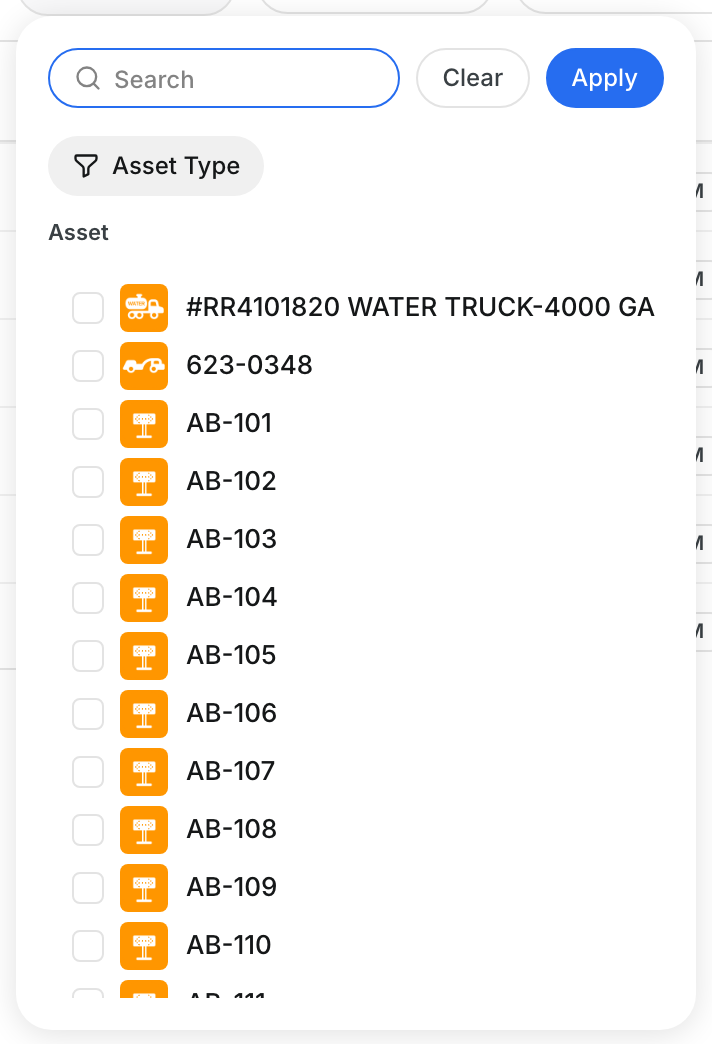
Click + Add Asset. Search or filter by Asset Type, tick the assets, and click Apply.
The full details
- Assets: Shows how many assets are on site and their total hours.
- Operator: The person who ran the asset.
- Status: The asset state for the day, such as operational.
- Phase code columns: Hours the asset worked on each code.
- Other: Hours not billed to a phase code.
- Cost: Asset cost from its rate.
- Total vs telematics: Your total hours, with the telematics hours shown below.
- T&M: Marks the asset row as extra work.
- + Add Vendor: Adds a rented or vendor unit that is not in your asset list.
Tips
- If your total and the telematics hours differ, check the hours before you submit.
- The Daily Report panel lists every asset with its hours under ASSETS · STEP 3.