Which Inspection Form Comes Up First
What is this?
When someone taps Inspect Asset, Clue puts one form at the top of the list. That choice is not random. Clue looks at how closely each of your forms matches the machine in front of the operator, and the closest match comes up first.
This article explains the order Clue uses. Once you know it, you can set up your templates to get exactly the result you want.
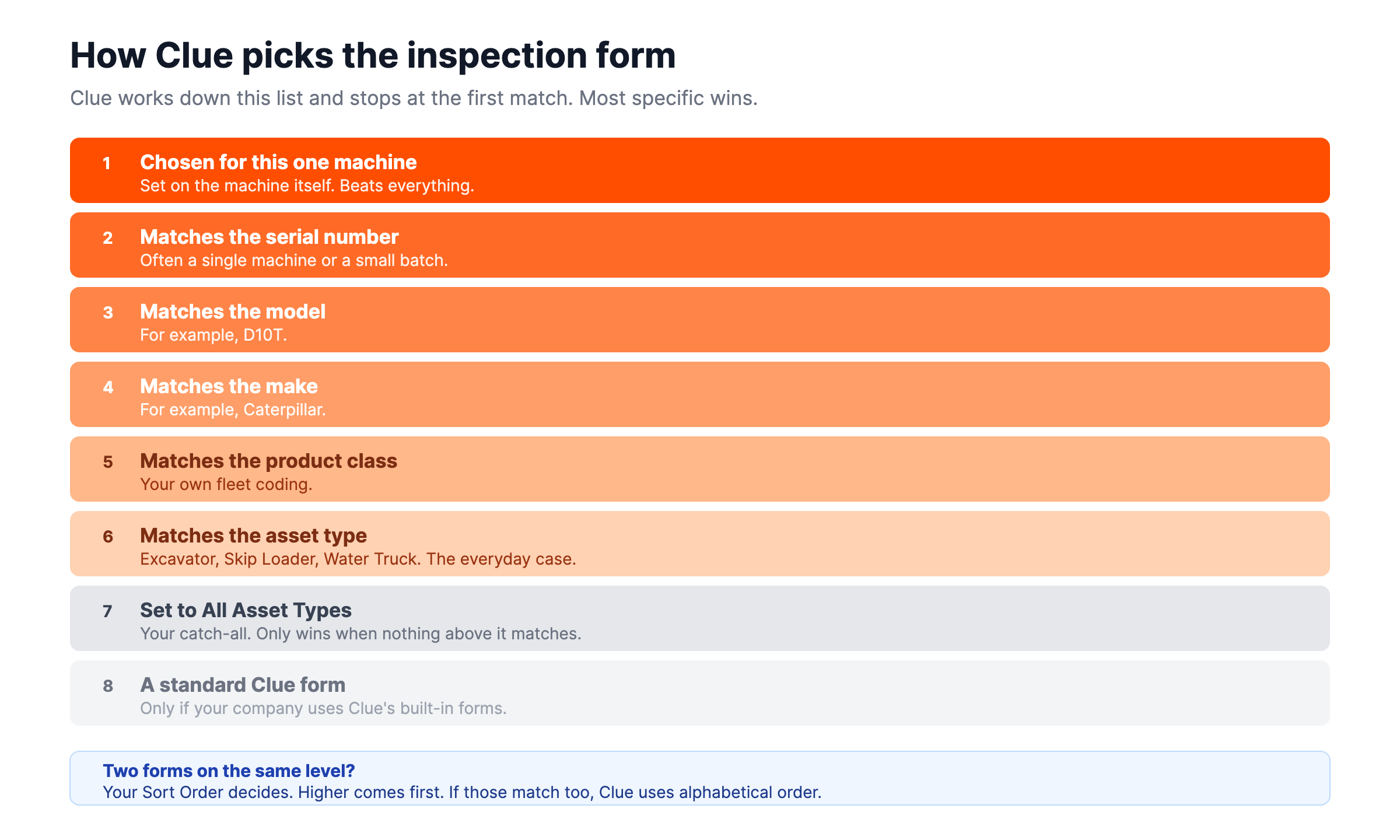
The short version: the most specific form wins. A form built for one serial number beats a form for the model. That beats a form for the make. That beats a form for the asset type. And all of them beat a general form set to All Asset Types.
Who's this for?
Anyone who sets up or troubleshoots inspection templates.
- Clue administrators, you decide which form each machine gets, and this is the logic you are designing against.
- Fleet and equipment managers, your inspection reports are only as good as the forms your crews actually used.
- Safety and compliance, you need road vehicles to keep showing their required inspection form.
- Operators and drivers, you get the right form already selected, so you can start straight away.
How to use it
Step 1: Work out which level your form sits on
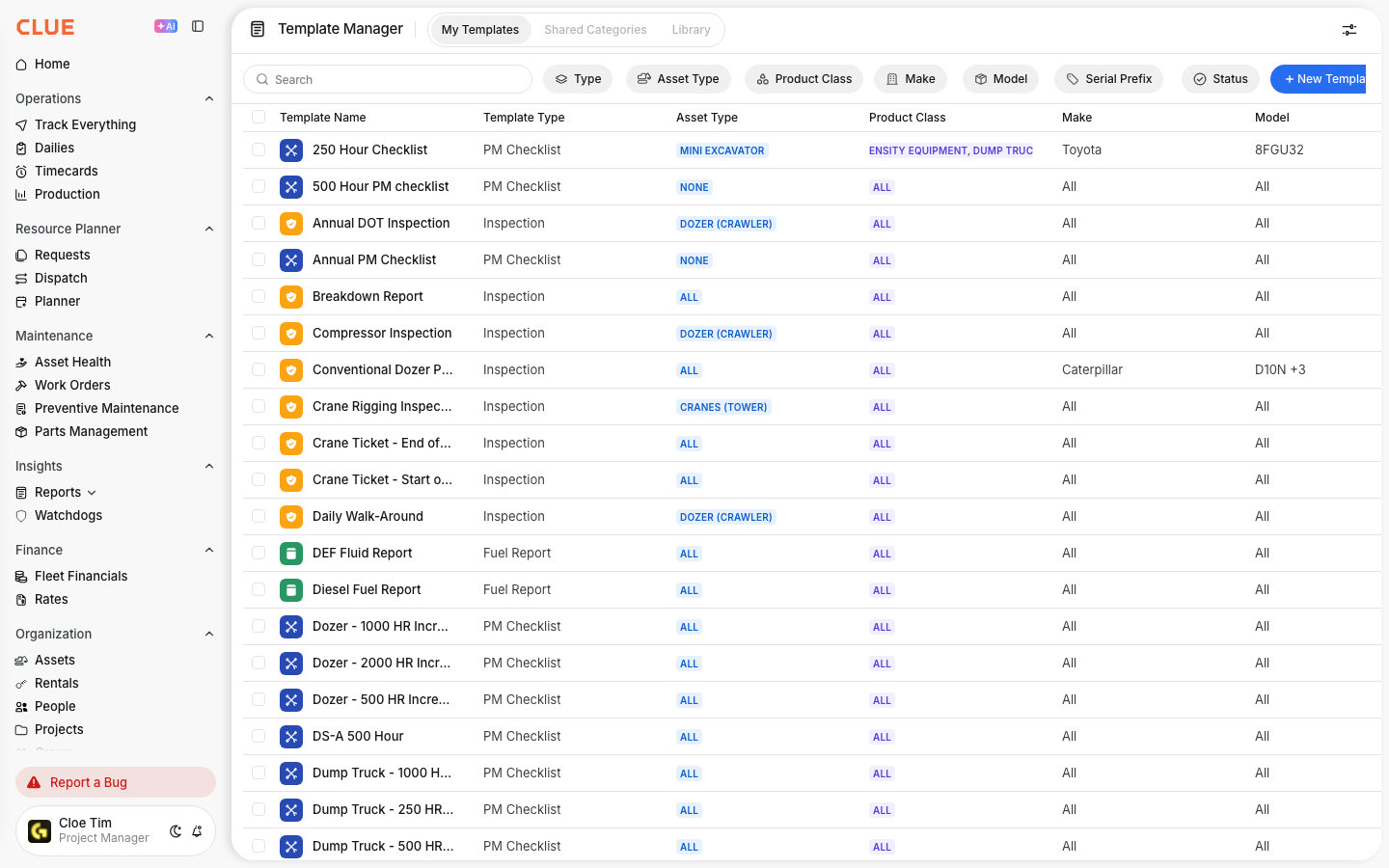
Find your form in the list above. Most forms sit at level 6, matched by asset type. That is the everyday case and it is usually the right one.
Step 2: Give it a sort order
Two forms can land on the same level. When that happens your Sort Order decides, and the higher number comes first. A form with no sort order loses to any form that has one.
This is the single most common reason a general form keeps appearing instead of the right one.
Step 3: Narrow it further if you need to
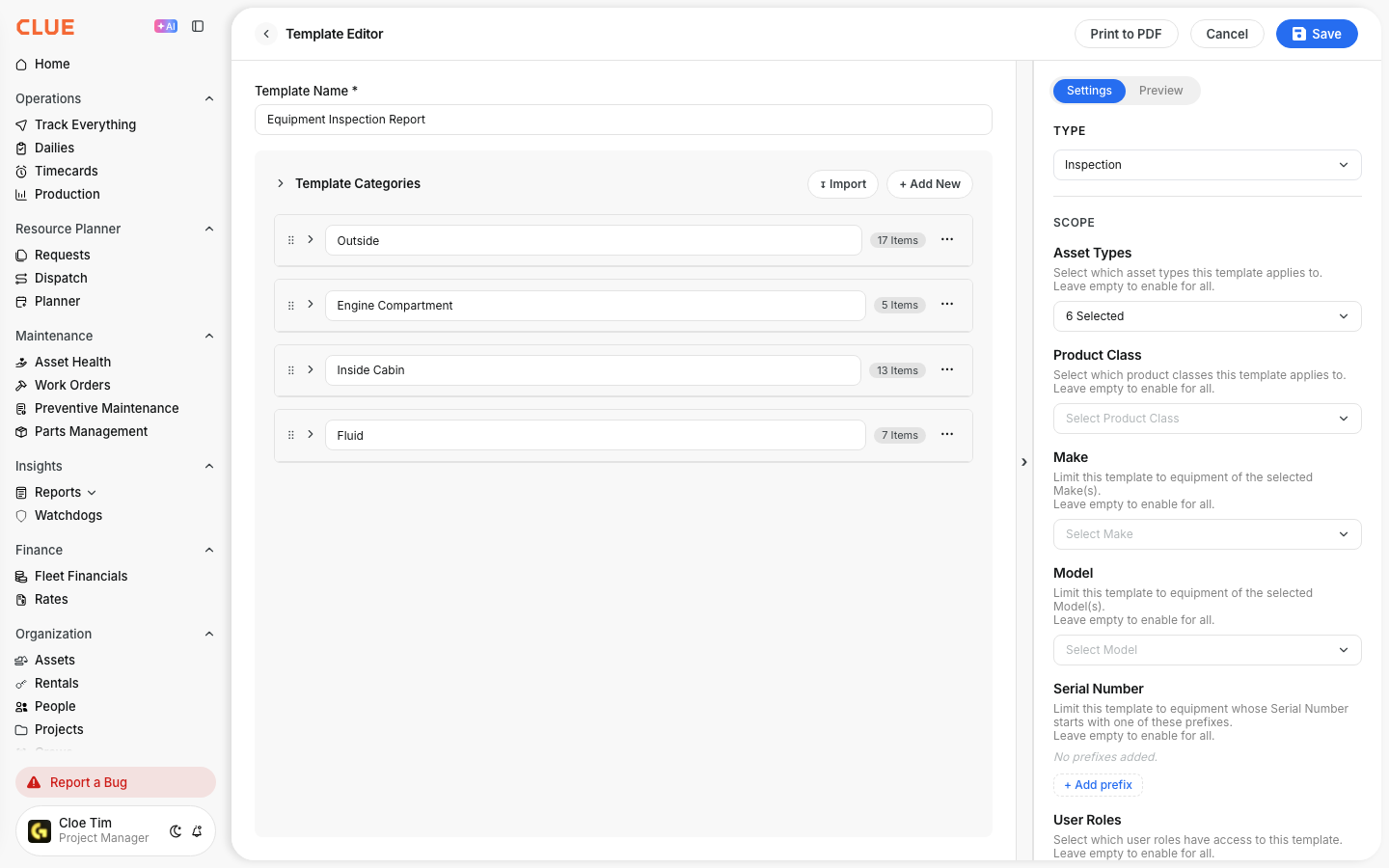
If several forms share one asset type, add a Make, Model or Serial Number Prefix. That lifts the form to a higher level and removes it from machines it does not apply to, which also keeps the list short for your crews.
Step 4: Check it on a real machine
Open Inspect Asset on one unit of that type and confirm the right form comes up first. This takes ten seconds and catches most setup mistakes.

A worked example
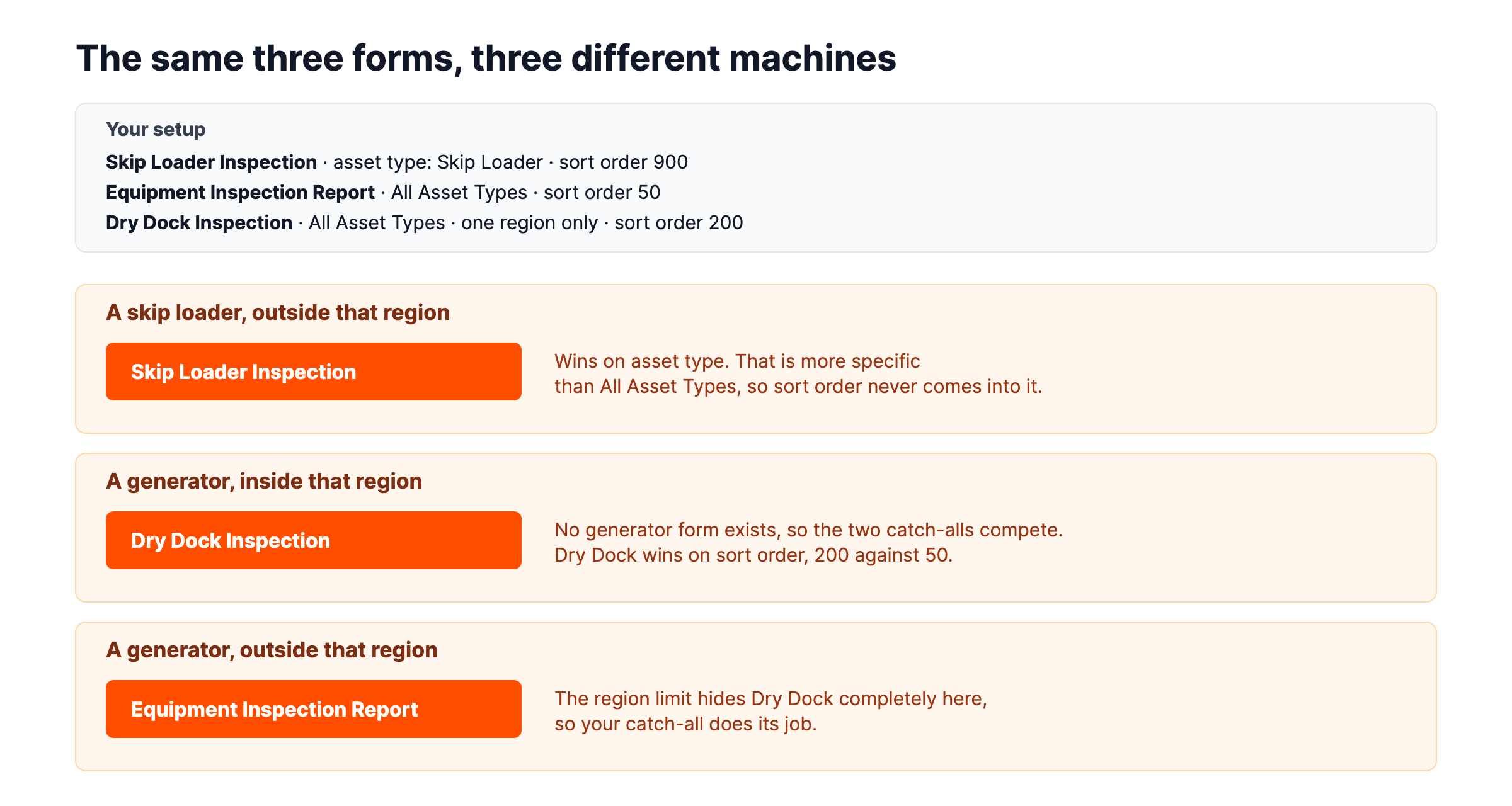
Three forms, three machines, three different answers.
The full details
- Works on: mobile app and web app
- Most specific wins: serial number, then model, then make, then product class, then asset type, then All Asset Types
- Same level: higher Sort Order comes first, then alphabetical by form name
- Region: limits which crews see a form. It does not change the order, it hides the form completely elsewhere
- Make, Model, Serial Number: strict. Set them and the form only appears on machines that match
- No matching form: your All Asset Types form comes up, which is what it is there for
Tips
- Always set a sort order on your machine-specific forms. An empty sort order loses to any number, so a general form with a value will beat a specific form without one.
- Keep All Asset Types to one form. It is a useful safety net for machines with no form of their own. More than one and they compete with each other.
- Two catch-alls cancel each other out. If two forms are both set to All Asset Types, only one will ever appear, and it will appear everywhere. Give the other one an asset type or a region.
- Use Model to split a crowded asset type. If a dozen forms share one asset type, adding a Model to each separates them cleanly.
- Name forms for what they inspect. Names break ties, so clear names give predictable results.
- Check compliance forms first after any change. Open a truck and confirm its road inspection form is still the one that comes up.