Resolving Inspection Issues
Inspection Issues helps your team track problems reported during inspections and follow them through to repair. It gives you one place to review the issue, decide what to do next, and keep the record up to date.
Overview
When an operator reports a failed inspection item, the issue appears in Maintenance → Inspection Issues. From there, your team can review the problem, acknowledge it, create a work order, and mark it resolved after the repair is complete.
This works well alongside Completing Daily Inspections (DVIR), Creating Work Orders from Issues, and Viewing Asset Work History because the issue stays tied to the asset and related repair history.
Viewing Inspection Issues
The Inspection Issues list shows reported problems across your fleet in one place. It helps you quickly see what was reported, how serious it is, and what still needs action.
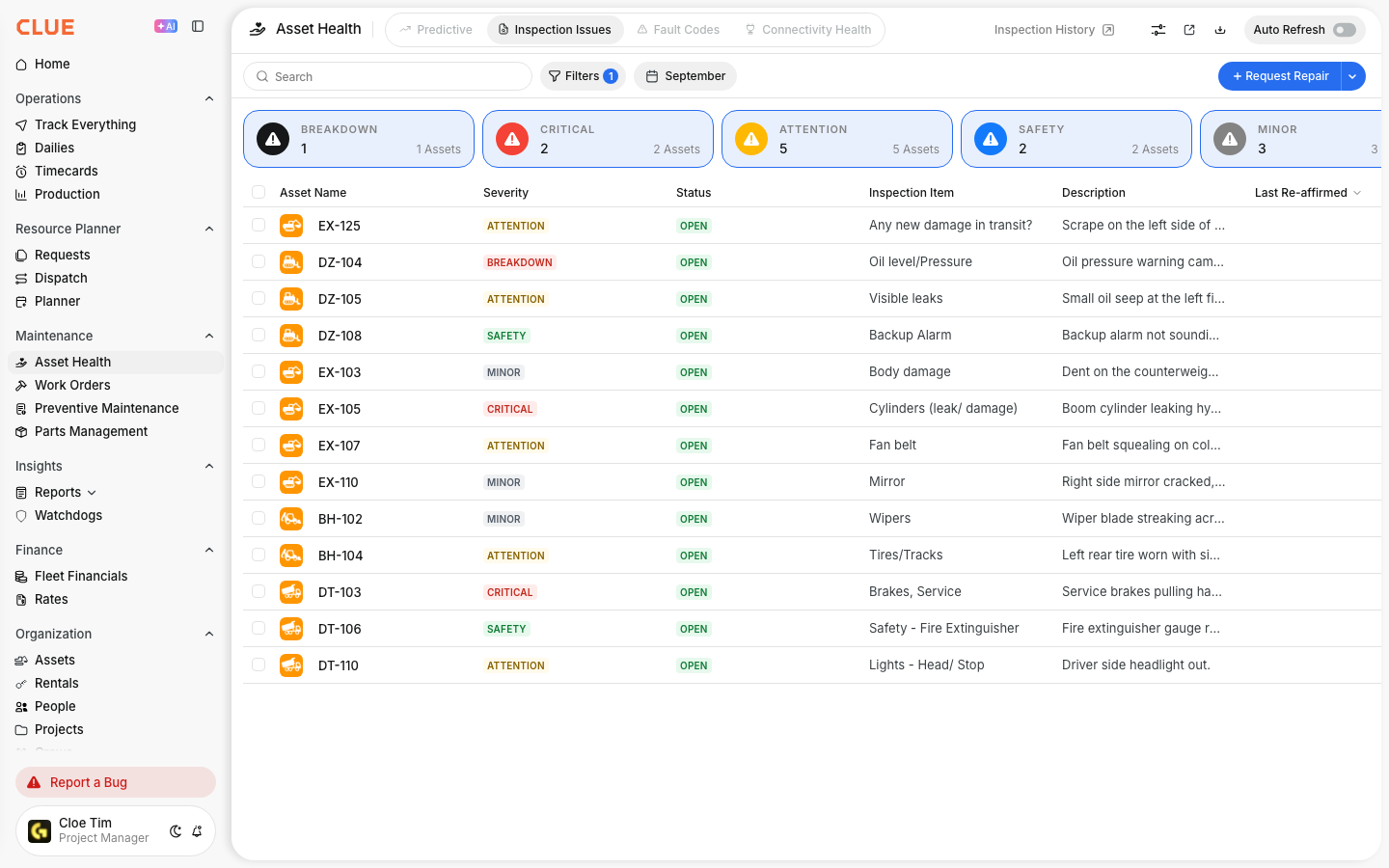
To view issues, go to Maintenance → Inspection Issues. The list includes key columns such as:
- Asset - the equipment with the issue
- Severity - Critical, Warning, or Informational
- Status - Open, Acknowledged, or Resolved
- Item - the inspection item that failed
- Description - notes from the operator or inspector
- Reported By / At - who reported it and when
Issue Severity Levels
Severity helps your team decide what needs attention first. It gives a quick way to separate urgent safety problems from lower-priority items that can wait.
The main severity levels are:
- Critical - a safety issue that may mean the equipment should not be operated until fixed
- Warning - a problem that needs attention soon and may affect operations
- Informational - a lower-priority issue that can usually be handled during the next service
Acknowledging an Issue
Acknowledging an issue shows that someone has reviewed it and is aware of the problem. This is useful when the issue is known, but the repair has not started yet.
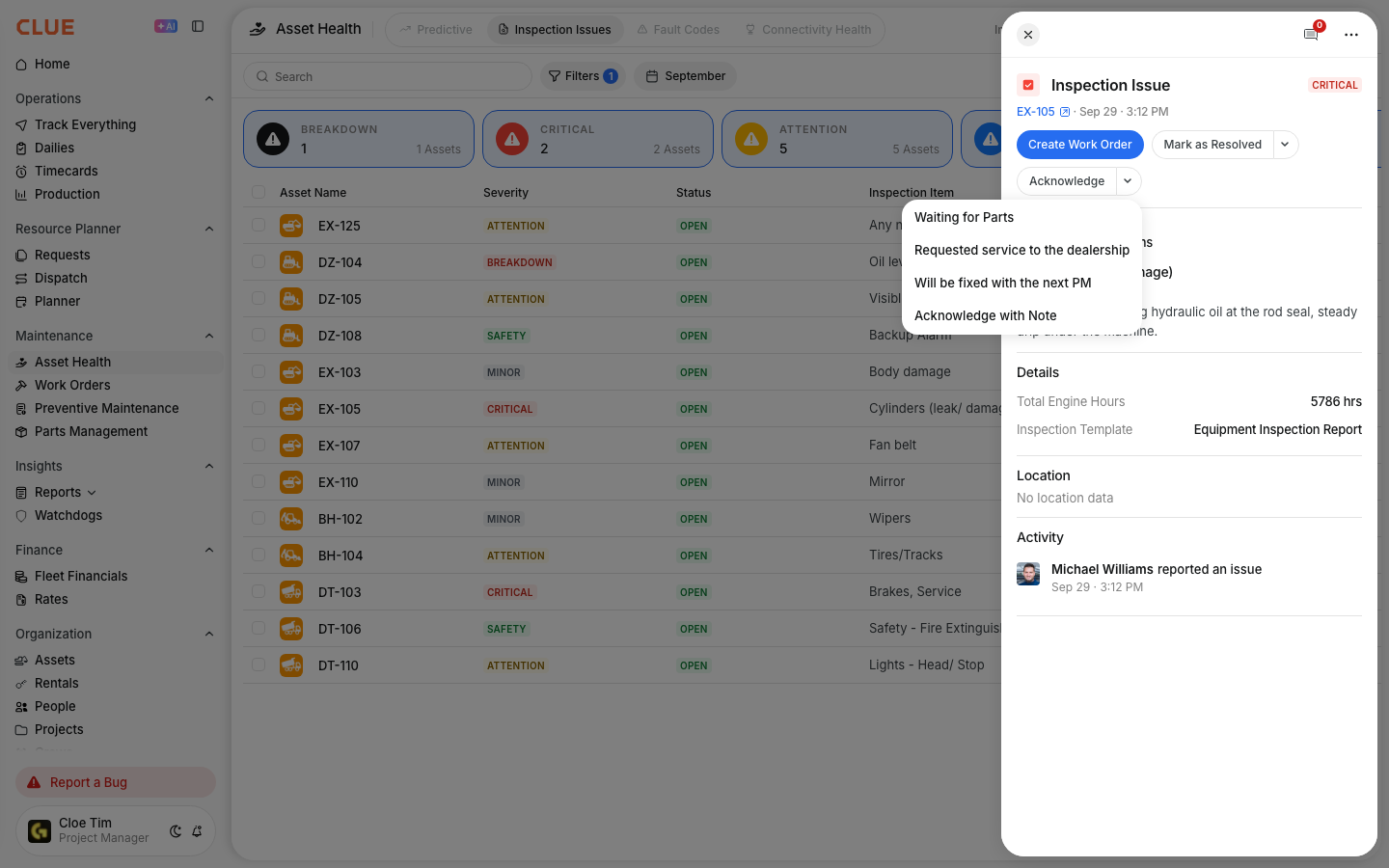
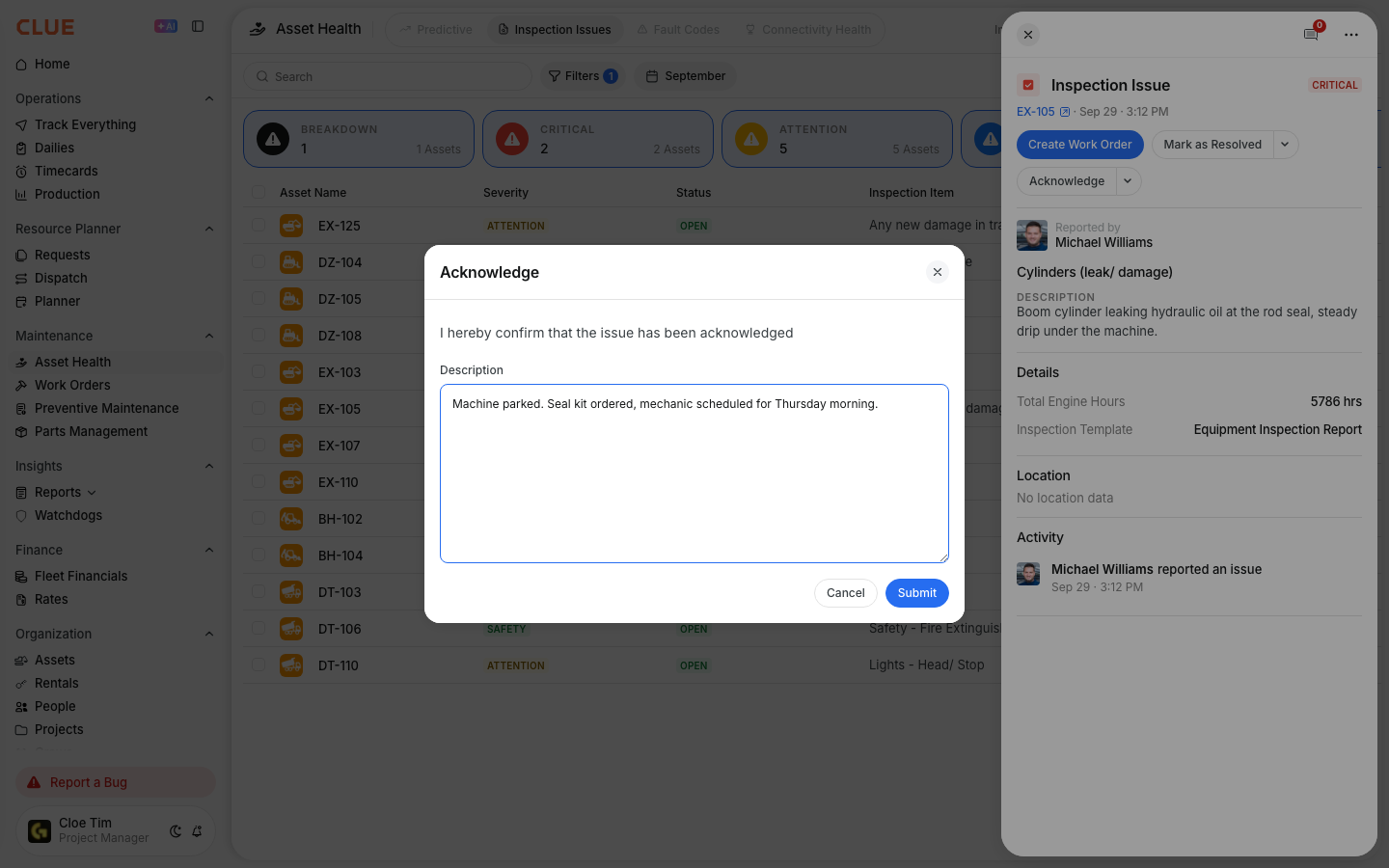
To acknowledge an issue:
- open the issue details
- click Acknowledge
- add notes about the planned action
- save the update so the status changes to Acknowledged
Creating a Work Order from an Issue
If the issue needs repair, you can create a work order directly from the issue record. This keeps the problem linked to the repair and makes the maintenance history easier to follow later.
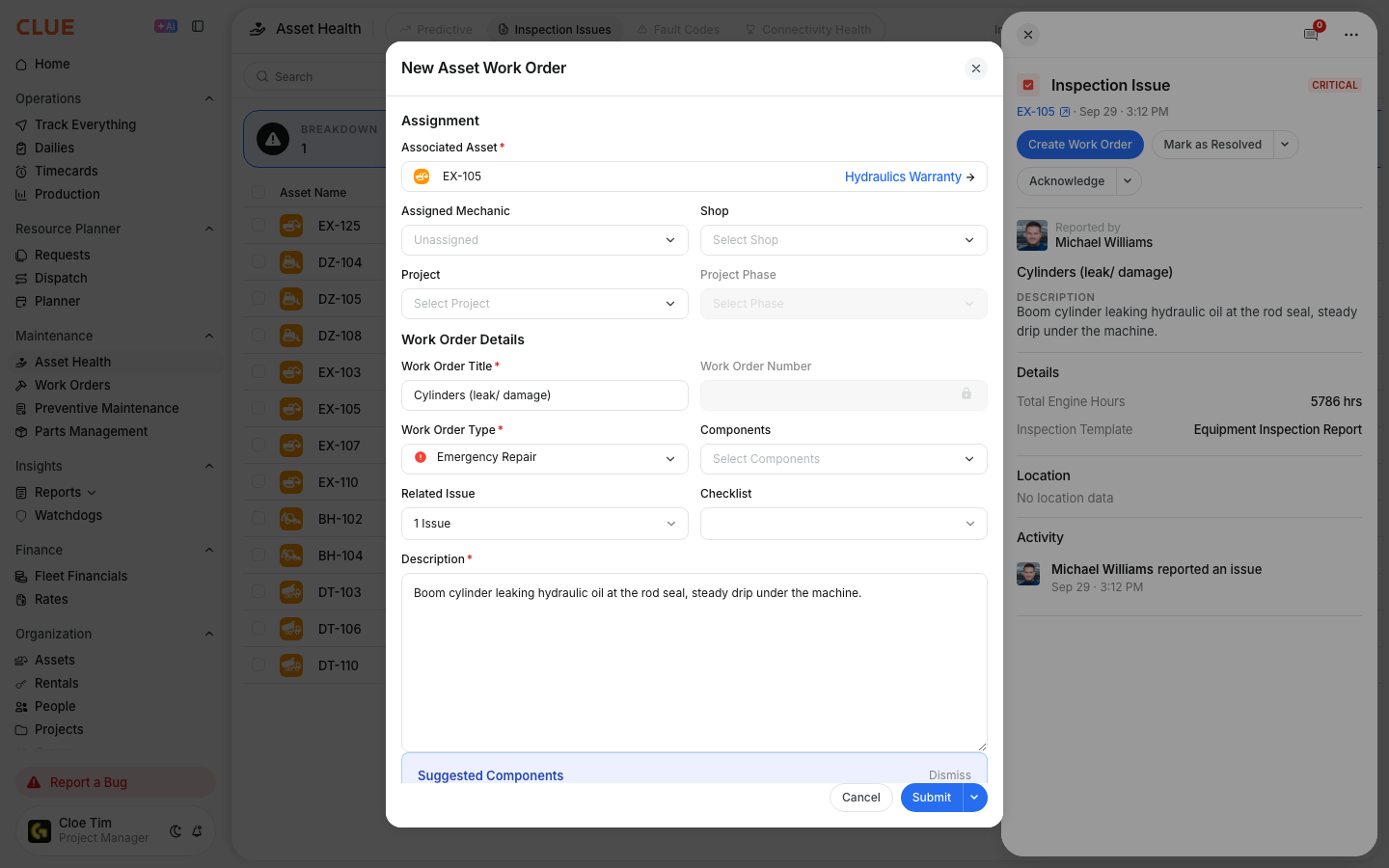
To create a work order:
- open the issue details
- click Create Work Order
- review the details that auto-fill into the work order
- add any extra information needed
- save the work order
The work order can then be assigned and managed through the normal Work Order Workflow.
Marking Issues as Resolved
After the problem has been fixed, the issue can be marked resolved. This closes the loop and gives your team a clear record of what was found and what was done.
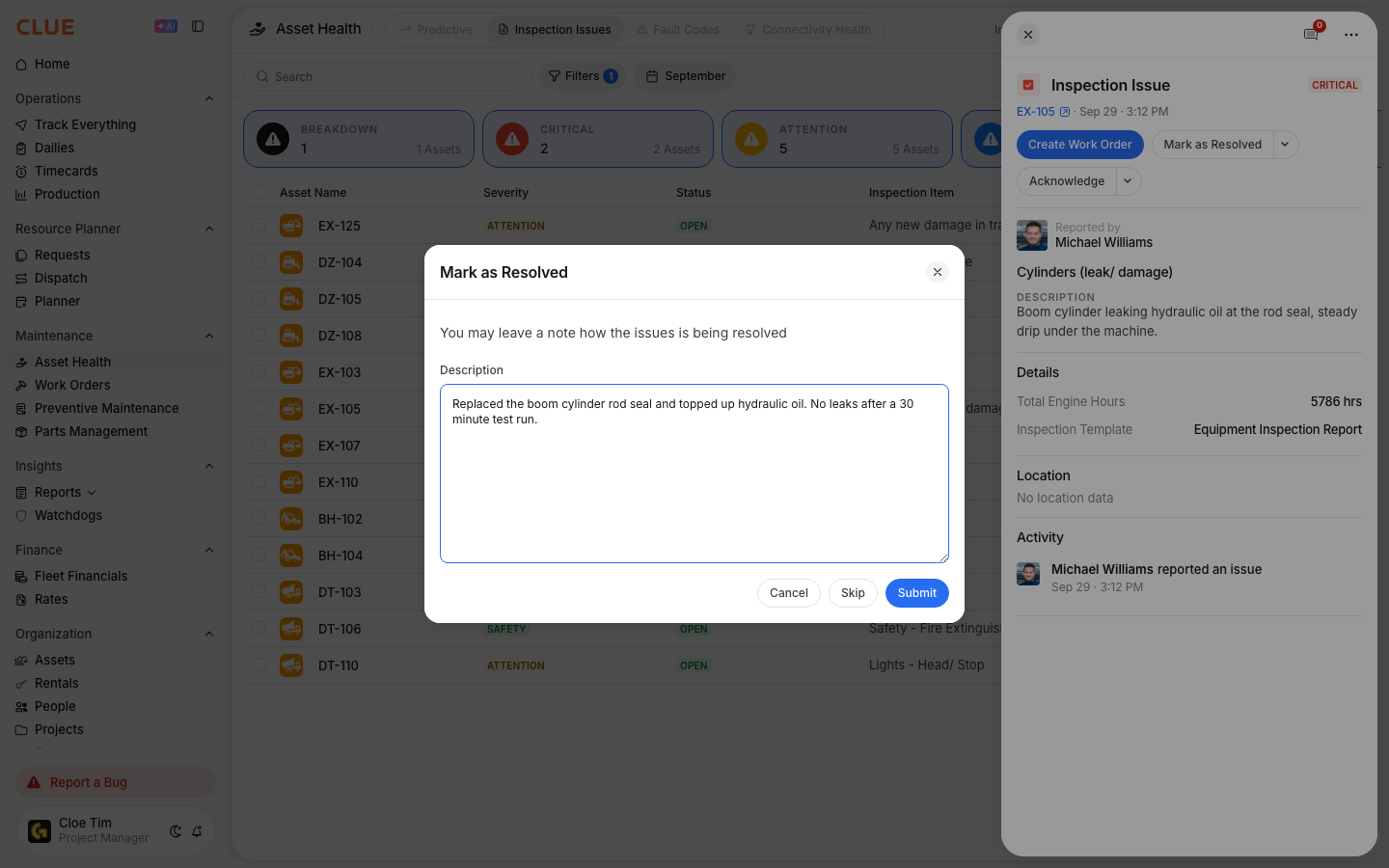
To resolve an issue:
- open the issue details
- click Mark Resolved
- enter notes explaining what was done
- save the update so the status changes to Resolved
Those notes stay useful later when someone reviews the asset record or checks past repairs in Viewing Asset Work History.
Filtering Issues
Filters help your team focus on the issues that matter most right now. This is especially helpful when there are many open items across the fleet.

You can filter by:
- Severity - for example, only Critical issues
- Status - such as only Open issues
- Asset - issues for one specific machine
- Date Range - issues reported during a certain period
Tips
A simple review routine helps your team stay on top of inspection issues before they turn into larger repair or safety problems. The goal is to review new items quickly and keep the follow-up clear.
- address Critical issues right away
- review new issues daily
- create work orders for issues that need repair
- use resolution notes to record what was fixed
- check open issues when planning PM or repair work