Require a Live Photo with Camera Inspection Items
What is this?
Camera is an inspection item type that only accepts a photo taken on the spot. When an inspector answers a Camera item, the only option is the device camera. Choosing from the photo gallery or attaching a file is never offered. Use it wherever the photo is proof that someone was at the machine.
Who's this for?
Anyone who builds inspection templates or relies on inspection photos.
- Safety managers and admins, require live photos on the items that need proof, and leave the rest flexible.
- Equipment managers, trust that walk-around and delivery photos were taken at the machine.
- Operators, drivers and mechanics, see one camera button and take the photo right there.
How to use it
Step 1: Open the item type list
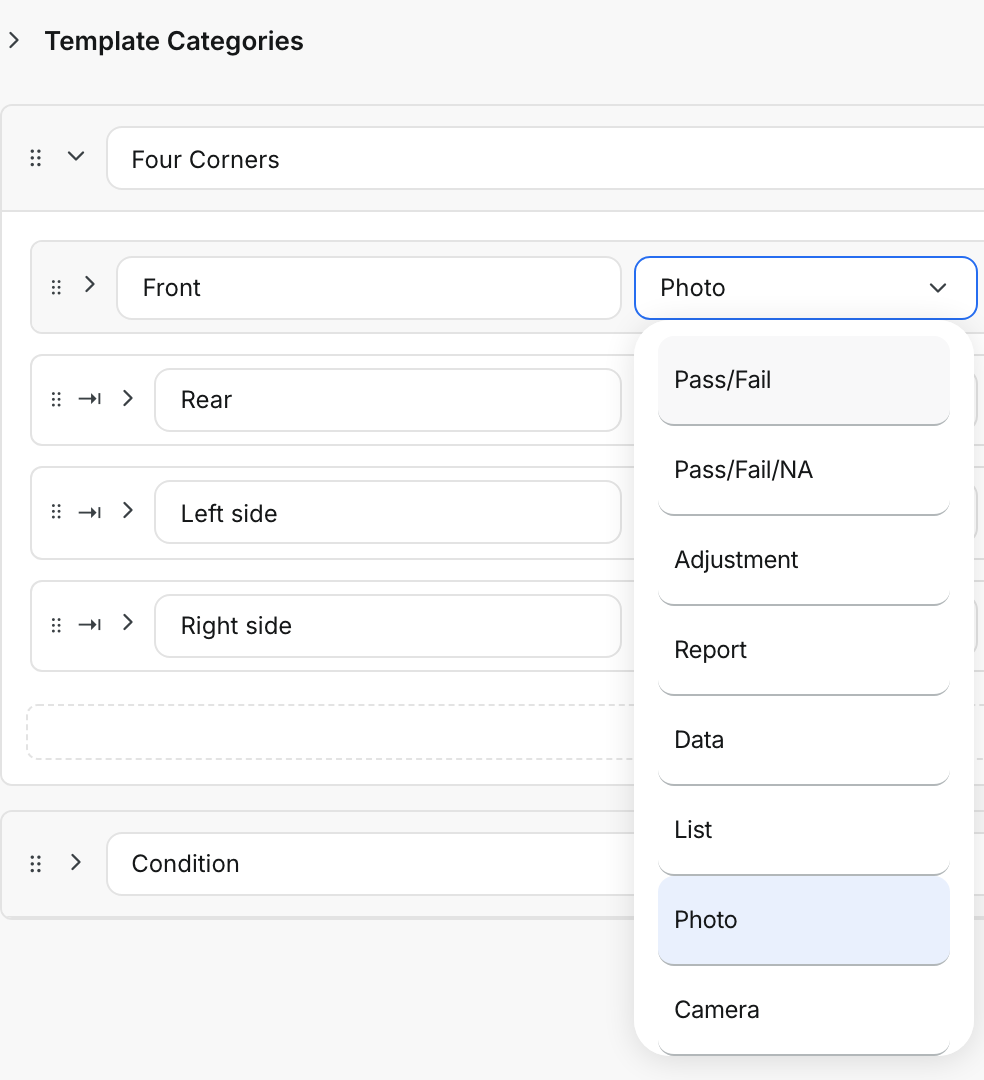
Go to Admin > Templates and open a template. Expand a category and click the type dropdown next to an item. Camera sits right below Photo.
Step 2: Set the item to Camera
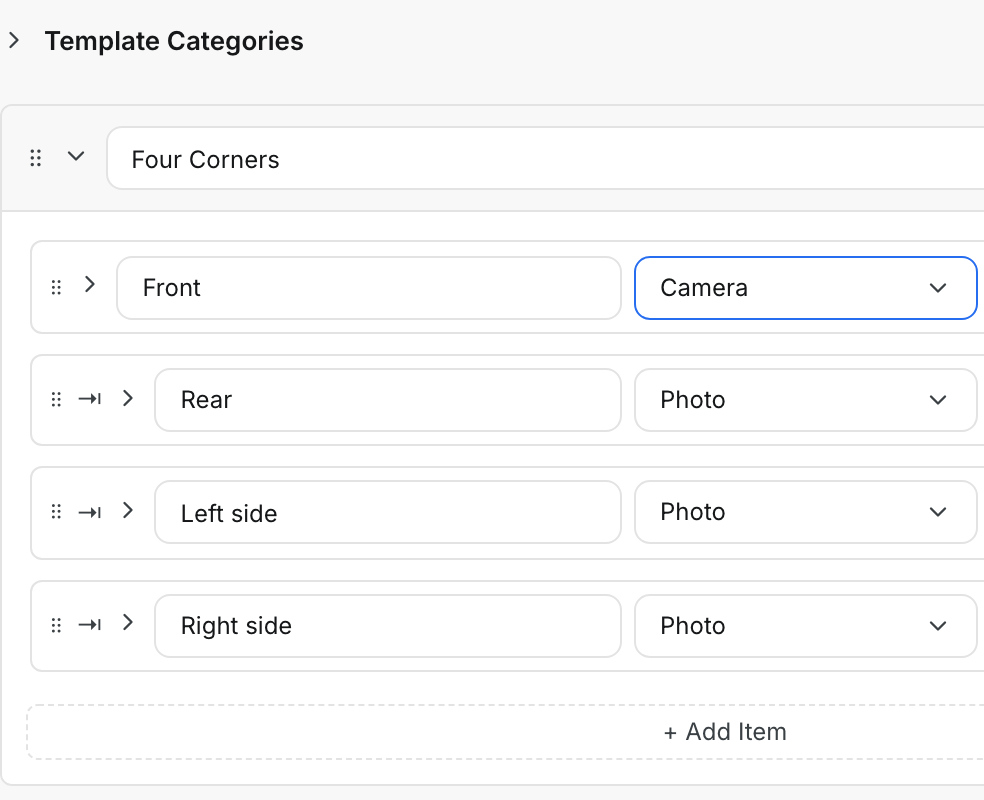
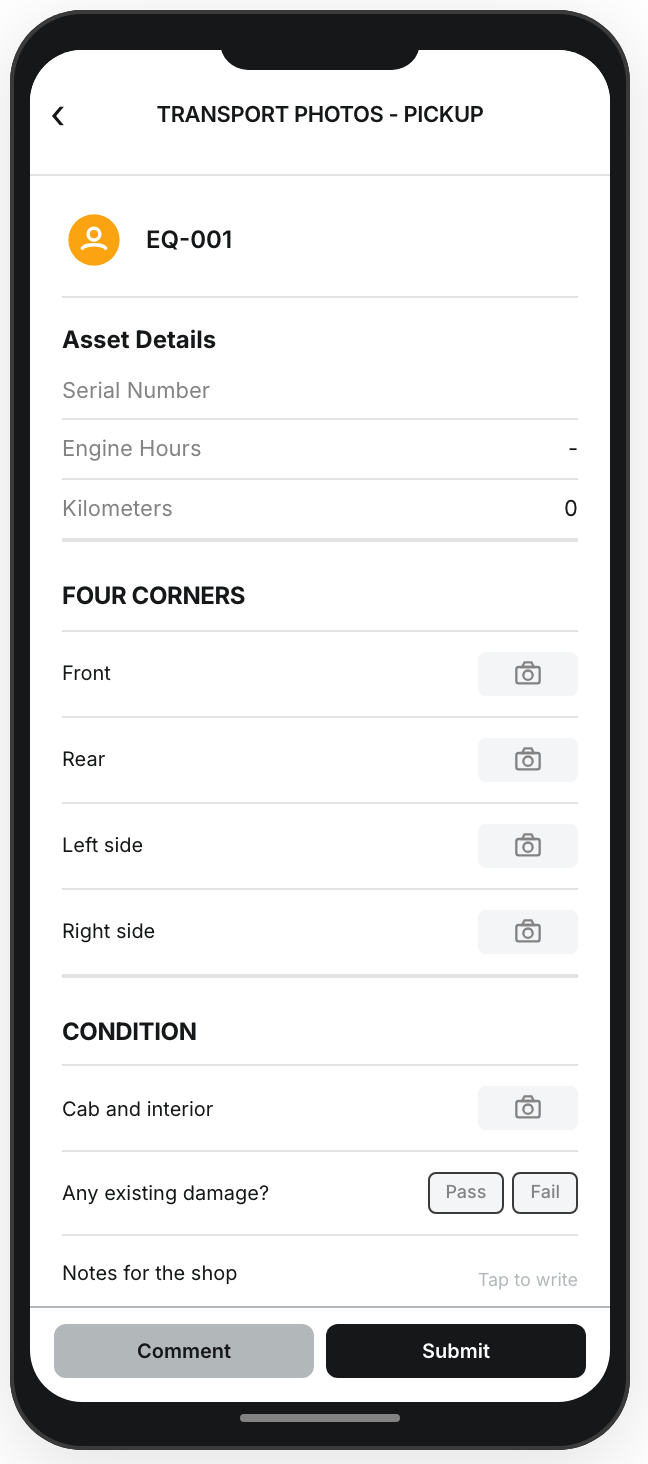
Select Camera. There is nothing else to set up. Here, the Front photo must be live, while the other sides stay Photo items.
Step 3: Preview and save
Click Preview to see the form as the inspector will. Then click Save. From the next inspection on, the item only offers the camera.
The full details
- Works on: Web app and mobile app. Templates are set up on the web app.
- During an inspection: on the mobile app, a Camera item shows only Take Photo. On the web app, only the camera button shows.
- Settings: a Camera item has the same Instructions and Required options as a Photo item.
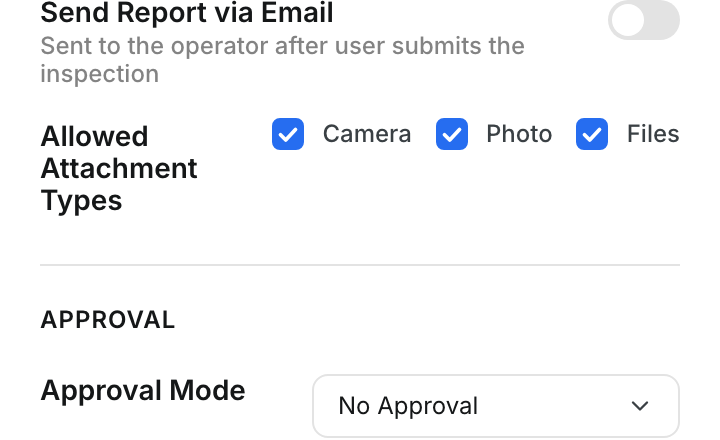
- Allowed Attachment Types: this template setting still controls Photo items and items with Photo Required. It never affects Camera items.
- When that setting was never chosen: it means all three options, Camera, Photo and Files. Photo items on those templates also offer a file upload.
- Past inspections: switching an item between Photo and Camera only affects inspections started after you save.
- Reports: Camera photos show in inspection reports just like other photos.
Tips
- Mix both types in one template. Make the machine photo a Camera item and leave the certificate photo as a Photo item.
- Pickup and drop-off templates are a natural fit. Set each side of the machine to Camera.
- On the web app, allow camera access in the browser. A computer without a camera cannot answer a Camera item.
- If a phone still offers the gallery on a Camera item, fully close the Clue app and open it again to get the latest version.