Available now on Beta, This feature is in beta testing and will roll out to everyone soon.
What is this?
Watchdogs check your fleet and jobs for problems on your behalf. Each watchdog looks for one kind of issue, like idle equipment or a missed inspection. When it finds one, it raises an alert. You review every alert in one place and decide what to do.
Who's this for?
- Fleet and equipment managers, who want early warning on idle, missing or costly equipment.
- Maintenance managers, who track overdue service, repeat repairs and inspections.
- Project managers, who want to know when equipment on their job sits unused.
How to use it
Step 1: Open Watchdogs
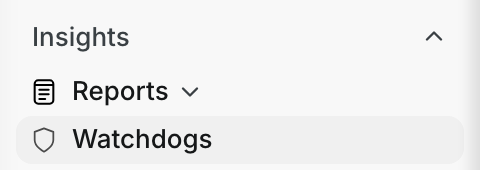
Go to Insights > Watchdogs in the menu. The page opens on the Alerts tab.
Step 2: Read the severity tiles
Four tiles show your open alerts by severity: Critical, High, Medium and Low. Each tile also shows the savings those alerts point to.

Step 3: Scan the alert list
Each row is one alert. The row shows the asset, the alert, its severity and the watchdog that raised it.

Step 4: See all your watchdogs
Click the Library tab. Each card shows one watchdog, its severity, its category and whether it is on.

The full details
- Alerts tab: every alert your watchdogs raised, with search and Filters.
- Library tab: every watchdog your company can use, with an on and off switch.
- Severity: Critical, High, Medium or Low. Click a tile to show only that severity.
- Savings: the estimated money an alert can save. Not every watchdog estimates savings.
- Availability: the asset's current status, such as Operational or Down.
- Count: how many times the watchdog found the same issue.
- Last Detected: the last time the watchdog found the issue.
- Categories: watchdogs are grouped, for example Rentals, Fleet, Maintenance, Compliance and Security.
Tips
- Start each day with the Critical tile. It holds the most urgent alerts.
- Click an asset name in the list to open that asset's details.
- Use the search box to find alerts for one asset fast.