What is this?
Every alert tells you what a watchdog found and why it matters. Open an alert to see the facts, possible reasons and recommended actions. When you are done, you resolve or dismiss it. This keeps your alert list short and current.
Who's this for?
- Fleet and equipment managers, who follow up on missing, idle or costly equipment.
- Maintenance managers, who act on service and repair alerts.
- Project managers, who check alerts for equipment on their jobs.
How to use it
Step 1: Pick the alerts to review
Go to Insights > Watchdogs. Click a severity tile, or use Search and Filters to narrow the list.

Step 2: Open an alert
Click the alert text in a row. The details show the asset, its availability and its open work orders.

Step 3: Read the reasons and actions
Scroll down to read why the watchdog raised the alert. Each watchdog shows its own facts, such as Urgency Factors, Possible Reasons or Recommended Actions. The footer shows when the alert was first detected and how often.

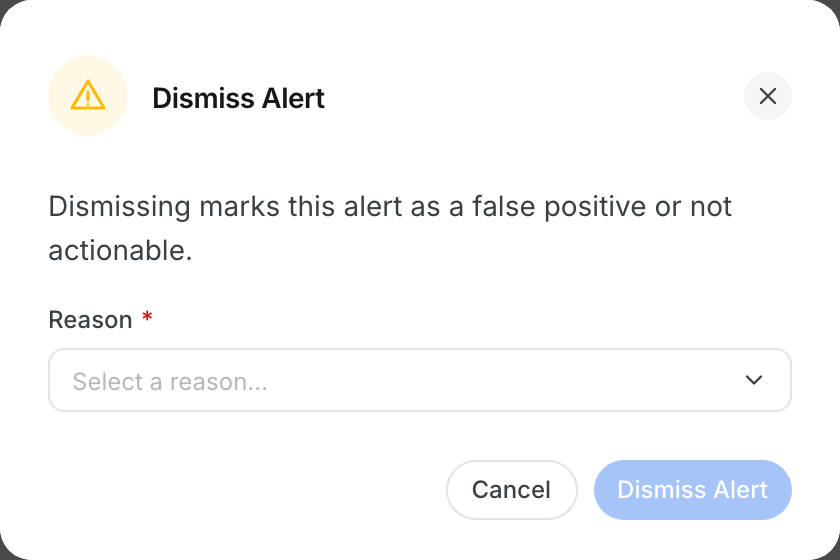
Step 4: Dismiss an alert
Click Dismiss if the alert is wrong or does not apply. Pick a Reason, then click Dismiss Alert.
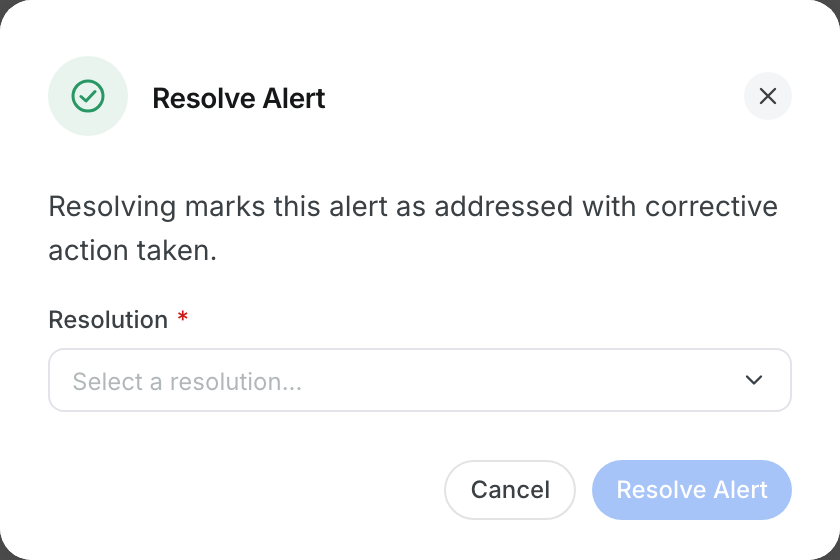
Step 5: Resolve an alert
Click Resolve after you fix the issue. Pick a Resolution, then click Resolve Alert.
Step 6: Act on many alerts at once
Tick the boxes next to several alerts. Then click Dismiss Selected or Resolve Selected.

The full details
- Dismiss reasons: for example False positive, Not applicable to our operations or Already handled outside system.
- Resolutions: Equipment returned, Contract extended, Rate renegotiated, Equipment reassigned or Issue corrected.
- Other: pick Other to type your own reason in Please specify.
- Status: each alert is Open, Dismissed or Resolved. Use Filters to see each group.
- Last Received By Signal: on missing equipment alerts, shows when location, engine hours and odometer last came in.
- Delete Forever: removes the ticked alerts for good. Use it with care.
Tips
- Resolve when you took action. Dismiss when no action was needed.
- Pick an honest reason. It helps your team tune the watchdog limits later.
- Clear the Critical alerts first, then work down by severity.


