What is this?
You can ask the AI Report Builder for a report and tell it when to send it, in the same sentence. Type something like "list my equipment locations and email me this every weekday at 6am." The AI builds the report and fills in the schedule you asked for. You check it and save it with one click.
The AI understands daily, weekly and weekday schedules, the send time, and the days. It fills all of that in for you, so you only have to name the report.
Who's this for?
Anyone who wants the same report in their inbox on a regular basis, without building a schedule by hand.
- Equipment managers, get a fleet location or utilization report every morning before the day starts.
- Shop foremen, get the open work orders list every Monday and Friday.
- Project managers, get a daily summary for their jobs without logging in to look for it.
- Admins, set up recurring reports for the team in a few seconds.
How to use it
Step 1: Open Report Scheduling
Go to Reports and open the Report Scheduling tab. Click Report Builder.

Step 2: Ask for the report and the schedule
Type what the report should show and when you want it. For example: list my equipment locations and email me this every weekday at 6am. Press Enter.
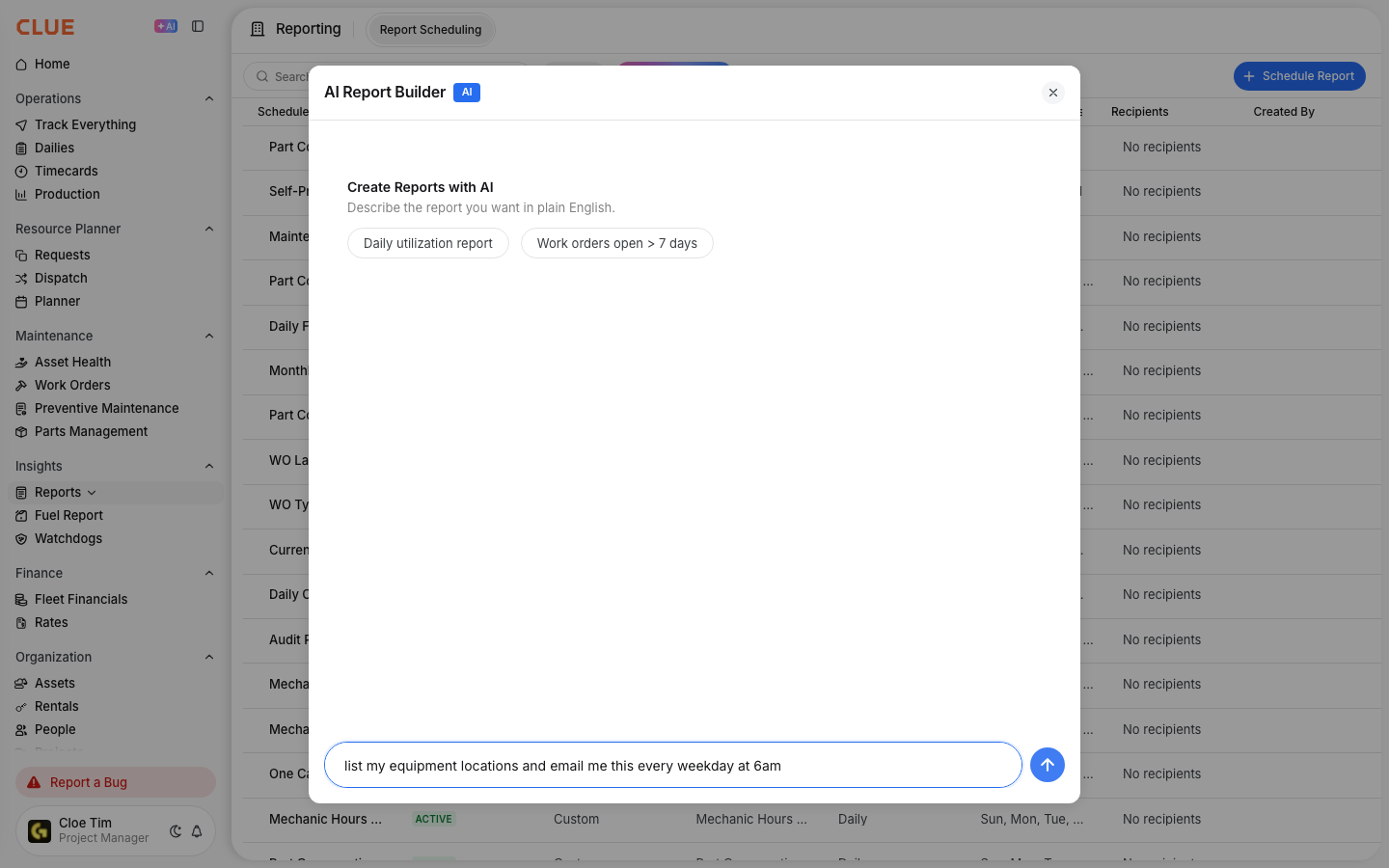
Step 3: Check the report, then choose Save Report
The AI shows a preview of your report and a note that your schedule is ready. Check the data, then click Save Report.

Step 4: Name it and save the schedule
The Save Report window opens with Schedule this report already ticked. The frequency, send time and days match what you asked for. Give the report a name, check the schedule, and click Save & Schedule.

The full details
- Works on: Web app, in Reports > Report Scheduling.
- Schedules it fills in: Daily, weekly and weekdays only, with the send time and days you name.
- Send time: Uses your company's time zone. The time zone shows next to Send Time.
- Who gets it: The report is emailed to you. To add more people, edit the schedule in Report Scheduling after you save.
- Monthly reports: The AI tells you to save the report without a schedule. Then click Schedule Report in Report Scheduling, choose the report and set the frequency to Monthly.
- Empty reports: You can still save a scheduled report that has no data today. Leave Don't send if report is empty ticked to skip empty emails.
- Saving is your call: Nothing is scheduled until you click Save & Schedule. Click Cancel to change your mind.
- AI chat: If you ask the AI chat to email you a report on a schedule, it points you to Report Scheduling with a Go to Report Scheduling button.
- Permission needed: Access to Report Scheduling. Without it, the AI asks you to contact an administrator.
Tips
- Put the data first and the schedule last: "show open work orders, email me every Monday and Friday at 7am."
- Use a clear time and a send word like "email me" or "send me." "Daily" on its own is read as how to group the data, not when to send it.
- Say "every weekday" to get Monday to Friday only.
- Want a different time later? Change it in the Save Report window before you save, or edit the schedule in Report Scheduling.