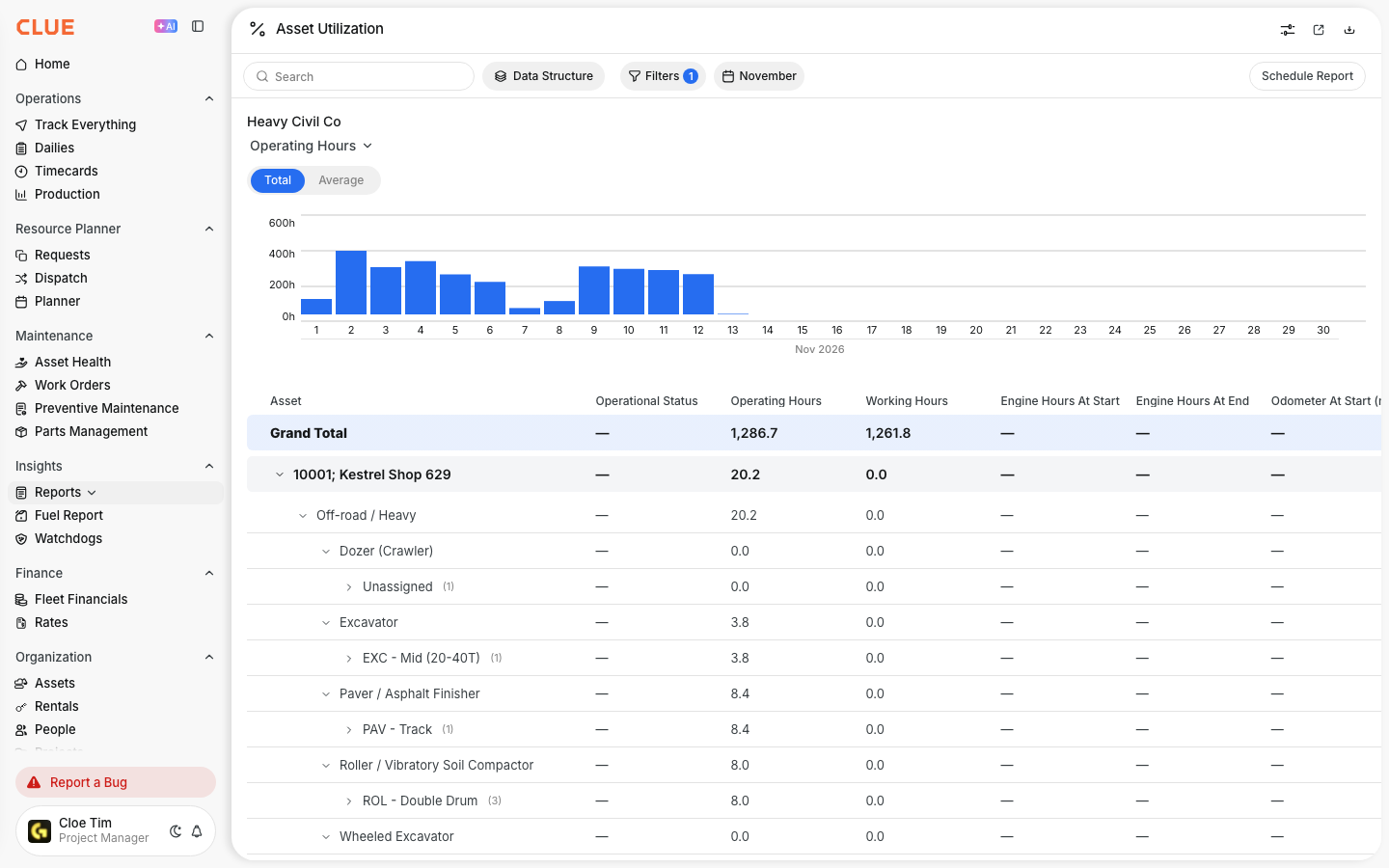
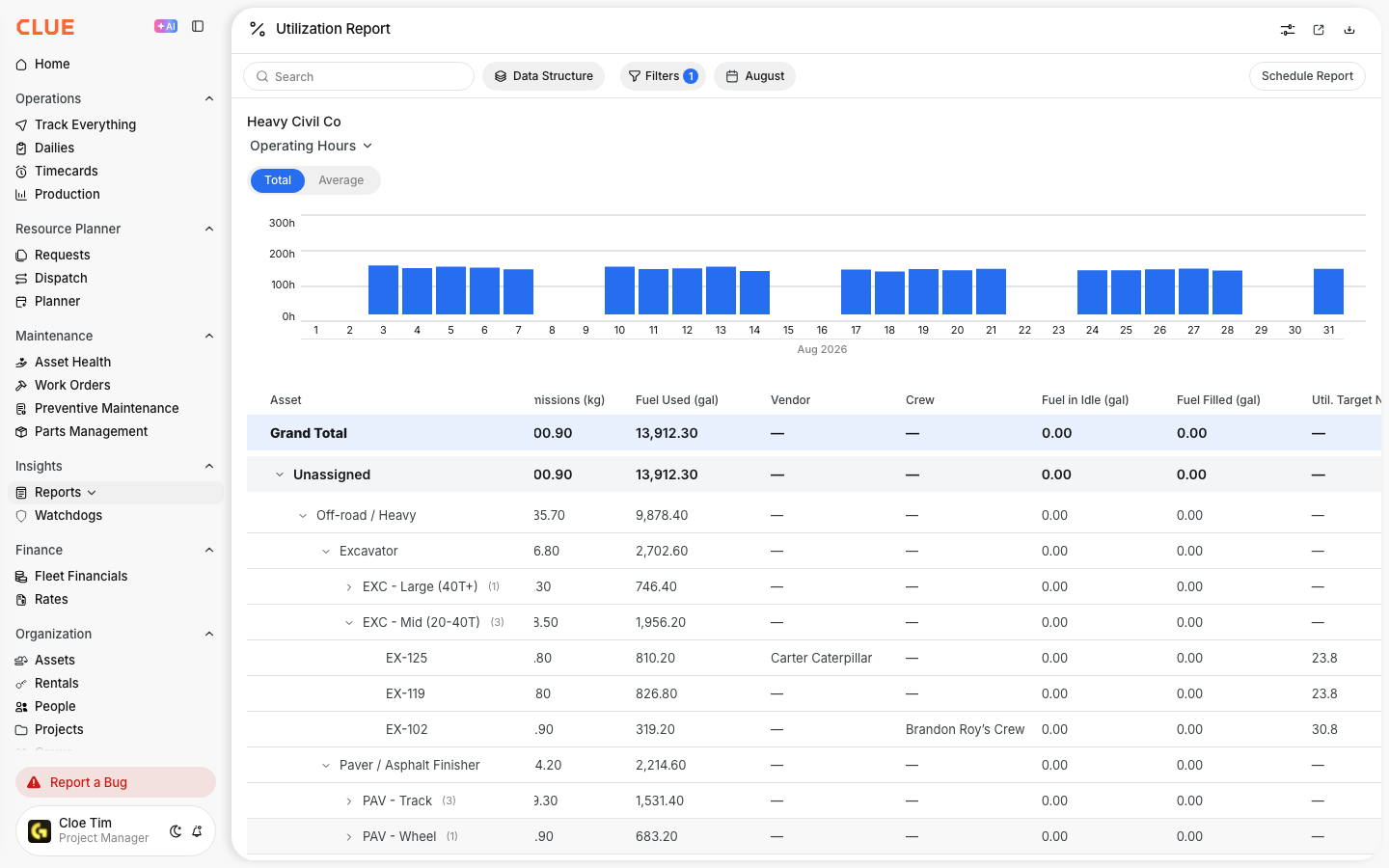
What is this?
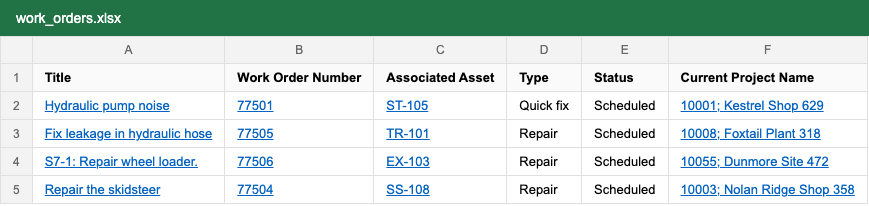
When you download a table from Clue as Excel, the key cells in the file are links. Click an asset, a work order, a person or a project in the spreadsheet, and Clue opens that record. The file keeps the same columns and the same values. Share it with anyone on your team, and they can go from a row to the real record in one click.
Who's this for?
Anyone who works from spreadsheets, or sends them to others.
- Equipment managers, review a fleet or work order export and open any machine that needs attention.
- Shop managers, open an inspection, the machine or the inspector right from the Inspection report.
- Executives and finance, read the file you were sent and click through to the record behind a number.
How to use it
Step 1: Download as Excel
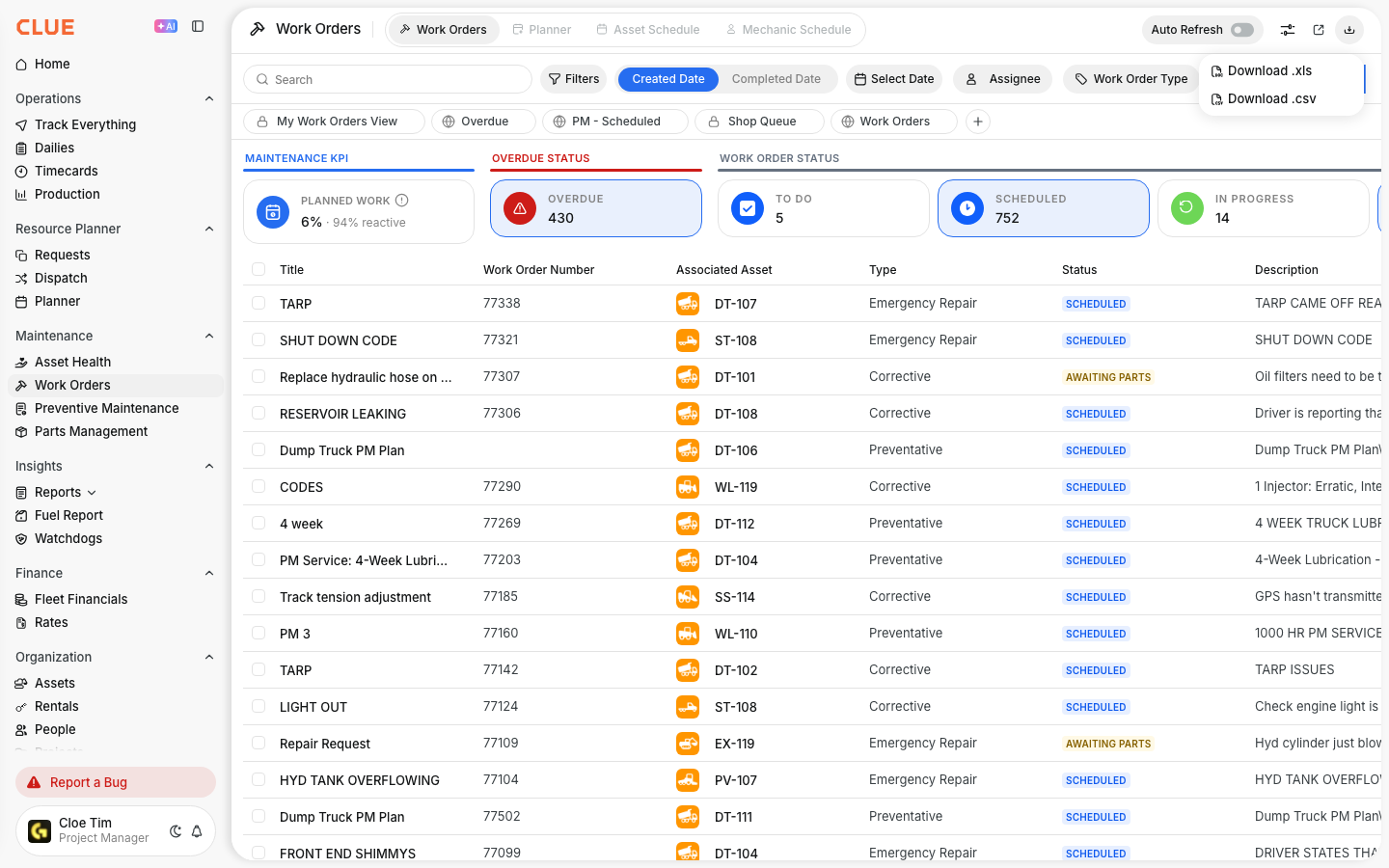
Open Maintenance > Work Orders, or any page in the list below. Click the download icon at the top right, then Download .xls.
Step 2: Open the file
Open the file in Excel. Linked cells are blue and underlined.
Step 3: Click an asset
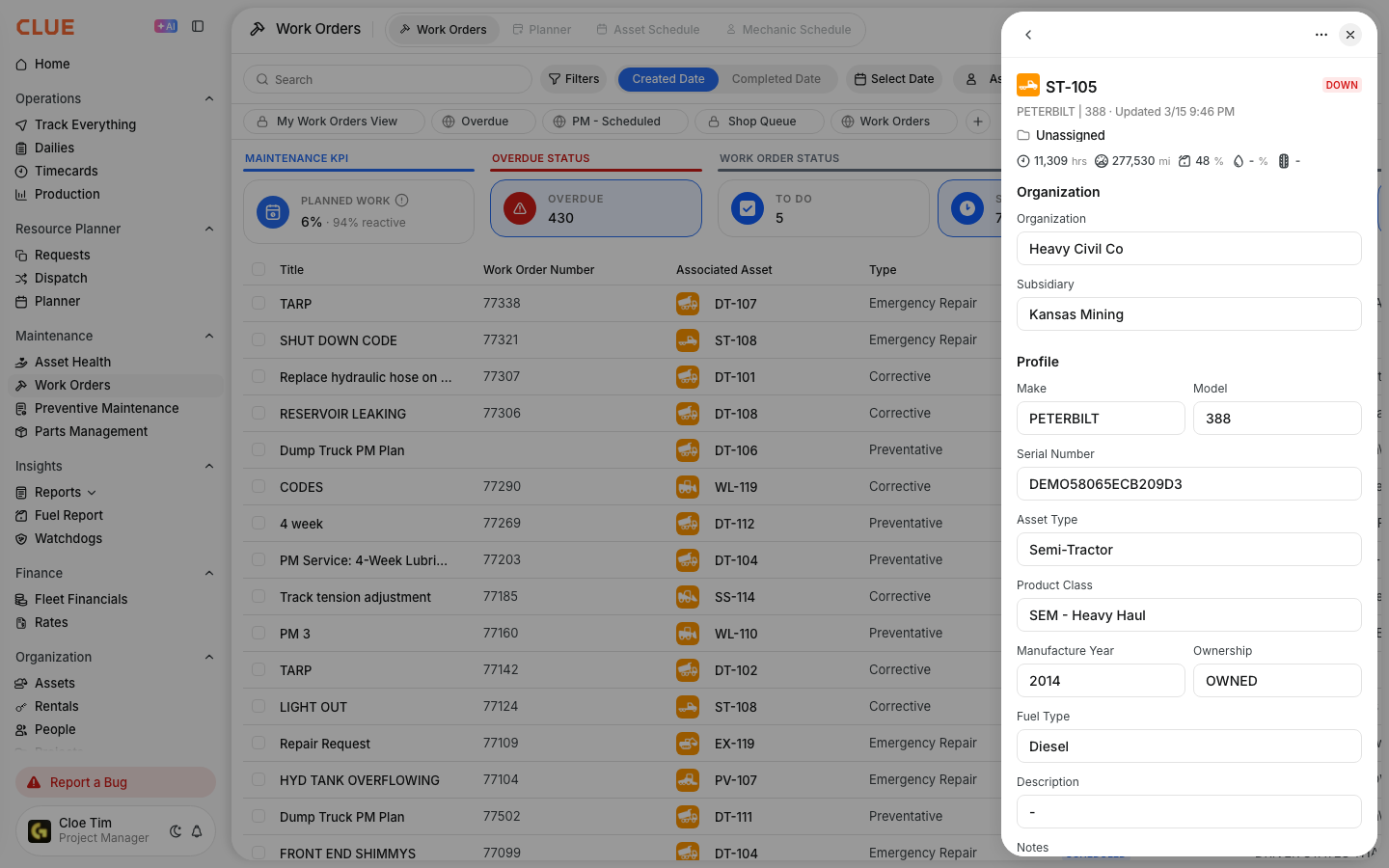
Click an asset name. Clue opens with that asset's profile already showing.
Step 4: Click a work order
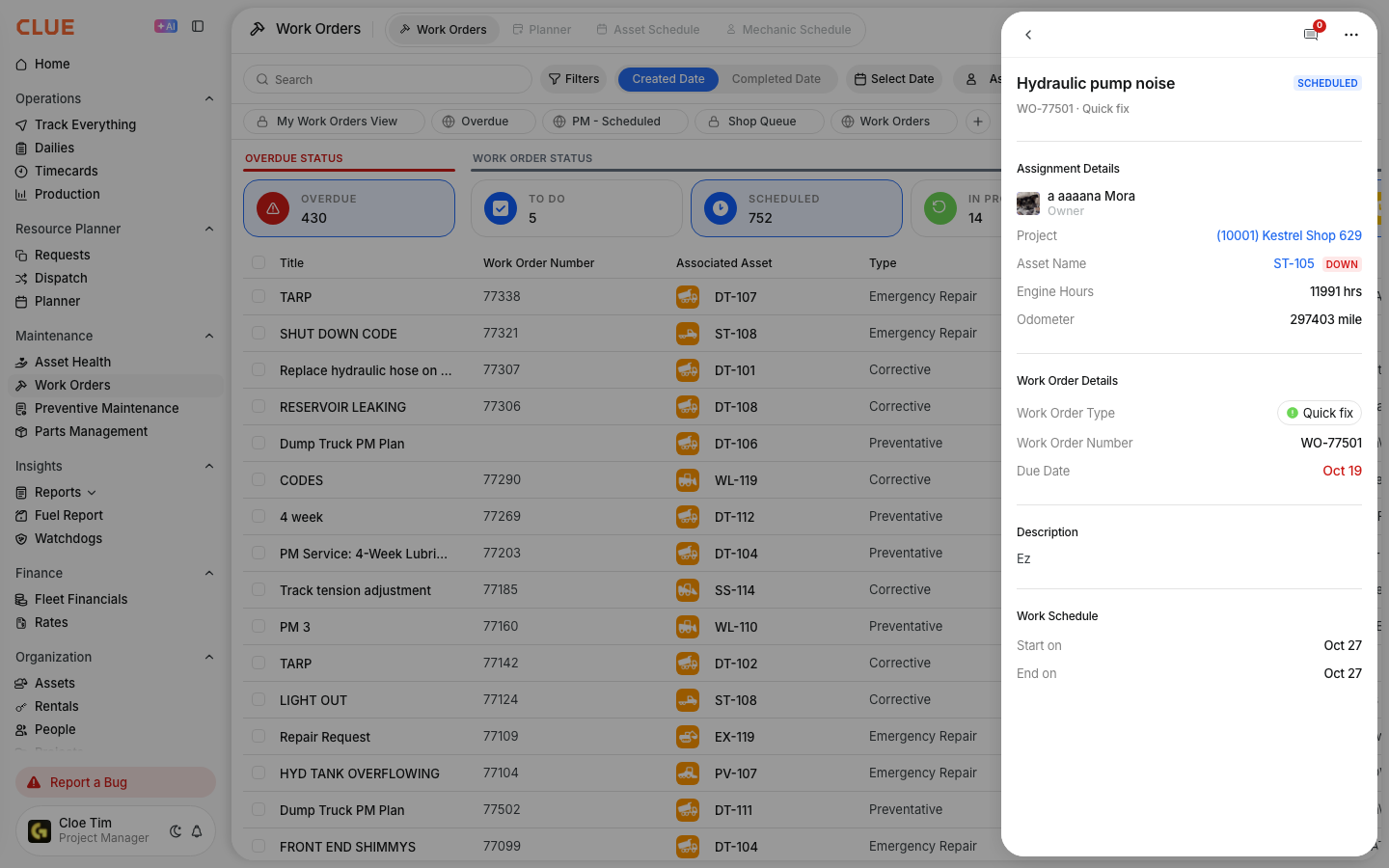
Click a work order title or number. Clue opens that work order.
The full details
- Works on: Excel downloads from the web app, and scheduled reports sent as Excel.
- Pages with links: Work Orders, Mechanic Timecards, Daily Timecards, Inspection Log, Assets, People, Projects, Fault Codes, Utilization Report, Connectivity Health and Vendors.
- Work Orders file: Title, Work Order Number, Associated Asset and Current Project Name are links.
- Inspection report: Asset Name opens the machine, Result opens the inspection, Inspected by opens the person.
- CSV and PDF: No links. Choose Excel to get them.
- Your columns stay the same: Nothing is added or reworded, so files sent to other systems keep their layout.
- Sign-in: If you are not signed in, Clue asks you to sign in, then opens the record you clicked.
- Access: A link opens only for people who can see that record in Clue. Others see an access message.
Tips
- Filter the page first. The file holds what you see, so every link is one you care about.
- A cell that lists several people, like Assignee, is plain text. Open the work order to see each one.
- Forward the file freely. People without a Clue login cannot open the records.