What is this?
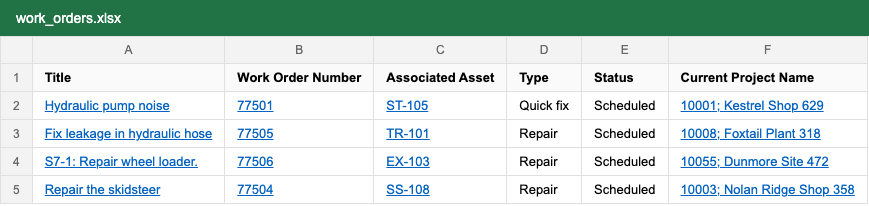
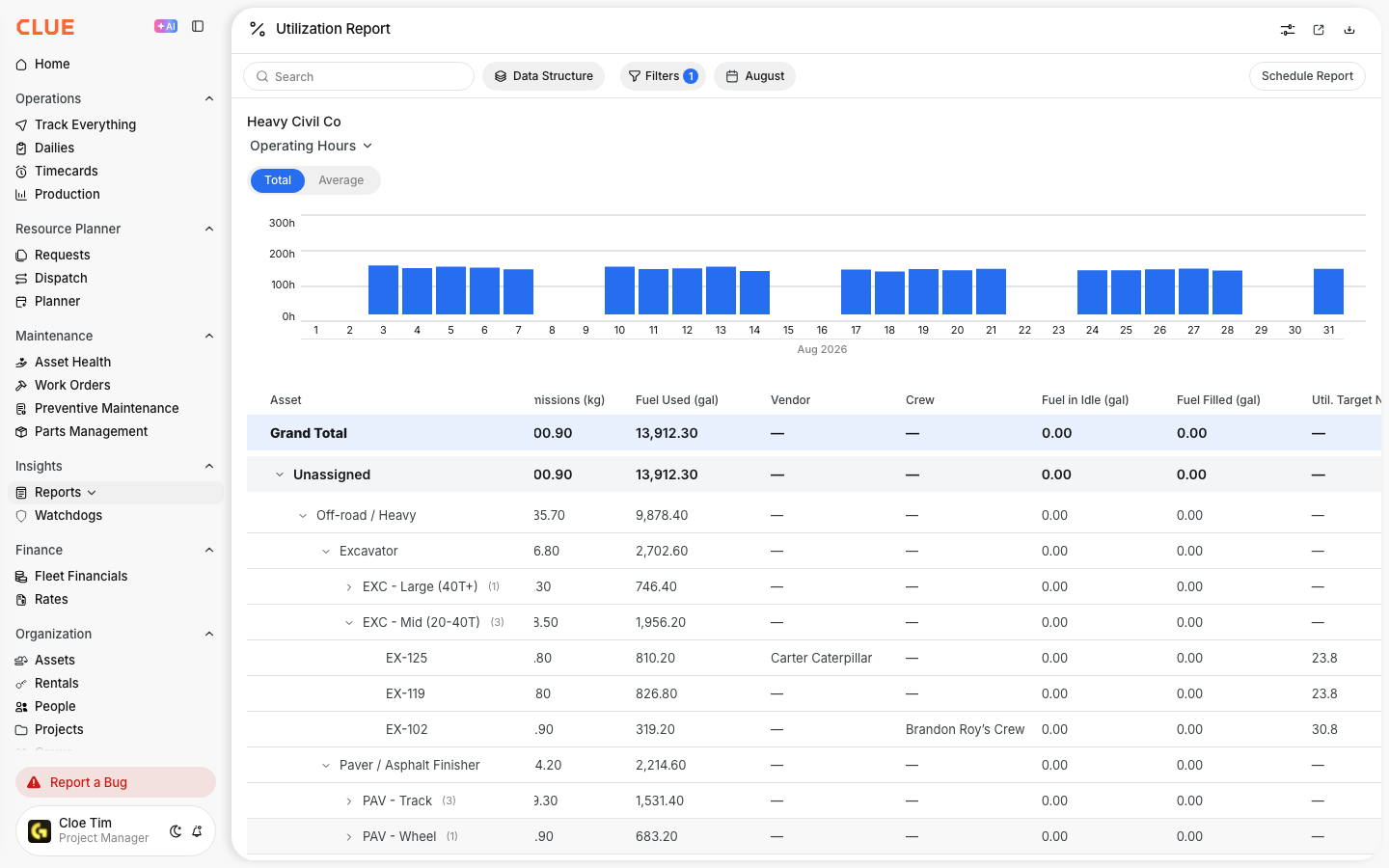
The Asset Utilization report can give you one row per asset per day. Each row shows that day's operating, idle and working hours, engine hours and odometer. You get your whole fleet in one spreadsheet. Use it to check machine hours against your accounting or job cost system, day by day.
Who's this for?
- Equipment managers, to review daily hours and idle time for every machine at once.
- Job cost and accounting teams, to match machine hours to the hours charged to each job.
- Admins who run weekly reports, to feed the same spreadsheet template every week.
How to use it
Step 1: Set up the report
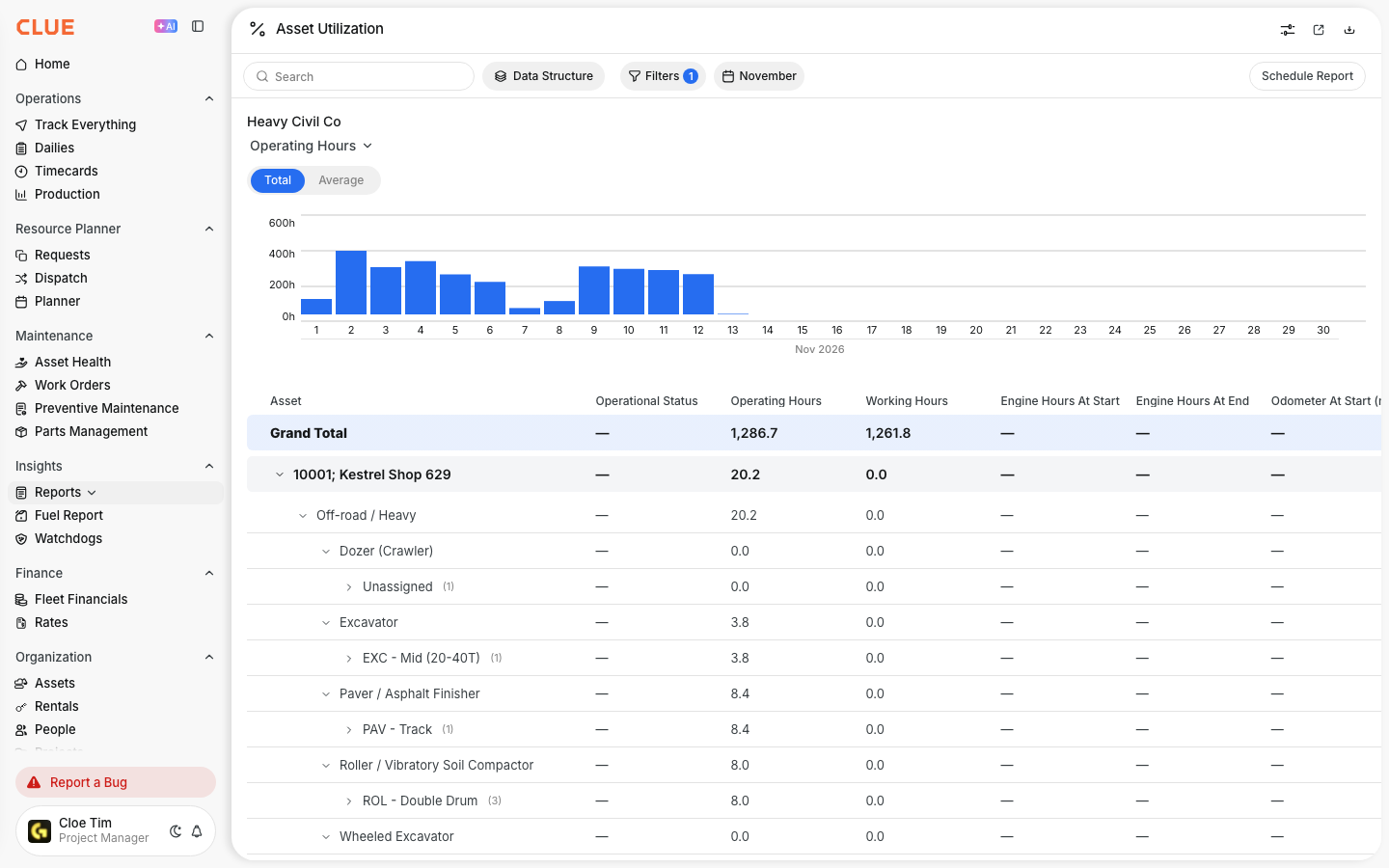
Go to Insights > Reports > Asset Utilization. Pick your date range and filters. The file contains the assets you see on screen.
Step 2: Click Download
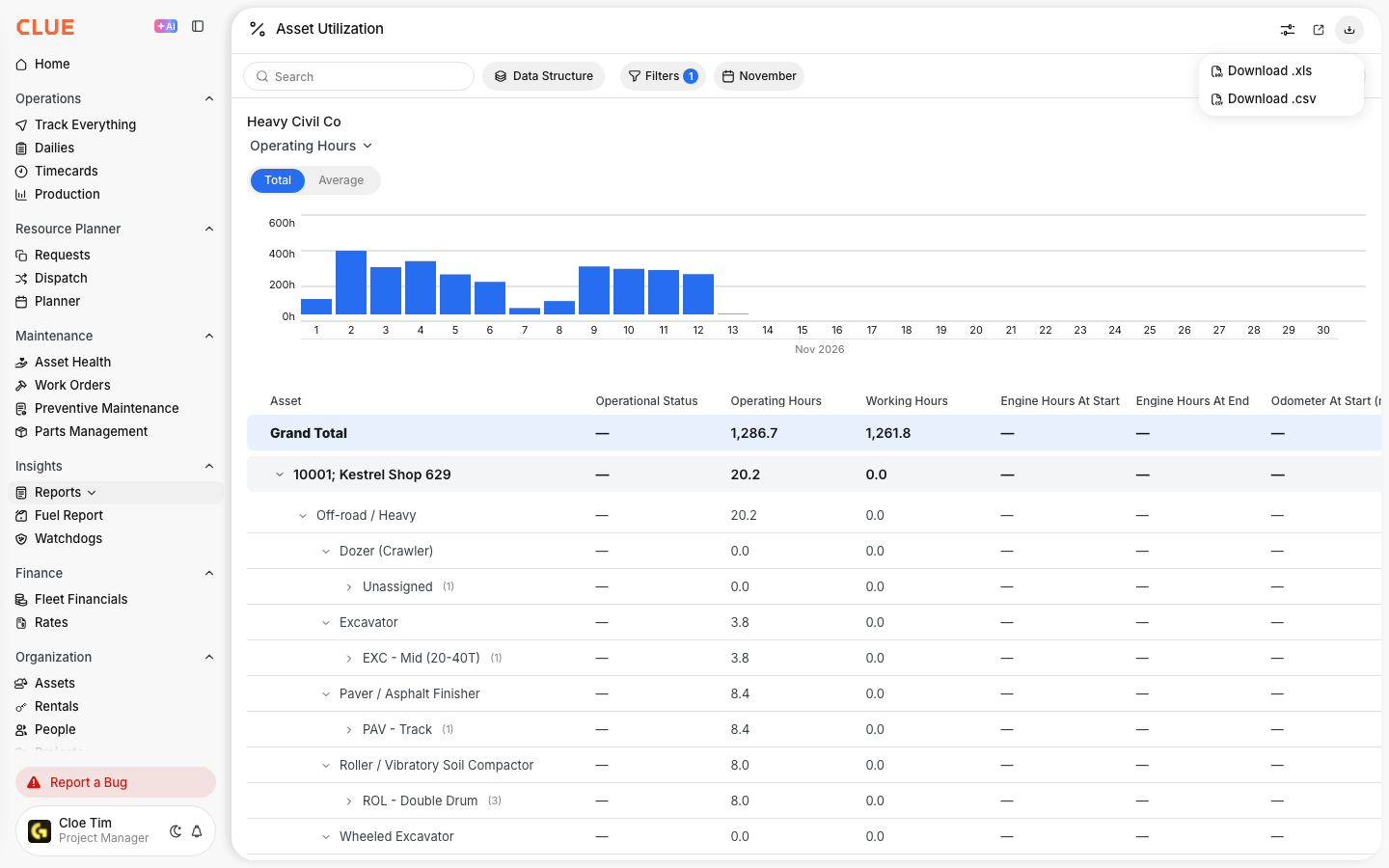
Click the Download icon in the top right corner. Choose Download .xls or Download .csv.
Step 3: Choose how rows are grouped
The Download Asset Utilization window opens. One row per asset gives totals for the date range. It is selected by default.
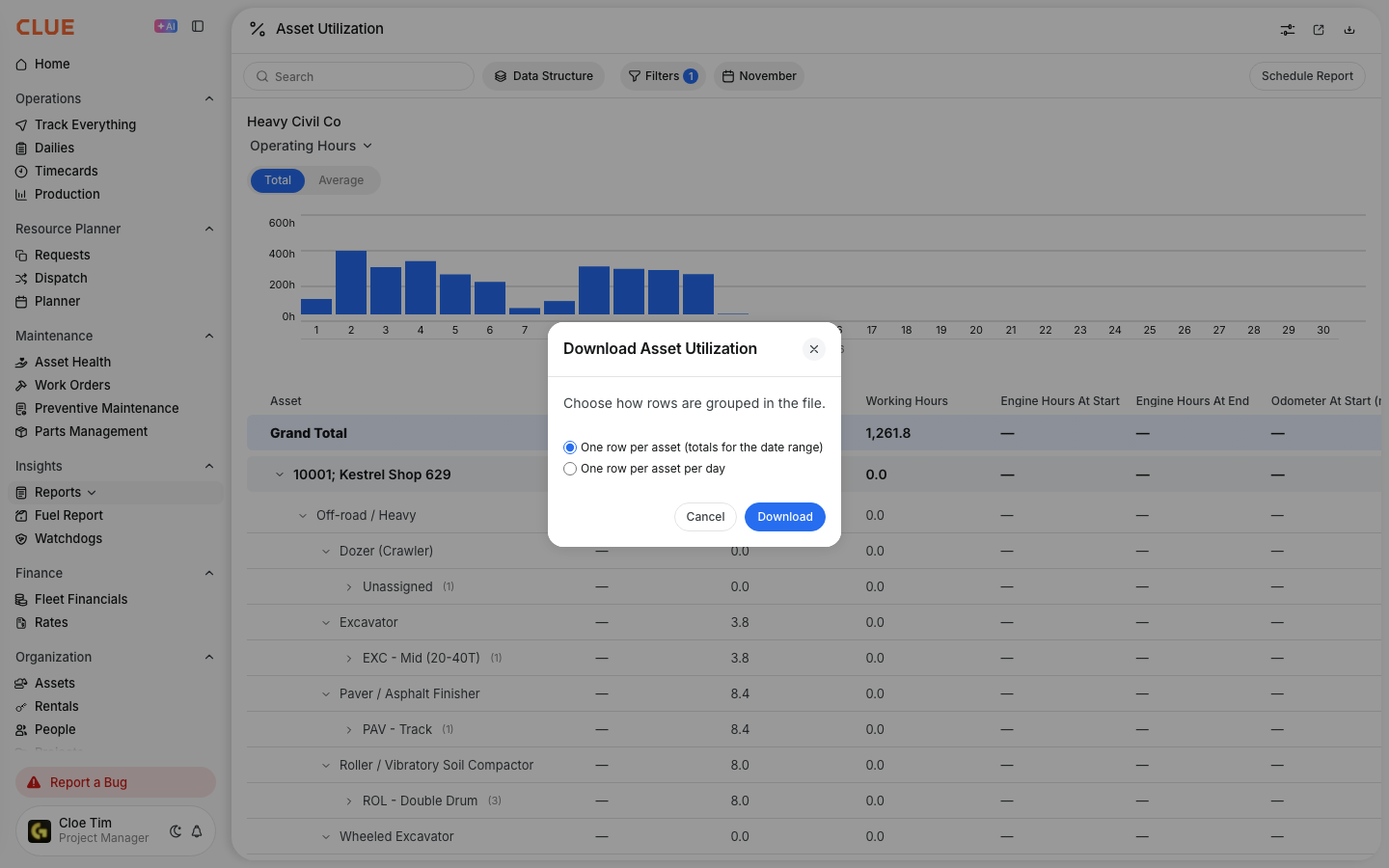
Step 4: Get one row per asset per day
Select One row per asset per day. Tick Include days with no activity if your spreadsheet needs every day. Click Download.
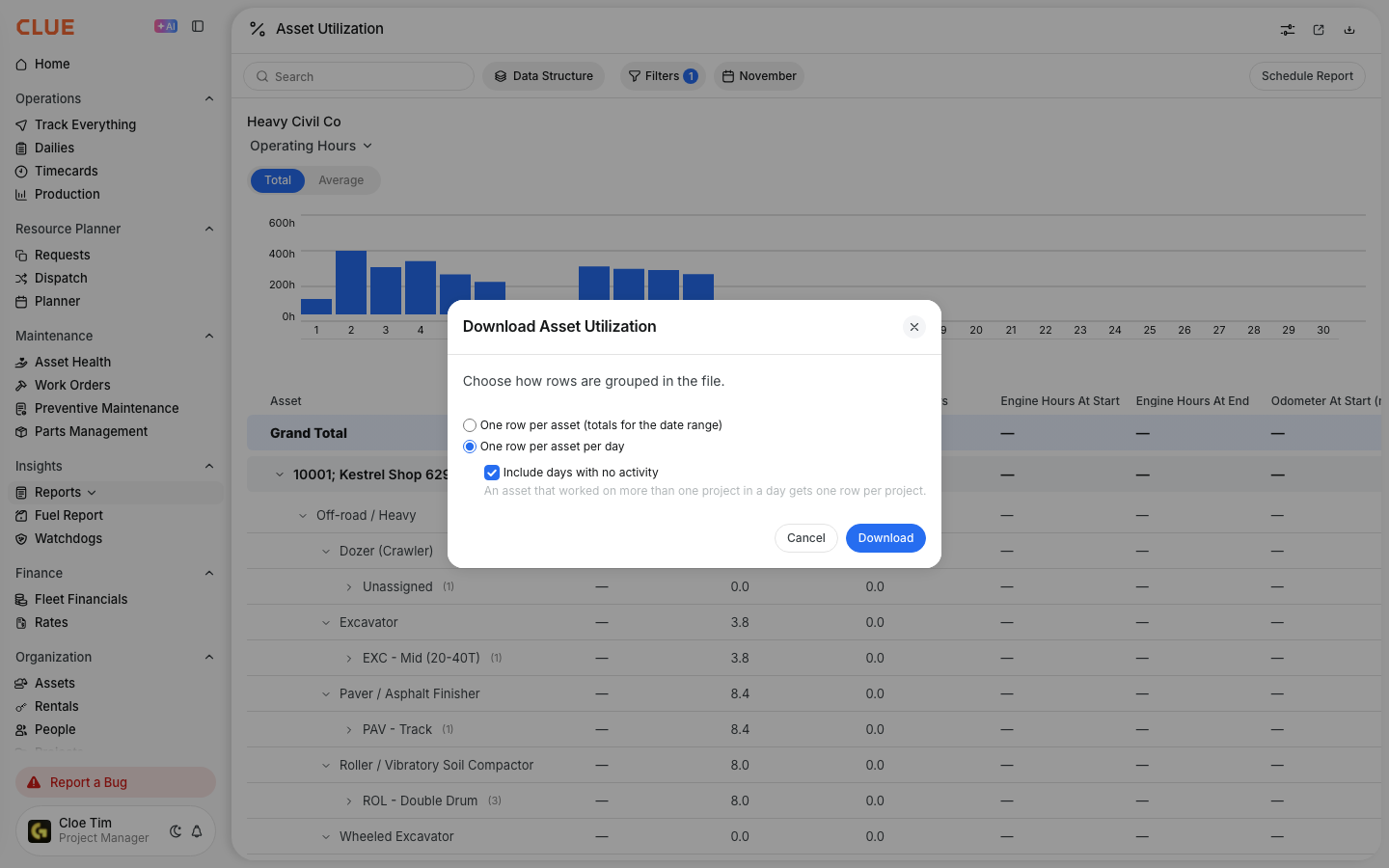
The full details
- Works on: Web app.
- File types: .xls and .csv. Dates are real Excel dates.
- Rows: one per asset per day, up to today. An asset that worked on two projects in one day gets one row per project.
- Columns: Date and Project come right after the asset name. The rest follow your Table Settings for the report.
- Not in the daily file: Alert and Fuel Tank Level. They describe the whole date range, not one day.
- Filters: the date range, filters, search and your access rules all apply.
- Size limit: if the file would pass your company's download limit, Clue shows the row count and asks you to narrow the range. You never get a partial file.
- Share and email: these send the totals file. The daily file is a download.
Tips
- Run the same date range every week. The columns stay the same, so your formulas keep working.
- Set your columns once with the Table Settings icon next to Download. The daily file uses them too.
- Hit the size limit? Download one sub-organization or one asset type at a time.
- Leave Include days with no activity off for a shorter file with only working days.