Request Parts Without a Delivery Date on Mobile
What is this?
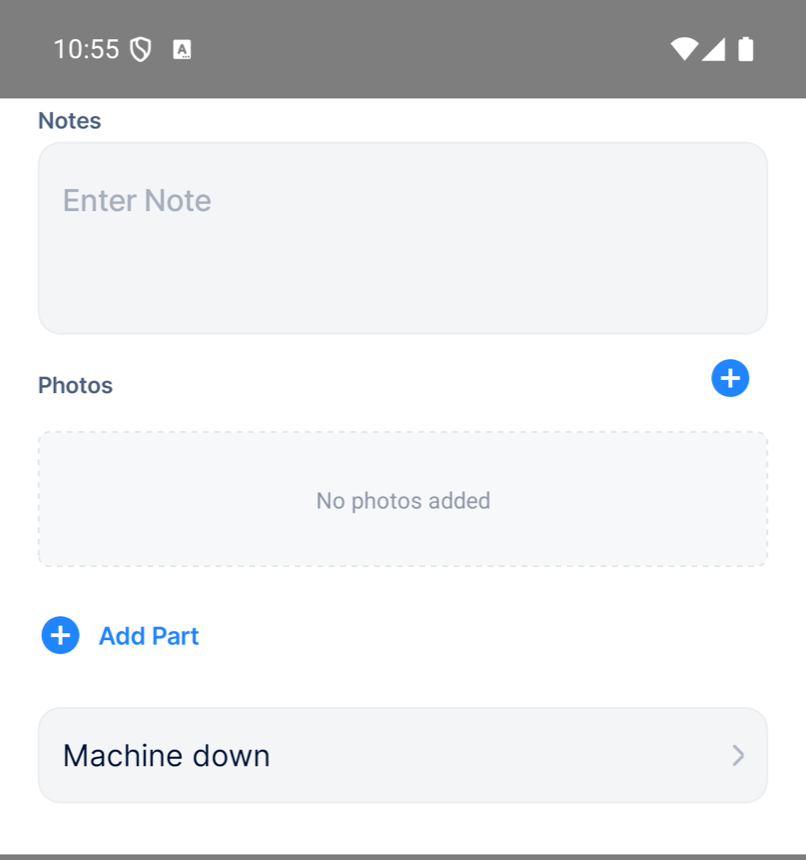
Some companies get their parts shipped straight from the vendor. The vendor decides when the part arrives, so the mechanic asking for it cannot know the date. For these companies, the mobile parts request has no delivery section. Mechanics add the part, say how urgent it is, and send the request.
Who's this for?
Anyone who asks for parts from the field, and the people who order them.
- Mechanics, request a part from the phone in a few taps, with no delivery date to guess.
- Parts managers, see how urgent each request is and order it the right way.
- Equipment managers, get parts requests logged in Clue instead of by phone or text.
How to use it
Step 1: Start a new request
In the mobile app, open Parts, tap +, then Request. Pick the asset and add the part, quantity and unit. The form ends after Add Part.

Step 2: Pick the urgency
Tap the urgency row at the bottom of the form. Choose an option and tap Save.

Step 3: Send the request
The urgency you chose shows on the form. Tap Request to send it to the parts team.
The full details
- Works on: the mobile app New Request, Edit Request and Add Parts on a work order. The web New Request works the same way.
- Setup: one setting for your whole company. Our support team turns it on.
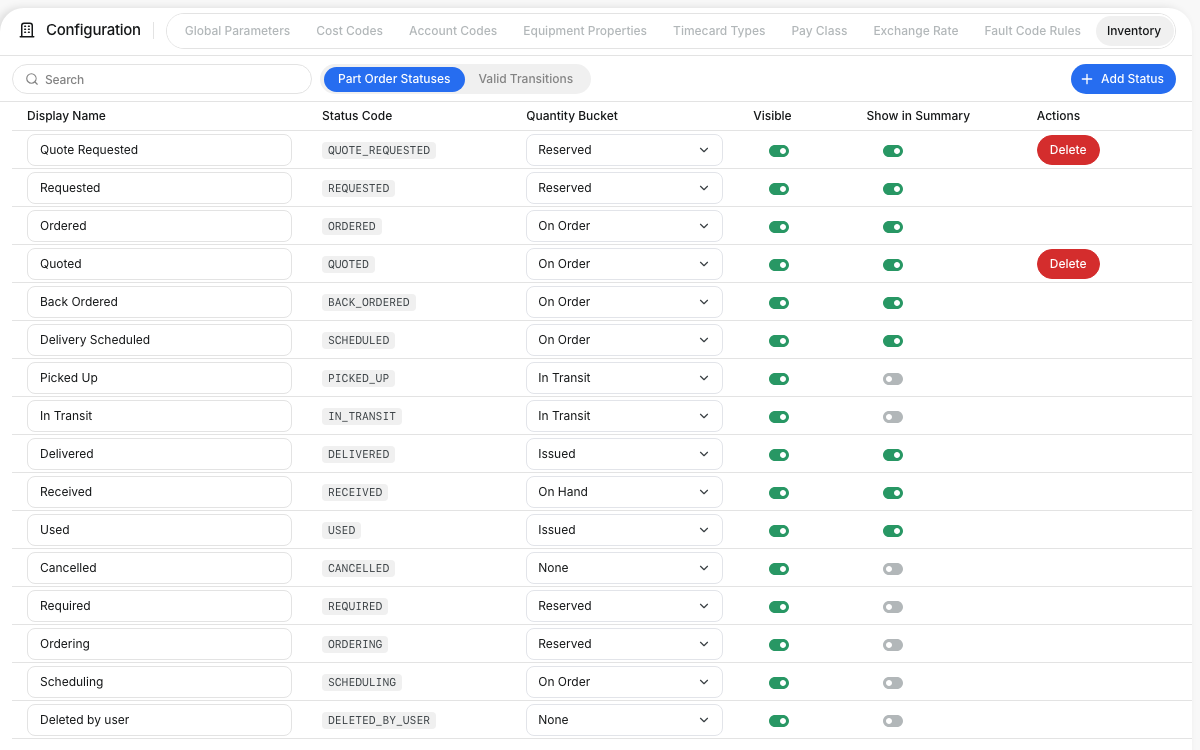
- Urgency list: your company sets its own options, in your users' languages. Without a list, mechanics see the Breakdown switch instead.
- Editing a request: the delivery section stays hidden, and delivery details already on the request are kept.
- Other companies: if your company uses delivery dates, the request screen does not change.
Tips
- Use the fastest urgency only when a machine is down. Your parts team pays more to ship it fast.
- Add a photo of the part or its label. It helps the parts team order the right one.
- Still seeing delivery fields? Update the Clue app to the latest version.