Parts Status Transitions: Changing Order Status
What is this?
Every part in CLUE moves through a series of statuses: requested, ordered, delivered, used. The status dropdown on each part shows only the transitions that make sense for where that part is right now. A delivered part shows "Used." An ordered part shows "Back Ordered," "Cancelled," or "Picked Up." Parts that are already used or cancelled show no dropdown. They are done.
This means your team cannot accidentally move a part backward or skip to an invalid state. The system enforces the right order, every time.
Who is this for?
- Mechanics — mark delivered parts as used when installing them on a work order
- Parts managers — track orders through their full lifecycle from the Parts Management screen
- Equipment managers — review and update part status directly inside work orders
How to use it
Step 1: Open Parts Management
Click Parts Management in the left sidebar, then click the Requests and Orders tab.

Step 2: Click a status badge
Find the part you want to update. Click its status badge. A dropdown shows the valid next statuses for that part.
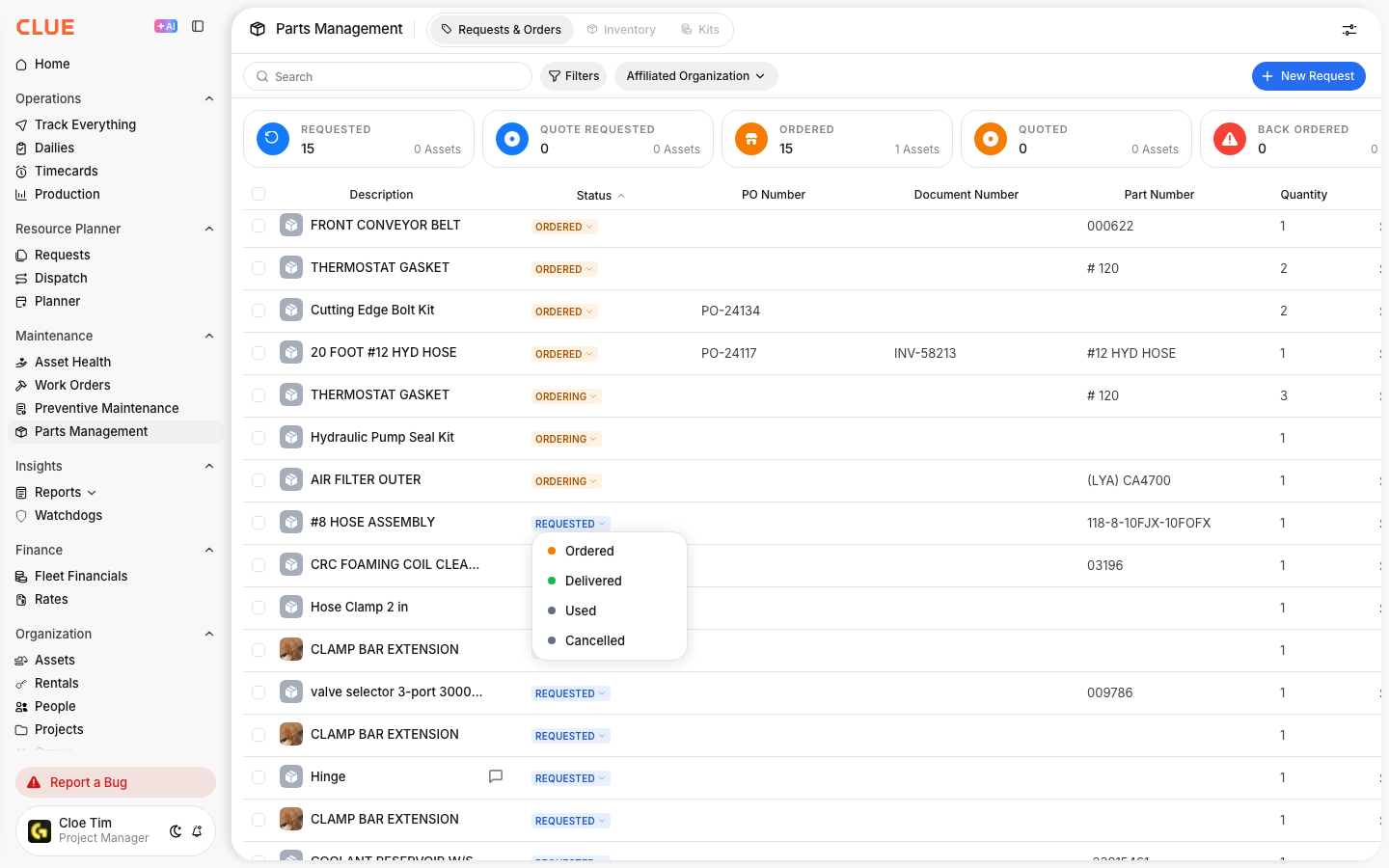
Step 3: Mark a delivered part as Used
Click the Delivered badge on any part. The dropdown shows one option: Used. Select it to mark the part as consumed.
Step 4: Change status from inside a work order
Open a work order and scroll to the Parts section. Click anywhere on a parts row to enter edit mode. The Status column becomes a dropdown showing valid transitions.
Step 5: Select the new status and save
Choose the status you want from the dropdown. Click Save. The badge updates immediately.

Pick the right path
Two paths run through these statuses, depending on where the part came from. Picking the wrong one gives you wrong inventory counts.
Path 1: Part is already on your shelf
Use this when a mechanic grabs an existing part from inventory to install on a work order.
Requested, then Used. That is the full path. CLUE removes one from On Hand and marks the part as consumed.
Path 2: You are ordering new stock from a vendor
Use this when the part needs to be purchased from a supplier.
Requested, Ordered, Picked Up, Delivered, Used. Each step moves the part through the buckets: Reserved, On Order, In Transit, On Hand, then consumed.
Common mistake: walking a shelf part through the purchase path
If the part is already on your shelf, do not mark it Ordered or Delivered. Delivered tells CLUE that new stock arrived from a vendor. CLUE adds one to On Hand, then subtracts one when you mark it Used. The net change is zero. Your shelf count never drops, even though the part was installed.
Example. You have 25 oil filters on the shelf. A worker grabs one for a repair and marks it Requested, Ordered, Picked Up, Delivered, Used. End count: 25. The worker installed the filter, but CLUE thinks one was ordered, received, and used, with the shelf untouched.
Correct path: Requested, then Used. End count: 24. The shelf reflects what actually happened.
The full details
- Requested: can move to Ordered, Used, or Cancelled
- Ordered: can move to Back Ordered, Picked Up, or Cancelled
- Back Ordered: can move to Ordered, Picked Up, or Cancelled
- Picked Up: can move to In Transit, Received, Delivered, or Cancelled
- In Transit: can move to Received, Delivered, or Cancelled
- Received: can move to Used or Cancelled
- Delivered: can move to Used only
- Used: no further changes allowed
- Cancelled: no further changes allowed
- Works on: Web app
- Where to find it: Parts Management (sidebar) and inside individual work orders
Tips
- For shelf parts, go straight from Requested to Used. Skip Ordered and Delivered. Those statuses mean new stock arrived from a vendor and will add to your On Hand count.
- Inventory counts update automatically when you change a status. No manual adjustment needed.
- If a transition you need is not available, contact your CLUE administrator. Custom transitions can be added to match your company workflow.