Inventory Optimization: Obsolete Detection & Reorder Suggestions
This update helps you manage parts inventory with less guesswork. CLUE now highlights parts that have not moved in a long time, suggests better reorder points, and shows usage data right inside the part record so your team can make better stocking decisions.
Available now on Beta - This feature is in beta testing and will roll out to everyone soon.
What is this?
This feature adds three new inventory tools to Parts Management. It flags parts with no usage in the last 12 months as obsolete, suggests reorder point changes when current levels do not match demand, and shows consumption analytics like last used date, average monthly usage, and turnover ratio.
The goal is to make stocking decisions easier. Instead of relying only on gut feel, your team can use real usage data to see what should be kept, what should be restocked, and what may be taking up space with no real demand.
Who is this for?
This feature is useful for the people who manage stock levels and make decisions about what parts should stay on the shelf. It gives more visibility into demand, slow-moving stock, and reorder settings across shops.
- Parts Managers can find obsolete stock and review reorder suggestions faster
- Shop Managers can see which parts move and which ones sit
- Mechanics benefit from fewer stockouts on the parts they use most often
How to use it?
You can use these new tools from the Inventory tab in Parts Management. Start there, then filter the list, expand rows for shop-level detail, and open the part record when you need usage analytics or a reorder recommendation. This fits naturally with Viewing Parts Inventory if you want the broader inventory view first.
Step 1: Open Parts Inventory
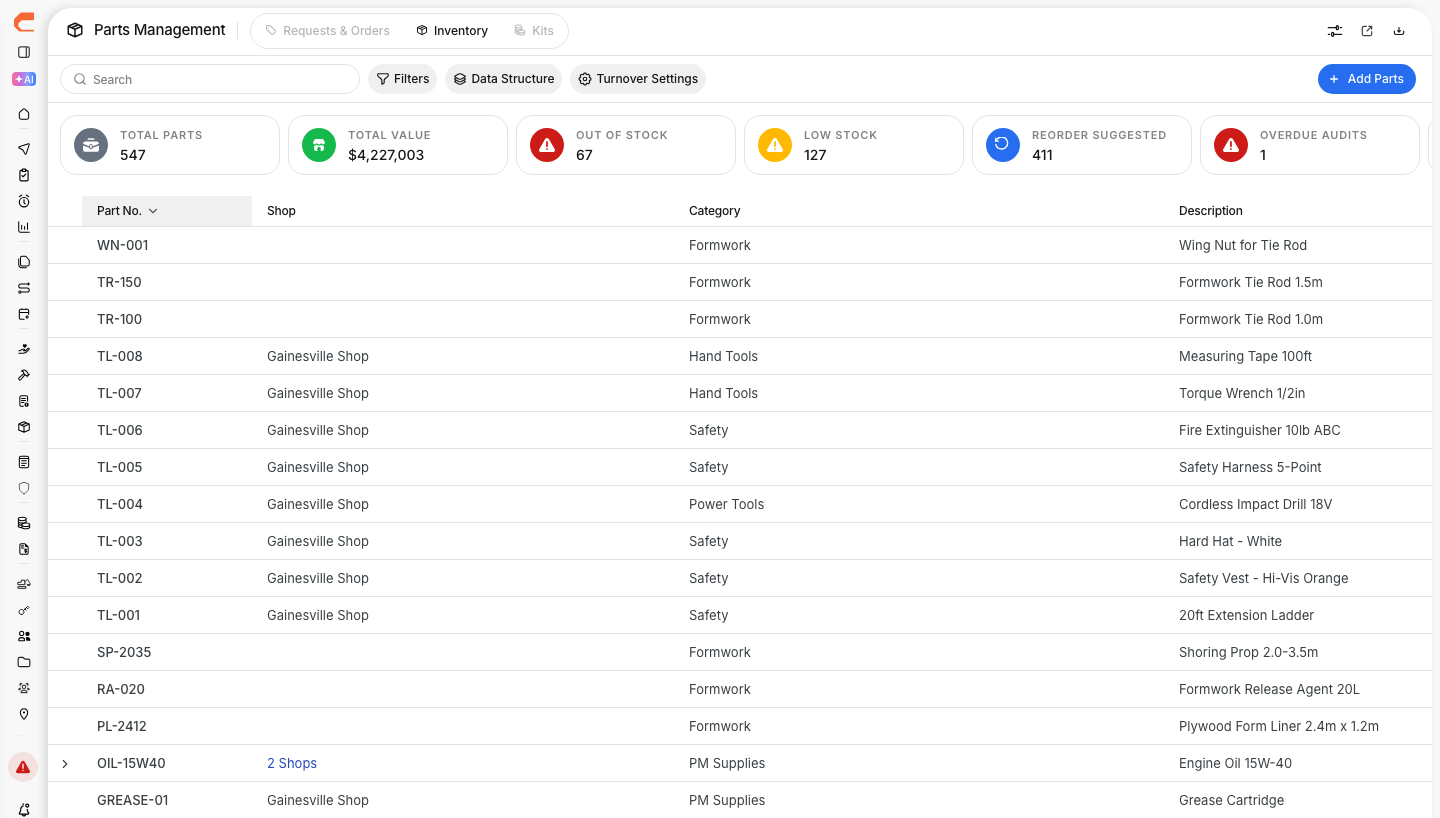
Go to Parts Management in the sidebar, then click the Inventory tab.
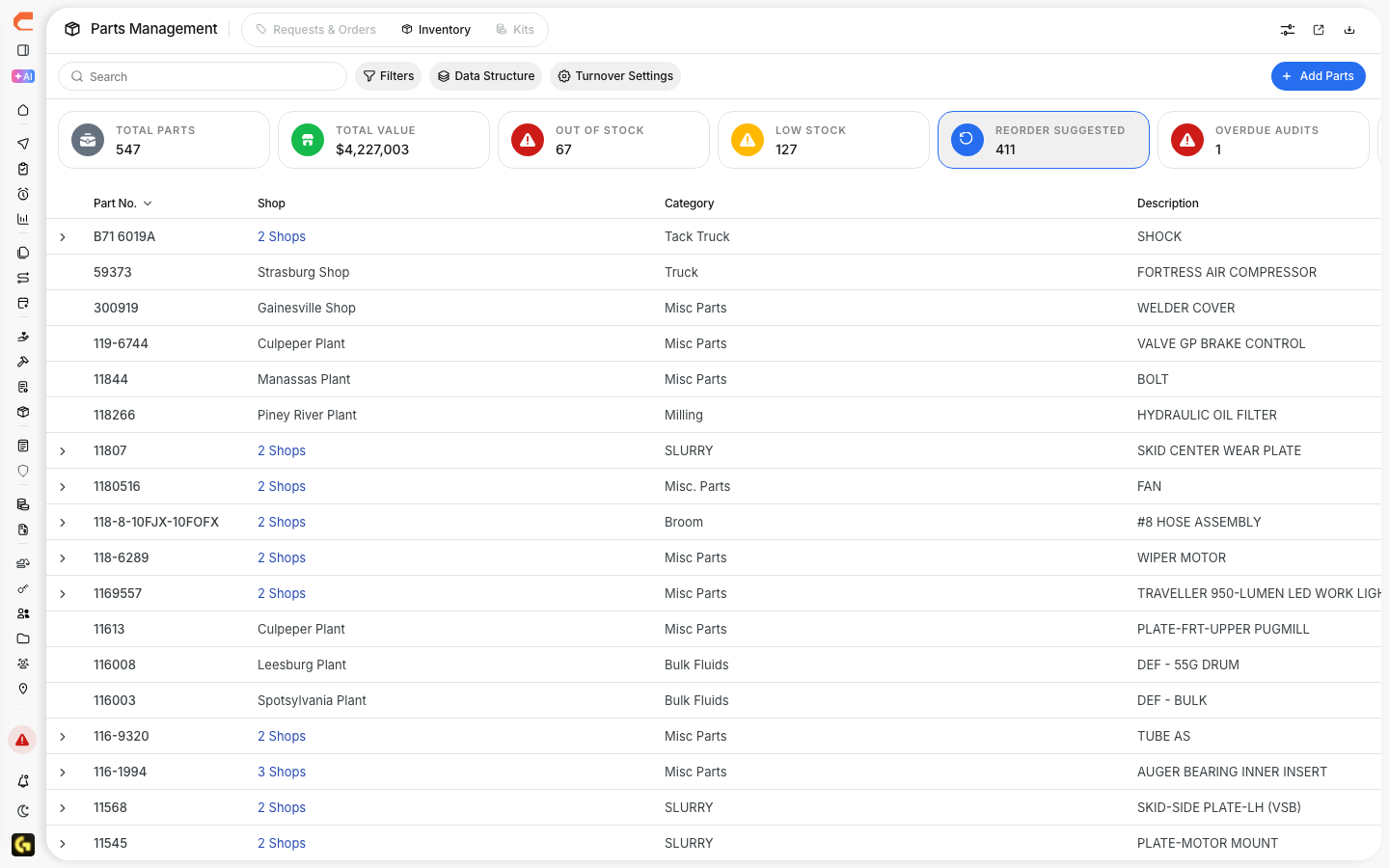
At the top of the page, the summary cards now include Reorder Suggested, which shows how many parts currently have a recommendation waiting.
Step 2: Filter for what matters
Use Filters to narrow the list to the parts that need review.

Under Inventory Status, you will see two new filter options:
- Obsolete - shows parts with zero usage in the last 12 months
- Reorder Suggested - shows parts where CLUE recommends a different reorder point
This makes it easier to separate dead stock from active inventory without scanning every part record by hand.
Step 3: Expand a row for shop details
Click any part row to expand it.
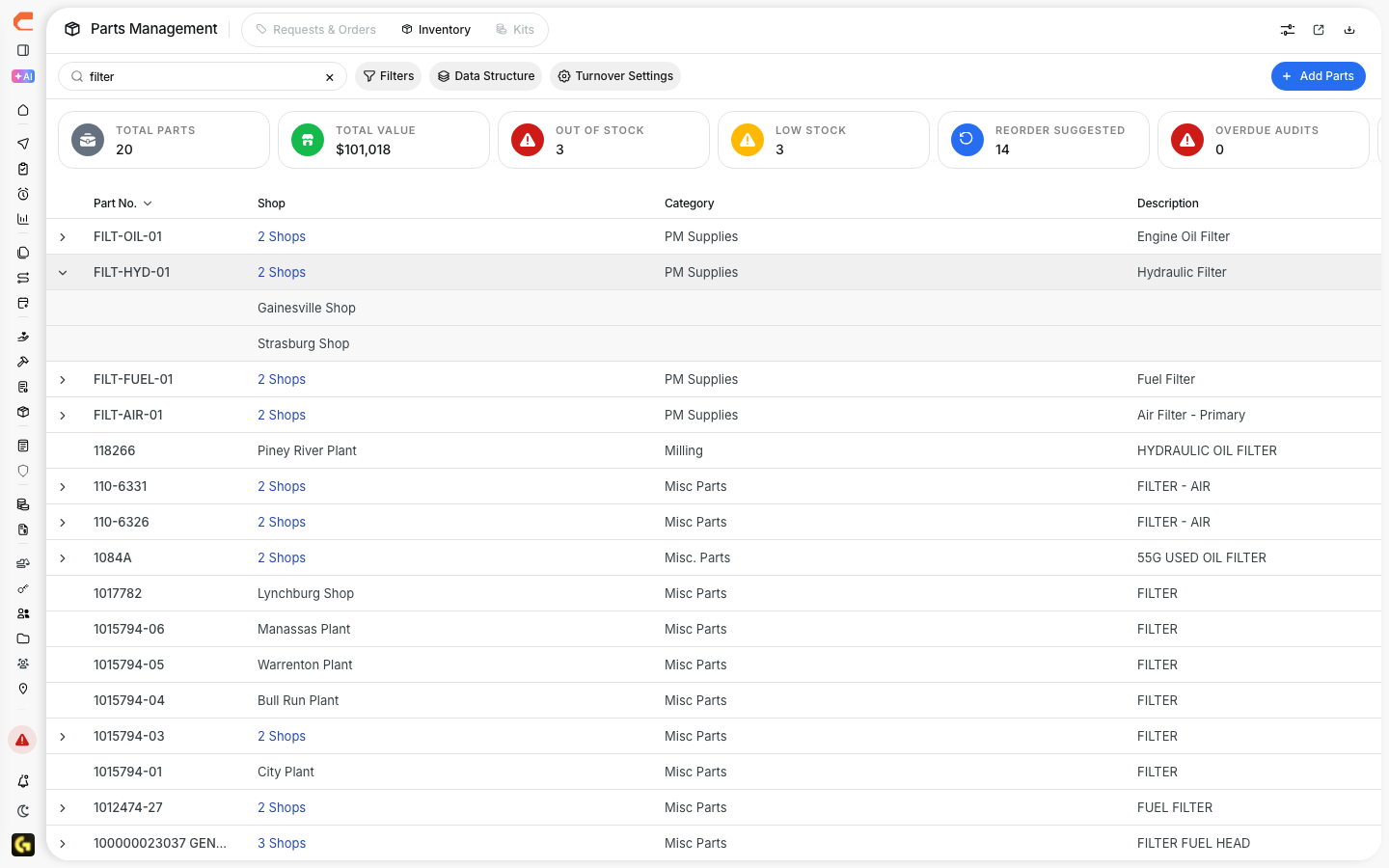
The expanded view shows inventory by shop, including quantity on hand, which locations carry the part, and where stock may be running low.
Step 4: Open part details for analytics
Click the part name to open the detail panel.

There you can review the new consumption analytics, including:
- Last used
- Average monthly consumption
- Turnover ratio
If CLUE has a reorder suggestion for that part, the detail panel also shows the recommended value with a one-click Accept button.
The full details
There are a few important rules behind how these inventory tools work. Knowing them will help your team understand when a flag appears and what the recommendation actually means.
- Works on: Web app
- Obsolete means: zero consumption across all shops for 12 or more months
- Obsolete clears automatically: if the part is used again
- Reorder suggestions are per shop: each location gets its own recommendation based on local usage
- Suggested reorder point formula: average monthly consumption × 1.5 months lead time + 20% safety buffer
- Minimum history required: parts with less than 3 months of history do not get reorder suggestions
- Accepting a suggestion: updates the reorder point right away
- Last Consumed column: available in column settings and hidden by default
- Permissions: same as current Parts Management access; no extra permissions are needed
If your team also manages purchase flow after reorder points are updated, Managing Parts Orders is the next page to use.
Tips
A few simple habits can help your team get more value from these new inventory tools. Start with the biggest cleanup opportunities first, then review reorder settings with real shop demand in mind.
- Start with the Obsolete filter to find stock you may be able to clear out
- Sort by value first if you want to review the most expensive unused parts
- Review reorder suggestions before accepting them, especially if seasonal demand is coming
- Turn on the Last Consumed column if you want a faster way to scan slow-moving parts
- Check multi-shop parts carefully, since demand may be low at one shop and active at another