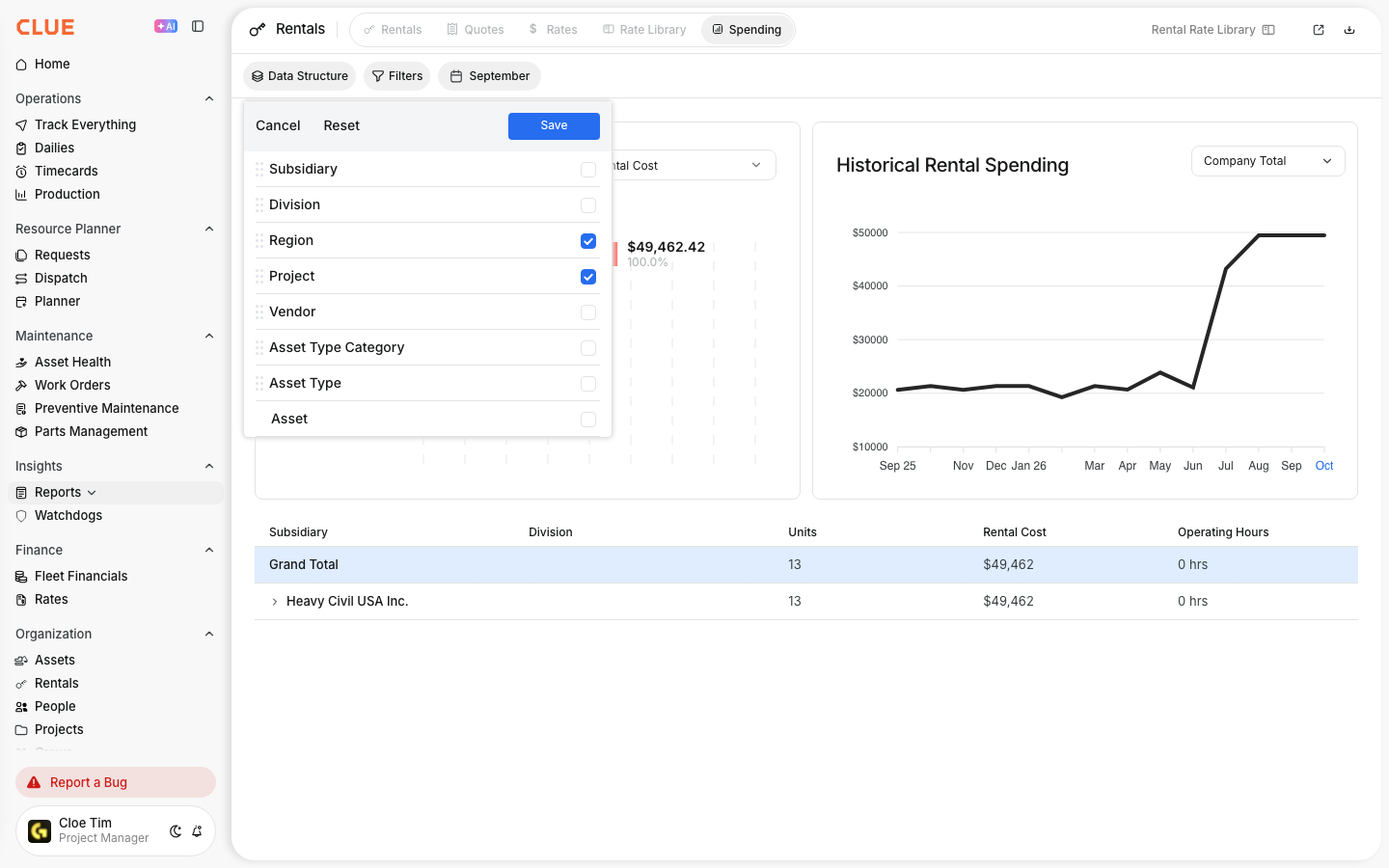
What is this?
Each rental on the Rentals page shows two projects. Billed to Project is the project on the rental contract. It is the job the rental is charged to. Current Project is the job the machine is working on today. Seeing them side by side shows right away when a rental is charged to one job while the machine works on another.

Who's this for?
Anyone who keeps rental costs on the right job.
- Rental coordinators, check which job each rental is billed to.
- Equipment managers, spot rented machines working on a different job than they are billed to.
- Project accountants, use the Billed to Project column in the download to charge rentals to the right job.
How to use it
Step 1: Open Rentals
Go to Rentals in the main menu. The Billed to Project column shows the job each rental is charged to.
Step 2: Show Current Project
Click the Table Settings icon at the top right. Turn on Current Project, drag it next to Billed to Project, and click Save.

Step 3: Open Filters
Click Filters. Pick Billed to Project to find rentals charged to a job. Pick Current Project to find rented machines working on a job.

Step 4: Choose the projects
Search for a project or tick the ones you want. With two or more picked, the filter shows a count, such as "2 Billed to Projects".

The full details
- Works on: Web app, Rentals page.
- Billed to Project: the project on the rental record.
- Current Project: the project the asset is assigned to right now.
- Shown by default: Current Project appears right before Billed to Project on a table you have not customized.
- Your choices stay: if you hid Current Project yourself, it stays hidden until you turn it on.
- Download: the Rentals CSV and Excel files use the same Billed to Project heading.
- Languages: the new name appears in every language Clue supports.
Tips
- Filter by Current Project to see every rented machine on a job, whoever pays for it.
- When the two projects differ, update the rental's project so costs land on the right job.
- Use Billed to Project in the download when you split rental costs by job.