Available now on Beta. This feature is in beta testing and will roll out to everyone soon.
What is this?
The Rentals tab is the running list of every piece of equipment you have out on rent. Each row shows the asset, the project it is on, its status, and any notes. It is your single view of what is rented, where it is, and where it stands.

Who's this for?
- Equipment managers, see every active rental in one place.
- Rental coordinators, track status and keep rentals moving.
- Project managers, know what rented gear is assigned to their jobs.
How to use it
Step 1: Open the Rentals tab
Go to Rentals in the main menu. The Rentals tab lists your rented equipment with its project, asset type, and status.

Step 2: Register a rental
Use Register Rental to add a rental directly. Rentals you set up from an accepted quote land here automatically.

The full details
- Works on: Web app, Rentals directory.
- Status: Each rental shows where it stands (requested, scheduled, on rent, off rent).
- Notes: Free-text notes per rental for anything the team needs to know.

Tips
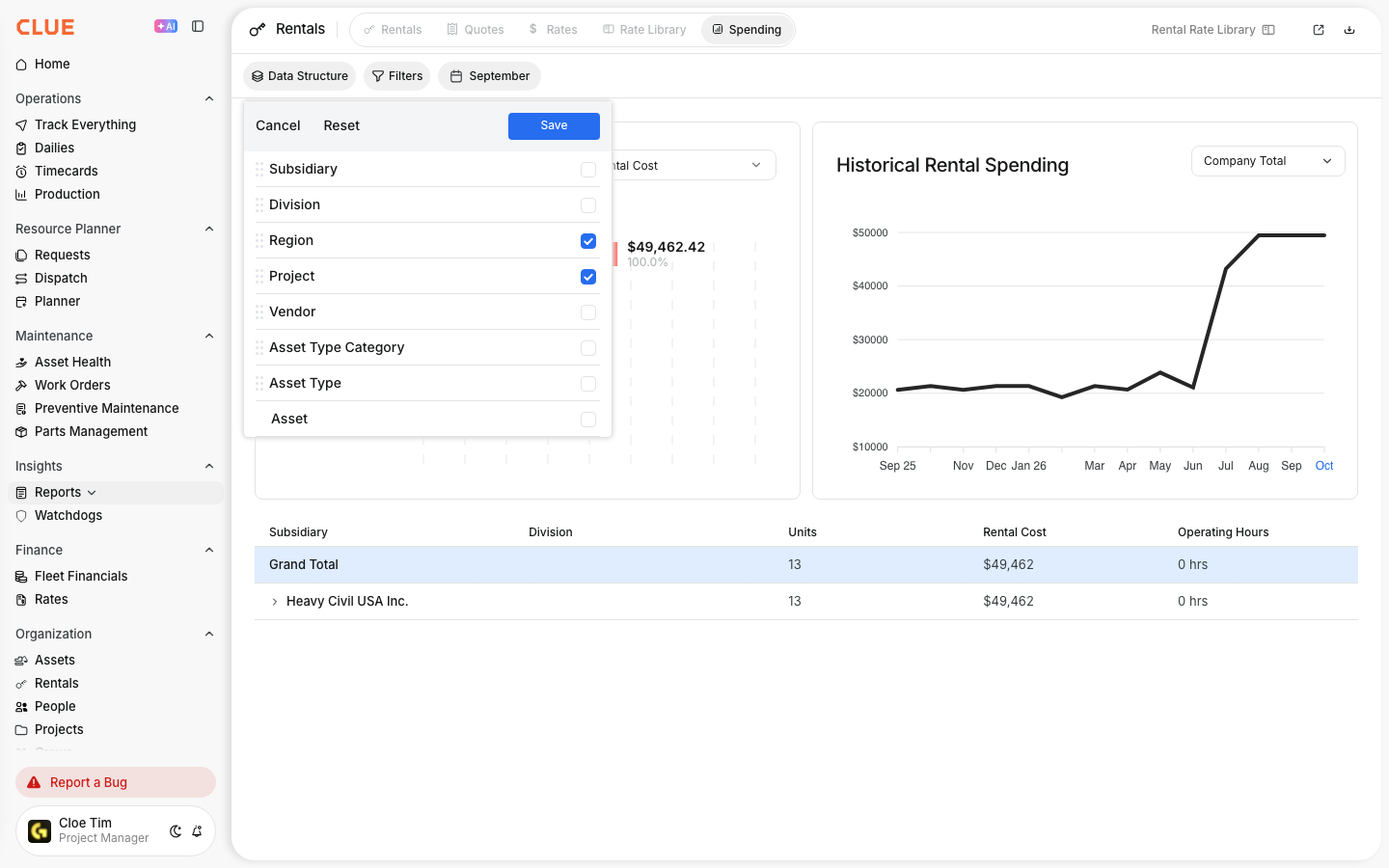
- Use the tabs across the top to move between Rentals, Quotes, Rates, and Spending.
- Accepting a quote sets up the rental for you, so it appears here without re-keying.