See Which Recurring Inspections Are Due on a Machine
What is this?
A recurring inspection is one that has to happen on a rhythm. Every day, every 30 days, once a year. CLUE puts that clock on the machine itself. Open any piece of equipment in the mobile app and the Inspection Reminder section tells you where each one stands.
Every recurring inspection that applies to that machine is listed, colour coded. Green means it is current. Amber means it is coming due. Red means it is late, or has never been done. Nobody has to keep the schedule in their head.
Who's this for?
- Operators, see what is owed on your machine before you start the shift, and fill it in from the same screen.
- Mechanics, spot the machines that are past due and clear them.
- Shop Foremen, catch the amber ones early and schedule them instead of chasing them.
- Equipment Managers, know that annual and monthly compliance inspections are tracked per machine rather than on a spreadsheet.
How to use it
Step 1: Open the machine
In the mobile app, find the asset and open it. Tap the three-dot menu, then Inspect Asset. That lands you on the asset overview.
Step 2: Read the Inspection Reminder
Scroll to the Inspection Reminder section. It sits below Asset Details. Each row is one recurring inspection that applies to this machine, with a coloured status above the name.
Step 3: Tap the one you need
Tap a red or amber row and the checklist opens, ready to fill in. Tap a green row and you get the last completed report instead. Submit the inspection and the row turns green straight away.
What the statuses mean
- Inspected Today or Inspected 3 Days Ago (green), this machine is current. Nothing to do.
- Upcoming in 3 Days (amber), the due date is inside the warning window your admin set. Get it scheduled.
- 5 Days Past Due (red), the due date has passed. The number tells you how far behind you are.
- Not Inspected (red), this inspection has never been done on this machine.
The full details
- Works on: the CLUE mobile app, on the asset screen
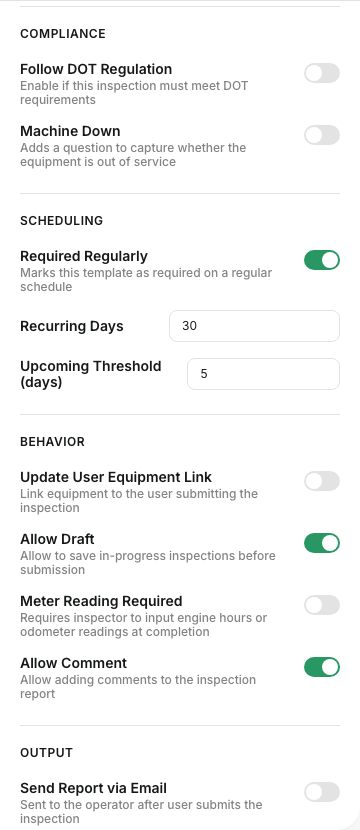
- Set up in: the web app, Admin > Company Settings > Templates
- Every recurring inspection that applies to the machine is listed, not only the ones that are due. Green rows stay visible so you can see the whole picture.
- Each machine has its own clock. The countdown runs from the last inspection submitted on that machine with that template.
- A machine you have never inspected reads Not Inspected until the first one is submitted. That is expected on a new machine, not an error.
- Which inspections appear depends on the template's scope: asset type, product class, make, model, and serial prefix.
- The amber stage is optional. If your admin set the warning window to zero, the machine goes straight from green to red on the due date.
- Submitting the inspection resets the clock the moment it is saved.


Tips
- Check this section at the start of the shift, not the end. An amber row is easy to clear, a red one holds up the machine.
- The number in a red row is how many days late you are. A machine at 40 days past due on a monthly inspection has been missed more than once.
- If a whole class of machines reads Not Inspected, the schedule was probably switched on recently. It clears as crews submit the first round.
- If an inspection appears that has nothing to do with the machine, tell your admin. The template's scope is set too wide.
- Green rows are worth tapping. They open the last completed report, which is the fastest way to see what the previous inspector found.