Set an Inspection to Repeat on a Schedule
What is this?
Some inspections happen once. Others have to happen on a rhythm. A crane needs a monthly inspection. A trailer needs a daily walk-around. Template Manager lets you put a template on a repeating clock, so the app tells your crew when each machine is due instead of someone tracking it on a whiteboard.
You set two numbers: how often the inspection repeats, and how many days of warning you want before it comes due. That is the whole setup.
Who's this for?
This is an admin job. You set it once per template, and the whole fleet follows it.
- Equipment Managers, put your monthly and annual inspections on a schedule so nothing quietly lapses.
- Safety and Compliance, keep DOT, ANSI, and crane inspections on a fixed cycle with a warning window before each one is due.
- Shop Foremen, see which machines are coming due this week and plan the shop around it.
How to use it
Step 1: Open Template Manager
Go to Admin > Company Settings > Templates. You get every template your company uses, with its type and the equipment it applies to.

Step 2: Open the template you want to repeat
Click the template name. The Template Editor opens with the checklist on the left and a Settings panel on the right.

Step 3: Choose which equipment it covers
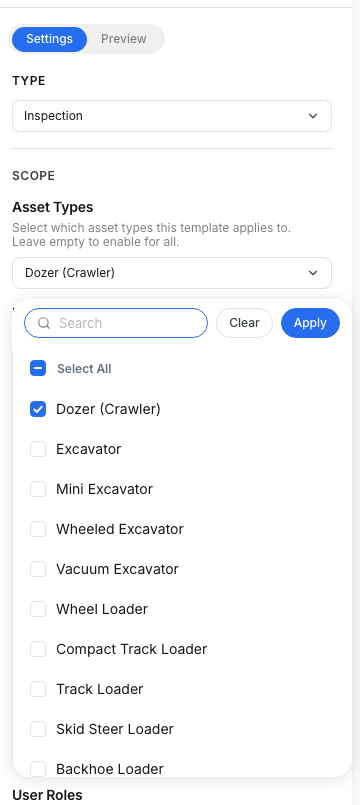
In Scope, pick your Asset Types. A monthly crane inspection should list only cranes. Leave the field empty and the template applies to every asset in your company.
Step 4: Turn on the schedule
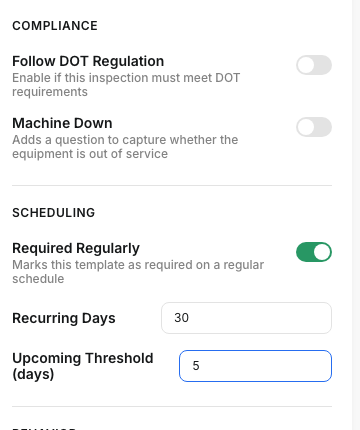
Scroll to Scheduling and turn on Required Regularly. Two fields appear.
Recurring Days is how often the inspection is due. Enter 30 for a monthly crane inspection.
Upcoming Threshold is your warning window. Enter 5 and the machine turns amber five days before it is due.
Step 5: Save
Click Save at the top right. The schedule is live on every matching asset right away.
The full details
- Where you set it up: Web app, Admin > Company Settings > Templates
- Where crews see it: Mobile app, on the asset, under Inspection Reminder
- Recurring Days: days between one inspection and the next
- Upcoming Threshold: days of amber warning before the due date
- The clock starts from the last submitted inspection of that template on that machine. Each machine runs on its own clock.
- A machine that has never been inspected shows as Not Inspected in red until the first one is submitted.
- Scope stacks: Asset Type, Product Class, Make, Model, and Serial Prefix all narrow which machines the template covers.
- Any field left empty means all. An empty Asset Types field is not "none", it is "every asset".
Tips
- Keep Upcoming Threshold smaller than Recurring Days. A 30 day cycle with a 5 day warning gives your crew a working week of notice.
- Set Upcoming Threshold to 0 and there is no amber stage at all. The machine goes straight from green to red on the due date. That is fine for daily walk-arounds, and confusing for anything monthly.
- Recurring Days of 0 means the inspection is due again the same day it was done, so the machine never reads as current. Use 1 for a daily inspection, not 0.
- For a weekly inspection, Recurring Days is 7. It is the gap between inspections, not the number of days you get to do it.
- Scope every recurring template to real asset types. Leaving it empty puts a trailer checklist on your excavators.
- Name the template so the cycle is obvious, for example "Crane Monthly Inspection". Your crew reads the name on the phone, not the settings panel.