What is this?
Every project in Clue has a Bulletin Board. It is where you post the paperwork the crew has to read and sign off on before work starts.
A Job Hazard Analysis is the most common use. You pick a form, describe the work and the hazards, and name the people who have to sign. The crew opens the post on their phone or on the web, reads it, and signs. Clue records who signed and the exact time they did it.
When an inspector or a client asks for proof, you download one PDF. The hazards, the mitigation steps, and the signature list are all on it.
Who is this for?
- Foremen and superintendents: post the JHA before the shift and see at a glance who has not signed.
- Safety managers: pull the signed record for any day on any job without chasing paper.
- Operators, mechanics, and drivers: open the report, read the hazards, sign in two taps.
- Project managers: post schedule changes and announcements where the whole crew will see them.
How to use it
Step 1: Open the Bulletin Board
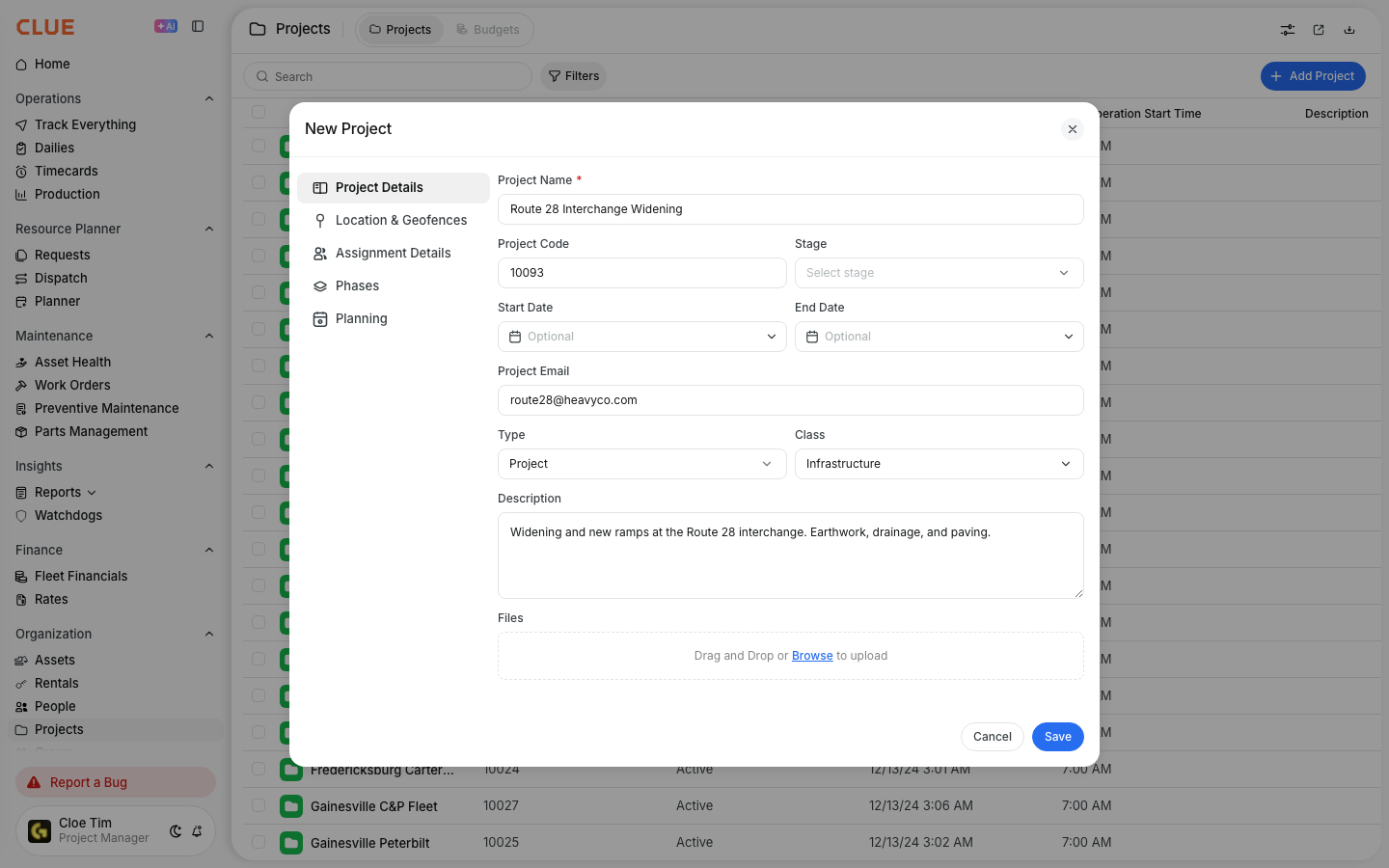
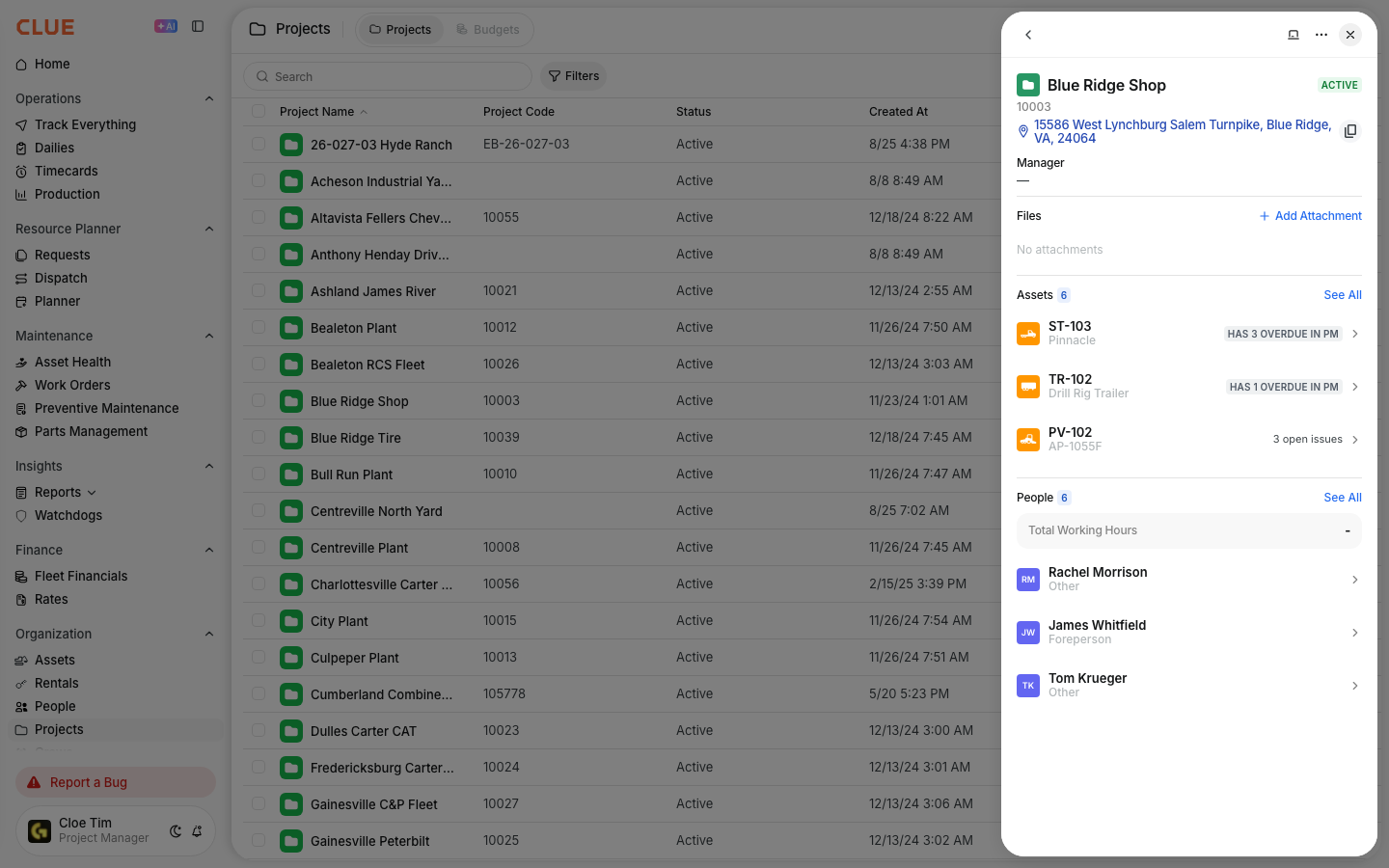
Go to Projects and click the project you are working on. In the panel that slides in, click the chalkboard icon at the top. A red number on that icon is how many posts you have not read yet.
The same thing sits under the ... menu as Bulletin Board if you prefer the menu.

Step 2: Start a post
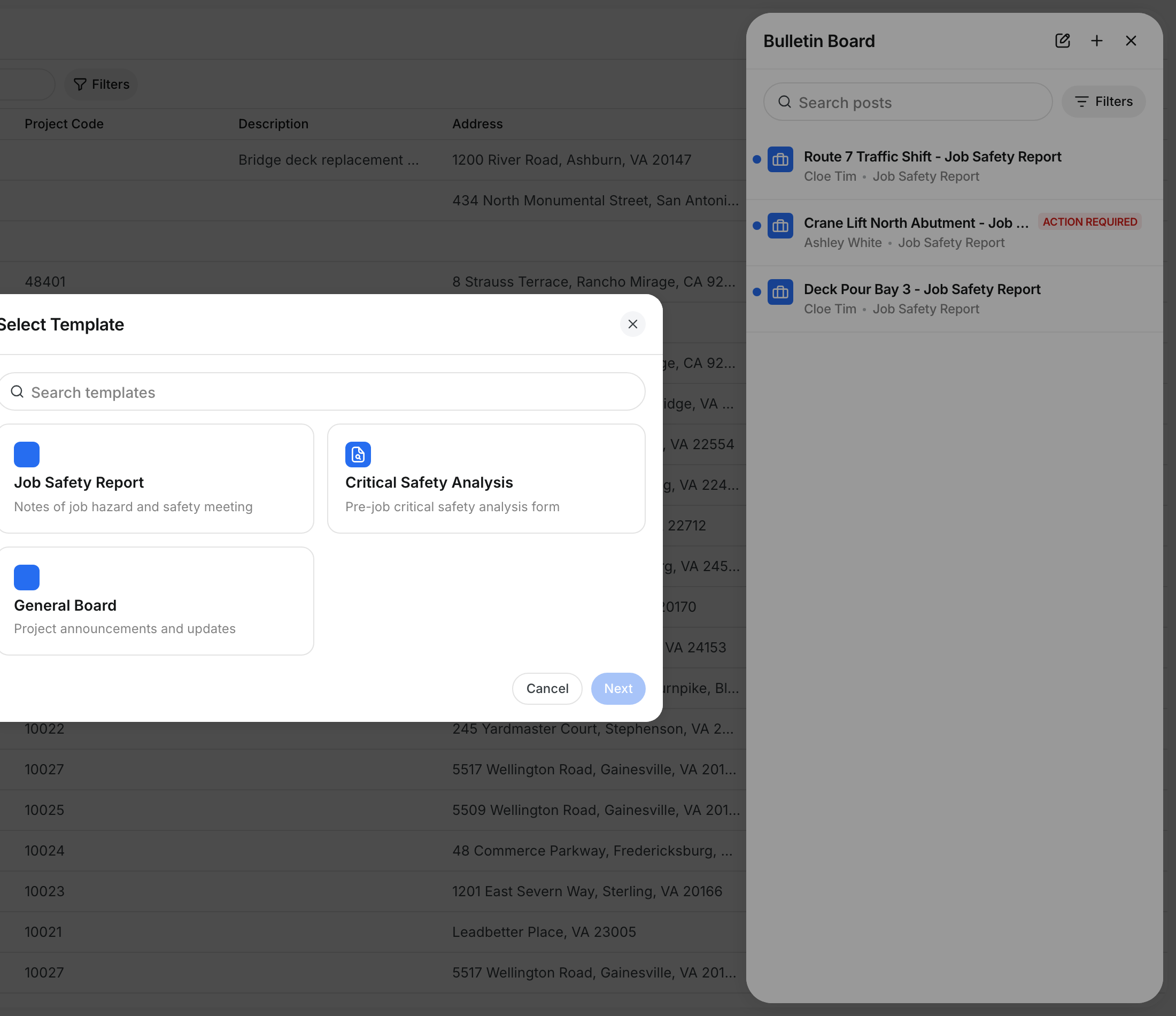
Click the + icon at the top of the Bulletin Board. Clue asks which form you want.
Every company gets Job Safety Report and General Board. Job Safety Report is the built-in JHA form. Any custom forms your company has, like the Critical Safety Analysis below, show up here too.
Step 3: Fill in the form
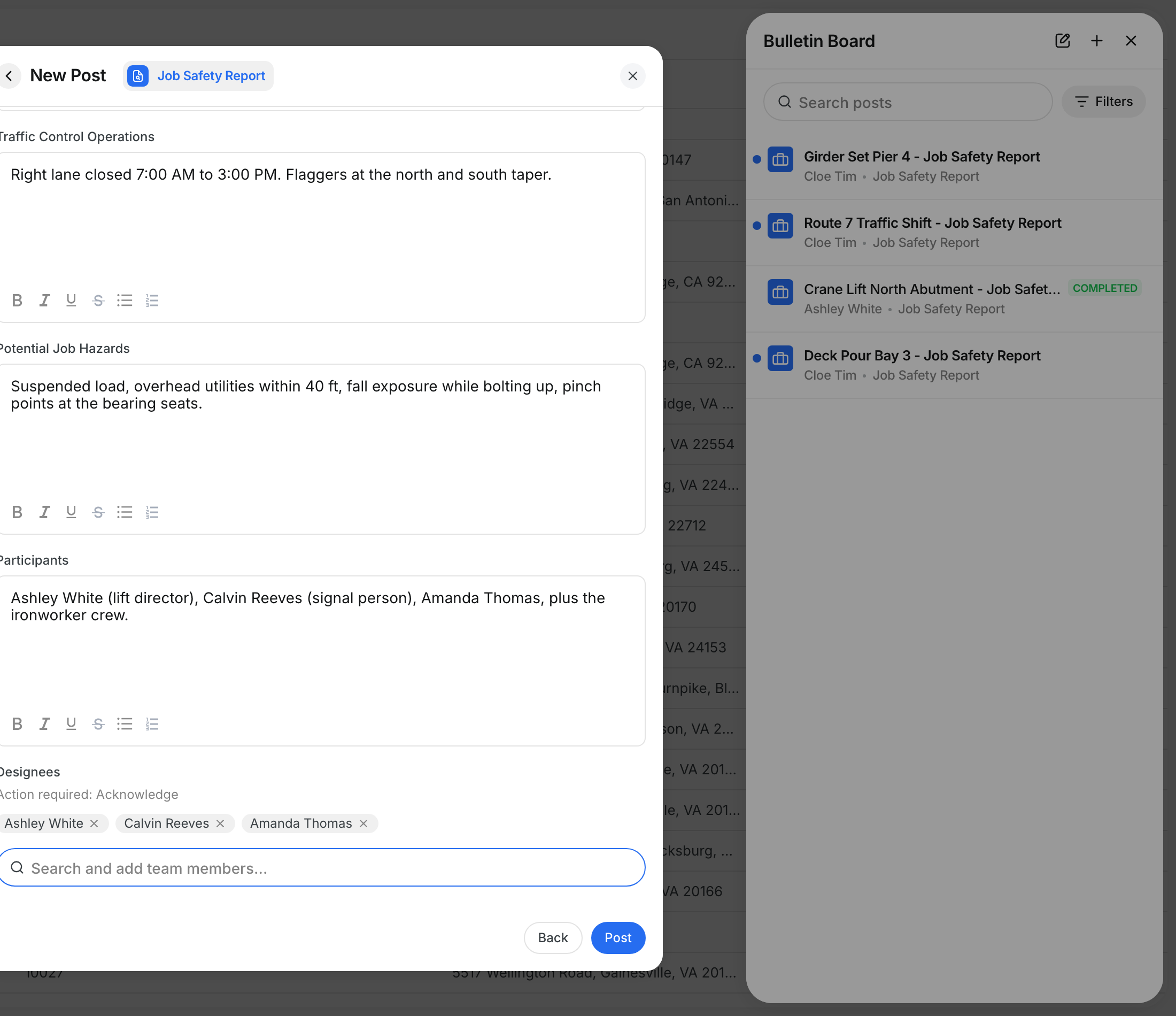
Give the post a title, then work down the sections. The Job Safety Report asks for Job #, Operations & Goal, Traffic Control Operations, Potential Job Hazards, and Participants.
Each section takes formatted text, so you can use bullet lists for hazards and mitigation steps.

Step 4: Name who has to sign
Scroll to Designees and add the people who must sign. Clue shows the action they will be asked for, such as Action required: Acknowledge.
Only the people you name here get a signature request. Everyone else on the project can still open and read the post.
Click Post when you are done. It appears on the board immediately.
Step 5: The crew signs
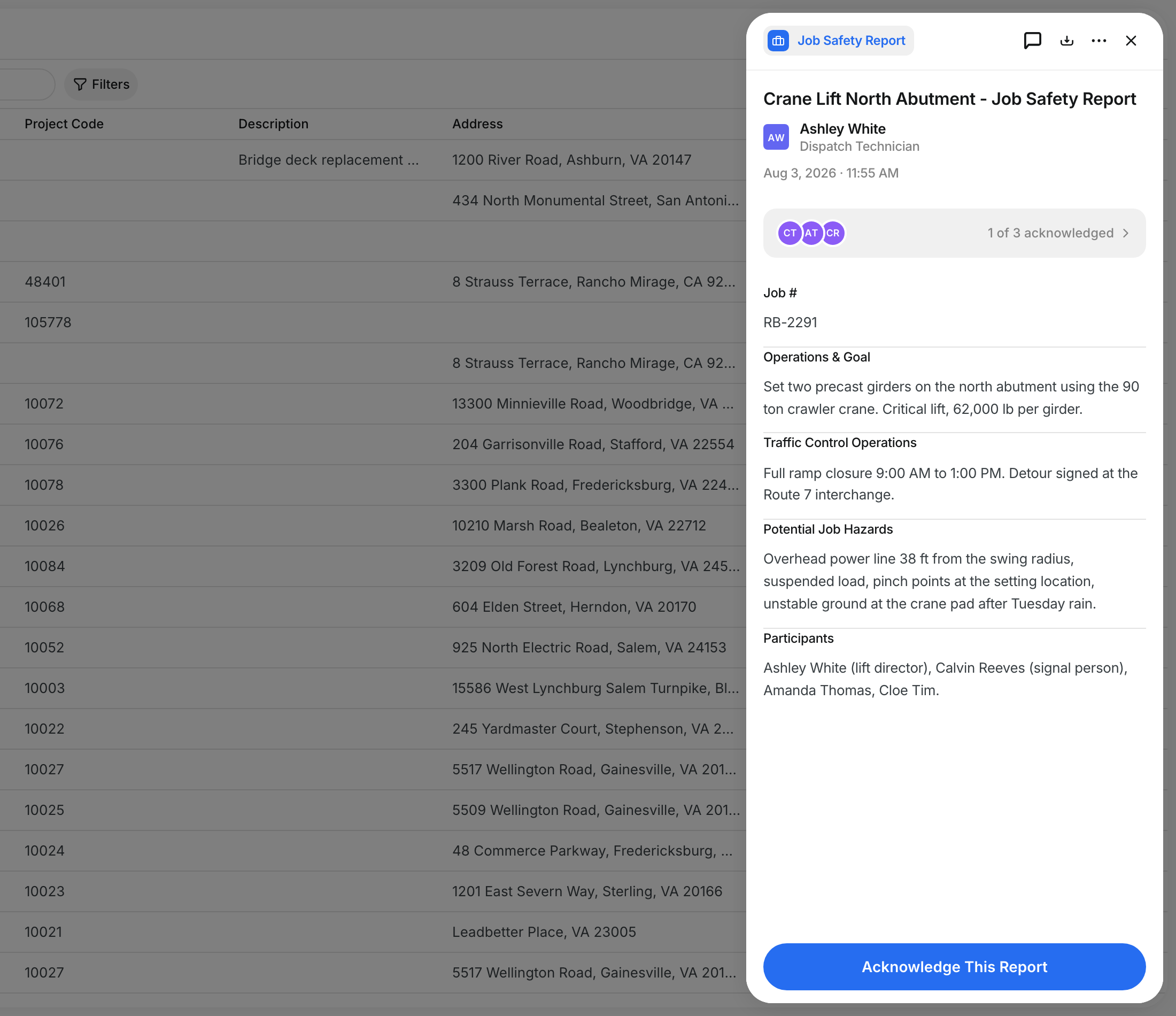
Anyone you named opens the post and sees the full report with a button at the bottom. What the button says depends on the form:
- Acknowledge This Report for a straight read and confirm.
- Agree or Disagree when you need a real answer on the record.
- Print your full name and Sign when you need a typed signature.
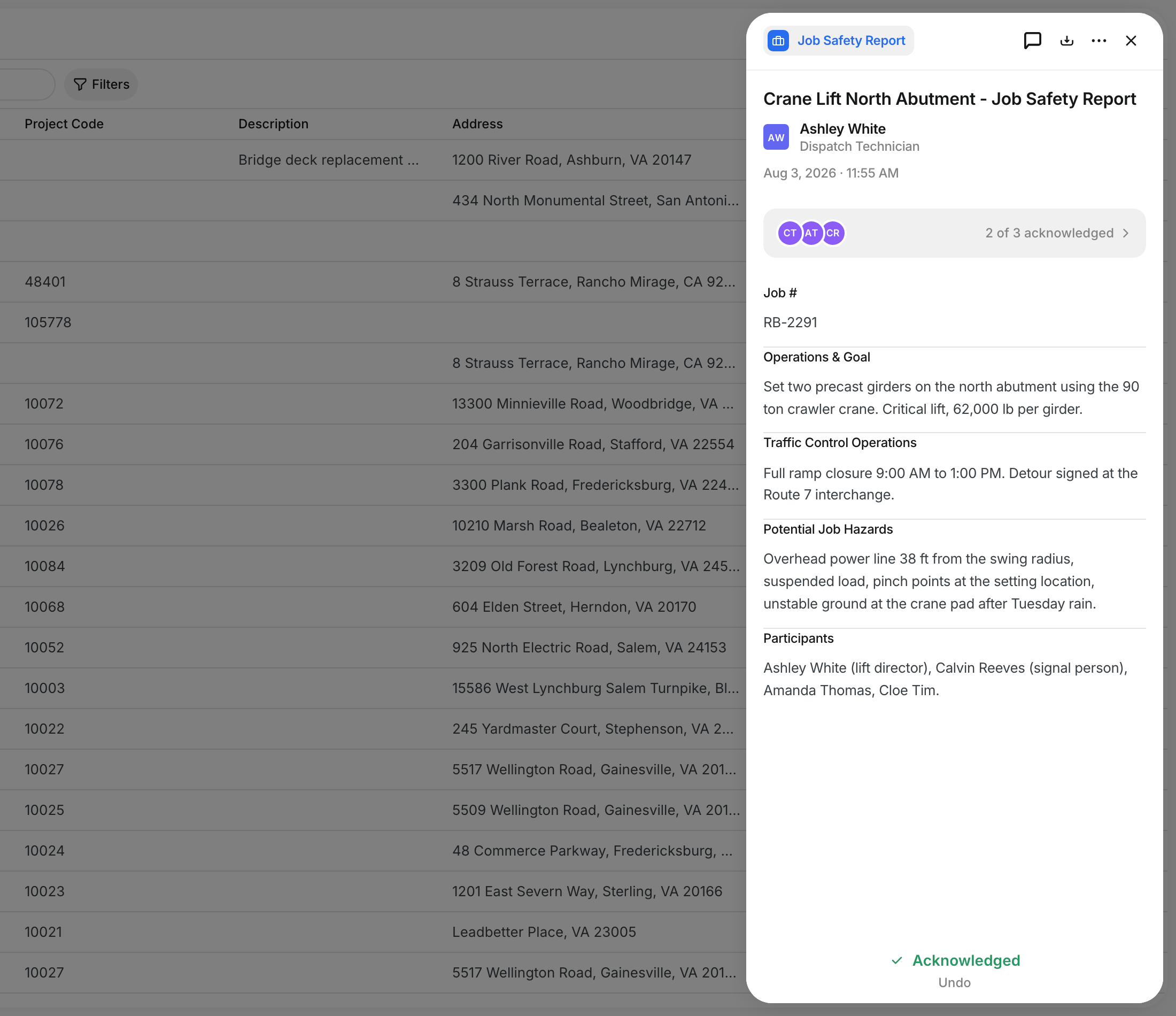
Once they sign, the button becomes a green confirmation. Undo is right underneath if they signed the wrong post.
Step 6: Check who has signed
The bar under the post title shows a running count, for example 2 of 3 acknowledged. Click it to see the full list.
Every person shows their job title and either Pending or Acknowledged with the date and time. That timestamp is your audit trail.

Step 7: Download the record
Click the download icon at the top of the post. Clue builds a PDF with your company name, the project, every section you filled in, and a signature table listing each person, their job title, their status, and the time they signed.
That single file is what you hand to an inspector or attach to a claim.

Step 8: Ask questions on the post
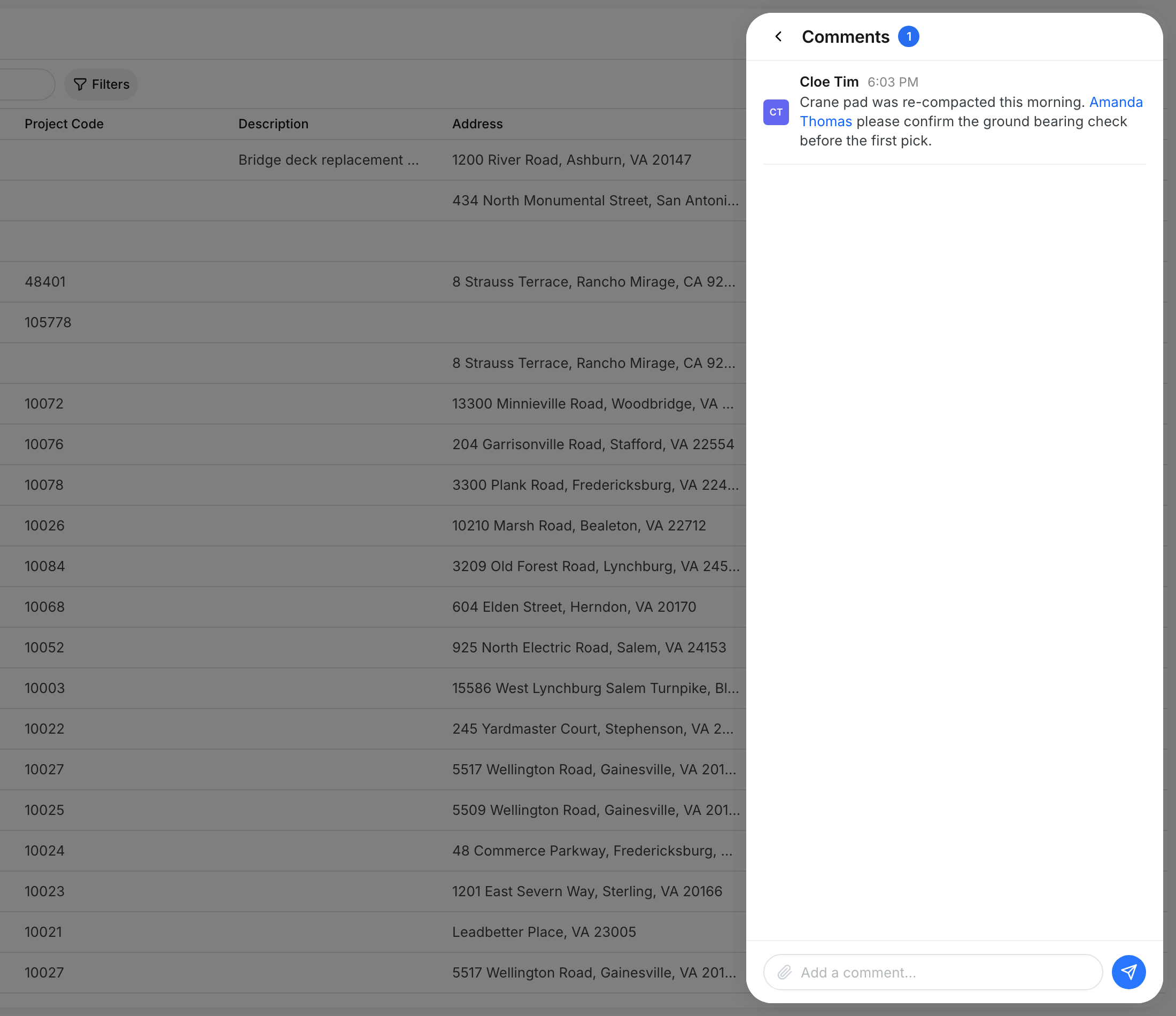
Open the comment icon at the top of a post to talk about it in place. Type @ and a name to pull someone in, and attach a photo if it helps.
Field conditions change. This keeps the conversation attached to the report instead of scattered across text messages.
Step 9: Find posts fast
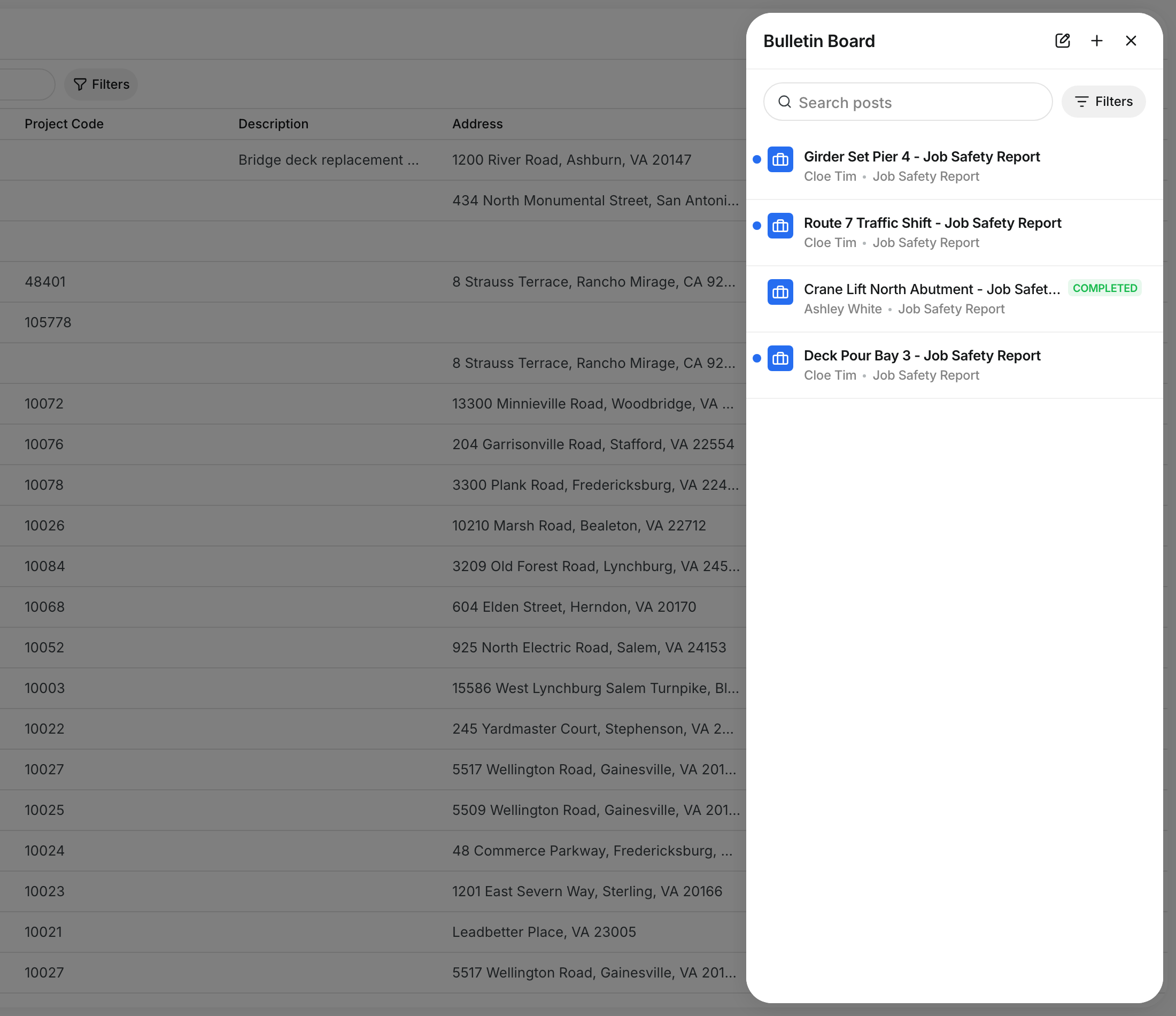
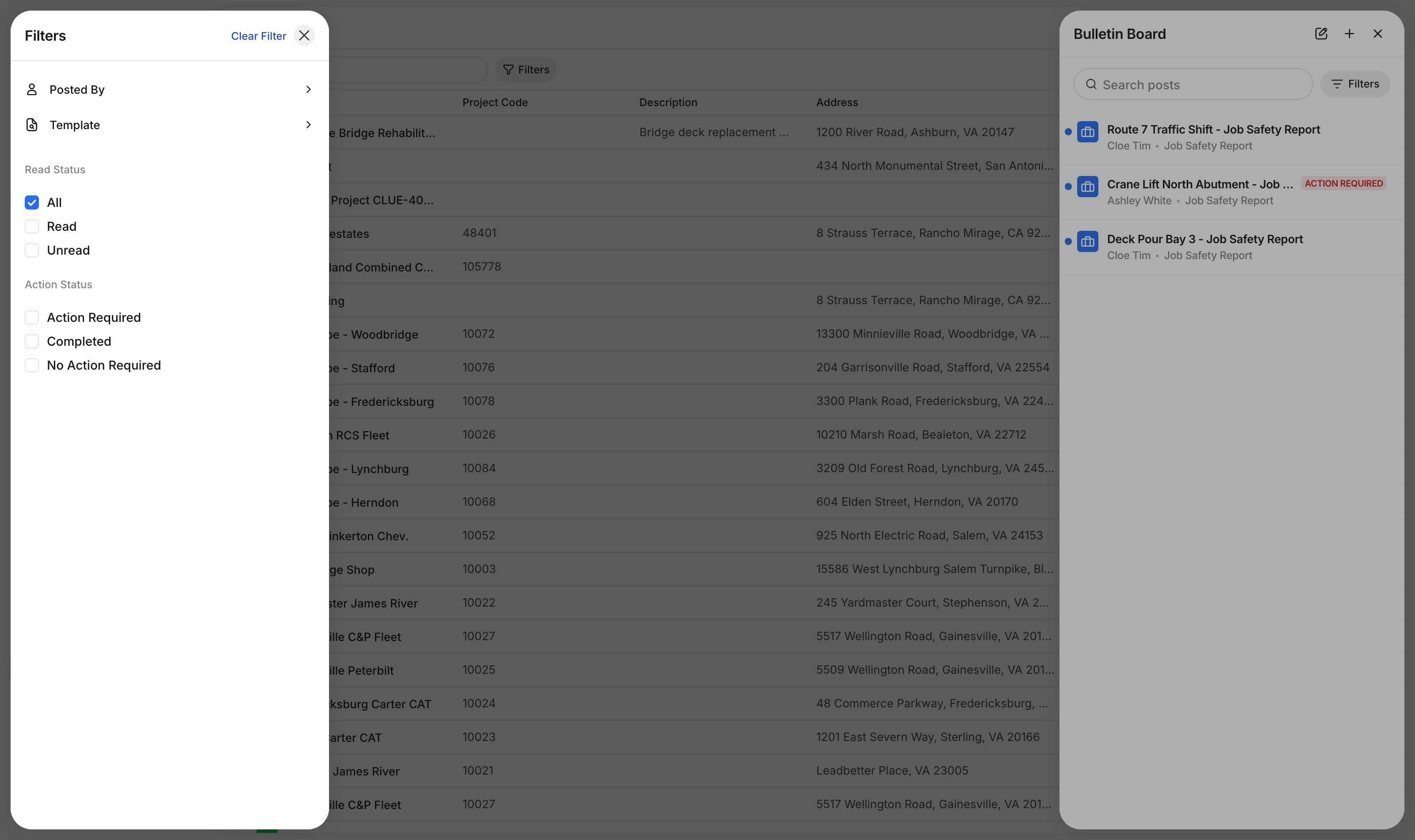
Use Search posts for a title, or Filters to narrow the board by Posted By, Template, Read Status, and Action Status.
Set Action Status to Action Required to see only the posts still waiting on signatures. Your filters stay set the next time you open the board.
The full details
- Works on: the Clue mobile app today, and the web app on Beta.
- Where it lives: inside a project, not in the main menu. Each project has its own board.
- Who can see it: anyone who can open the project. There is no separate Bulletin Board permission to turn on.
- Forms every company gets: Job Safety Report (asks for acknowledgement) and General Board (no signature).
- Custom forms: Clue builds these for your company. Send the form you use today to support@getclue.com and we will set it up with your section names and the signature type you need.
- Signature types: Acknowledge, Agree or Disagree, and Print Name. A form can also require no signature at all.
- Default signers: a custom form can name signers automatically, either specific people or everyone with a given job title on the project. Ask support to set that up.
- Signing is personal: you sign for yourself only, and you can undo your own sign-off. Nobody can sign on your behalf.
- Read tracking: the chalkboard icon carries an unread count. Use Edit on the board to select several posts and mark them read or unread together.
- Comments: support @mentions and attachments. Mentioned people get notified.
- PDF: includes every section and the full signature table, whether or not everyone has signed yet.
Tips
- Post tomorrow's JHA the night before. The crew reads it on the way in and signs before the tailgate meeting instead of standing around a clipboard.
- Name only the people who actually have to sign. A short signature list is easy to chase. Everyone else on the project can still read the post.
- Use Print Name for the forms where an inspector expects to see a signature, and Acknowledge for daily reads. It keeps the PDF honest about what each person actually did.
- Filter by Action Required at the end of the shift. Whoever is left on that list is who you need to catch before they leave the yard.
- Put the mitigation steps in the same section as the hazard. A hazard with no listed control is the first thing an inspector will ask about.
- Give posts specific titles like "Crane Lift North Abutment" instead of "JHA". Six weeks later you will be searching this board for one specific day.