Create projects in CLUE to track job sites, assign equipment, and organize work by location. A project record gives your team one place to manage the site, link equipment, and use location-based features like geofencing.
Accessing Projects
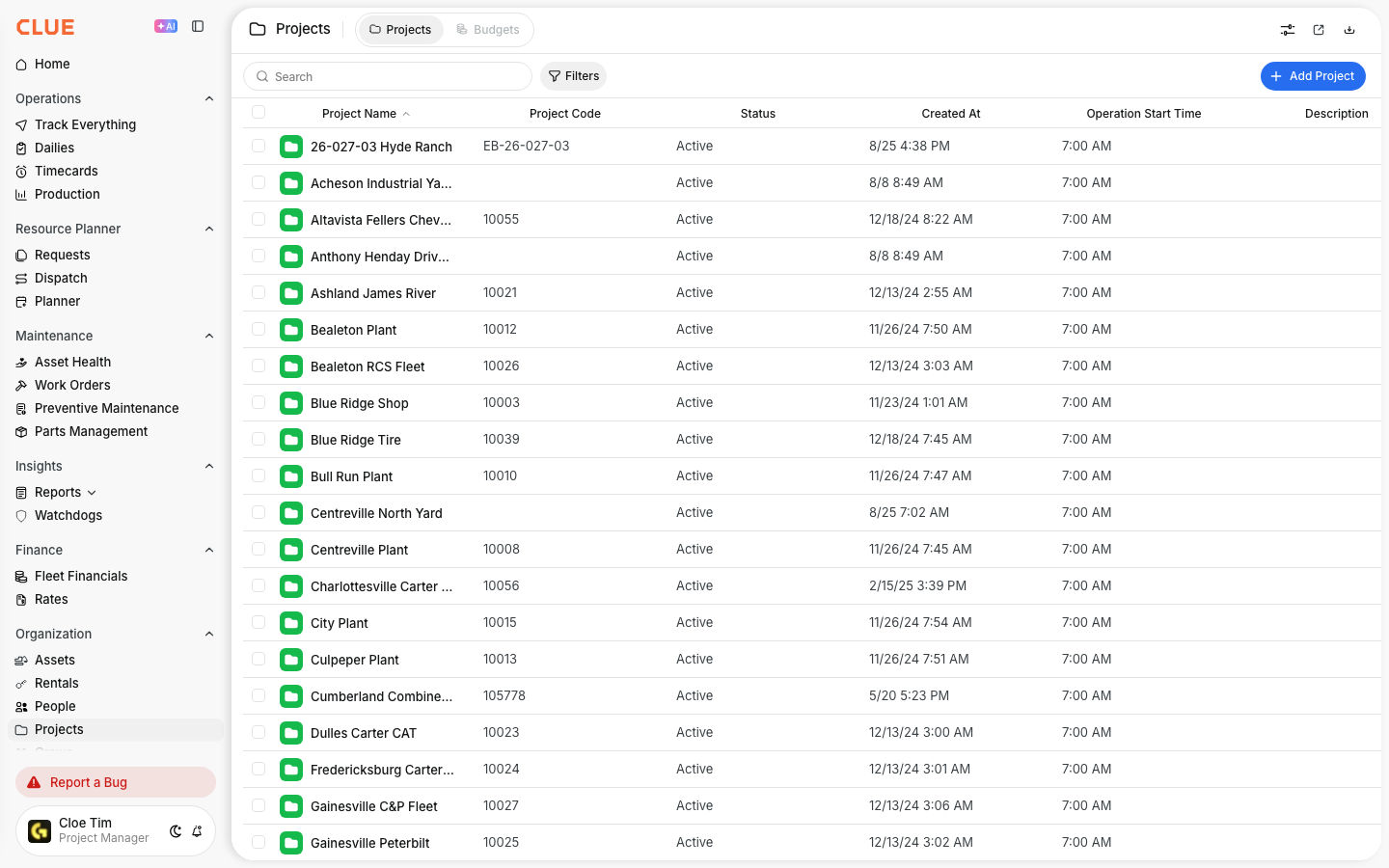
Start in the Projects Directory. If you need to review existing job sites first, open Managing the Projects Directory, then create the new project from there.
- Go to Directory > Projects
- Click Add Project or the + button.
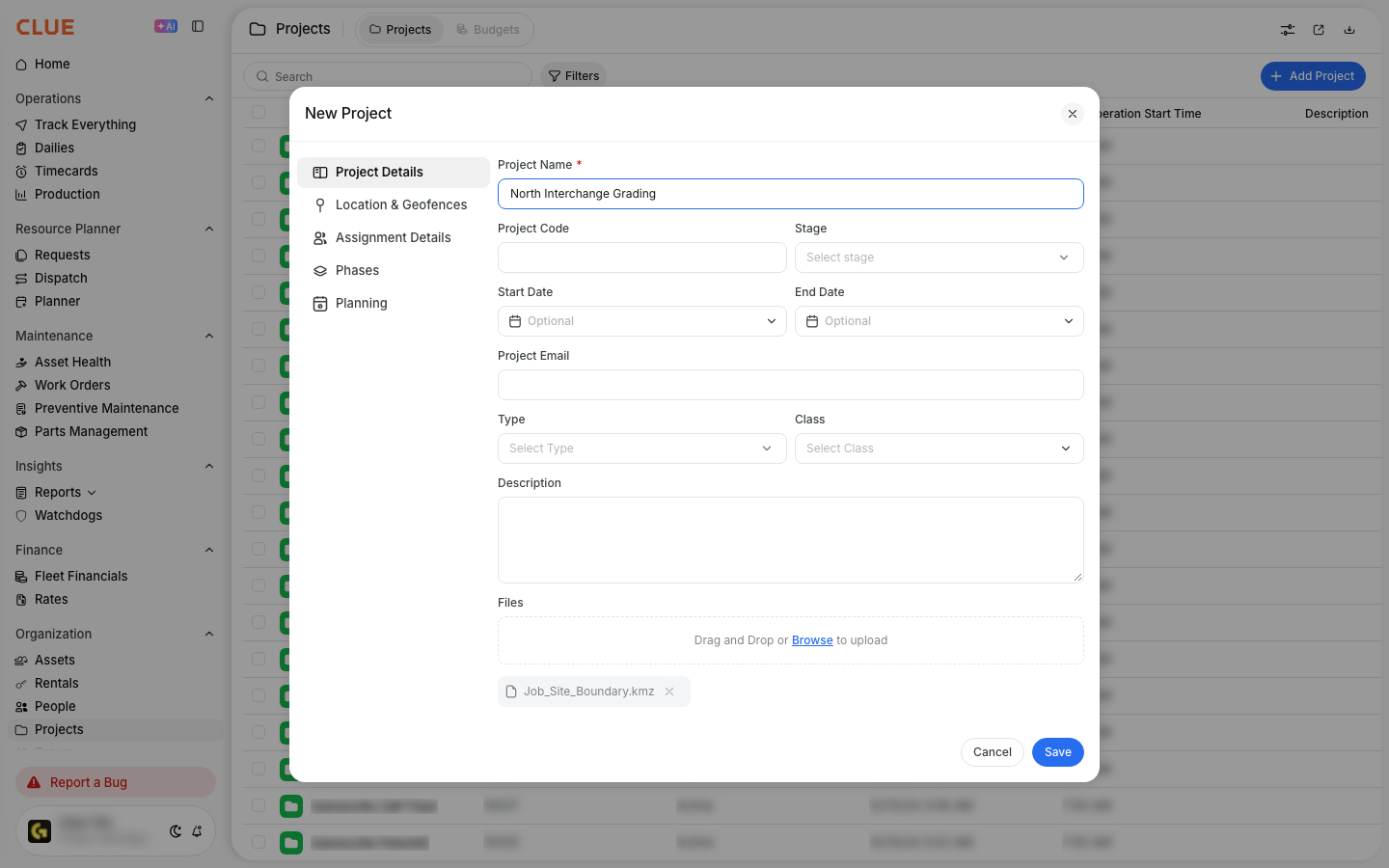
Project Details
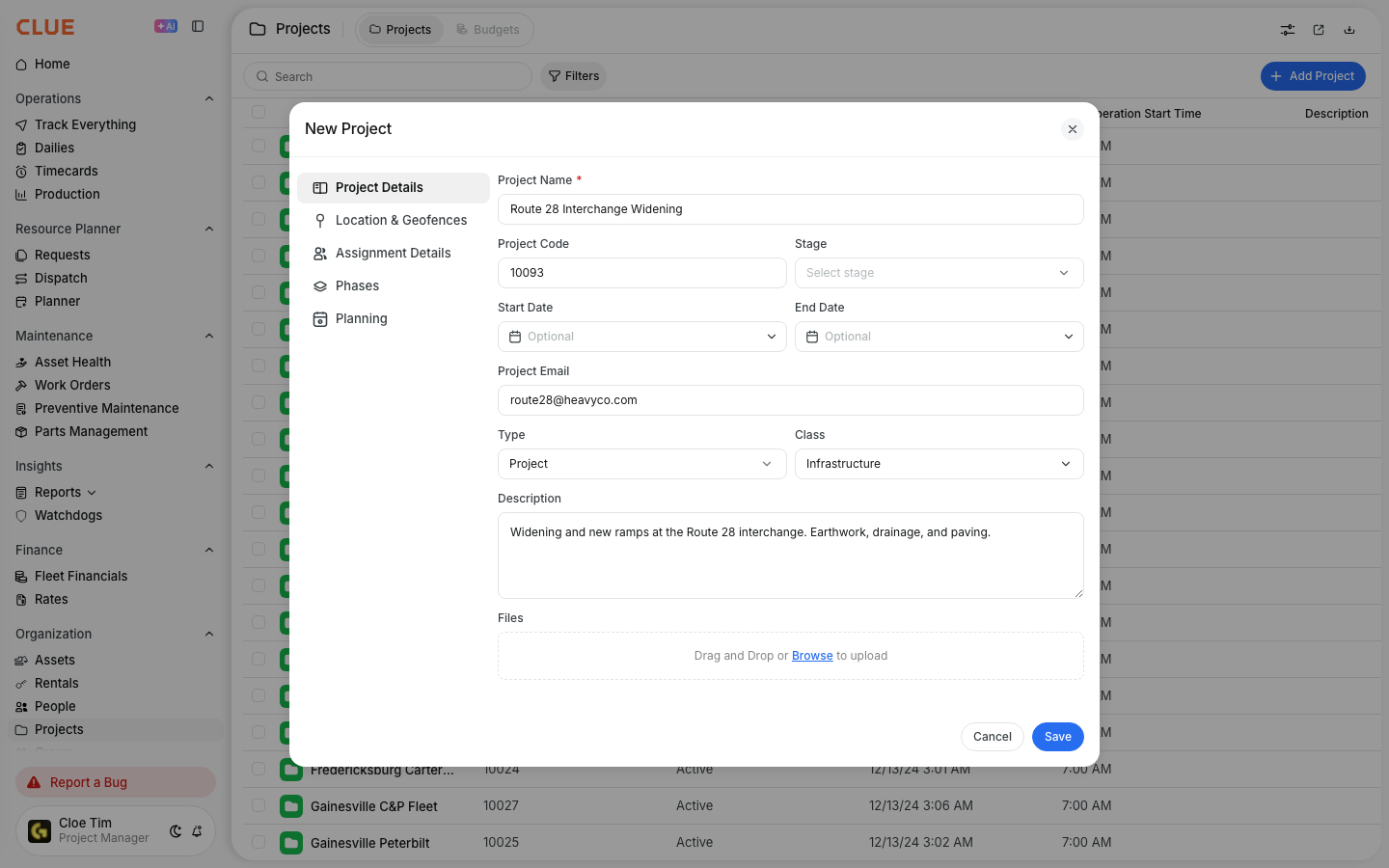
Enter the main project information first, then add any extra fields your team uses for reporting or planning. CLUE’s project setup supports both required fields and optional fields, so you can keep the record simple or make it more detailed.
Required Fields
These are the fields you need to create the project.
- Project Name - the project name or identifier
- Address - the physical location of the job site.
Optional Fields
These fields help add more detail to the project record.
- Project Code - internal reference number
- Description - short details about the job
- Type - project type
- Class - project class
- Email - project contact
- Radius - geofence size
- Operation Start Time - shift start time.
If your team uses project categories for reporting, set Type and Class when you create the project. That keeps projects easier to filter later in Project Types and Classes.
Location and Geofence
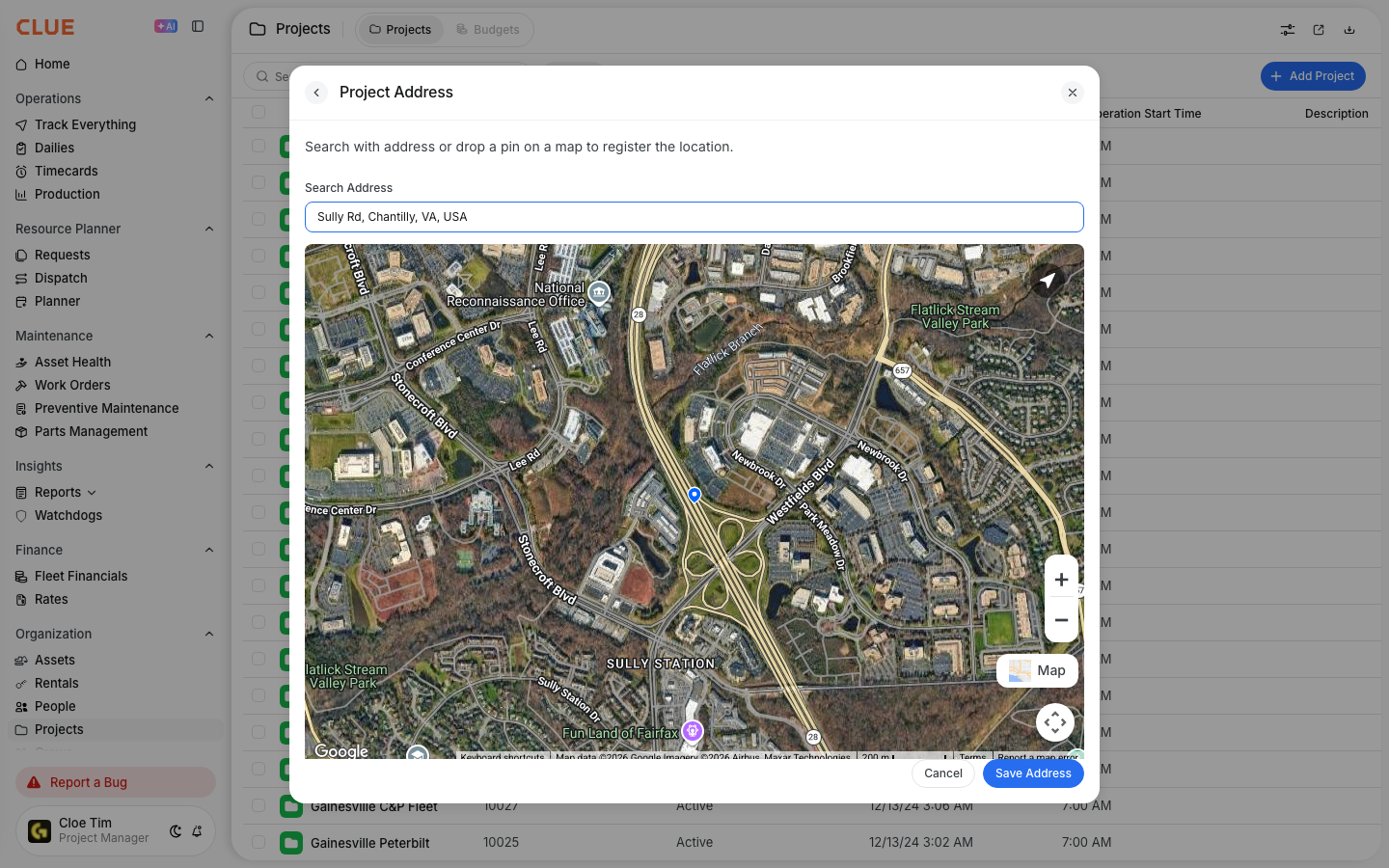
The address does more than place the project on a map. CLUE’s project setup uses the location to place the project, create a geofence boundary, and support location-based tracking.
When you enter the address, CLUE can:
- place the project on the map
- create a geofence boundary
- enable location-based tracking.
If you plan to use the project in dispatch, linking the project to a geofence makes pickup and dropoff locations easier to manage. That is covered in Using Geofences in Dispatch.
Assigning Resources
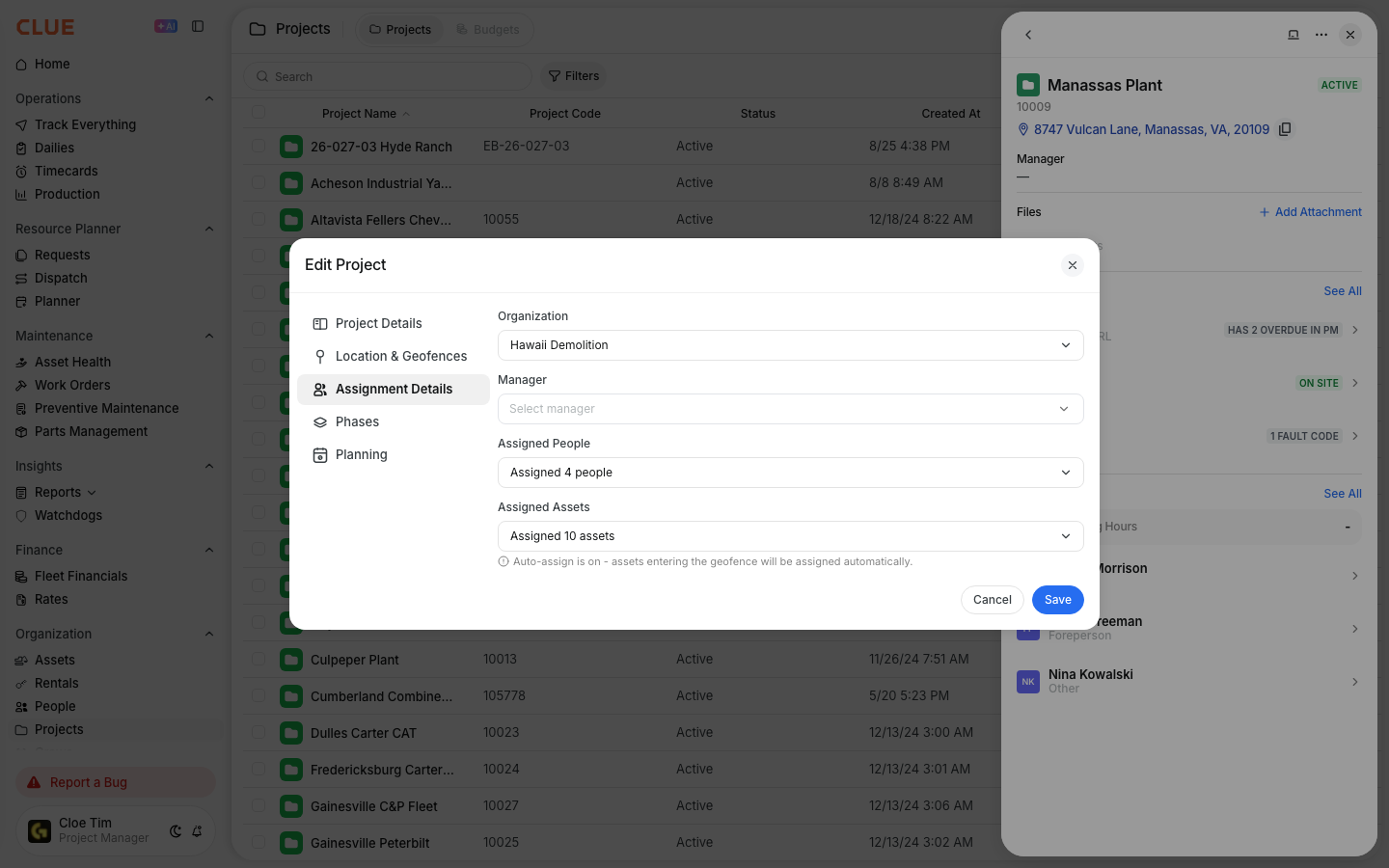
After the project is created, you can assign resources to it so the site is connected to the right equipment and people. CLUE’s project workflow supports adding both assets and personnel to the project record.
After creating the project, you can add:
- Assigned Assets - equipment working on that project
- Assigned People - team members assigned to that site.
If you are only assigning equipment after the project already exists, go to Assigning Assets to Projects instead of creating a new project again.
Tips
A few simple habits make project setup cleaner and easier to manage over time. CLUE’s project guidance recommends consistent names, using the address for geofencing, and assigning equipment so utilization can be tracked by job site.
- Use a consistent naming format across all projects
- Add city or state when it helps people tell similar jobs apart
- Set the radius to match the real size of the site
- Assign equipment so utilization can be tracked by project
- Archive completed projects later to keep the active list easier to manage.