Available now on Beta - This feature is in beta testing and will roll out to everyone soon.
Use Days on Site to see how long an asset has been assigned to its current project. It helps your team spot equipment that has been sitting too long and decide whether it should stay, move, or return.]
What is this?
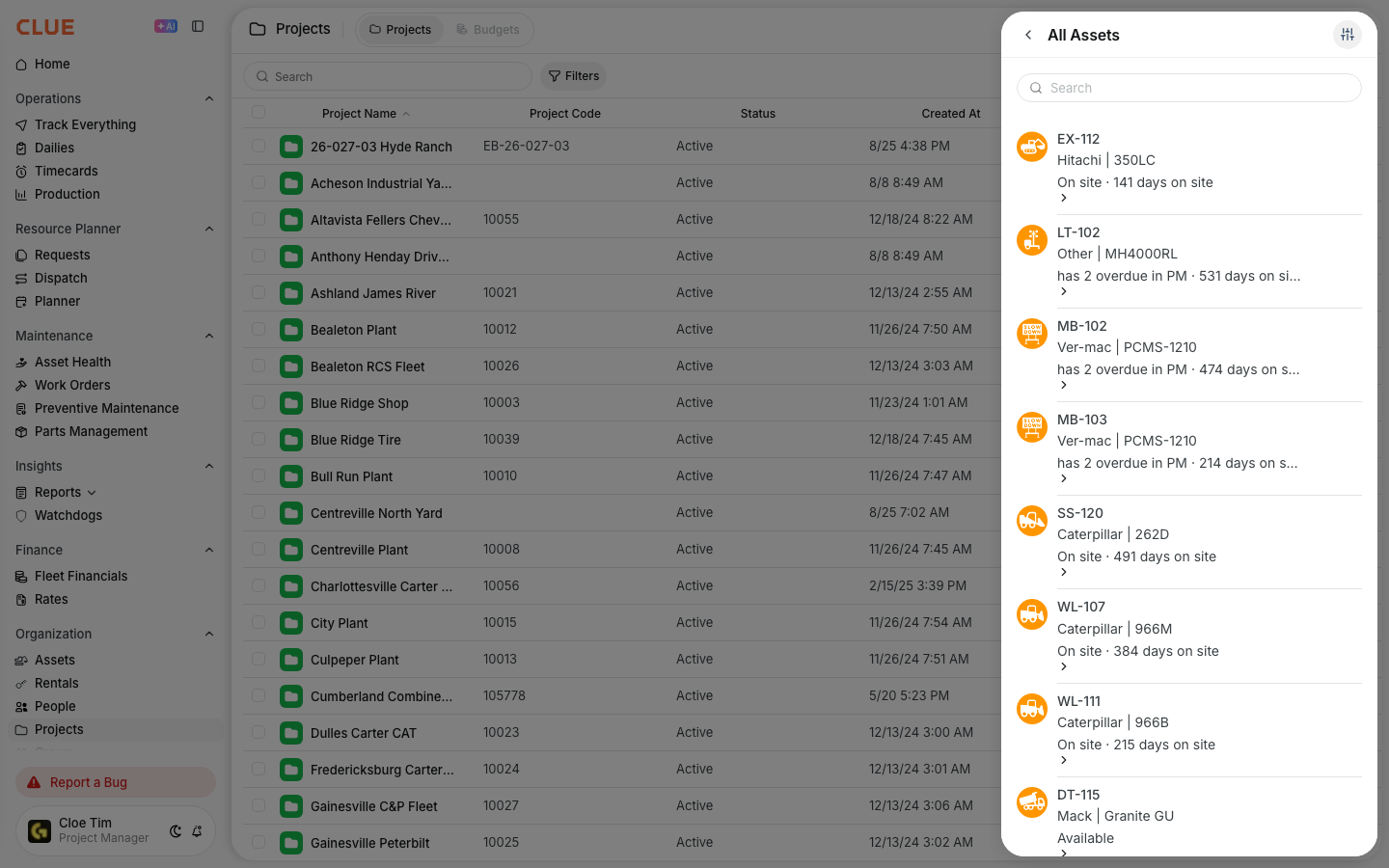
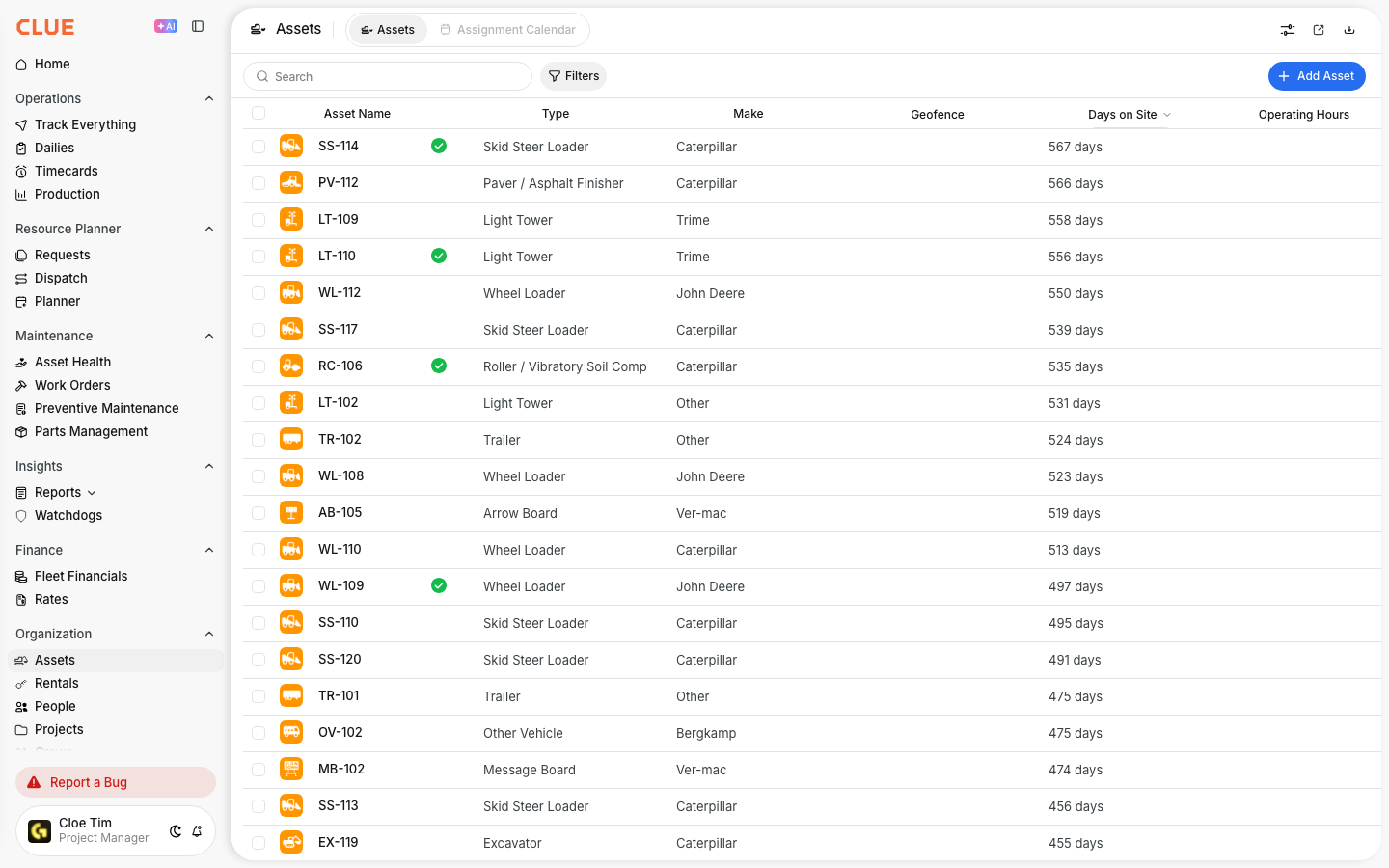
Days on Site shows how many days an asset has been at its current project. You can see this in Project Detail, and you can also add it as a column in the Asset Directory to review the number across the full fleet.
This is useful when equipment has been sitting at a jobsite longer than expected. Instead of guessing, your team can quickly see which machines may be underused or forgotten.
Who is this for?
This feature is useful for teams that need a clearer view of where equipment is sitting and how long it has been there. It gives dispatch, project, and fleet teams a simple way to review jobsite allocation without opening multiple screens.
- Dispatchers - find equipment that has been left on a site too long and move it where it is needed
- Project Managers - plan returns and avoid keeping rentals on site longer than necessary
- Fleet Managers - spot underused assets across projects more quickly
How to use it?
You can check Days on Site from either the project record or the Asset Directory. One view shows the number inside a single project, while the other helps you compare assets across the full fleet.
Step 1: Check days on site in Project Detail
Go to Projects in the sidebar and open the project you want to review. In the asset section, each assigned asset shows its current Days on Site value. This makes it easier to spot equipment that has been sitting longer than expected.
Step 2: Enable the column in Asset Directory
Go to Directory → Assets and open the column settings. Turn on the Days on Site column, then sort the list in descending order to find the assets that have been on a project the longest.
This works especially well if your team already uses Assigning Assets to Projects and the Asset Directory to manage jobsite assignments and equipment movement.

The full details
This feature is available in the web app and is based on the asset’s current project assignment. The number updates automatically as assignments change, so the count reflects how long the asset has been tied to that project.
- Works on: Web app
- Calculation: days since the asset was assigned to its current project
- Resets automatically: when the asset moves to a different project, the count starts over
- Color coding: over 30 days shows in amber, and over 60 days shows in orange
- Hidden by default: the column must be enabled from the Asset Directory column picker
- No assignment: shows - when the asset is not on any project
Tips
A quick review of Days on Site can help your team make better decisions about transfers, rental use, and equipment planning. It is most useful when reviewed regularly instead of only after a project starts running short on equipment.
- sort the list high to low to find the longest-sitting assets first
- check the number before approving rental extensions
- compare Days on Site with utilization when deciding whether an asset should stay on the project
- review older assignments regularly in Project Detail and the Asset Directory