Next Due Dates on the PM Status Table
What is this?
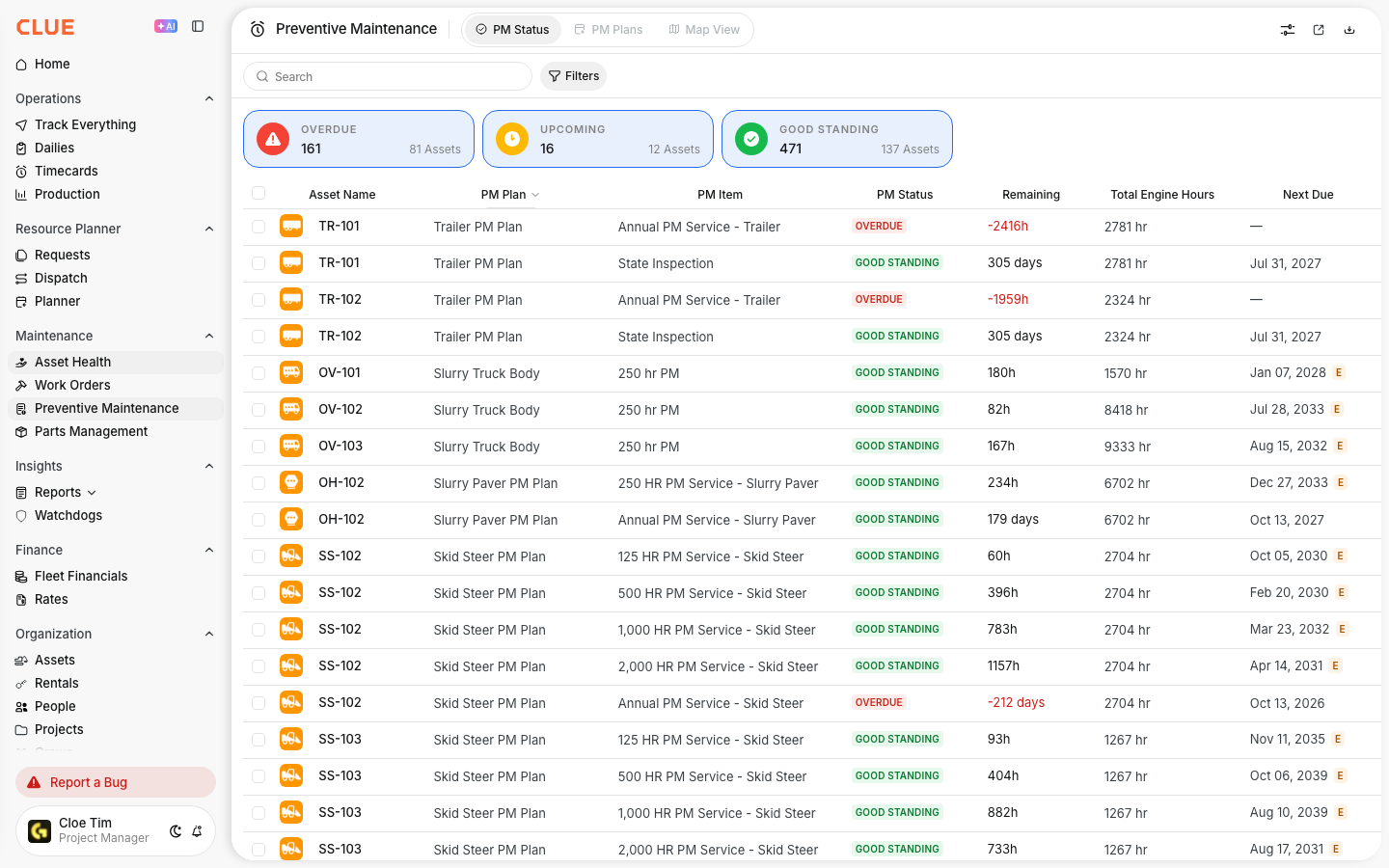
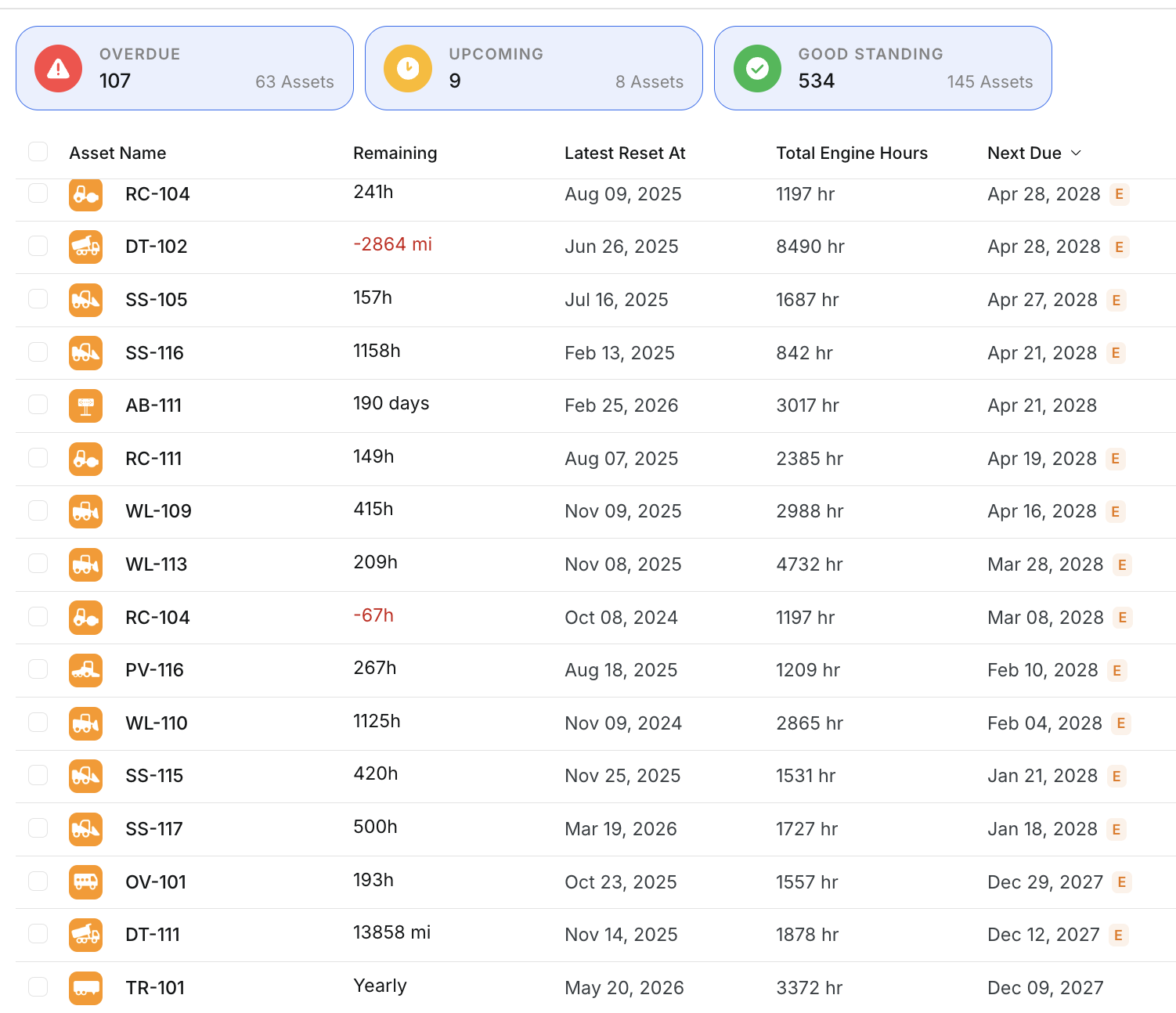
The PM Status table now has a Next Due column. It shows the calendar date each preventive maintenance service is expected to come due. Date-based PMs show their scheduled date. Hour-based and mileage-based PMs show a projected date, marked with an orange E for estimate. You no longer have to convert "220 hours remaining" into a date in your head. Clue does the math for you.
Who's this for?
- Equipment Managers, see when every service will land on the calendar and plan shop time and budgets around it.
- Mechanics and shop leads, know which machines are coming in next week instead of guessing from hour counts.
- Dispatchers, schedule work around upcoming service dates so machines are not pulled mid-job.
How to use it
Step 1: Open the PM Status table
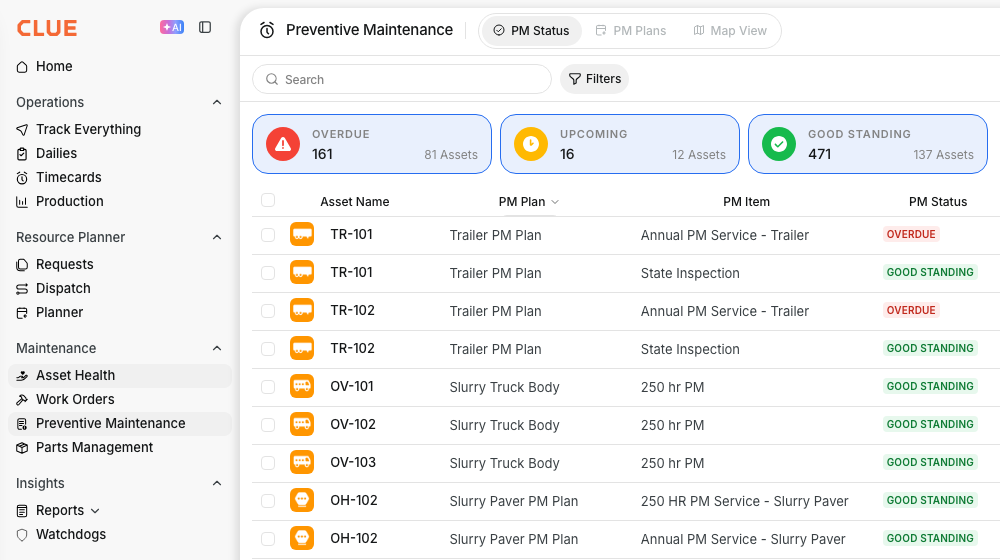
Go to Asset Health > Preventive Maintenance. The PM Status tab opens by default. The Next Due column is on the right side of the table.
Step 2: Read the dates
A plain date is a fixed, scheduled due date. A date with an orange E badge is an estimate based on how much the machine actually runs.
Step 3: Hover and sort
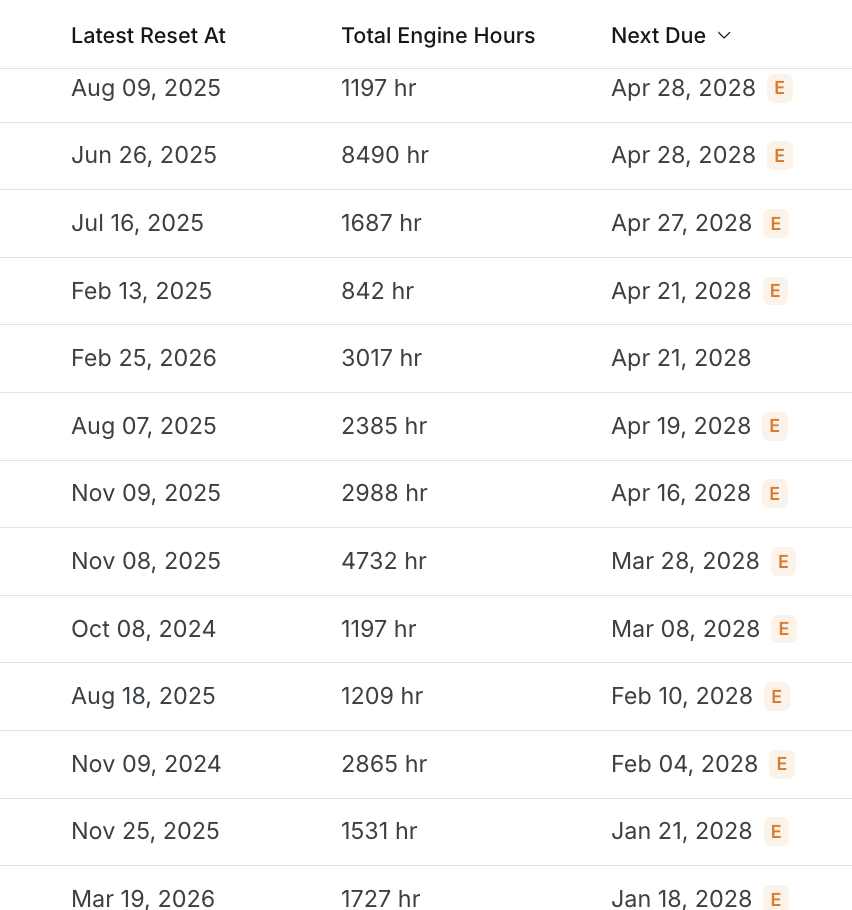
Hover over an estimated date to see the daily usage behind it, for example "Estimated from 6.5 hrs/day over the last 30 days". Click the Next Due header to sort, so the soonest services rise to the top.
How the estimate works
For hour-based and mileage-based PMs, Clue projects the due date from the machine's own meter readings:
- 1. Measure recent usage. Clue looks at the machine's engine hours or odometer readings from the last 30 days.
- 2. Find the daily average. Total usage in that window, divided by the days the machine actually reported. A truck that logged 210 miles over 7 active days is rated at 30 miles per day, not watered down across the full month.
- 3. Project forward. Clue takes the usage left before the service target and divides it by the daily average. That gives days remaining, counted forward from today.
Example: a service is due at 1,500 hours and the machine is at 1,380 hours, averaging 6 hours per day. That is 120 hours left, divided by 6, so about 20 days. Next Due shows the date 20 days from now.
The estimate refreshes as new readings come in. Run the machine harder and the date moves closer. Park it and the date drifts out. That is why it carries the E badge: it is a live projection, not a promise.
The full details
- Where: Web app, Asset Health > Preventive Maintenance, PM Status tab.
- Date-based PMs: show the scheduled date, no badge.
- Hour and mileage PMs: show a projected date with an orange E badge.
- Estimate basis: average daily usage over the last 30 days of meter readings.
- Sortable: click the Next Due header to sort by date.
- A dash means no projection yet: the machine has not reported usage in the last 30 days, or the PM tracks multiple intervals at once. Hover the dash to see why.
Tips
- Sort by Next Due once a week to build the shop schedule for the coming weeks in seconds.
- Estimated dates move with real usage. Treat them as planning targets and recheck before you lock in shop time.
- See a dash on a machine that should have one? Check that its hours or mileage are being reported. No recent readings means no projection.
- Use Remaining and Next Due together. Remaining tells you how much runtime is left, Next Due turns it into a calendar date.