PM Cascading Hierarchies and Combined Work Orders
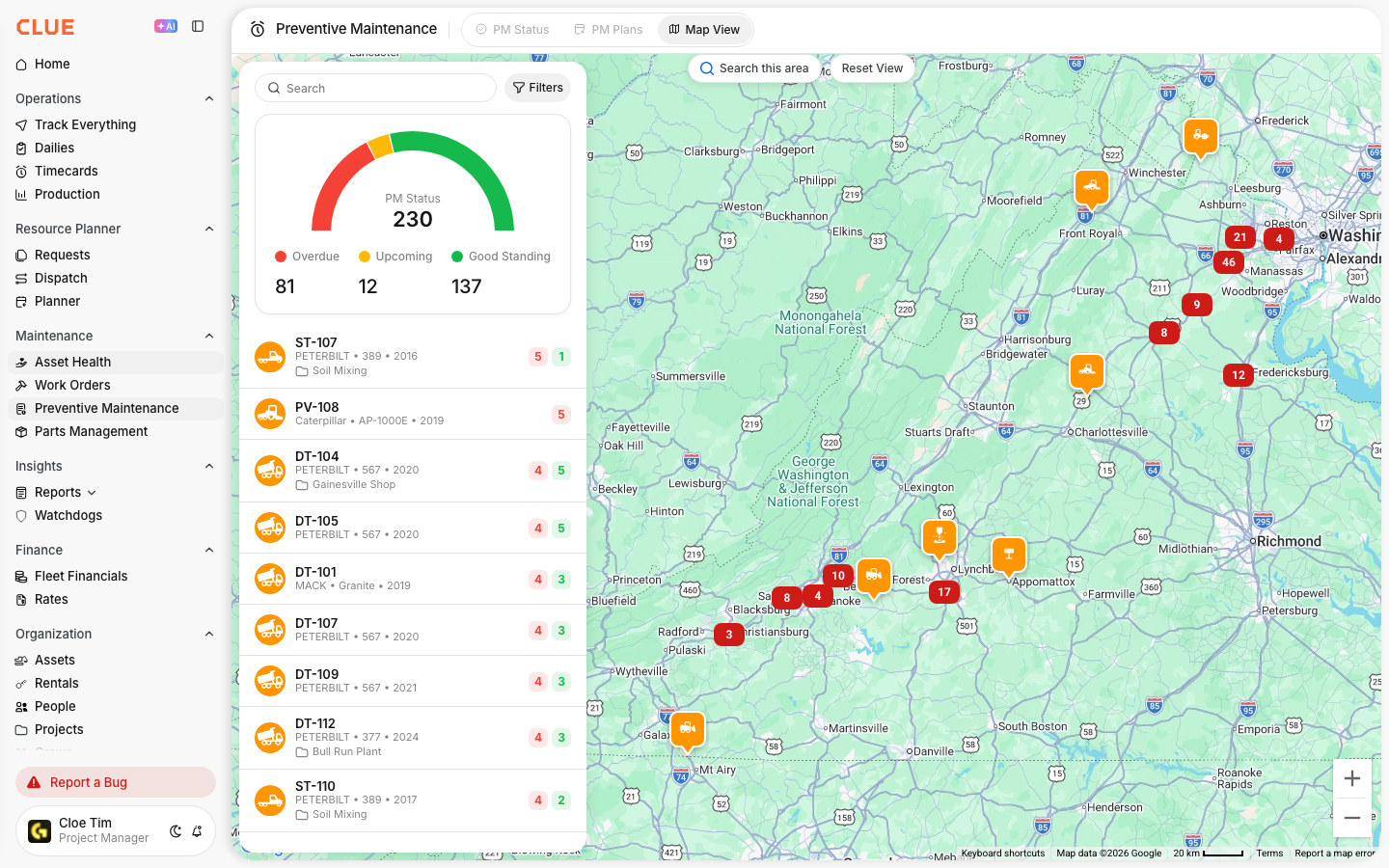
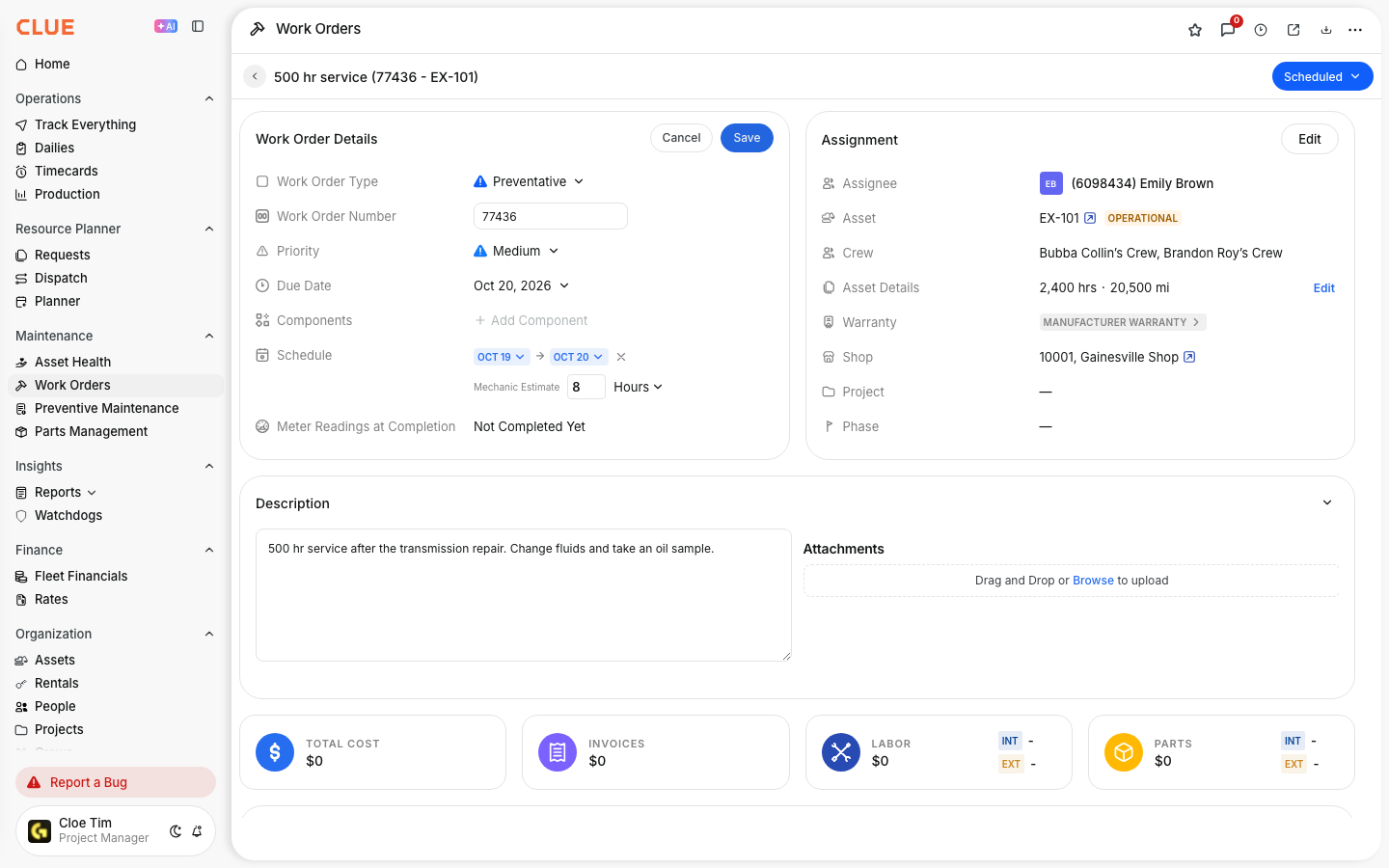
Use this feature when you want CLUE to roll multiple due Preventative Maintenance (PM) services into a single work order. Instead of creating separate jobs for every interval that is due, CLUE can combine them into a single PM work order based on the settings in your PM plan.
This feature is built for tiered PM schedules, such as 125-hour, 500-hour, 1,000-hour, and 2,000-hour services. When the larger service comes due, CLUE can also include the lesser due services in the same work order instead of creating several overlapping ones. For example, if the 1000-hour service is due, instead of creating a PM work order for the 1000-hour service, 500-hour service, and 125-hour service, CLUE will create a single PM work order with the items from all three services. The setup is controlled by the Combine Mode on each PM service.
Who is This For?
This feature is useful for teams that want PM work to stay organized when multiple services come due at the same time. It helps reduce duplicate work orders and gives the shop a cleaner plan to follow.
- Equipment Managers can set up PM plans that combine due services automatically.
- Shop Foremen get one combined work order instead of several overlapping PM jobs.
- Mechanics are able to complete one work order with the right service items and checklists in one place. Reference for Creating and Managing Work Orders.
How to Use It?
You will set this up inside a PM plan where you have services that build on each other over time. The goal is to make sure bigger interval services do not create extra work orders for smaller services that are already due.
1. Set Up Tiered Services in a PM Plan
Go to Preventive Maintenance > PM Plans and open an existing plan or create a new one.

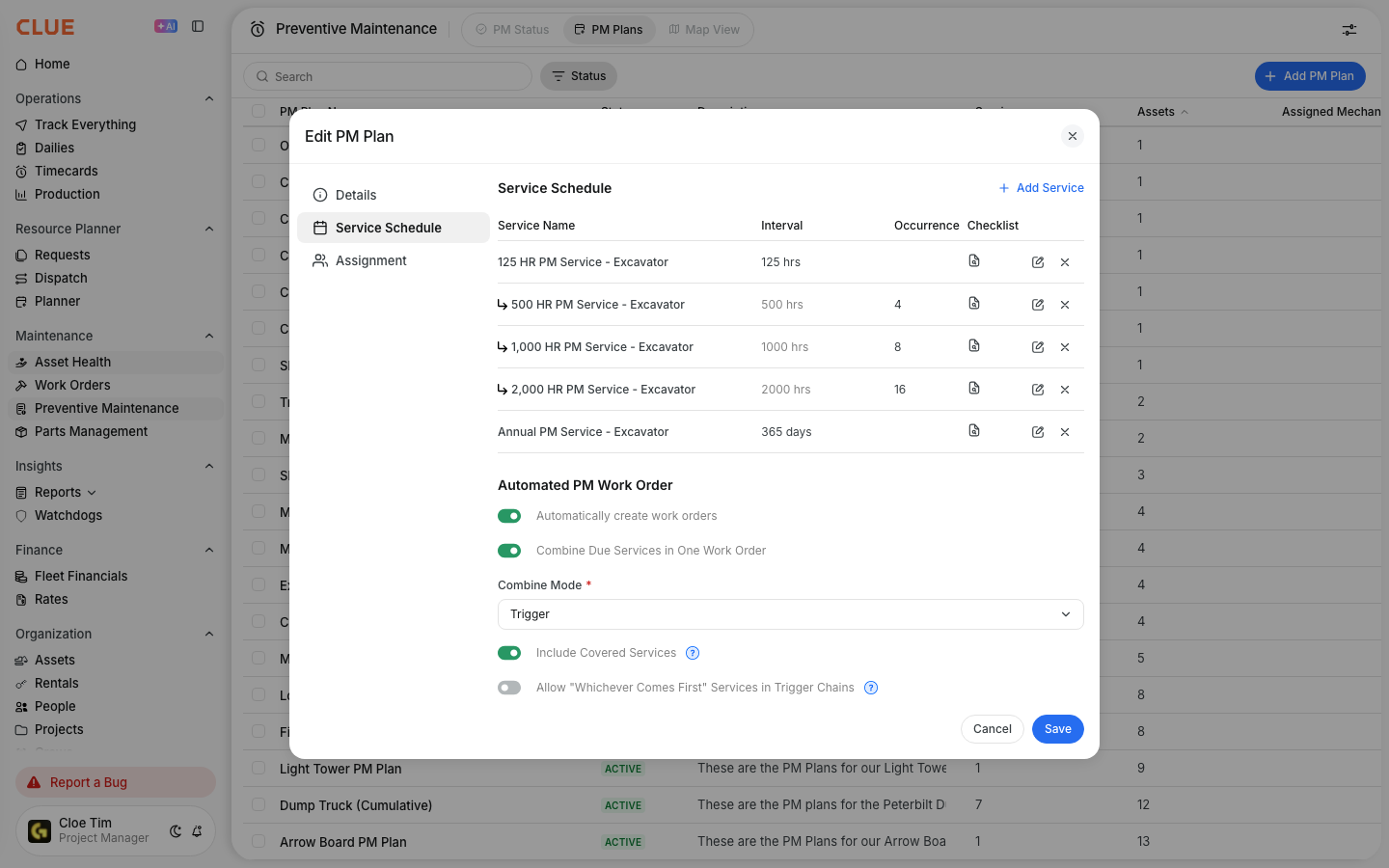
Add services at the intervals you want to track, such as 125 hours, 500 hours, 1,000 hours, and 2,000 hours. Each service can have its own interval, checklist, and threshold settings. You can assign the plan to specific asset types, make and model groups, or individual assets.
2. Enable Combine Due Services
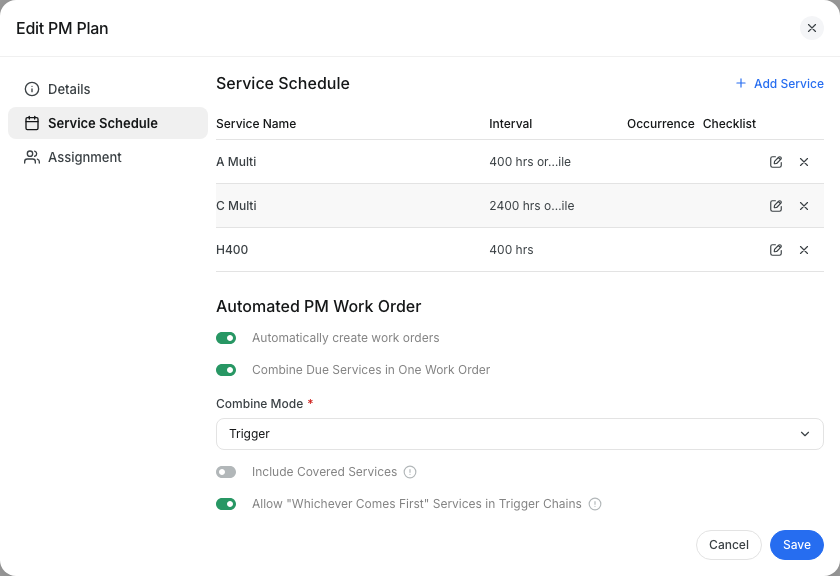
At the bottom of the PM plan, make sure the Combine Due Services in One Work Order checkbox us checked. This tells CLUE to combine due PM services into one work order instead of creating separate PM jobs for each service.
3. Choose the Combine Mode
Click on the Combine Mode dropdown menu and choose how that service should behave.

Use Stand Alone when you want that service to combine with other services due at the same reading. This is the most commonly used choice for most PM setups. Use the Trigger option when you want a child service to happen every set number of completions of another service. This works well for setups like every fourth oil change includes a larger follow-up service.
4. Configure Each Service
Open each service and set the interval, alert threshold, and auto work order threshold. The Upcoming When field controls when the PM changes to upcoming. The Create Work Order field controls when CLUE generates the PM work order automatically.

The Full Details
This setup is meant to make PM planning easier when one service naturally includes several smaller services. It helps the team keep PM work cleaner and avoids stacking multiple work orders for the same machine at the same time.
- Works on the web app
- Location: Preventive Maintenance > PM Plans
- Stand Alone mode combines all services due into one work order
- Use Trigger mode when a child service fires every set number of completions of a parent service
- The Exclude Rental Assets is an optional setting that will skip rentals
- Reset Interval can be abled to allow the PM clock to restart at reset, depending on the service setup
- The Checklist roll-up is when services combine, their checklists will appear on the same work order
Tips
A few simple setup choices make this feature much easier to manage. The main goal is to keep PM work bundled in a way that makes sense for the shop and gives the team enough notice before service is due.
- Use Stand Alone as the Combine Mode for most services. It is the easiest way to bundle anything due at the same reading.
- Use Trigger as the Combine Mode for service patterns like every fourth oil change includes a larger transmission or driveline service.
- Set Create Work Order to match Upcoming When date when you want the team to get early notice and a ready work order at the same time.
- Connect this setup to Using PM Schedules so foremen can see what is due, and to Creating and Managing Work Orders so combined PM jobs are easier to manage once they are created.