PM Work Order Scheduling and Status Controls
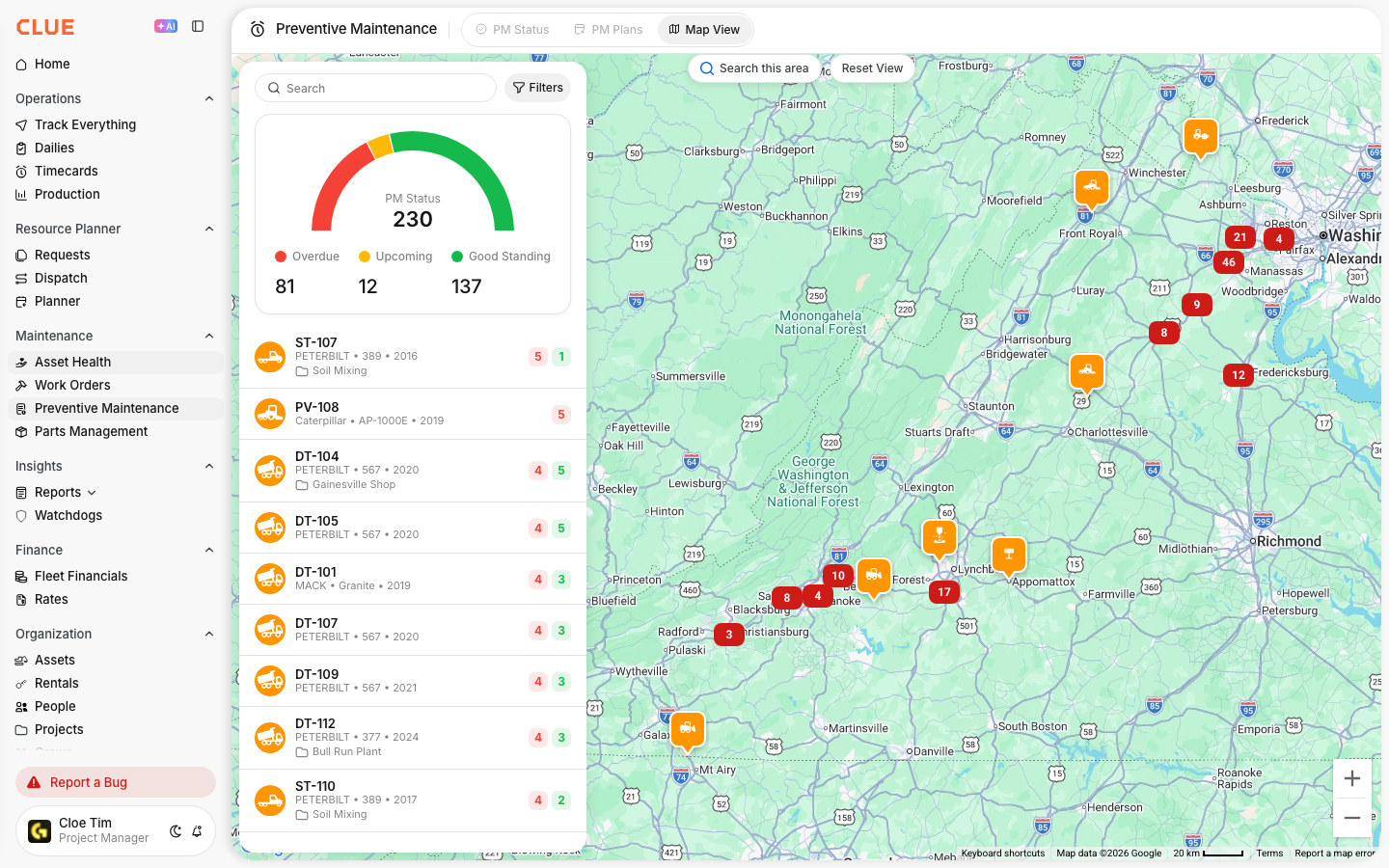
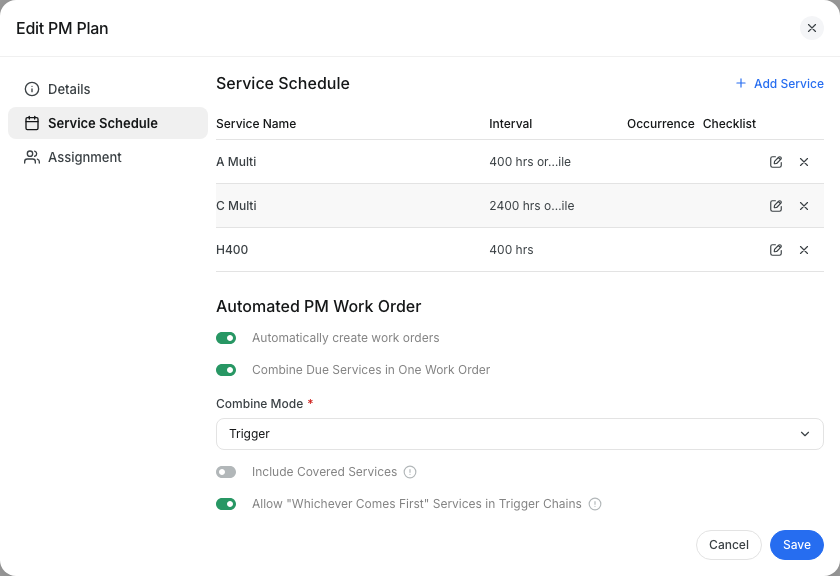
Preventative Maintenance (PM) work orders do not have to appear only when service is due. CLUE gives you control over when a PM becomes upcoming, when a work order is created, and how that work order is scheduled and managed once it exists.
This feature gives your team more control over PM timing and PM work order handling. You can set lead-time thresholds, add exact schedule dates to the work order, and move the work order through its status as the job changes. If you need the full PM setup first, start with Setting Up Preventive Maintenance.
Who is This For?
This setup is most useful for teams that plan PM work ahead of time instead of reacting when service is already due.
- Equipment Managers that control when PM work orders are created and when teams are notified
- Shop Foremen who schedule exact service dates and move work orders forward, backward, or to cancel when priorities change
- Administrators can control which roles can change status, edit work orders, or cancel them. If your team needs different permissions, you can learn how to in our Work Order Permissions and Approval Workflows documentation.
How to Use It
Use these settings to control both the timing and the workflow of PM work orders. Start with the PM service thresholds, then schedule the work order, and then update the status of the work order as it moves through the shop.
1. Control When Work Orders are Created and When Alerts are Sent
In each PM service, set the Upcoming When and Create Work Order thresholds. These values control when the PM shows as upcoming and when CLUE will automatically create the PM work order.
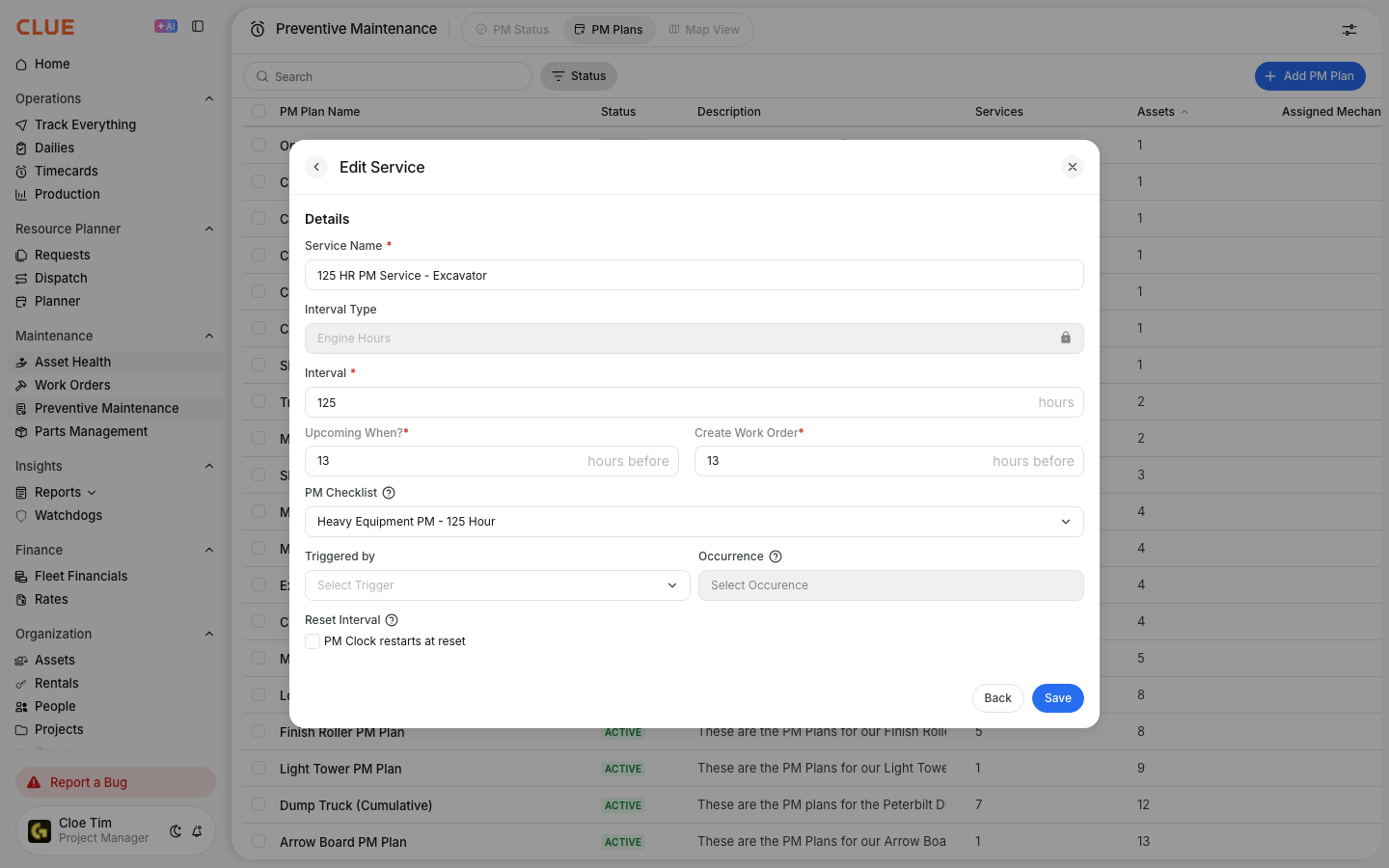
For example, if both are set to 15 days before due, the PM shows as upcoming and the work order is created 15 days before the due date. If you are still building the PM service itself, Setting Up Preventive Maintenance is the best article to look at first.
2. Schedule Exact Start and End Dates on a Work Order
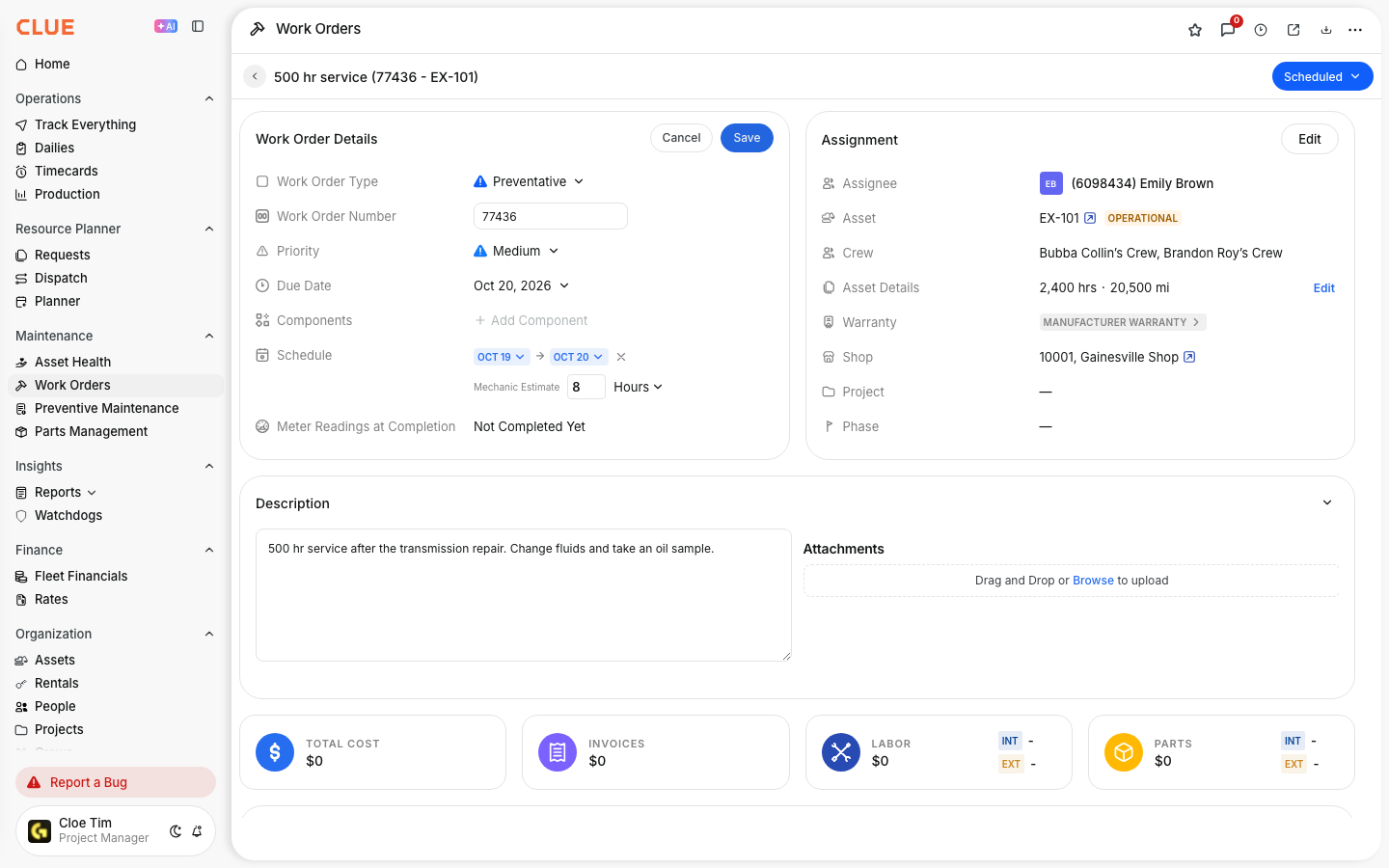
Open the PM work order and use the Work Schedule section to set the Start On and End On dates. Use the Mechanic Estimate field to plan labor time.
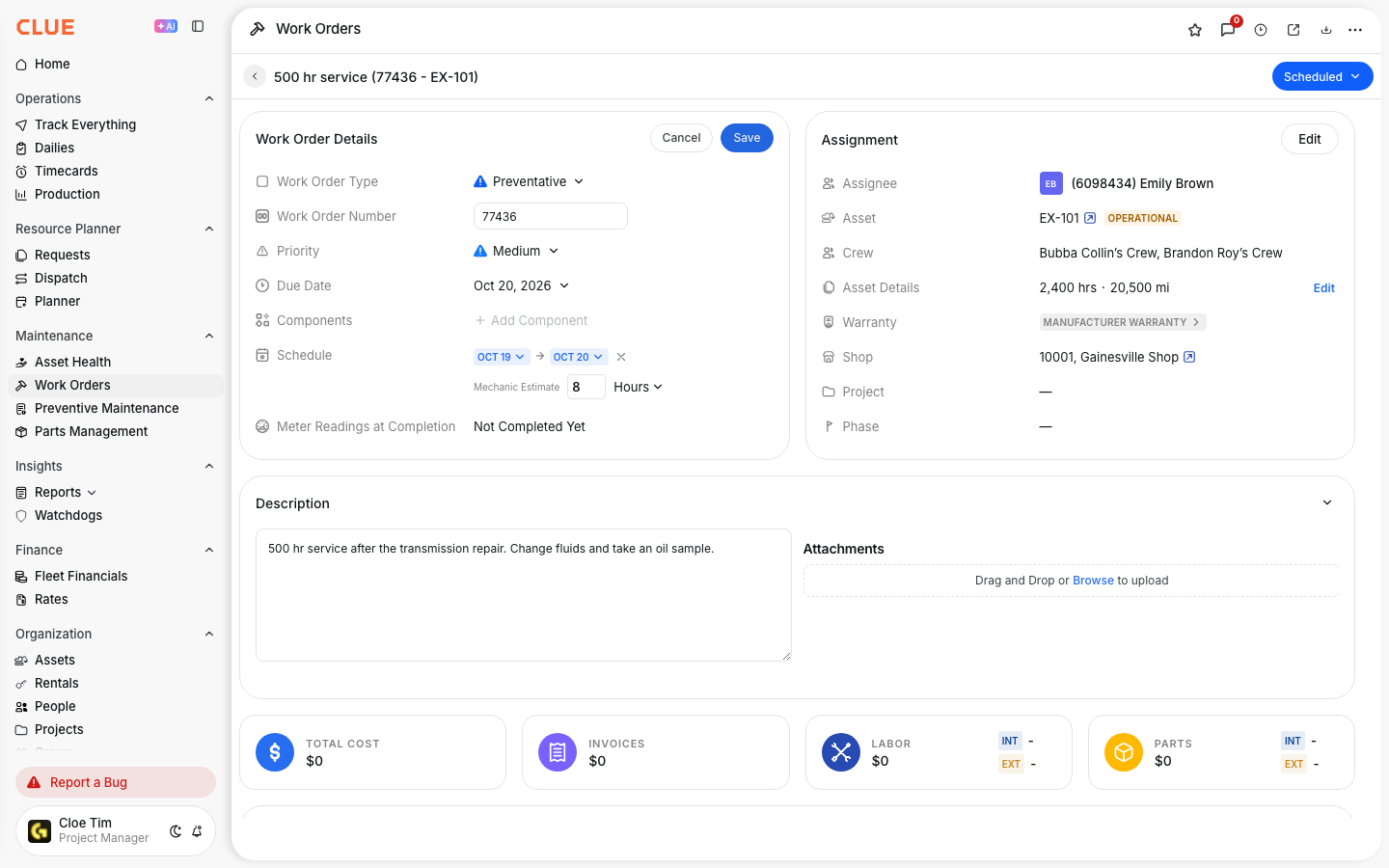
This is useful when you want the work to stay visible on the board with a real date instead of just delaying it loosely. If the work order already exists and only the schedule needs to change, follow the Updating a Work Order documentation.
3. Change Status or Cancel the Work Order
Use the status picker to move the work order through your workflow as the job changes. Foremen with the right permissions can move a work order forward, move it back to an earlier status, or cancel the work order if the work is no longer necessary.
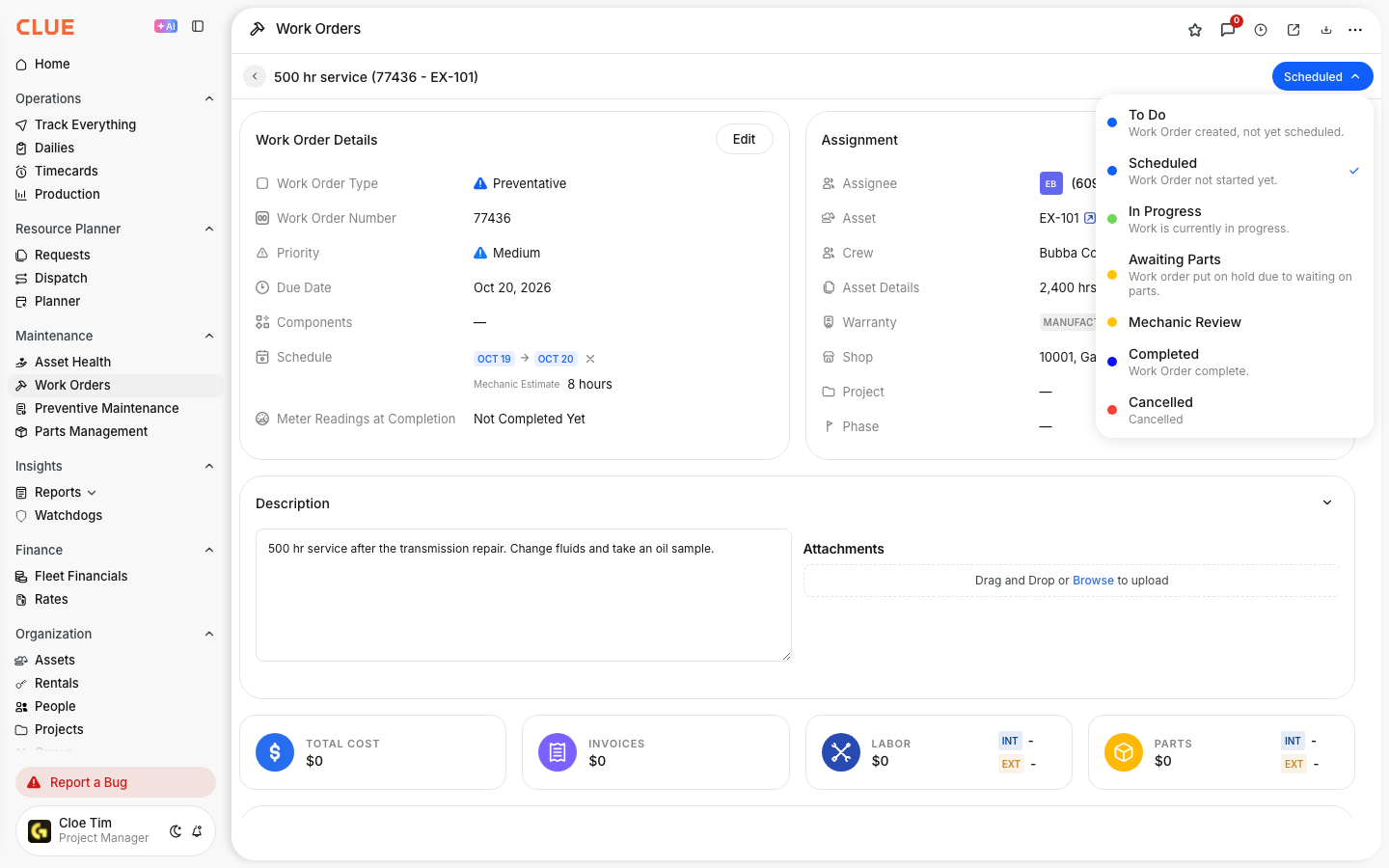
Your available statuses may include items like Crew Summary, Scheduled, Awaiting Parts, In Progress, Repair Summary, Finished, Completed, Mechanic Review, and Cancelled. CLUE also supports custom work order statuses, so your exact list be different. If your team needs a simpler overview of status handling, see the Understanding Work Order Status documentation.
The Full Details
Here are the main settings and behaviors to know when using this feature.
- Works on the web and mobile apps
- 'Upcoming When' is controlled by when the PM status changes to upcoming
- 'Create Work Order' controls when the PM work order is auto-created
- 'Work Schedule' includes Start On, End On, and Mechanic Estimate on the work order
- Work orders move through your maintenance workflow and can be edited as work changes
- A work order can be cancelled if it is no longer needed
- Permissions who can change status, edit, or cancel is permission-controlled. For that setup, review our Work Order Permissions and Approval Workflows documentation.
Tips
A few small setup choices can make PM work orders easier to manage day to day.
- Use Work Schedule dates when you want the work to stay visible and planned.
- Set Create Work Order slightly earlier than Upcoming When so the work order is already there when the team first sees the alert.
- Use Awaiting Parts when the job cannot move forward because the parts are still missing.
- If the schedule is getting crowded, review the workload (refer to Using the Asset Schedule View or Using the Mechanic Schedule View documentation) before moving dates around.
- If your foremen need more control over status changes, edits, or cancellation, this possible by setting the proper permission. Your organization administrator can adjust these permissions. A reference for how to do so can be found in our Work Order Permissions and Approval Workflows document.