Understanding Preventive Maintenance
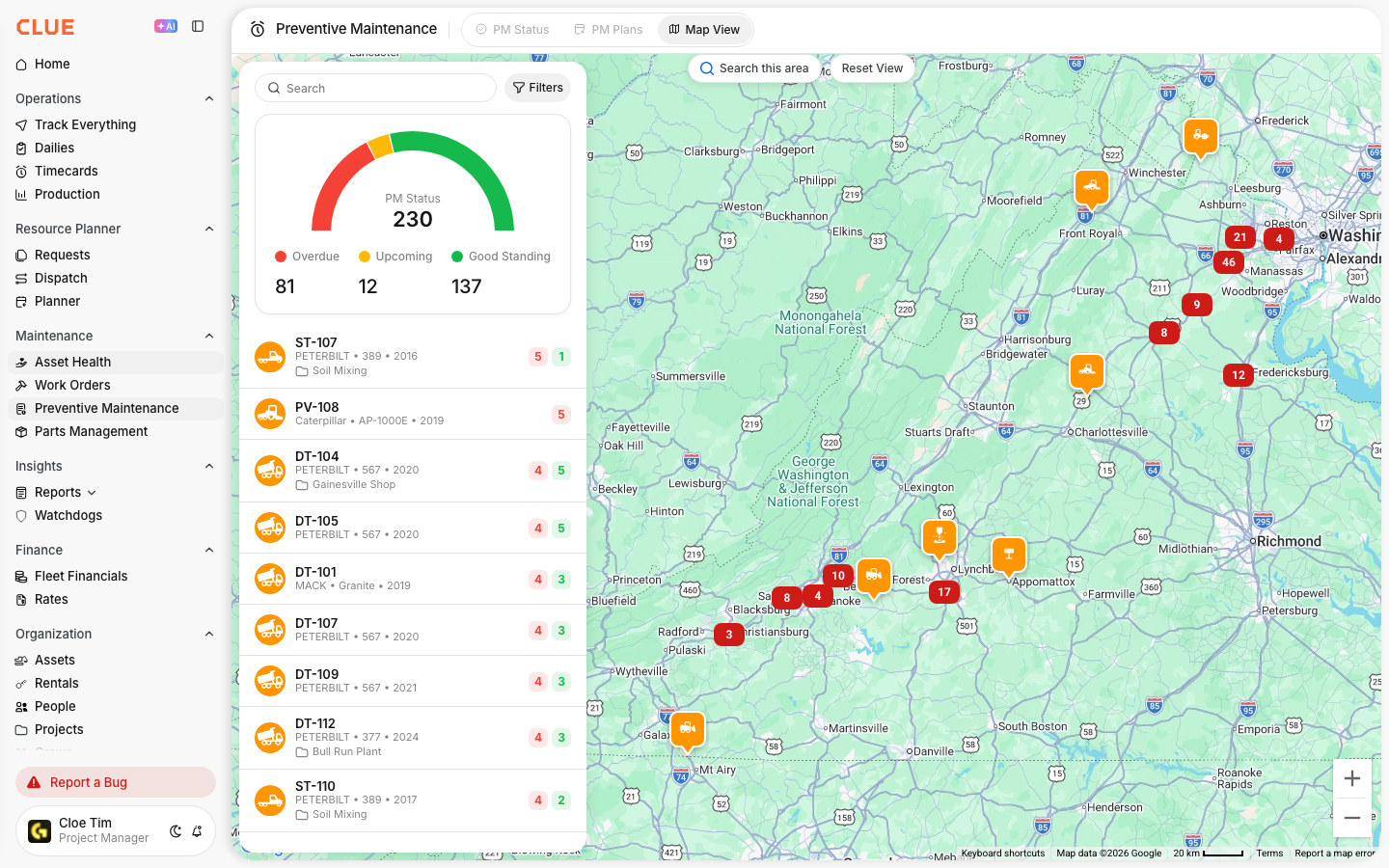
Waiting for equipment to break down before scheduling a service is one of the most expensive mistakes a fleet operation can make. Preventive Maintenance in CLUE keeps equipment running by scheduling service before something fails. CLUE monitors engine hours, odometer readings, calendar time, and fuel consumption for each asset simultaneously. When any threshold is reached, a PM work order is created automatically.
You configure the rules once per equipment type. The system handles the scheduling from there, removing the manual tracking that causes services to be missed or delayed.
Who Is This For?
- Equipment Managers define PM plans for each equipment type, set trigger intervals, assign checklists, and link parts kits so services are fully prepared before the work order is even opened. This connects directly to CLUE's Preventive Maintenance feature.
- Foremen monitor upcoming PMs on the dashboard and decide when to pull machines from active work for service, balancing maintenance needs against project demands.
- Mechanics receive PM work orders with the full checklist and parts list already populated, so they can start the job immediately without waiting for information or parts to be gathered.
Multi-Parameter Triggers
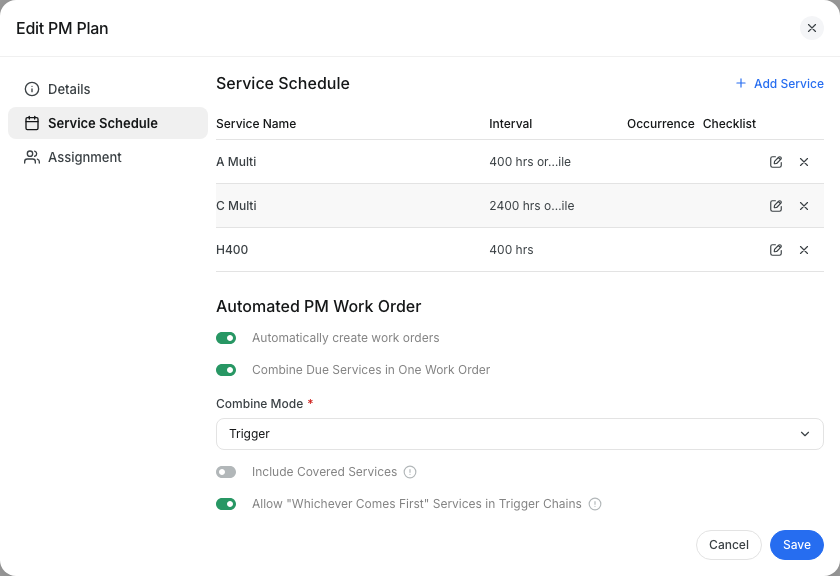
Each PM plan can track multiple trigger types at the same time. The PM fires based on whichever parameter reaches its threshold first.

- Engine Hours triggers service at a defined meter reading such as every 500 hours
- Odometer / Miles triggers service at a mileage threshold, commonly used for on-road fleet
- Calendar Time triggers service on a time basis such as every 6 months, used for generators, trailers, and equipment that does not accumulate hours at a regular rate
- Fuel Consumption triggers service based on gallons consumed, such as every 5,000 gallons
A machine that sits for three months without reaching 500 hours still gets serviced when the calendar trigger fires. No single trigger type is missed.
Cascading PM Hierarchies
Most equipment runs on nested service intervals such as 250-hour, 500-hour, 1,000-hour, and 2,000-hour services. When the 2,000-hour service comes due, creating separate work orders for each overlapping smaller service creates unnecessary duplication and confusion.

CLUE handles this automatically. When a major service is triggered, the smaller services that fall at the same interval are suppressed and their items roll into the single combined work order. One job, one trip to the shop, one complete checklist.
PM Status and Alerts
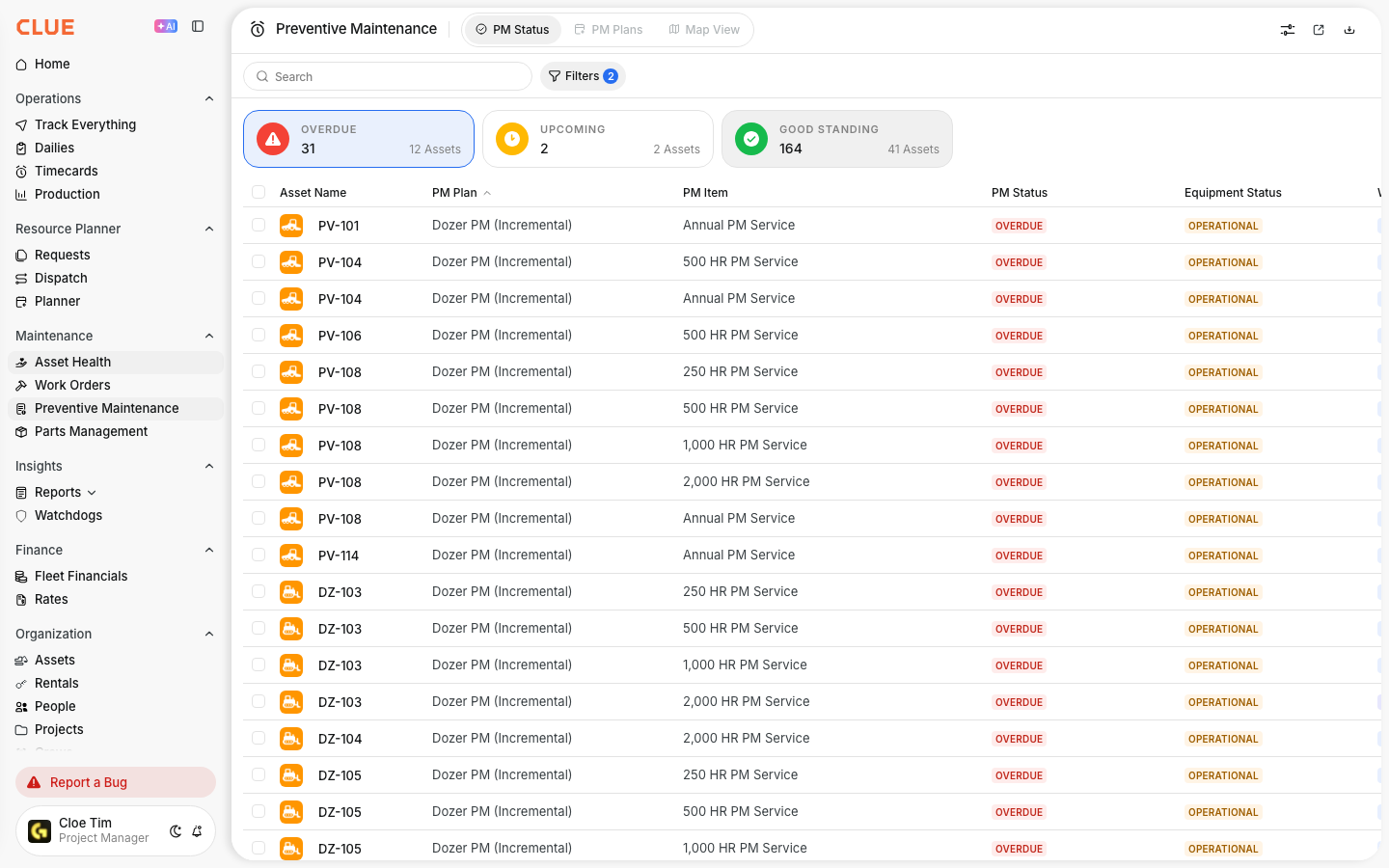
Each PM plan displays a live status that reflects where the asset stands against its service interval.

- Good Standing means the asset is not yet approaching its threshold and is on schedule
- Upcoming means the asset is approaching the threshold and the service should be planned
- Overdue means the threshold has been passed and the service needs immediate attention
The point at which the Upcoming alert fires is configurable per PM plan. Some teams want a warning at 90% of the interval. Others prefer 80%. This is set per plan based on how much lead time your shop needs.
Auto-Create vs. Manual Work Orders
Two options control how PM work orders are generated when a threshold is reached.
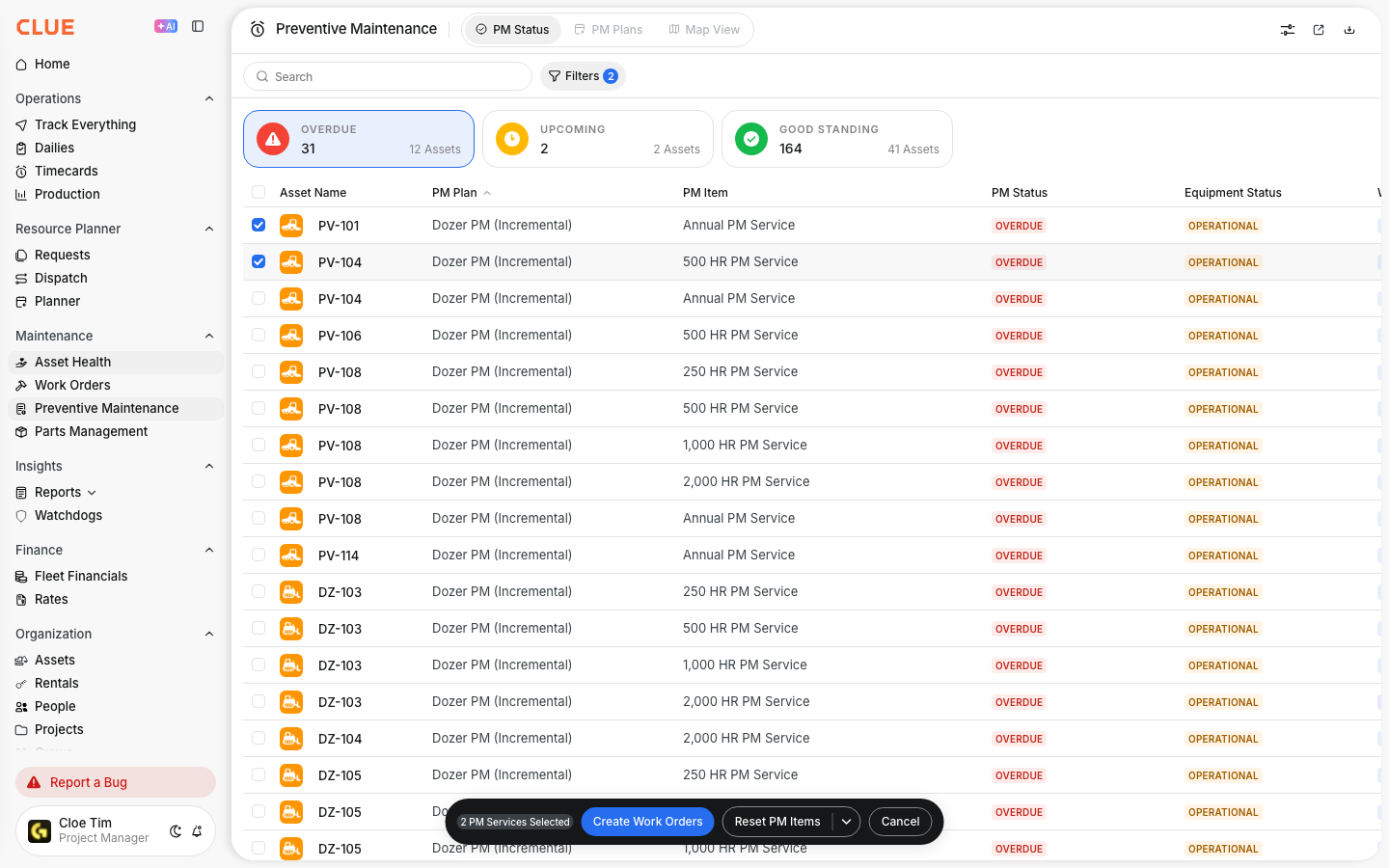
- Auto-create generates the work order automatically without any human action required. This is best for routine services your team always performs such as oil changes, filter replacements, and greasing intervals.
- Alert only changes the PM status to Upcoming or Overdue and waits for a foreman to review and create the work order manually. This is better suited for major services that need to be scheduled around project demands rather than triggered automatically.
Choose the right mode per PM plan. Routine services benefit from auto-create. Major overhauls and component replacements are better managed manually.
Adjusting Due Dates and Schedules
When a PM comes due at an inconvenient time, such as during a critical pour or when the machine is on a remote site, you have options without skipping the service entirely.
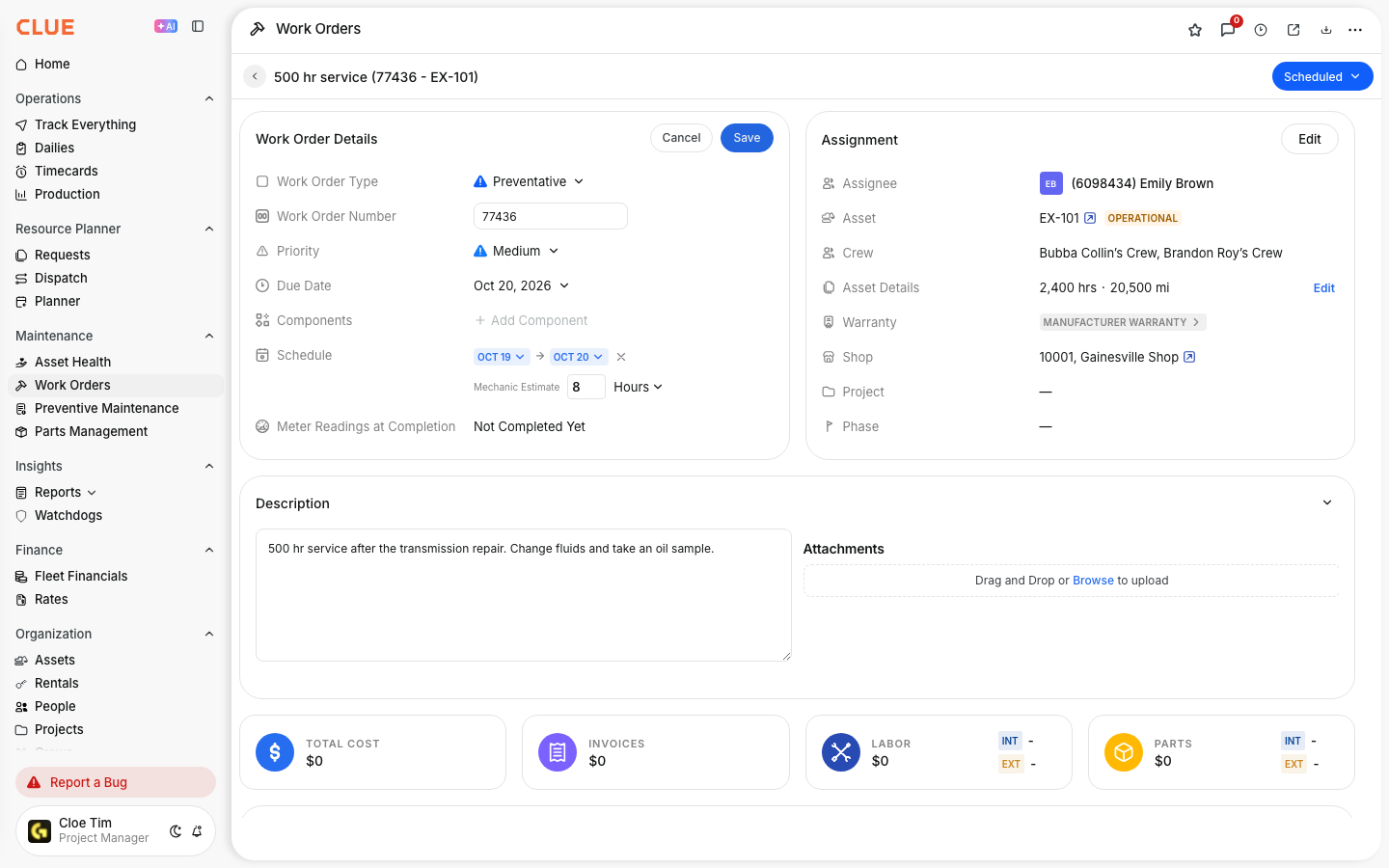
You can push the work order due date out a few days to align with a project break, use custom work order statuses to communicate the delay such as "Scheduled for Weekend" or "Waiting for Project Completion," or adjust the upcoming alert threshold on the PM plan if the default is triggering too aggressively for your operation.
Key Behaviors and Limitations
- Works on web and mobile. PM management and tracking is available on both the web app and mobile app.
- PM plans are configured per asset type. Set up a plan once and it applies to all assets of that type. Changes to the plan apply going forward.
- Checklists are part of the PM plan. Each PM plan can include an inspection checklist that mechanics complete during the service. The checklist appears on the auto-created work order.
- Parts kits link directly to PM plans. When the PM work order auto-creates, the parts kit is already listed on the job. No guessing, no forgotten filters, no last-minute parts sourcing.
Tips
- Use calendar triggers for low-hour equipment. Generators and trailers can sit for months without accumulating hours. Without a calendar trigger, their oil degrades and seals dry out before the hour meter ever fires.
- Set auto-create for routine services. Oil changes, greasing, and filter replacements should auto-create. If you always do them, let the system generate the work order so nothing gets skipped.
- Review cascading carefully when setting up plans. Make sure your 500-hour service includes all items from the 250-hour service. If it does not, suppressed 250-hour items will be missed when the 500-hour service triggers.
- Link parts kits to every PM plan. When the mechanic opens the auto-created work order, the parts should already be listed. This reduces diagnostic prep time and prevents the service from stalling while parts are sourced.