What is this?
The Planner can print a look-ahead. Pick a date range, like the next three weeks, and Clue builds a Gantt chart of your plan. You get a PDF to print for your weekly meeting, or an Excel file to share and edit. Each piece of equipment shows as a bar on the days it is planned.

Who's this for?
- Operations managers print the next three weeks for the weekly planning meeting.
- Equipment and fleet managers see where each machine goes, by equipment type, and when it is free.
- Project managers share the plan for one job with the field team.
How to use it
Step 1: Open the Export menu
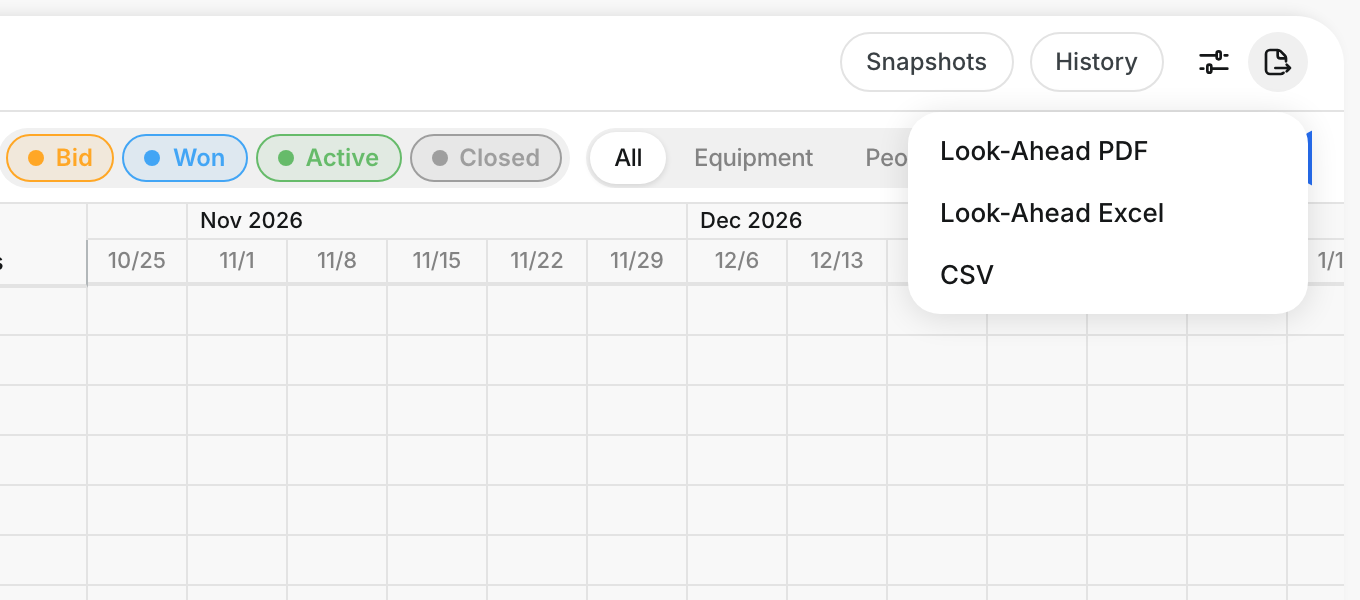
Go to Planner. Click the Export icon at the top right, then choose Look-Ahead PDF or Look-Ahead Excel.
Step 2: Pick the date range
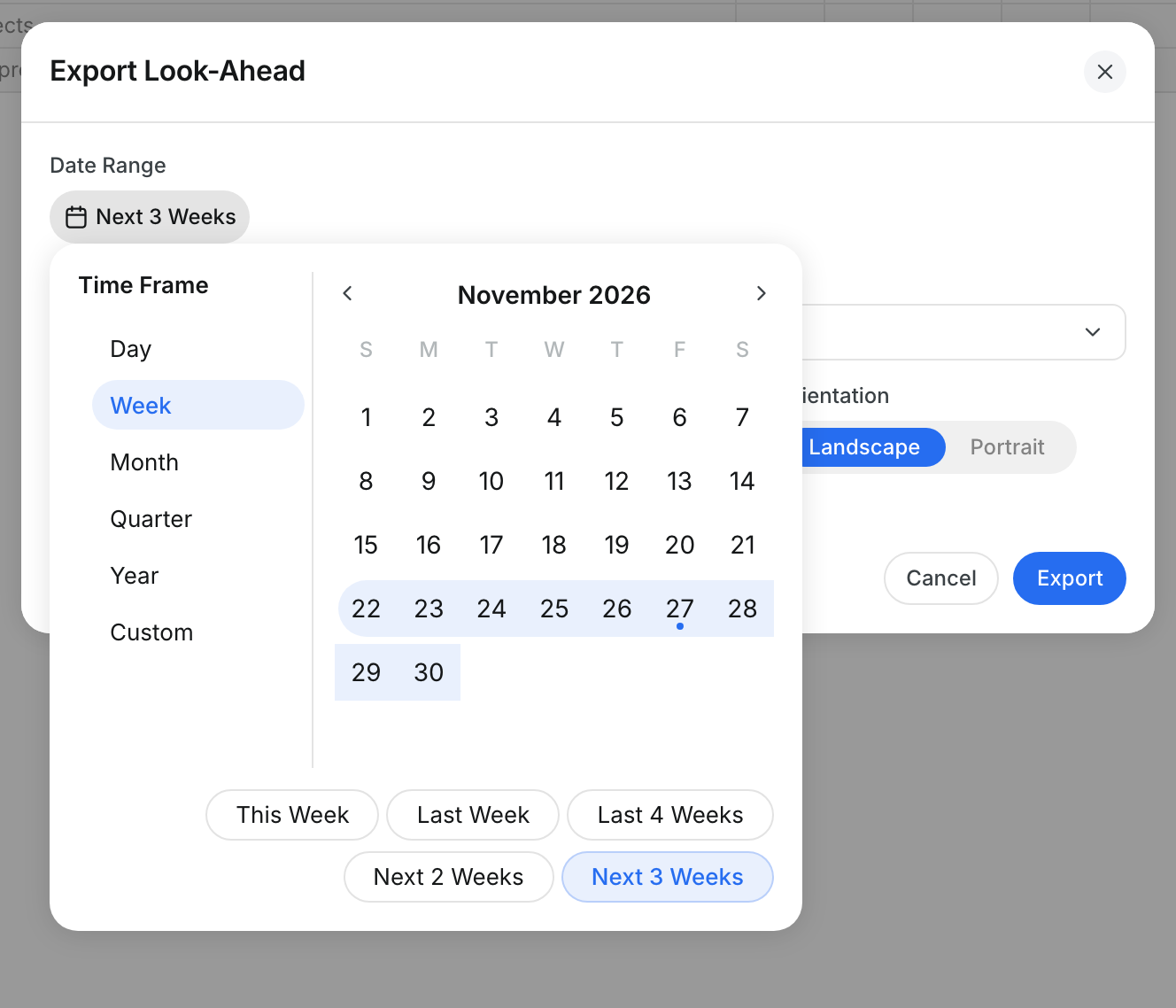
Click the date chip. On the Week tab, click Next 2 Weeks or Next 3 Weeks. You can also pick a month, a quarter, a year or your own dates.
Step 3: Choose how it looks
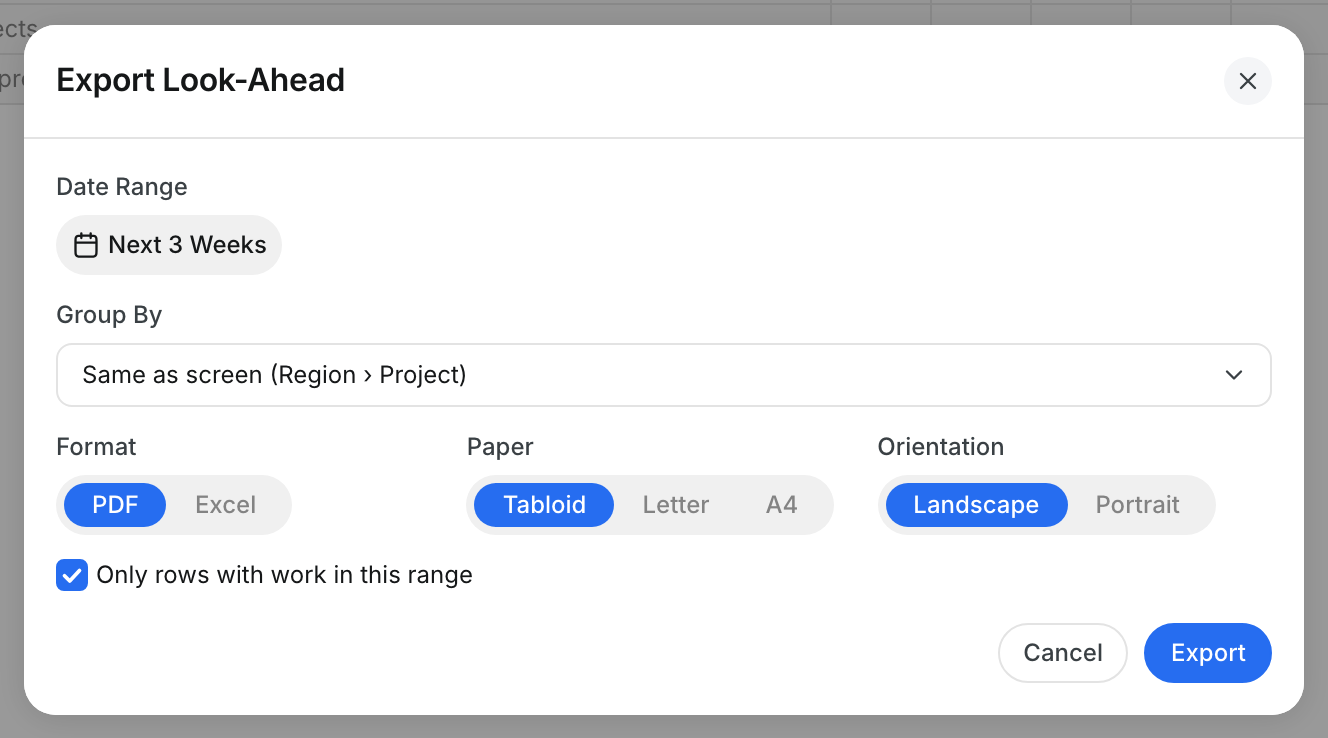
Choose Group By. Pick Asset Type › Project to list each equipment type, then its jobs, then each unit. Then pick the format, the paper size and the orientation.
Step 4: Export and print
Click Export. The file downloads in a few seconds. Open the PDF and print it, or open the Excel file to share it.
The full details
- Works on: the web app.
- Who can use it: anyone who can open the Planner.
- What it includes: the same projects, filters and search as your Planner screen, plus all matching projects, not only the ones on screen.
- Bars: each equipment group has its own color. Bid projects show as dashed bars. A small arrow means the work continues past the range.
- Units: each unit shows its own dates.
- Week changes: a week where you changed the quantity shows the changed quantity.
- Paper: Tabloid, Letter or A4, landscape or portrait. The chart always fills the page width.
- Excel: one line per row, one column per day. The bars are colored cells with the quantity in them. The names and the date row stay in view when you scroll.
- Limit: up to 5,000 lines. For more, use a shorter range or add filters.
- CSV (all data): the full data export. It stays in the same menu.
Tips
- Set your filters on the Planner first. The export prints what the screen shows.
- Open a project tab to print the look-ahead for that one job.
- Clue remembers your last choices, so next week it is two clicks.
- Use Tabloid landscape for the meeting room wall, and Letter portrait for a long list.