What is this?
A snapshot saves a copy of your plan as it is today. Save one before a big change, at the start of a quarter, or when a bid is approved. It does not change your live plan.
Export downloads the Planner as a CSV file you can open in Excel.
Who's this for?
- Project managers, keep a baseline of the plan you agreed.
- Operations managers, keep a record of the plan at each review.
- Office staff, share the plan with people who do not use Clue.
How to use it
Step 1: Find the buttons
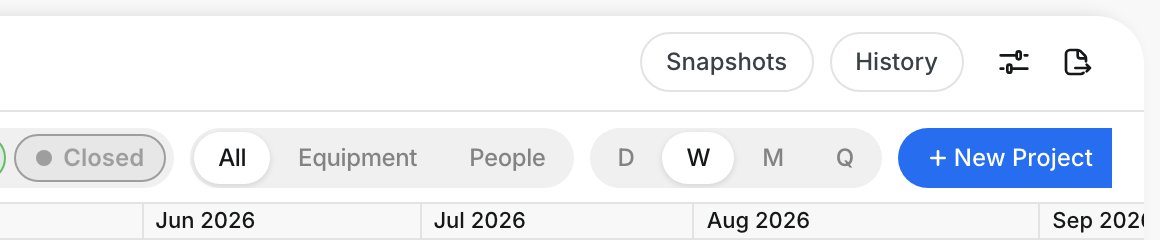
Open Resource Planner > Planner. Snapshots and the Export icon are at the top right of the page.
Step 2: Save a snapshot
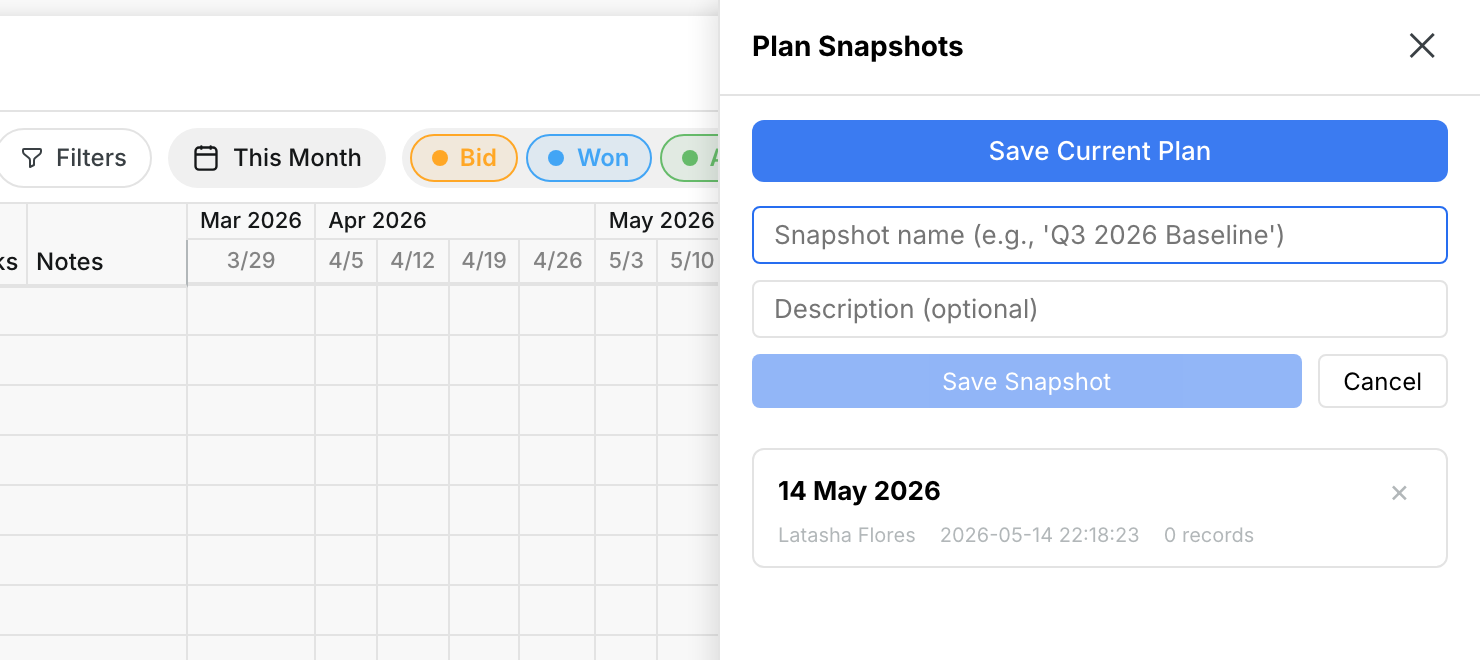
Click Snapshots, then Save Current Plan. Type a name, for example "Q4 2026 Baseline", and an optional description. Click Save Snapshot.
Step 3: Review your snapshots
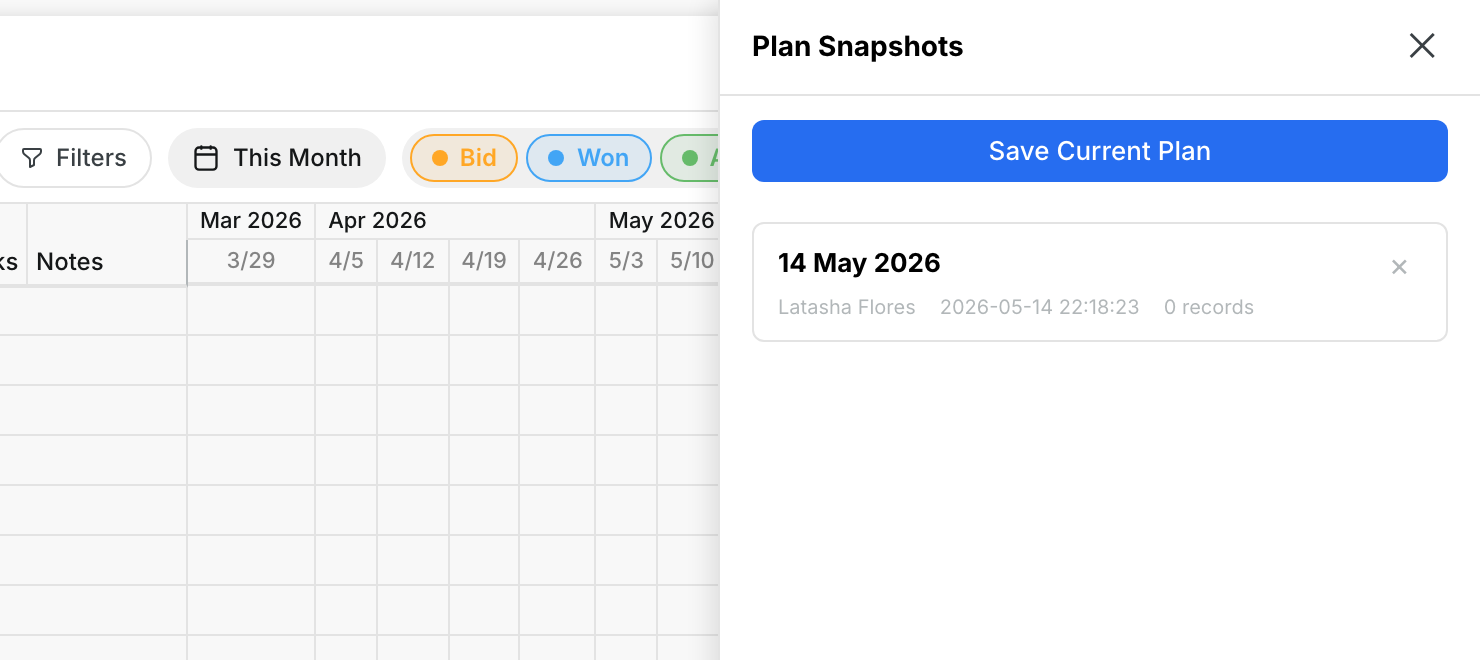
The panel lists every snapshot with its name, description, who saved it, when, and how many records it holds. Click x on a card to delete it.
Step 4: Export the plan
Click the Export icon at the top right. Clue downloads a CSV file named with today's date. The export follows your status chips and division filter.
The full details
- Works on: Web app.
- Snapshot name: required. The description is optional.
- Deleting a snapshot: asks you to confirm first.
- Export format: CSV.
Tips
- Use a clear name with a date or quarter. You will look for it months later.
- Save a snapshot before you move many phases at once.
- Set the status chips before you export. Switch off Bid and Closed to export only your active work.