What is this?
You can fill a request without leaving the Planner. Pick a resource row, see the assets that are free for those dates, and assign one.
Once a request is filled, you can open its dispatch details, give it to a different asset, or cancel the assignment.
Who's this for?
- Dispatchers, fill next week's requests straight from the plan.
- Equipment managers, pick the best available machine for each job.
- Project managers, check which asset is coming to your site and when.
How to use it
Step 1: Choose the resource to fill
Hover a resource row with status Plan or Open. Click ..., then click Assign. You can also click the Assign resource icon on the row.

Step 2: Pick an asset
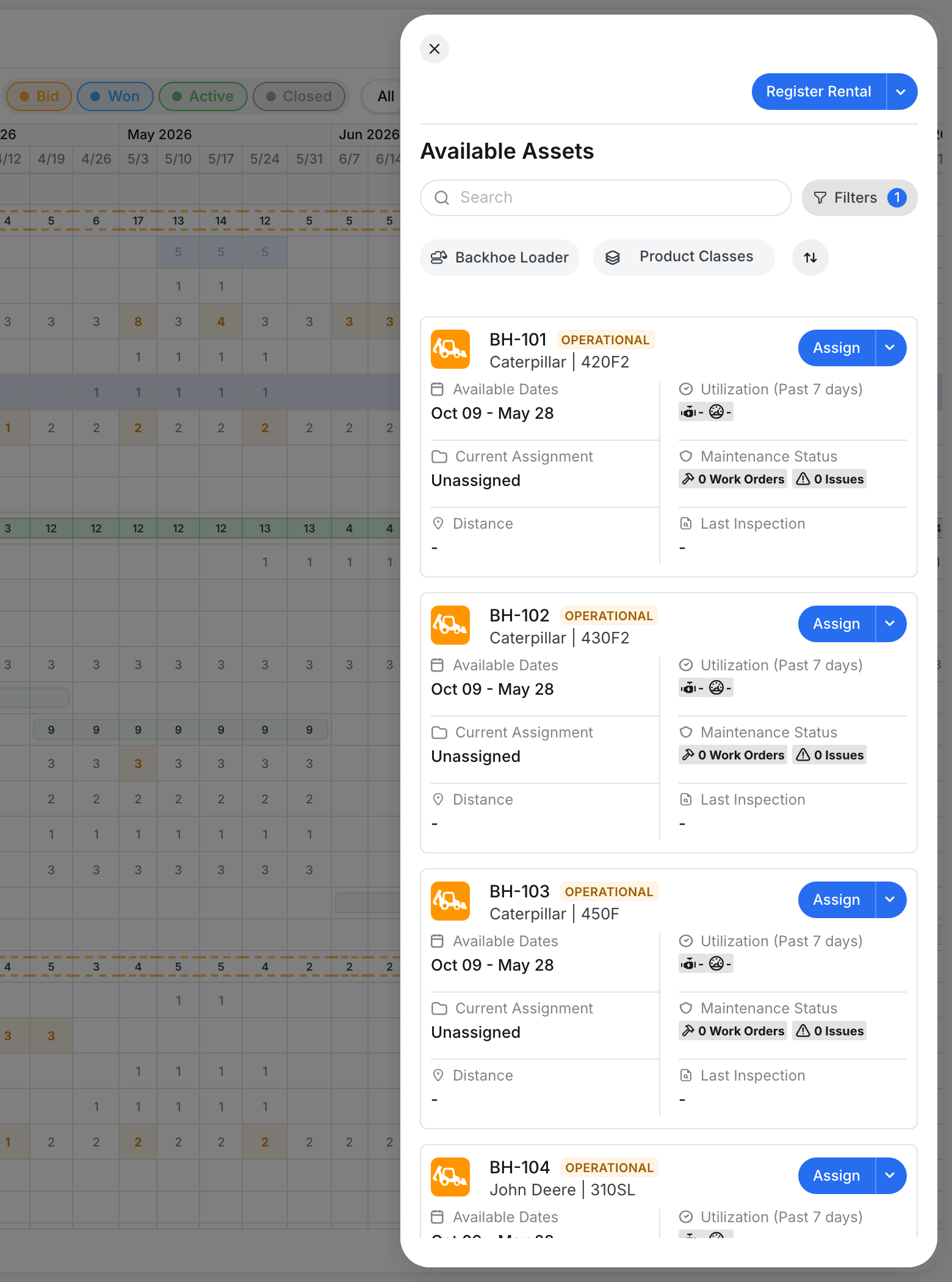
The Available Assets panel opens, already filtered to the asset type you asked for. Each card shows the available dates, current assignment, recent use, open work orders and issues, and the last inspection. Click Assign on the asset you want.
Use the search, filters and product class to narrow the list. If you need to rent a machine, click Register Rental.
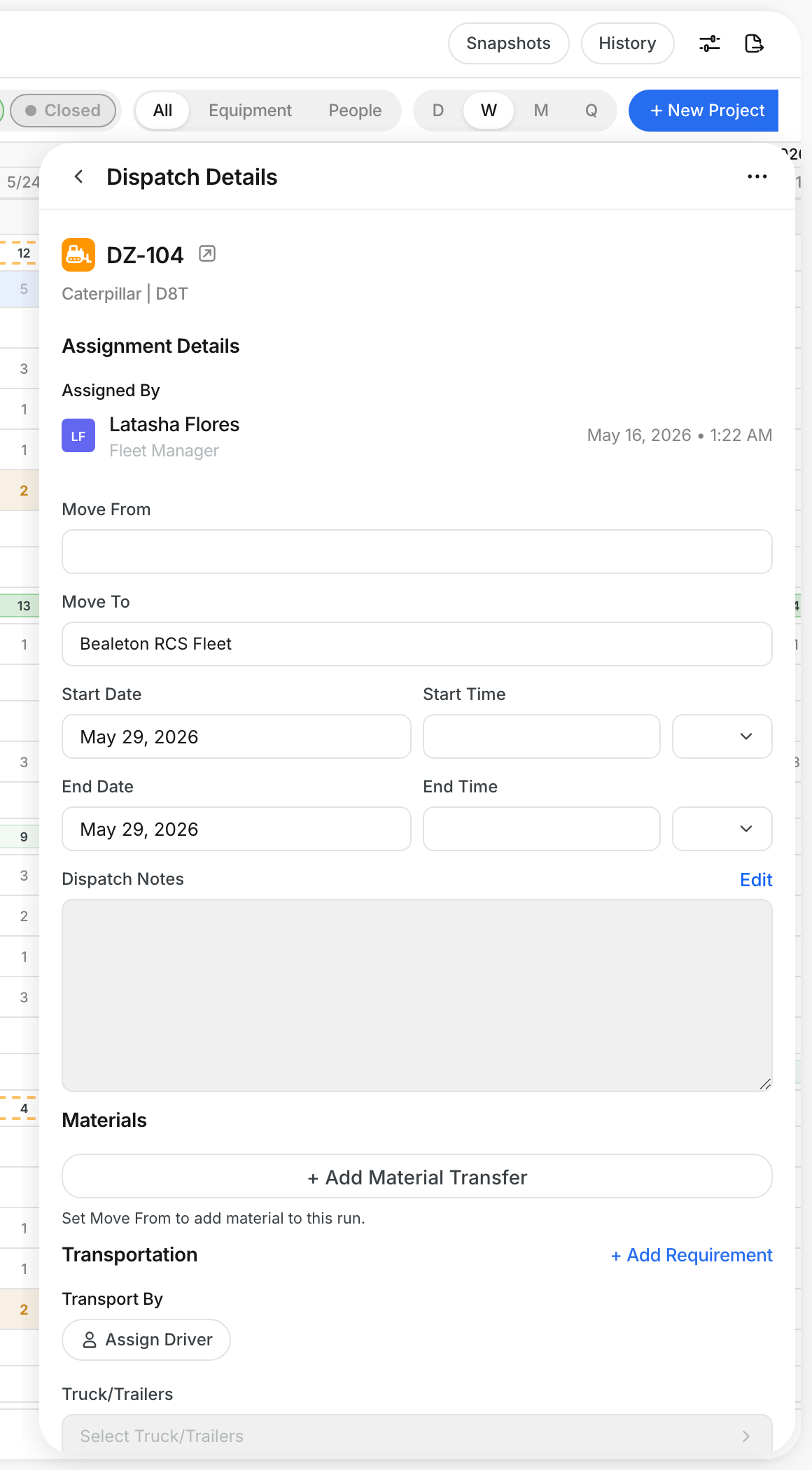
Step 3: Open the dispatch details
Hover a Filled resource, click ..., then click Assignment Details. The Dispatch Details panel opens. It shows who assigned the asset, where it moves from and to, the dates and times, notes, materials and transportation.
Step 4: Reassign or cancel
In the same menu, click Reassign to give the request to a different asset. The old assignment is cancelled when you pick the new asset. Click Cancel assignment to release the asset.

The full details
- Works on: Web app.
- Statuses: A request with all units assigned shows Filled. A request with some units assigned shows Partial.
- Several units: A request for more than one unit opens into one row per assigned asset, plus a "(requested)" row for each unit still open.
- People: For personnel rows, the panel lists available people instead of assets.
- Cancel assignment: takes effect at once. There is no confirmation step.
- Permission: You need permission to assign equipment or people.
Tips
- Check the Available Dates on each card. They tell you how long the asset is free.
- Look at Maintenance Status before you assign. An asset with open work orders may not be ready for the job.
- Use Reassign instead of Cancel when you swap machines. The request stays filled while you choose.