What is this?
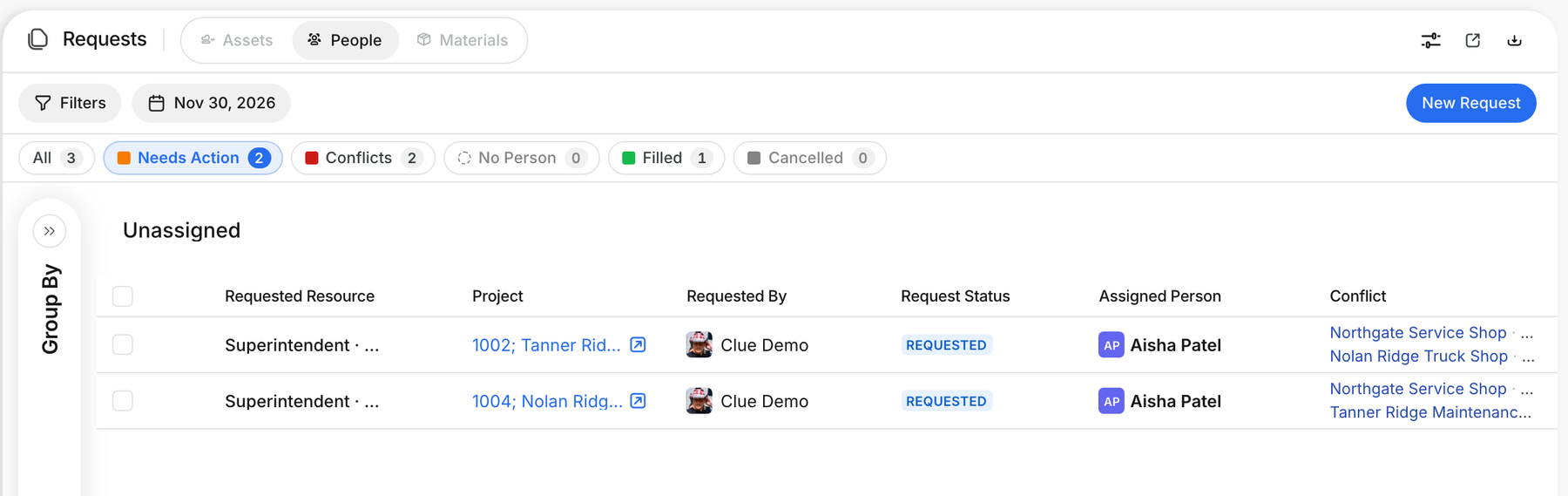
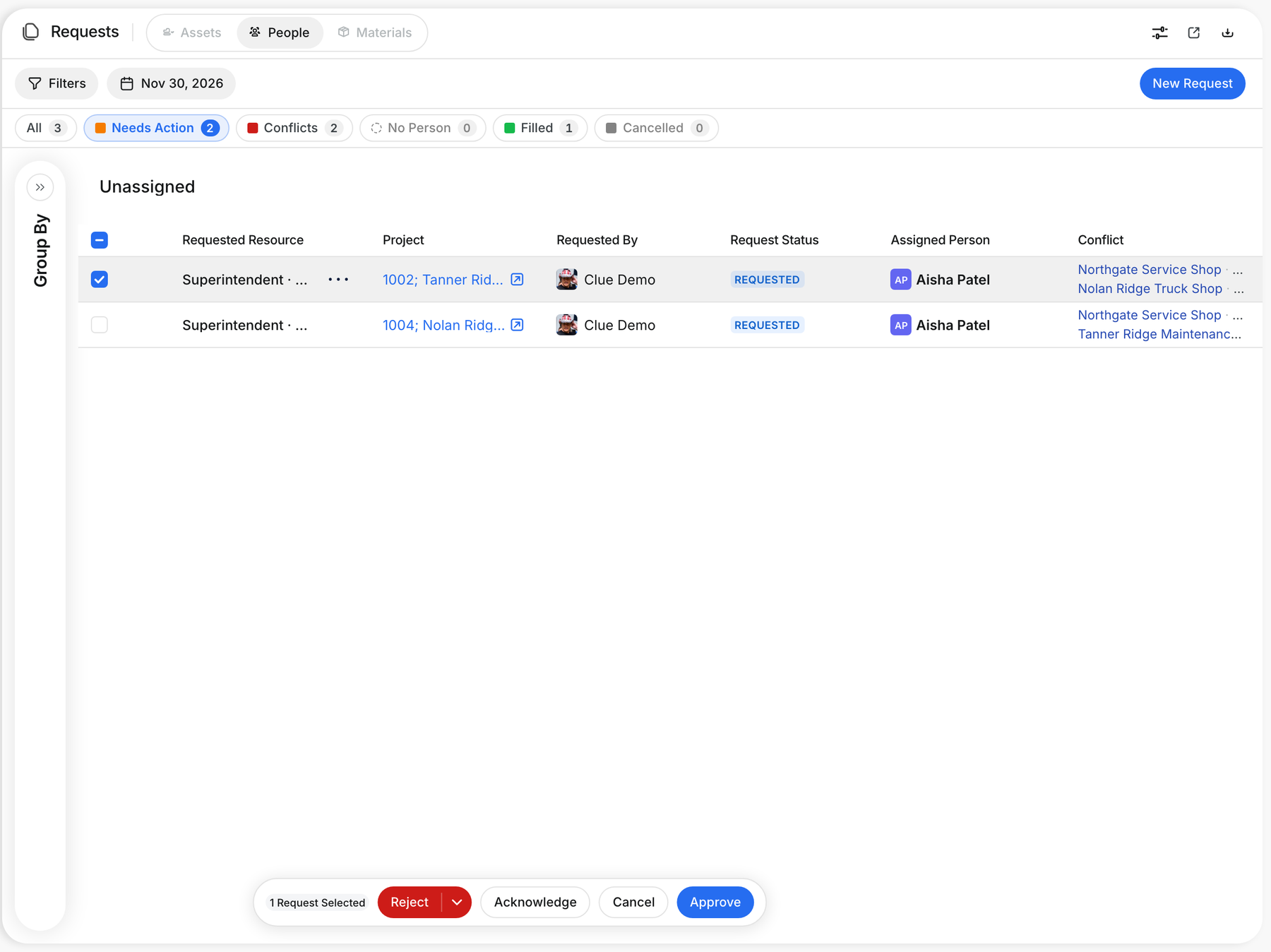
Foremen ask for people from the field. Requests > People opens on Needs Action: only the requests you must answer for the day you pick. You see when two foremen want the same person, and you answer each request in one place: approve it, give another person, or reject it with a reason.
Who's this for?
- Dispatchers, who answer the people requests each day.
- Foremen, who see the answer, and the reason when a request is rejected.
- Superintendents, who check which jobs ask for the same people.
How to use it
Step 1: Open the requests for a day
Go to Resource Planner > Requests and open the People tab. Click the date button and pick the day. The list opens on Needs Action. The Conflict column names the other job and the other foreman.
Step 2: Open a request
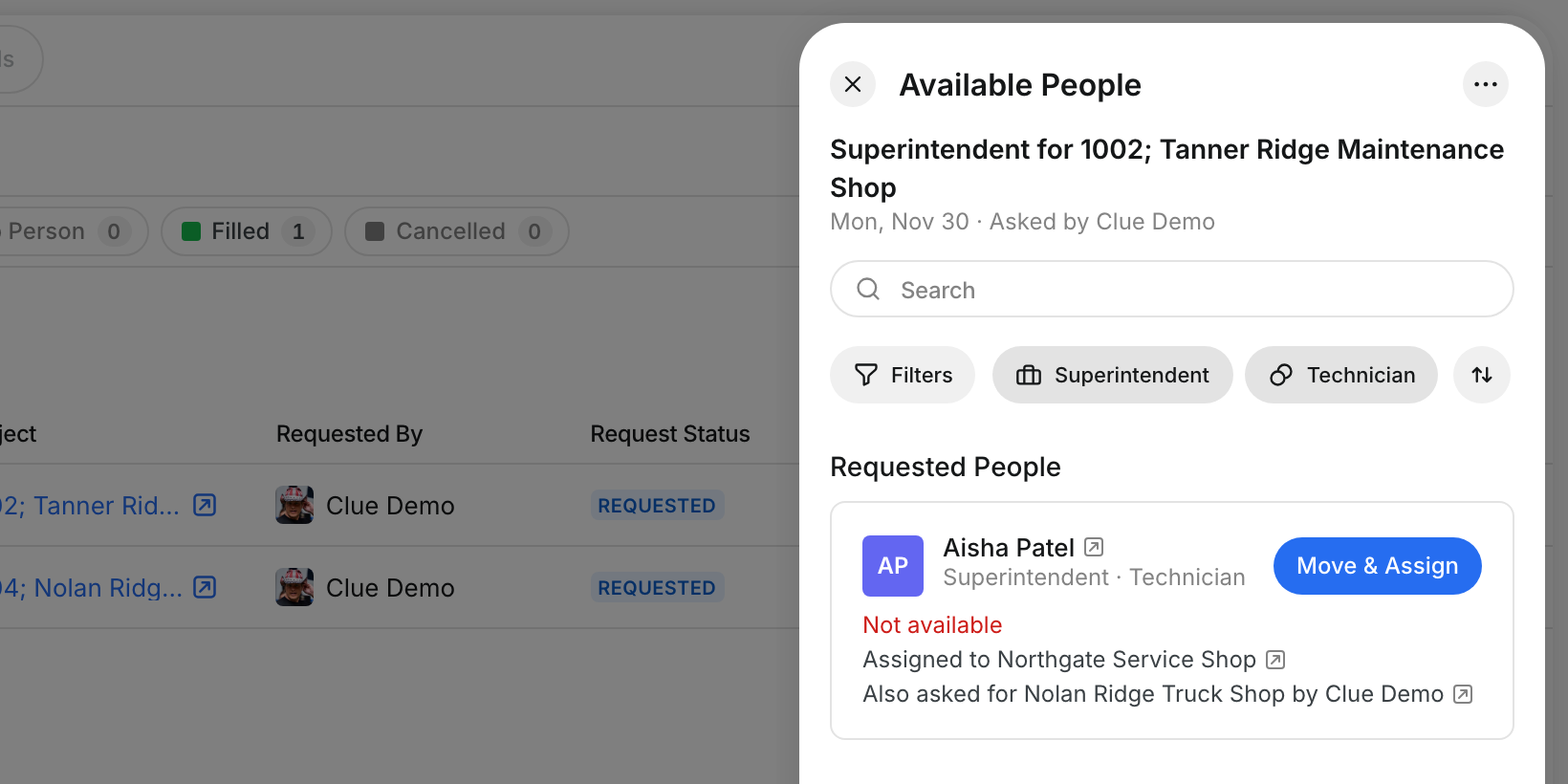
Click the requested resource on a row, for example Superintendent. A panel opens with the person the foreman asked for. A person who works on another job shows Not available and the job. Click Move & Assign to move the person, or pick another person and click Assign.
Step 3: Answer several requests at once
Tick the requests in the list. A bar shows at the bottom of the screen with Approve, Reject, Acknowledge and Cancel.
Step 4: Reject with a reason
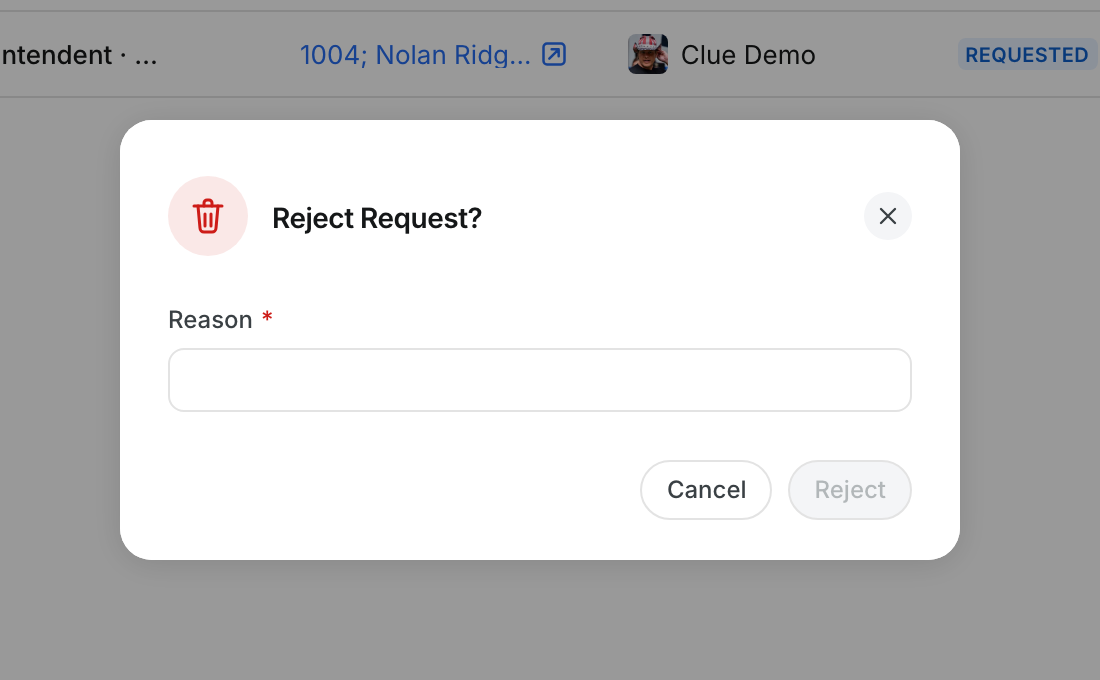
Click Reject and type the reason. The reason is required. The foreman sees it with the answer.
The full details
- Needs Action: requests to approve, conflicts, and requests with no person yet, for the day you pick.
- Conflicts: two foremen ask for the same person, or the person works on another job that day.
- No Person: requests for a job title with nobody named.
- Two foremen, one person: when you book the person on one job, the other foreman gets a notice and that request stays open.
- Turn it on: Needs Action and the request panel are part of the dispatch screens your company turns on. Ask Clue support.
- Works on: Web app.
Tips
- Start each evening with Needs Action for tomorrow. When it shows zero, every request has an answer.
- Write a reason the foreman can act on, for example "No operator free Tuesday, try Wednesday".
- Click the other job in the Conflict column to see that request before you decide.