What is this?
Move by Foreman tells dispatch that your own crew will move an asset. You set it when you request a specific asset. Dispatch then sees it on the request and knows not to book a truck. No phone call needed.
Who's this for?
- Superintendents and foremen, flag the moves your crew will handle themselves.
- Dispatchers and equipment coordinators, see which requests need no transport.
- Equipment managers, approve these moves in one step, with no truck to schedule.
How to use it
Step 1: Open Request Specific Asset
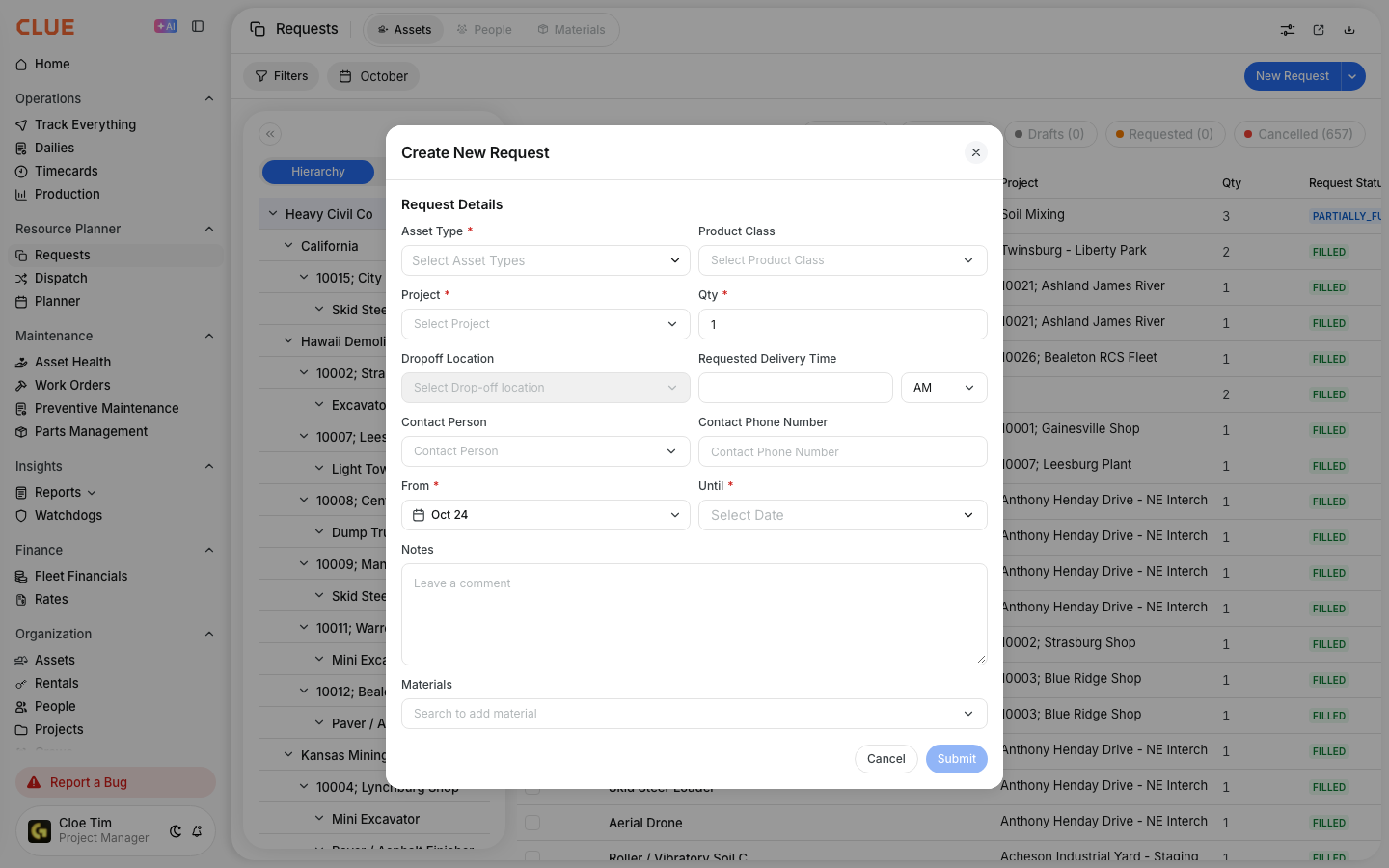
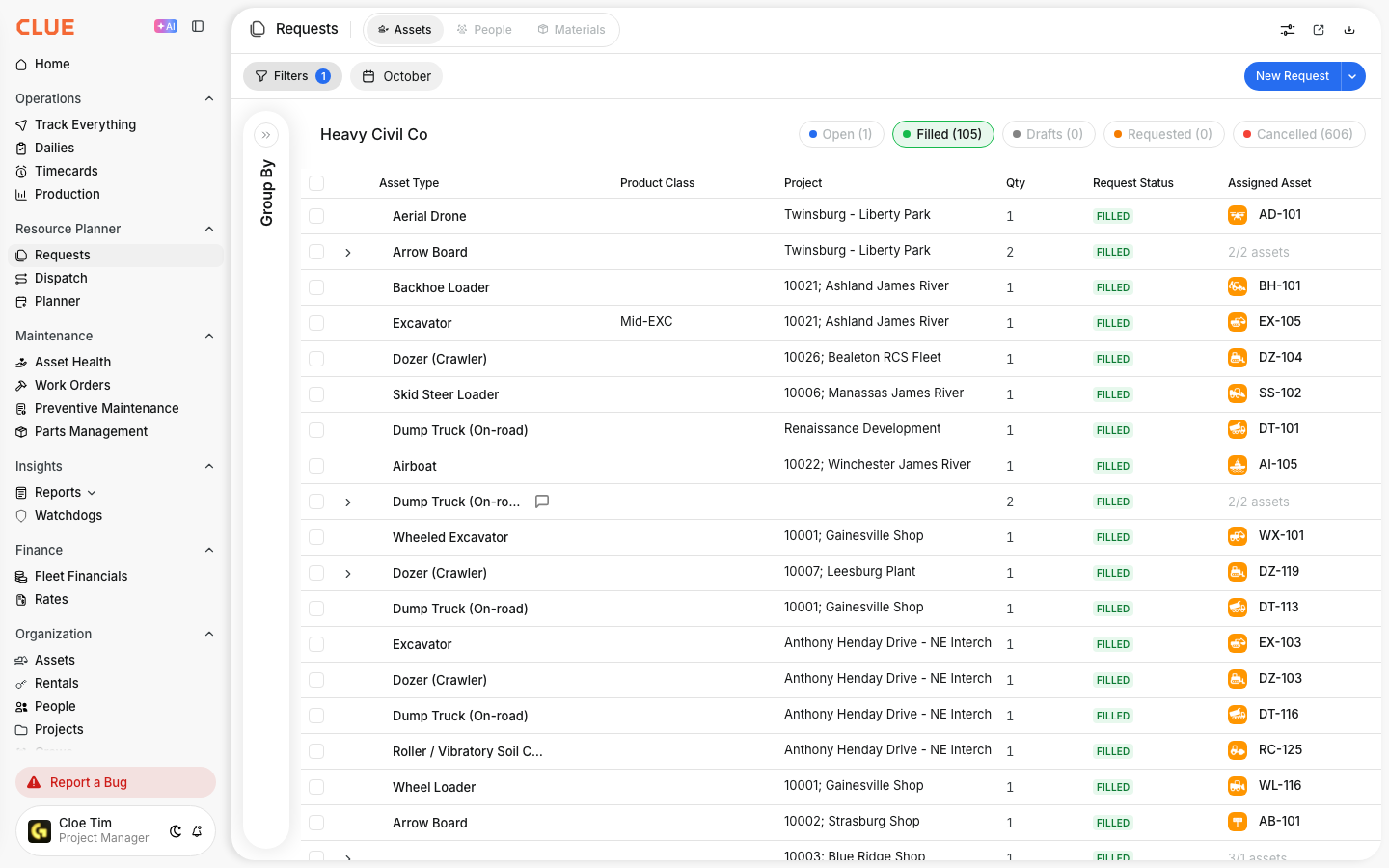
Go to Requests and stay on the Assets tab. Click the arrow next to New Request, then click Request Specific Asset.

Step 2: Fill in the request
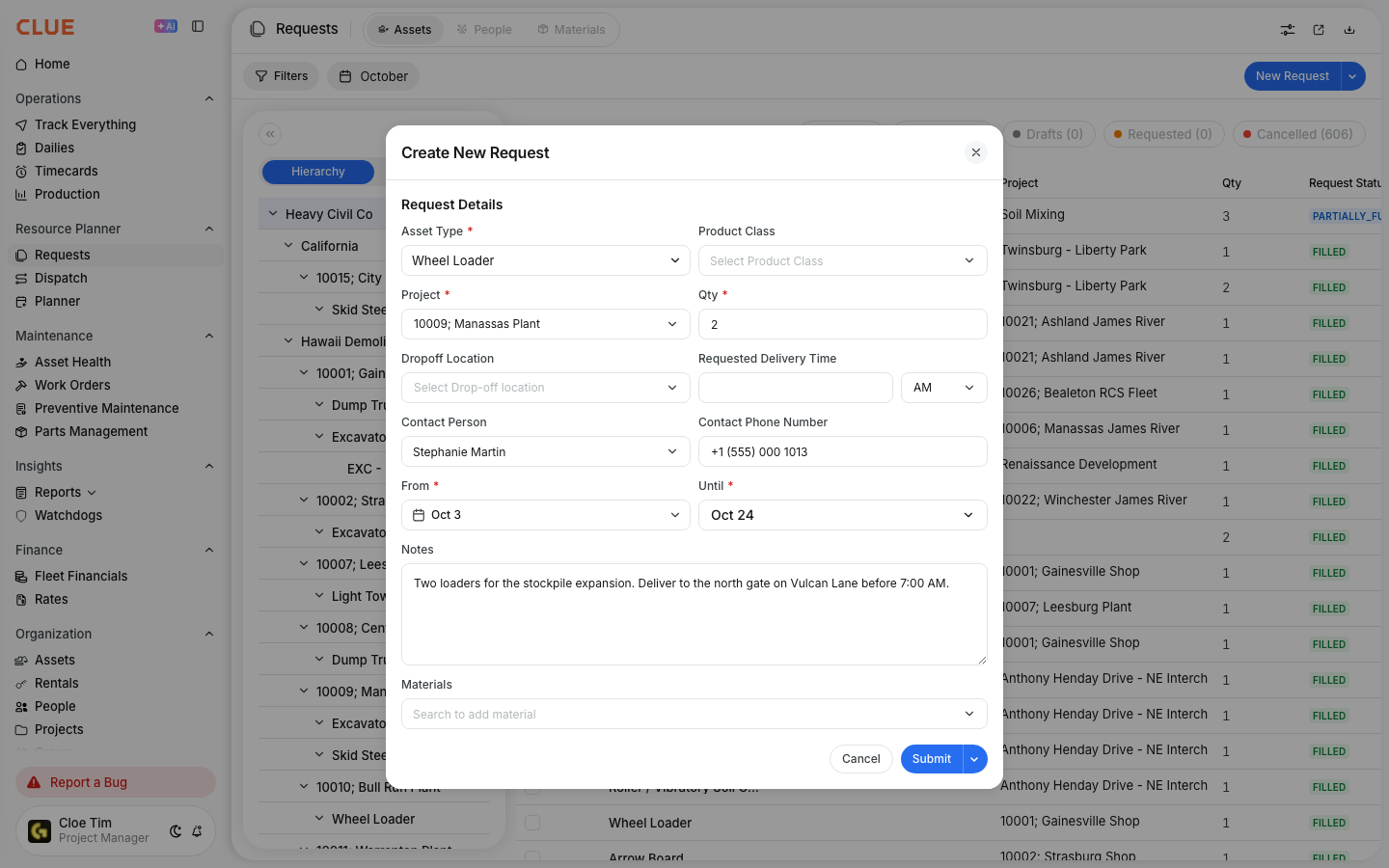
Pick the asset and the project. Set the From and Until dates. Add the drop-off location and contact if you have them.

Step 3: Tick Move by Foreman
Tick Move by Foreman below the dates, then click Submit.

The full details
- Works on: Web app and mobile app.
- Mobile: Resource Planner, action menu, Request Individual Asset. Turn on the Move by Foreman switch.
- Default: Off. Older requests read as off.
- Where it is: Only on the specific asset request. The general New Request form does not have it.
- What dispatch sees: "Transport By: Move by Foreman" on the request details and the assignment details.
- If you can approve requests: The request is Confirmed right away.
- If you can't approve requests: The request waits as Requested. Once your coordinator approves it, it becomes Confirmed.
- Drafts: On mobile, Move by Foreman is kept when you save a draft.
- One way to move: A request is either Move by Foreman, or a truck, driver or vendor. Not both.
Tips
- Tick it only when your crew has the truck and trailer lined up. Dispatch will not book one for you.
- If plans change and you need a truck, tell your dispatcher so they can arrange transport.
- Waiting on approval? Ask your coordinator to approve it in Requests. It moves straight to Confirmed.