Request statuses help your team see where an equipment request stands from the moment it is created until it is filled or cancelled. They make it easier to track what still needs action and what has already moved forward in the dispatch process.
Dispatch board
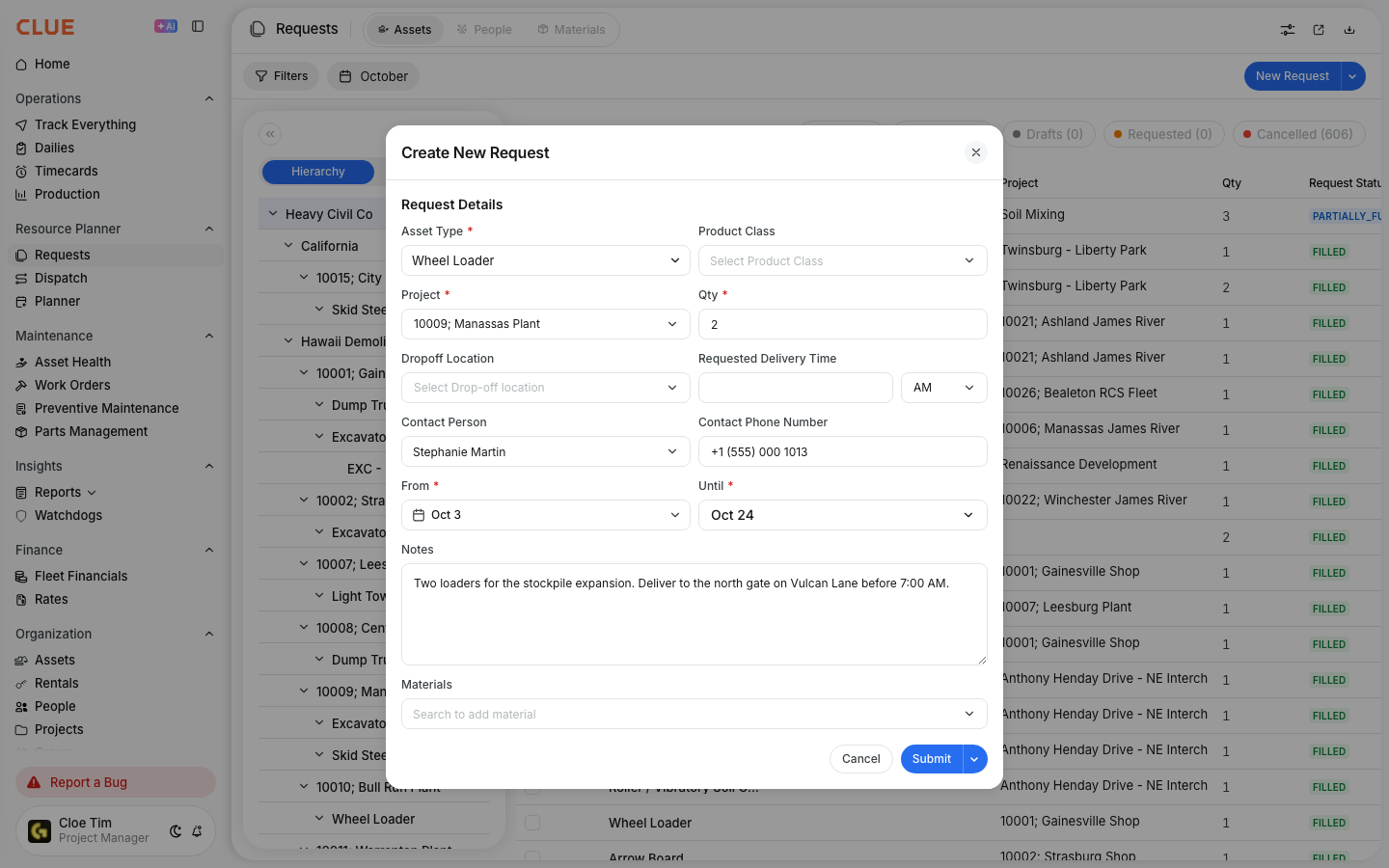
The Requests area works alongside Dispatch so planners can review incoming requests, assign the right equipment, and move approved requests toward fulfillment. This also fits naturally with Creating Equipment Requests, Creating a New Dispatch, Using the Dispatch Board, and Filtering Requests by Date.
Overview
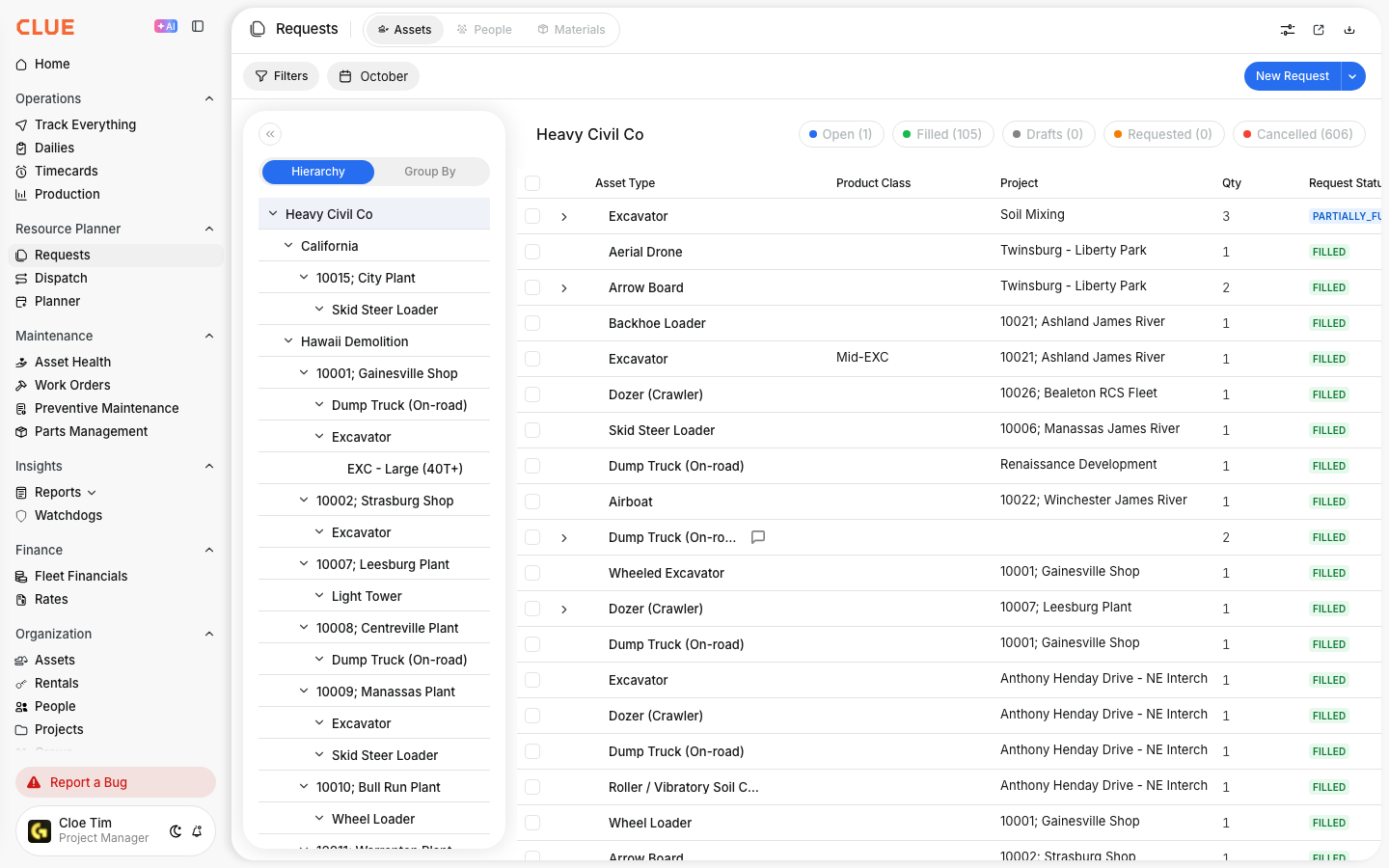
Equipment requests move through a simple status flow from submission to fulfillment. Knowing what each status means helps the dispatch team respond faster and helps requesters understand what is happening next.
Request Status Types
Each status shows a different stage in the request process. Together, they give the team a clear way to track what still needs review, what is already assigned, and what is finished.
Draft
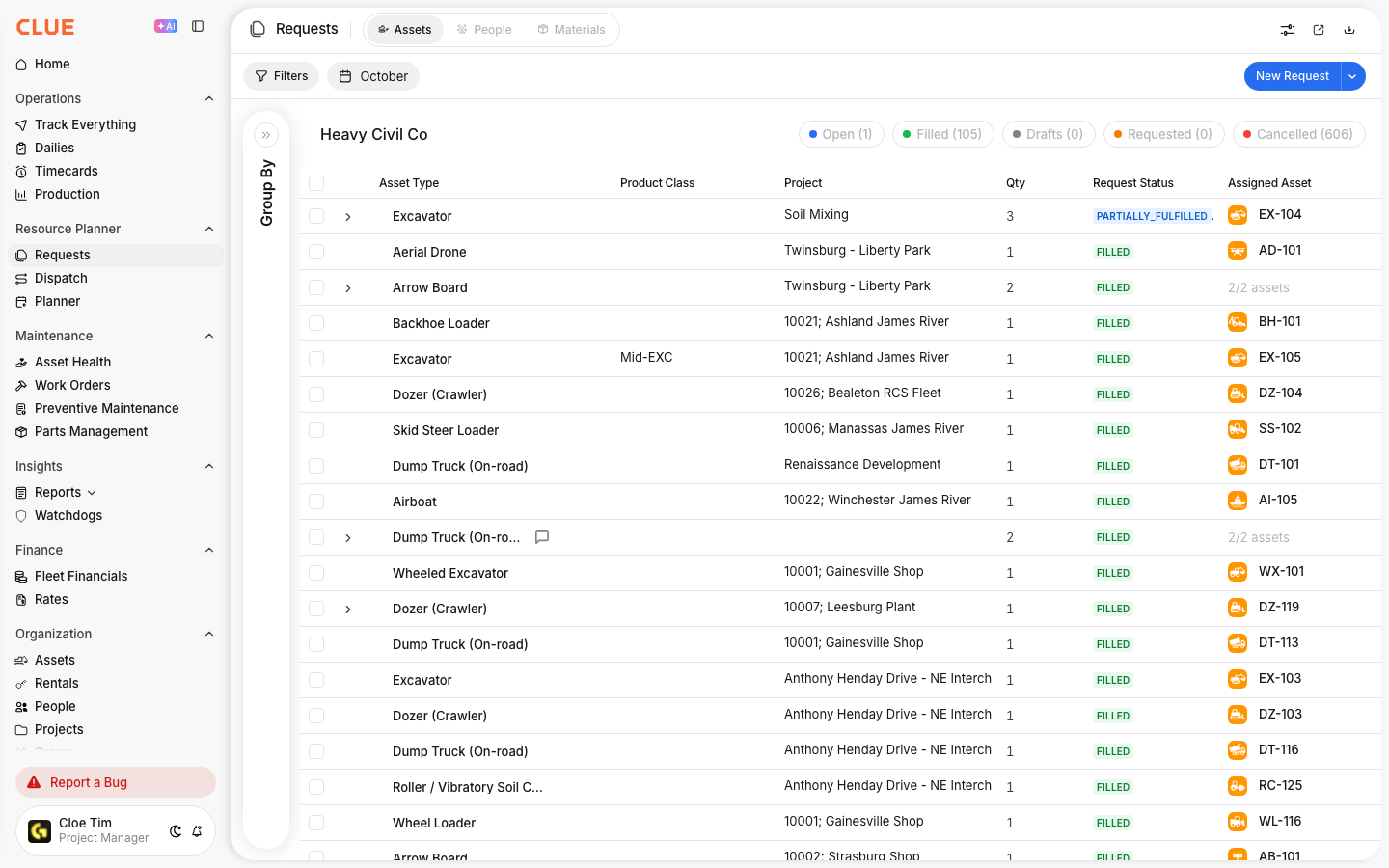
A request in Draft is still being created and has not been submitted yet.
Draft requests are only visible to the person creating them and can still be edited freely. Once the request is ready, it can be submitted for review.
Open
An Open request has been submitted and is waiting for action from the dispatch team.
At this stage, the request is visible to the people managing equipment availability and still needs assets to be assigned.
Requested
A request in Requested means the equipment has been identified, but the move has not been fully dispatched yet.
This usually means specific assets have been selected and the team is still waiting on dispatch confirmation or final availability. This is also a natural internal linking spot for Creating a New Dispatch.
Filled
A request in Filled has been fulfilled with dispatched equipment.
At this point, the dispatch has been created and confirmed, and the request is treated as complete.
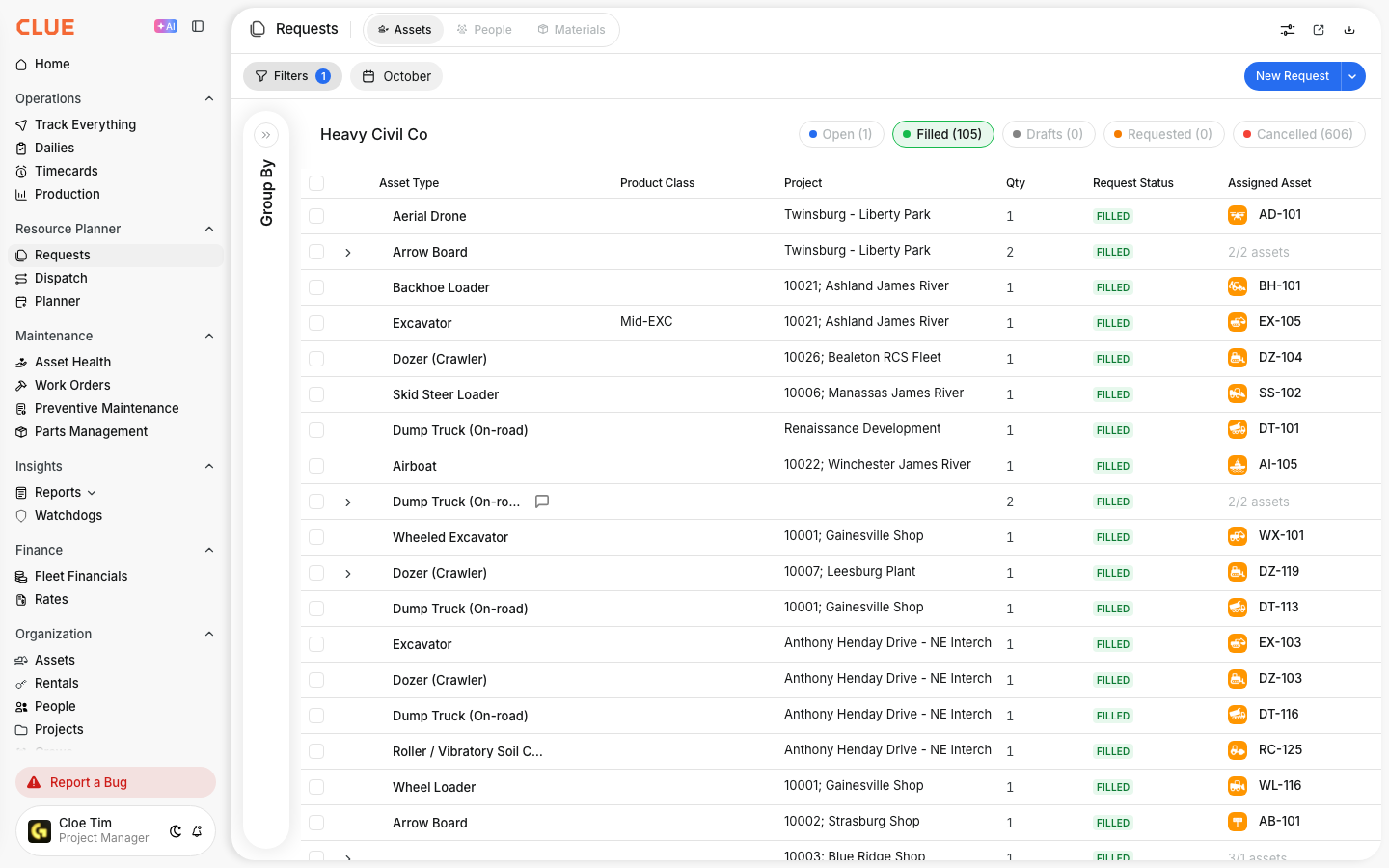
Cancelled
A request in Cancelled is no longer needed.
This can happen when a project changes, the request was submitted by mistake, or the equipment is sourced another way.
Changing Request Status
Statuses update as the team works through the request. In most cases, the status changes based on what action is taken instead of being updated by hand.
Step 1: Open the request
Open the request from the Requests list.
This is where the dispatch team can review what was asked for, when it is needed, and what still needs to happen. This section pairs well with Creating Equipment Requests if the reader needs the full request workflow.
Step 2: Review the request details
Check the request details before taking action.
Review the asset need, timing, and any notes from the requester so the next step is based on the full context.
Step 3: Take action
Take the next step based on what the request needs.
That may mean assigning equipment, creating a dispatch, or cancelling the request if it is no longer needed. This is a strong linking opportunity for Using the Dispatch Board and Creating a New Dispatch.
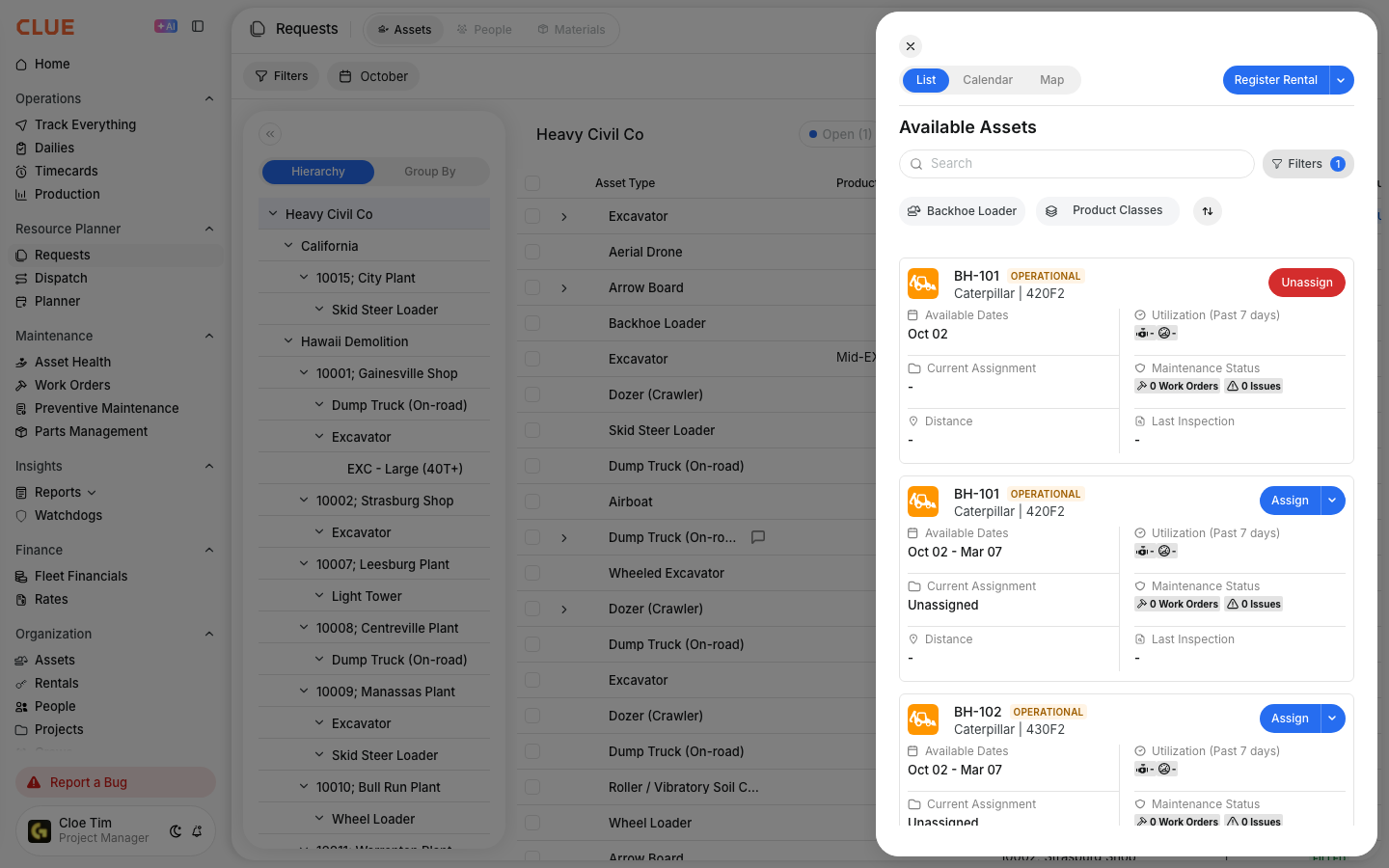
Step 4: Status updates automatically
As actions are taken, the request status updates to reflect its current stage.
This helps the team track progress without losing sight of what is still open and what is already completed. Request history can also help show how a request moved from one stage to the next.
Tips
A few simple habits make request tracking easier. The goal is to keep open requests moving, avoid old requests sitting too long, and make sure requesters know what changed.
- Review Open requests daily so nothing sits too long.
- Let requesters know when the status changes, especially when a request moves to Requested or Filled.
- Cancel old requests that are no longer needed so the queue stays clean.
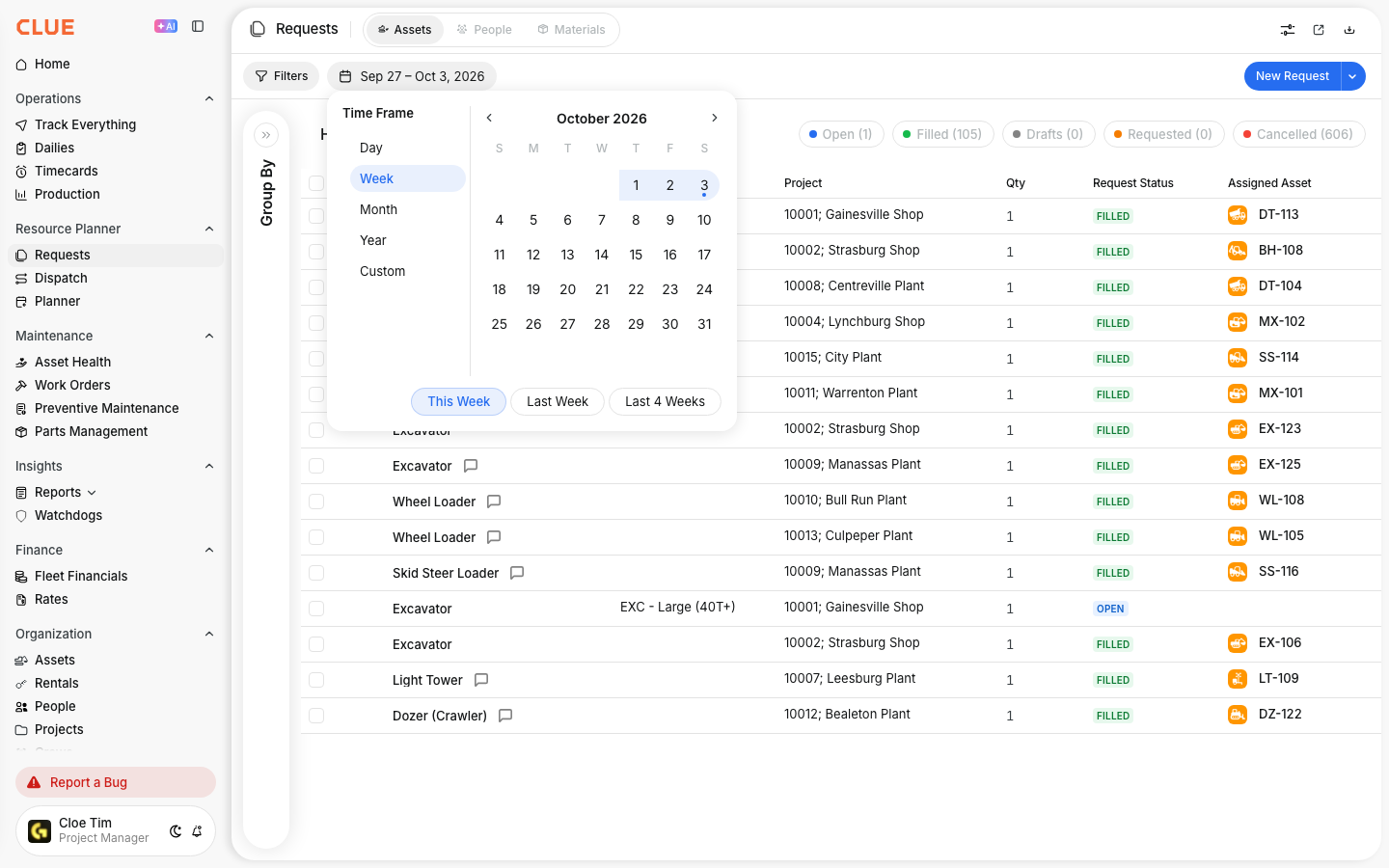
- Use Filtering Requests by Date when you need to narrow the list and focus on the right time period.
- Check Audit Trail and Change History if your team needs to see when a request changed and who updated it.