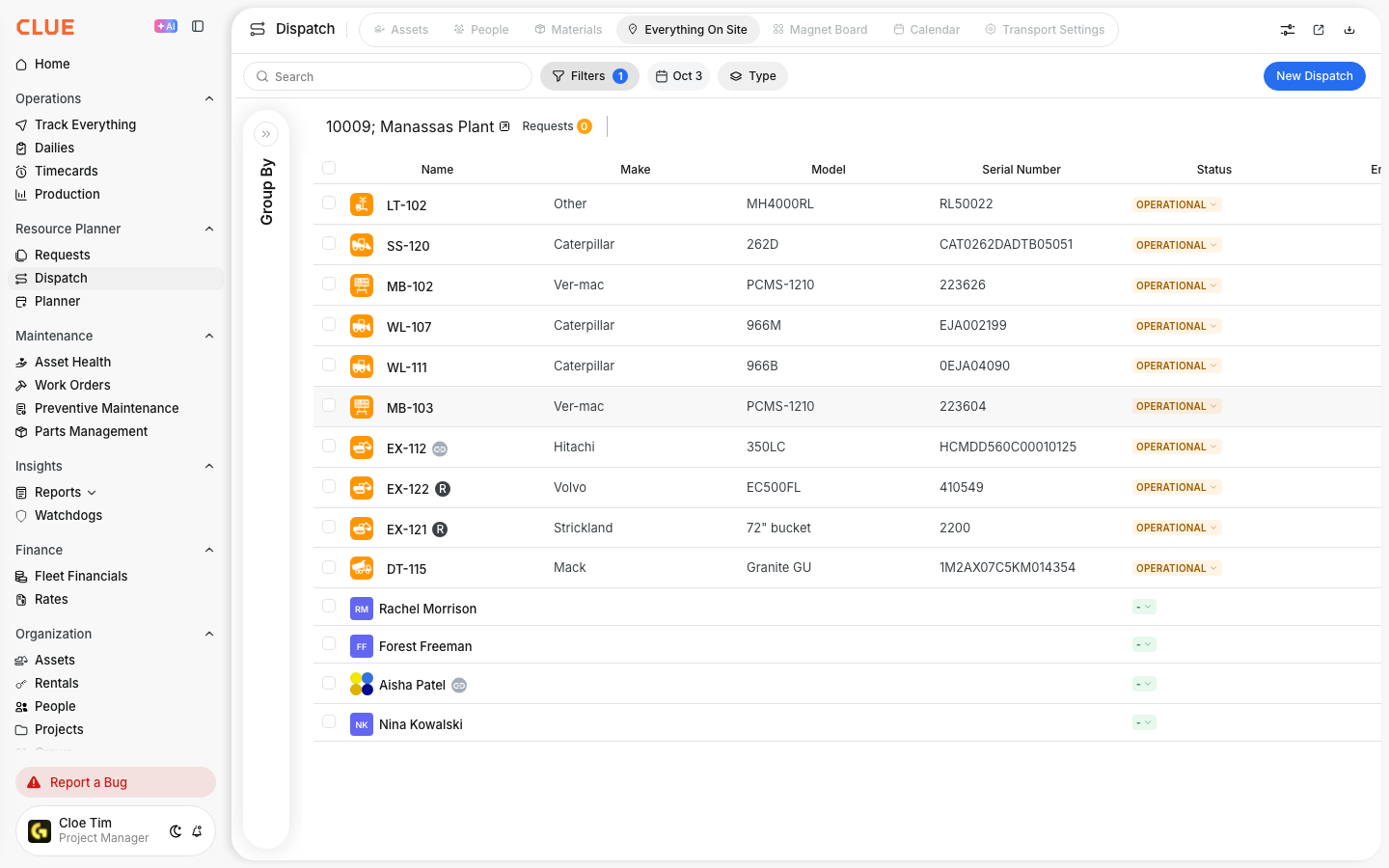
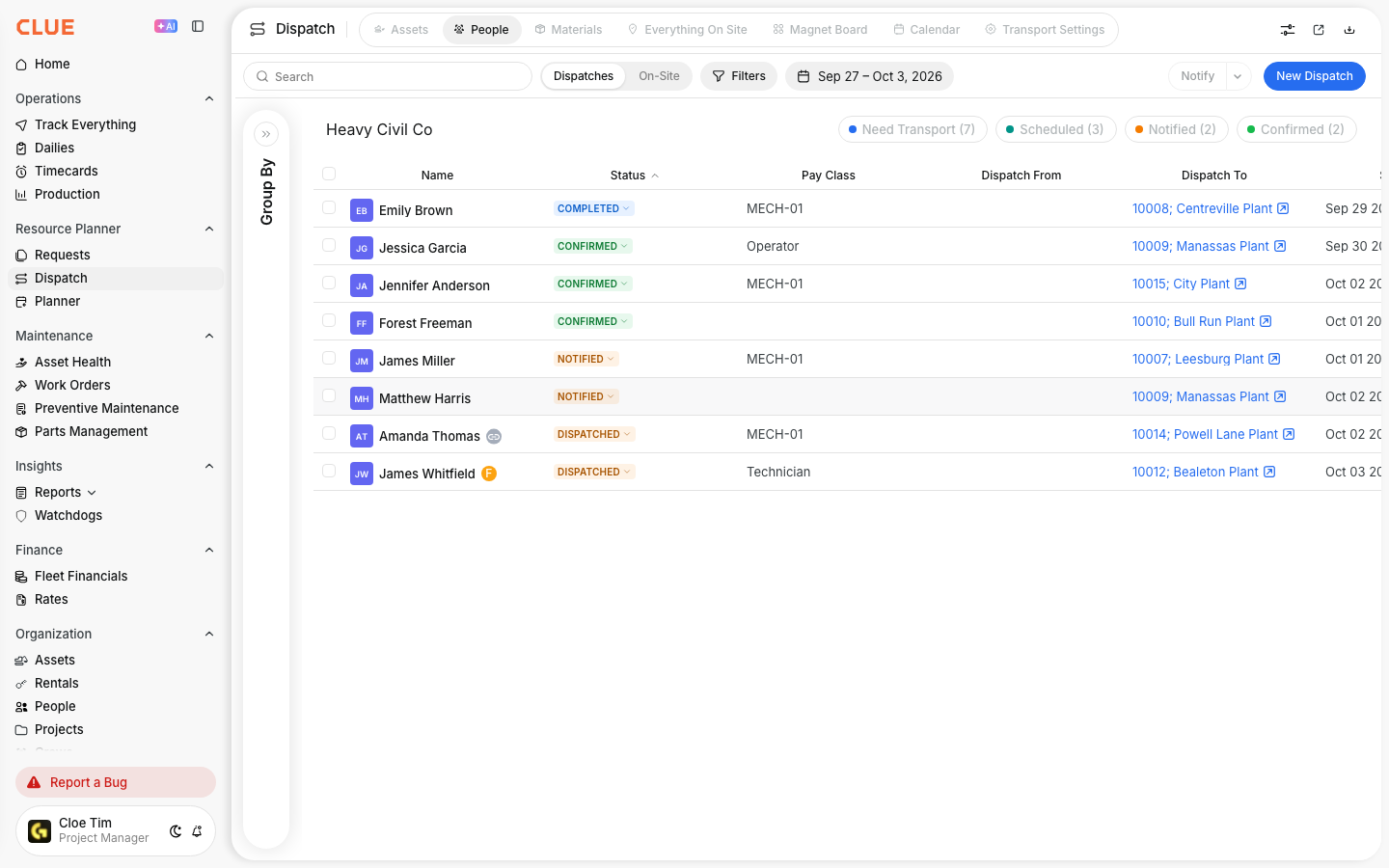
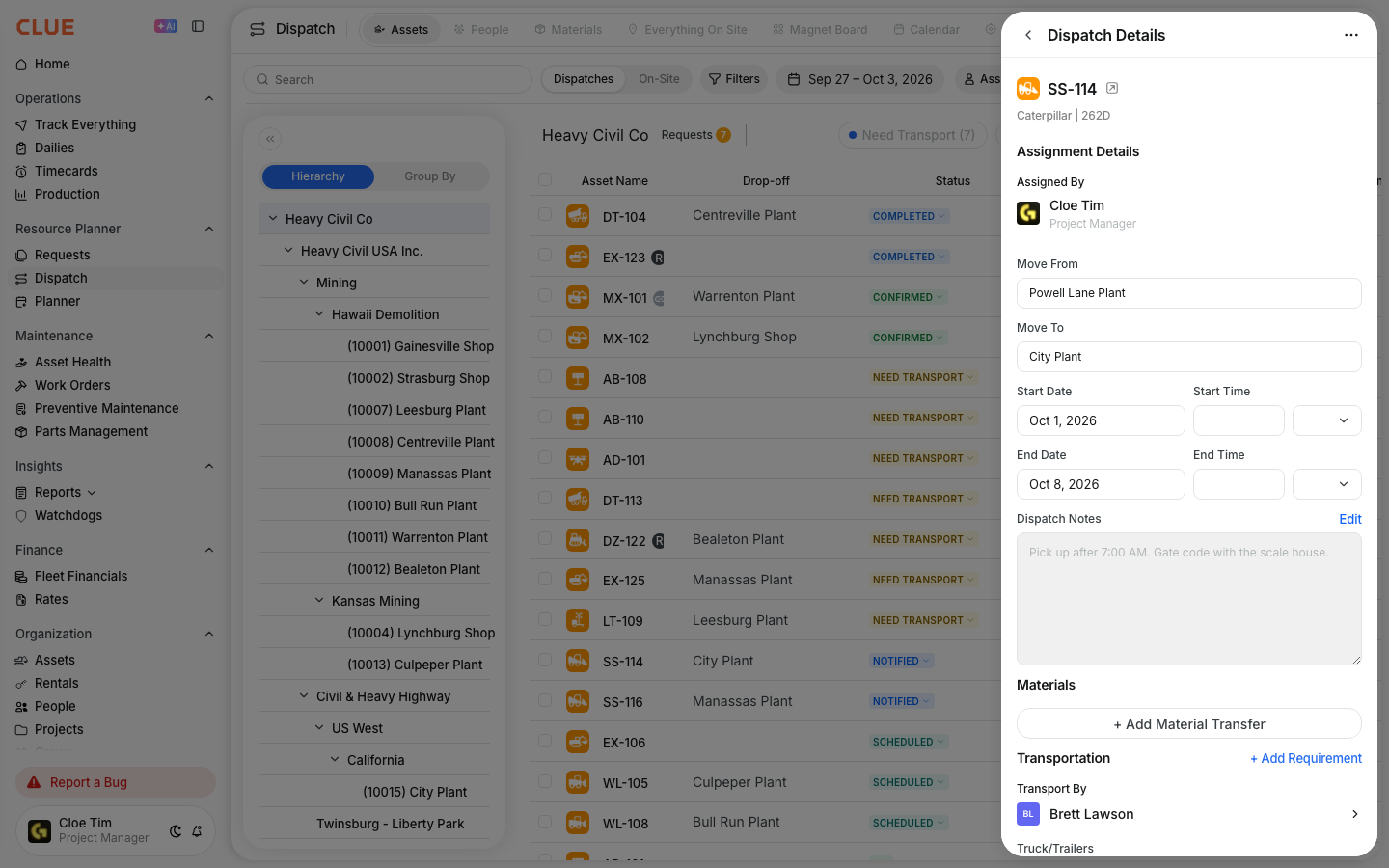
The Magnet Board gives you a visual way to manage dispatch in CLUE. Instead of working through rows in a table, you can see active projects as cards and move people or assets directly onto them to create assignments faster. If you want the full Dispatch layout first, start with Using the Dispatch Board.
Overview
The Magnet Board is built for quick planning and quick changes. It lets dispatchers see active projects, view assigned resources on each card, and use drag and drop to create or update dispatches without opening a separate form every time.
How to Access the Magnet Board
Open Dispatch from the left menu, then switch to the Magnet Board tab. This opens the visual board view inside the Dispatch area.
- Click Dispatch in the left navigation
- Click the Magnet Board tab in the tab bar.
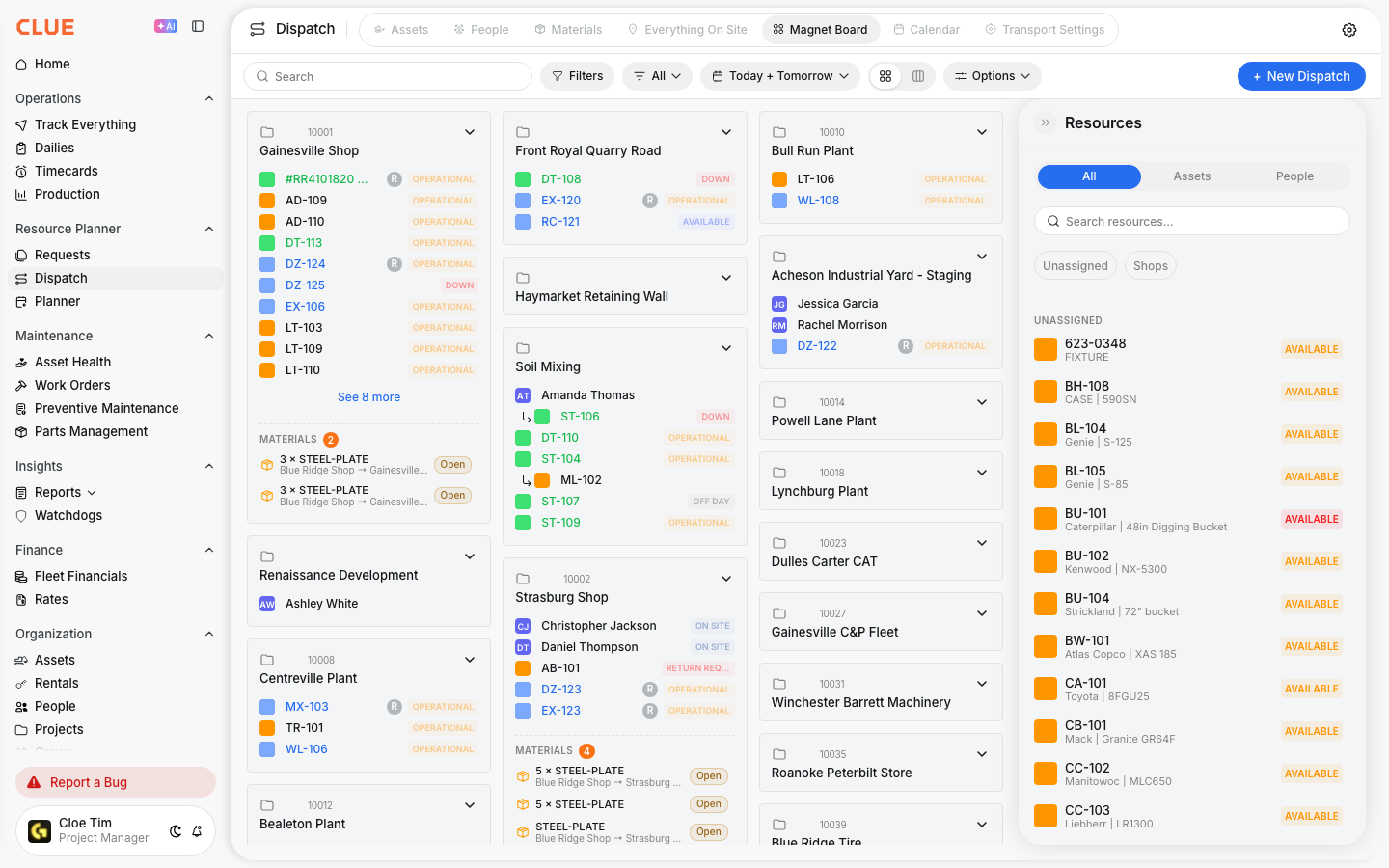
Understanding the Board
The board is split into a few main areas so you can see projects and available resources at the same time. This makes it easier to plan assignments without switching between screens.
The board has three main sections:
- Header bar - filters, search, the Resource Type toggle, and Collapse All
- Project cards - each card shows a project and the resources currently assigned to it
- Resources panel - available resources that are not currently assigned and can be opened or hidden as needed.
Assigning a Resource (Drag and Drop)
Use drag and drop when you want to assign a person or asset quickly. This is the fastest way to create a dispatch from the board. If you would rather use a standard dispatch form, go to Creating a New Dispatch.
- Open the Resources panel on the right
- Find the resource you want to assign
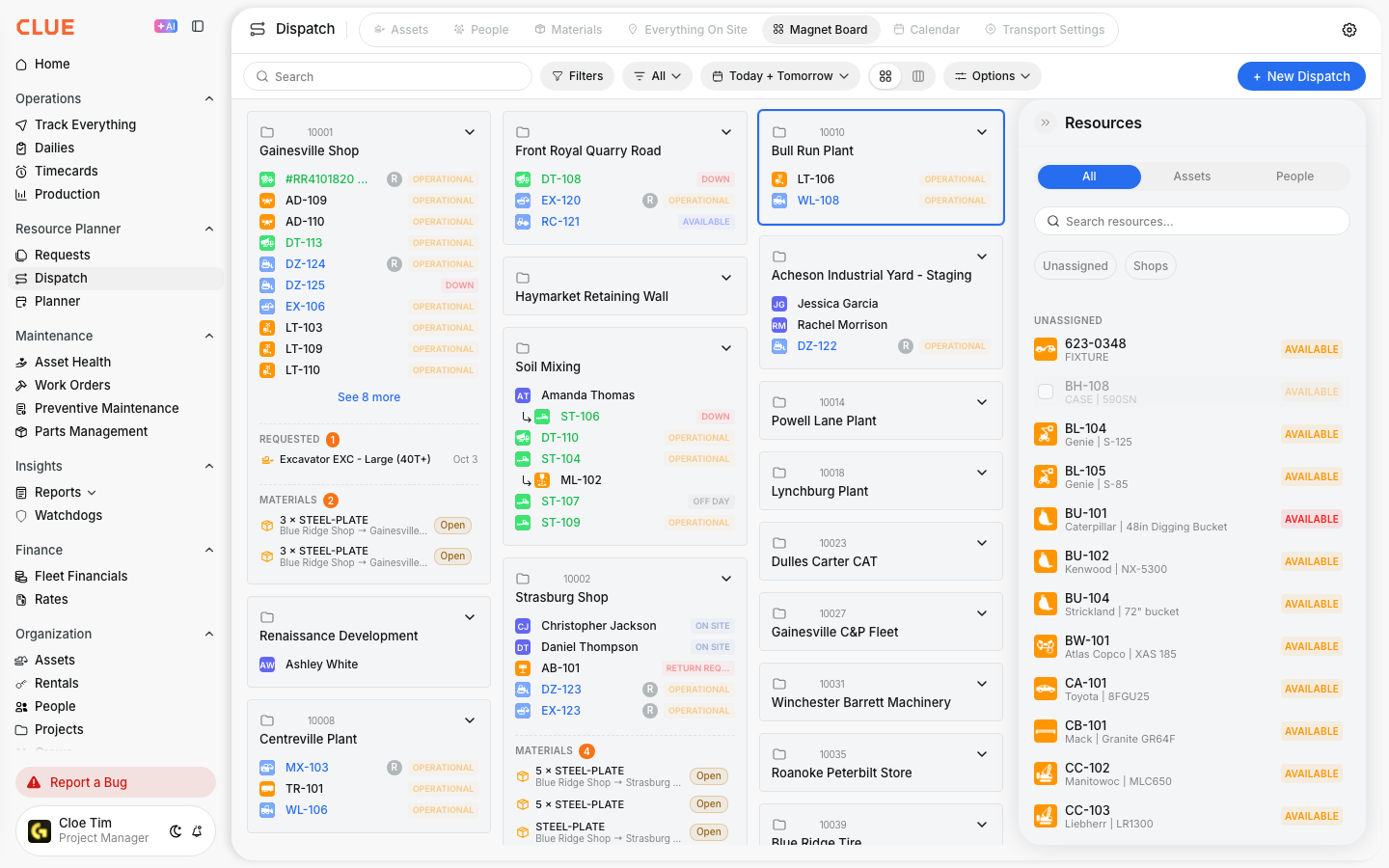
- Drag the resource card onto a project card
- The dispatch is created automatically.
When a project card is ready to accept the drop, CLUE shows a green highlight.
Reassigning a Resource Between Projects
You can also move a resource from one project to another directly on the board. This is useful when schedules change and you need to move work quickly without opening a separate modal. If you need a more detailed asset workflow, use Dispatching Assets to Projects. If you are moving people, Dispatching People to Projects is the better match.
- Find the resource on its current project card
- Drag it to a different project card
- The assignment updates automatically.
Bulk Assignment
Bulk assignment is useful when several resources need to go to the same project. It saves time and keeps the assignment process cleaner when you are dispatching a group instead of one item at a time.
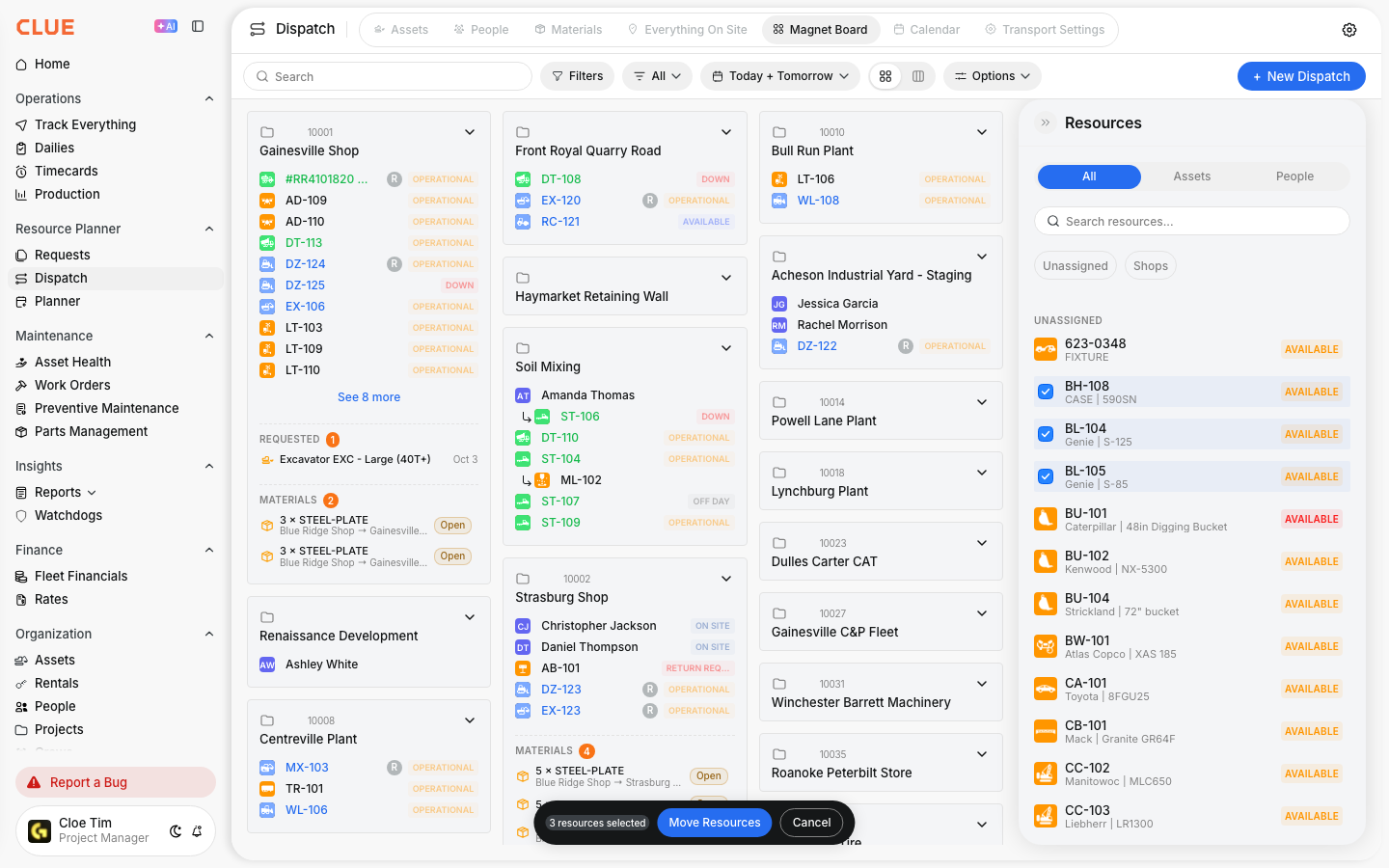
- Select multiple resources using the checkboxes in the Resources panel
- A floating action bar shows how many items are selected
- Drag one of the selected resources to a project card
- All selected resources are assigned together.
Updating Availability Status
The Magnet Board also lets you update availability directly from the board. This helps dispatchers keep the view current without leaving the page.
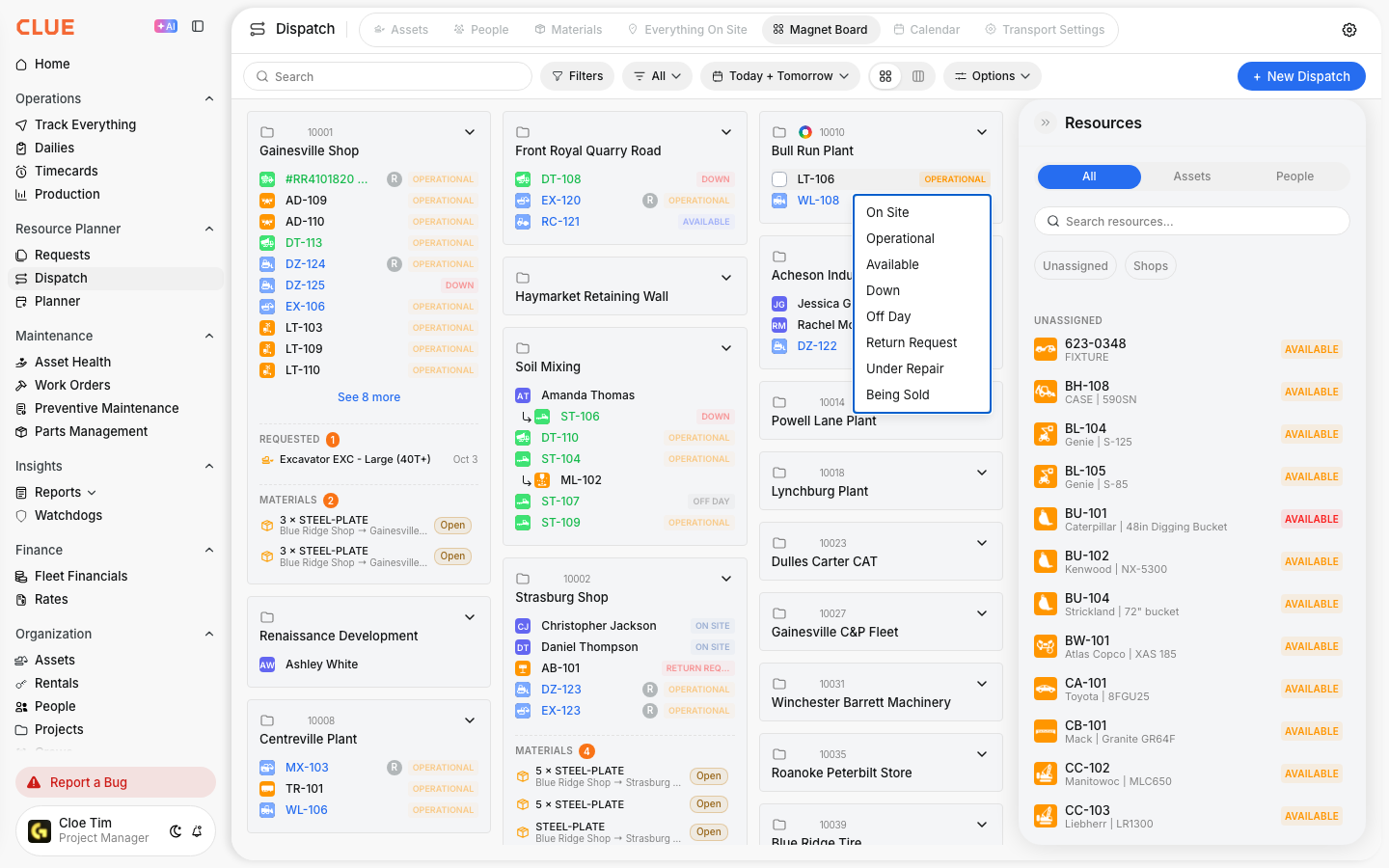
- Click the status dot next to a resource name
- Choose the new status from the dropdown
- The status updates right away.
Filters and Search
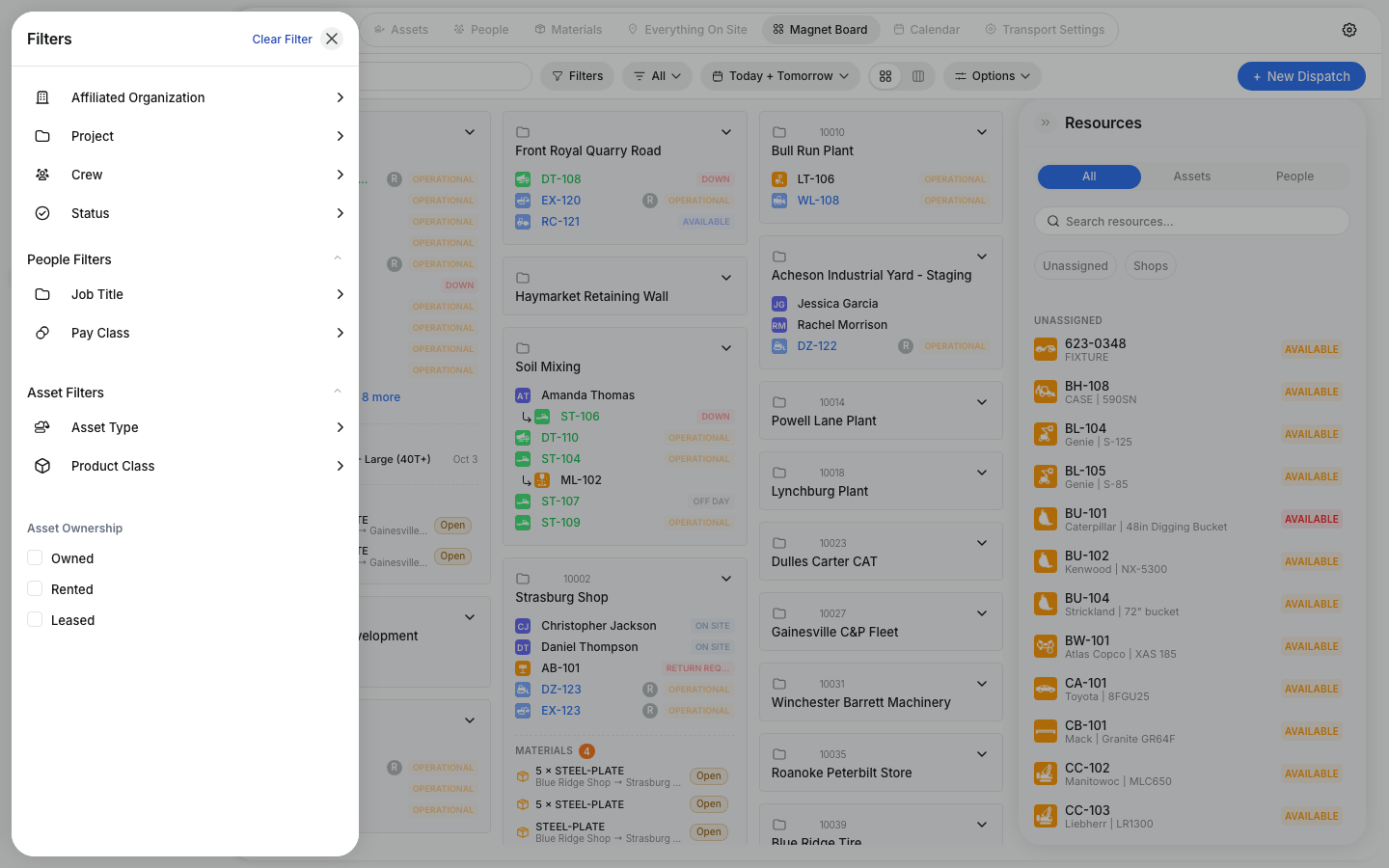
Use search and filters to narrow the board when there are too many projects or resources on screen. This helps you get to the right job, crew, or asset faster.
You can use:
- Search - find projects or resources by name
- Filters - narrow by project, sub-organization, job title, asset type, or crew
- Collapse All - shrink all project cards for a higher-level view.
If the work started from a field request, it can also help to review Creating Equipment Requests or Managing Request Statuses so the request side and dispatch side stay aligned.
Column Layout (Sub-Organization View)
If your company uses sub-organizations, the Magnet Board can be arranged into columns by sub-organization. You can show, hide, or reorder those columns, and CLUE saves your layout preferences automatically.
Tips
The Magnet Board works best when you need a fast visual view of who or what is assigned where. It is an additional Dispatch view, so your regular table-based views are still available in the other tabs.
- Use the Resource Type toggle to switch between Assets and People
- Hover over a project card to see upcoming arrivals and departures
- Use Collapse All when you want a quick high-level view of the board
- If you need a more detailed scheduling workflow, go back to Using the Dispatch Board or open the standard dispatch views.