Organization Hierarchy and Sub-Organizations
Set up your organization hierarchy so CLUE knows how your company is structured and who should see what. This helps keep equipment, projects, people, and reporting tied to the right part of the business.
What is this?
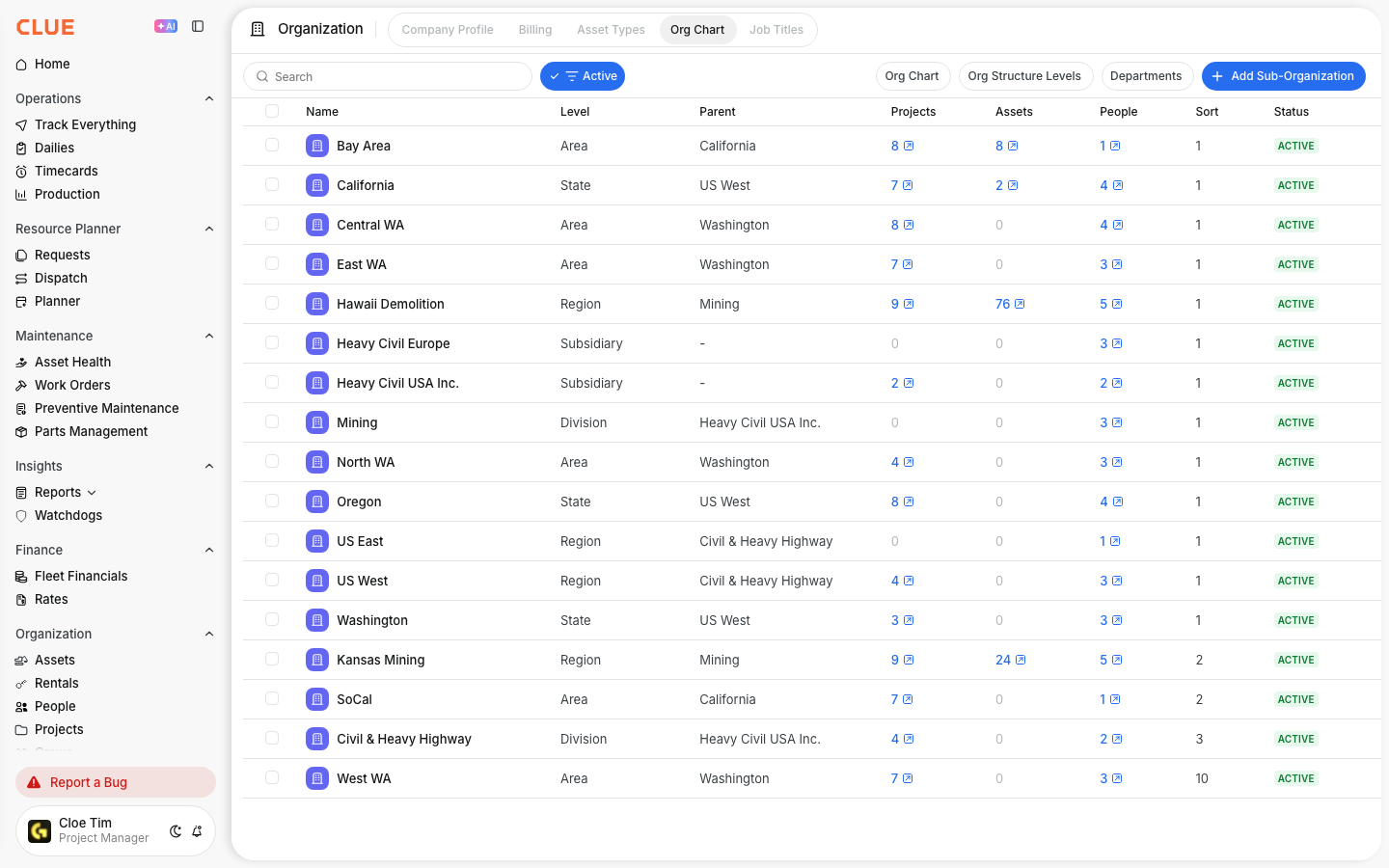
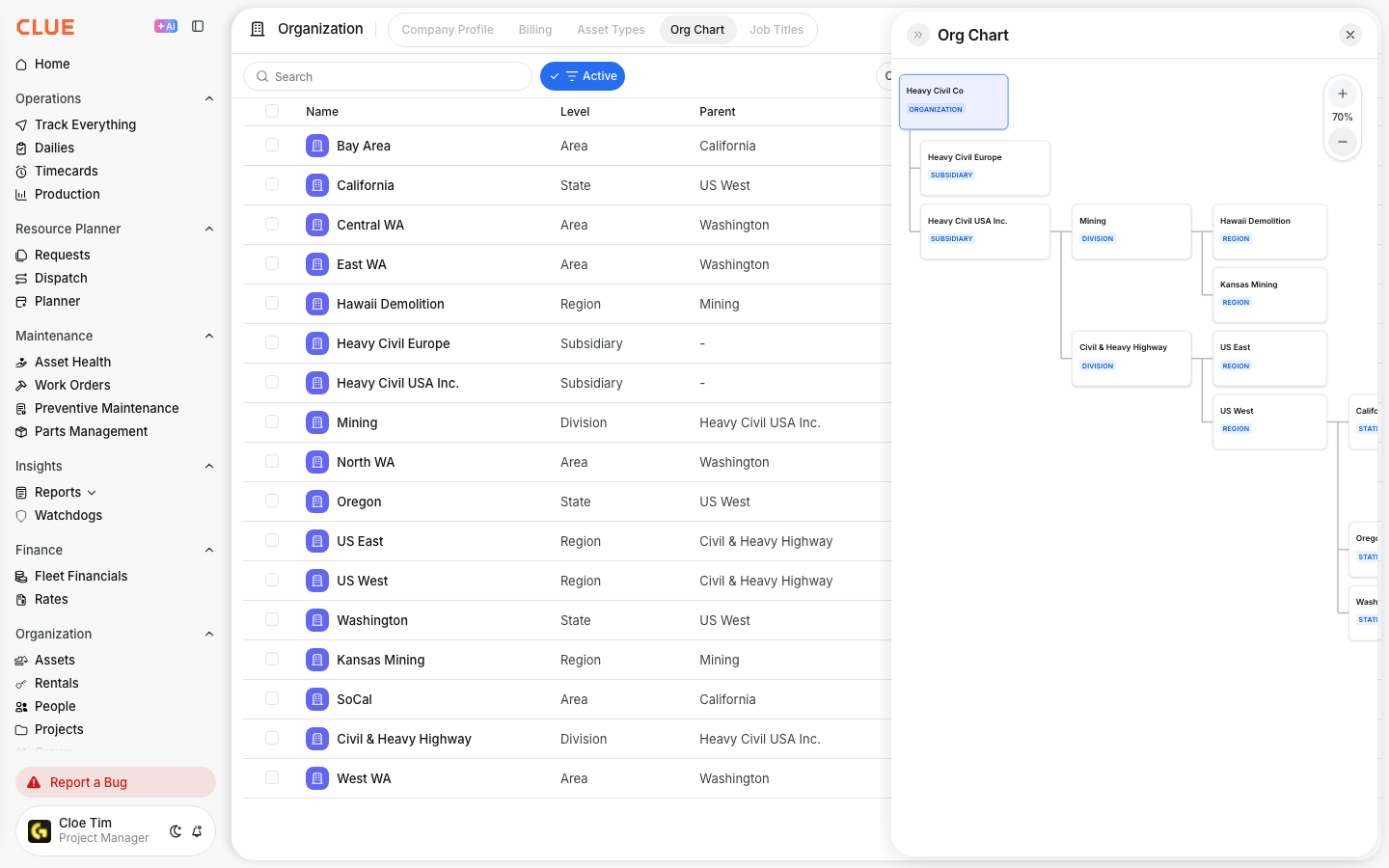
The Org Chart page shows your company structure in two views: a visual tree and a sortable table. You can define your levels, place each sub-organization under a parent, and use that structure to control data visibility.
People assigned to a sub-organization only see the equipment, projects, and data at their level and below. This also fits naturally with Understanding Permissions and Roles, Managing the People Directory, and Managing the Projects Directory.
Who is this for?
This page is useful for the people setting up company structure, managing access, or making sure assets and projects sit under the right part of the business. It gives teams one shared view of how the organization is built.
- Admins - build and maintain the org structure and control who sees what
- Regional Managers - review how their division fits into the bigger company structure
- Equipment Managers - make sure assets sit under the right sub-organization for reporting and cost tracking
These are the main user groups called out on CLUE’s current Org Chart page.
How to use it?
Use the Org Chart page to define your levels, add departments, build the sub-organization tree, and review how everything is arranged. The goal is to match CLUE to the way your company already works in real life.
Step 1: Define your org structure levels
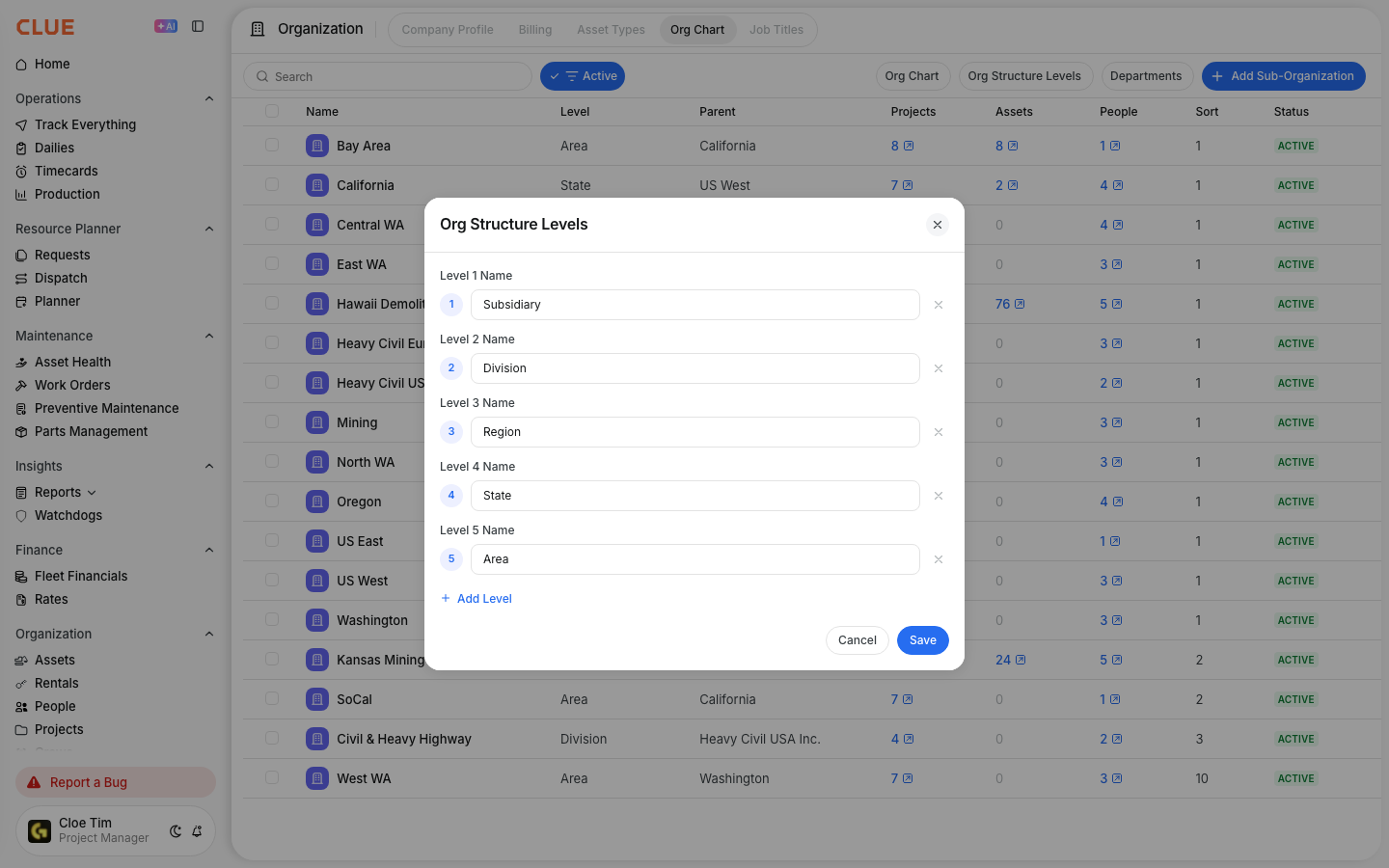
Go to Organization > Org Chart and click Org Structure Levels in the top-right corner.
Name each level in your hierarchy, such as Division, Region, Area, or something else that fits your company. CLUE supports up to 5 levels on this page. Keep the names simple and match the structure your team already uses.
Step 2: Set up departments
Click Departments next to the Org Structure Levels button.
Add department names or codes, such as Commercial or Government, if your team uses them for filtering or reporting. This gives you another way to group sub-organizations without changing the hierarchy itself.

Step 3: Add sub-organizations
Click + Add Sub-Organization to create a new unit in the hierarchy.
Enter the sub-organization name, choose its parent, and add optional details like an external code or sort order. The parent you choose determines where that sub-organization sits in the tree. This is also a natural place to link to Managing the People Directory or Managing Your Asset Directory, since those records usually need to sit under the right org level.

Step 4: Review the tree
Use the tree on the right side of the page to review how your structure looks.
Each node shows the sub-organization name and level. You can click a node in the tree or a row in the table to edit it. If something needs to move, update the parent field and place it under a different branch.
The full details
This page is built to control both structure and visibility. It is not just an org chart for display. It also affects what users can see and how data rolls up in the system.
- Works on: Web app only
- Location: Organization > Org Chart
- Hierarchy depth: Up to 5 levels
- Table columns: Name, Level, Parent, Projects, Equipment, People, Sort, Status
- Visibility: Users assigned to a sub-organization only see data at their level and below
- External codes: Can be used for outside systems like Vista
- Departments: Can be used for filtering and cost allocation
- Access: Admin access is required to update the hierarchy
These details come from CLUE’s current Org Chart page.
Tips
A clean hierarchy makes the rest of CLUE easier to manage. The main goal is to make the org chart match the real business so reporting, visibility, and ownership stay clear.
- Match the hierarchy to your real company structure instead of inventing extra layers
- Use sort order to control how sub-organizations appear in the table and tree
- Assign each person, asset and project to the correct sub-organization. This keeps access and reports correct.
- Make sure assets sit under the right sub-organization so reporting stays accurate
- Use external codes when your team needs to line CLUE up with Vista or another outside system
- Keep this setup aligned with Understanding Permissions and Roles so access rules match the org structure