Fault Code Rules Engine
Available now on Beta — This feature is in beta testing and will roll out to everyone soon.
What is this?
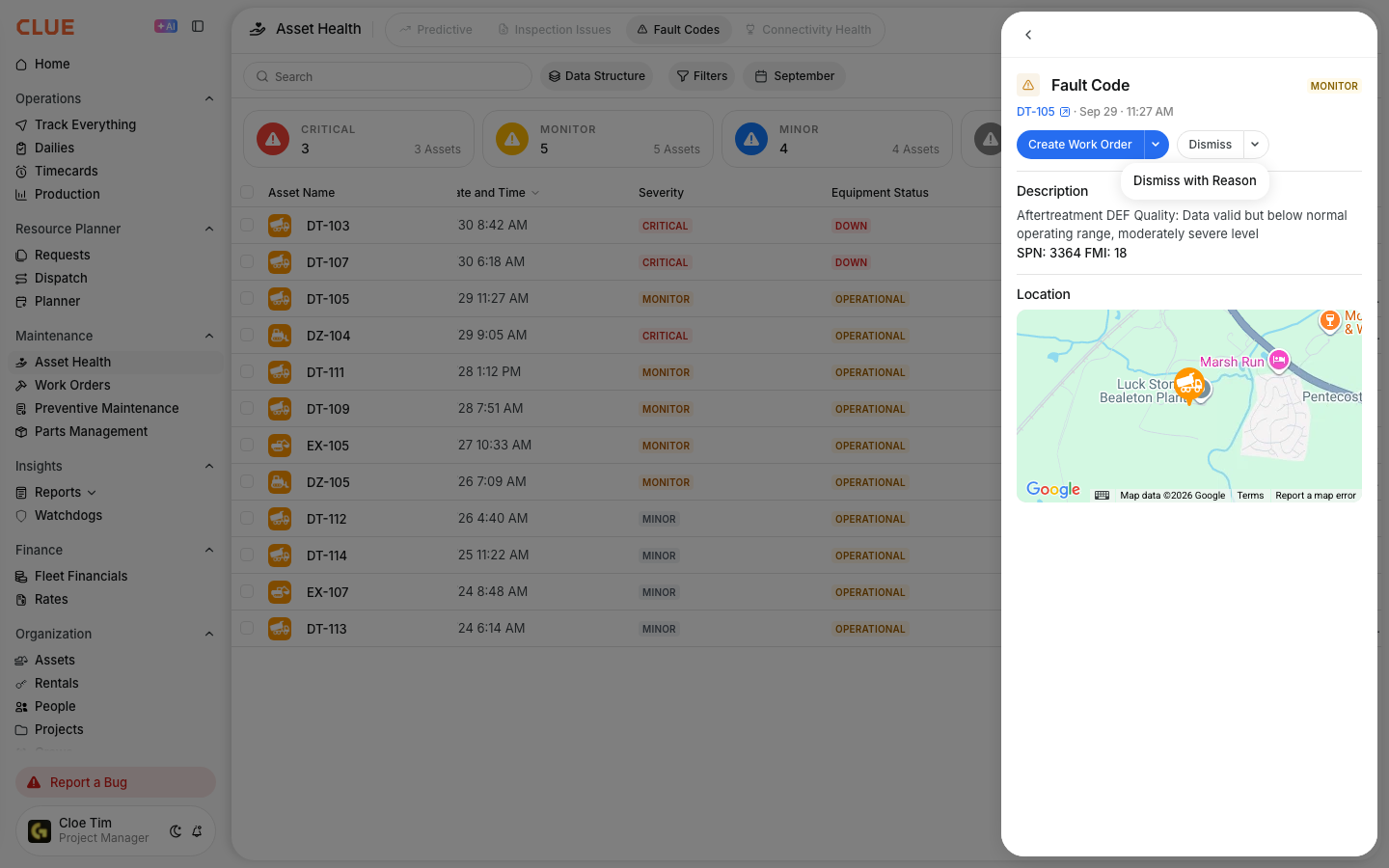
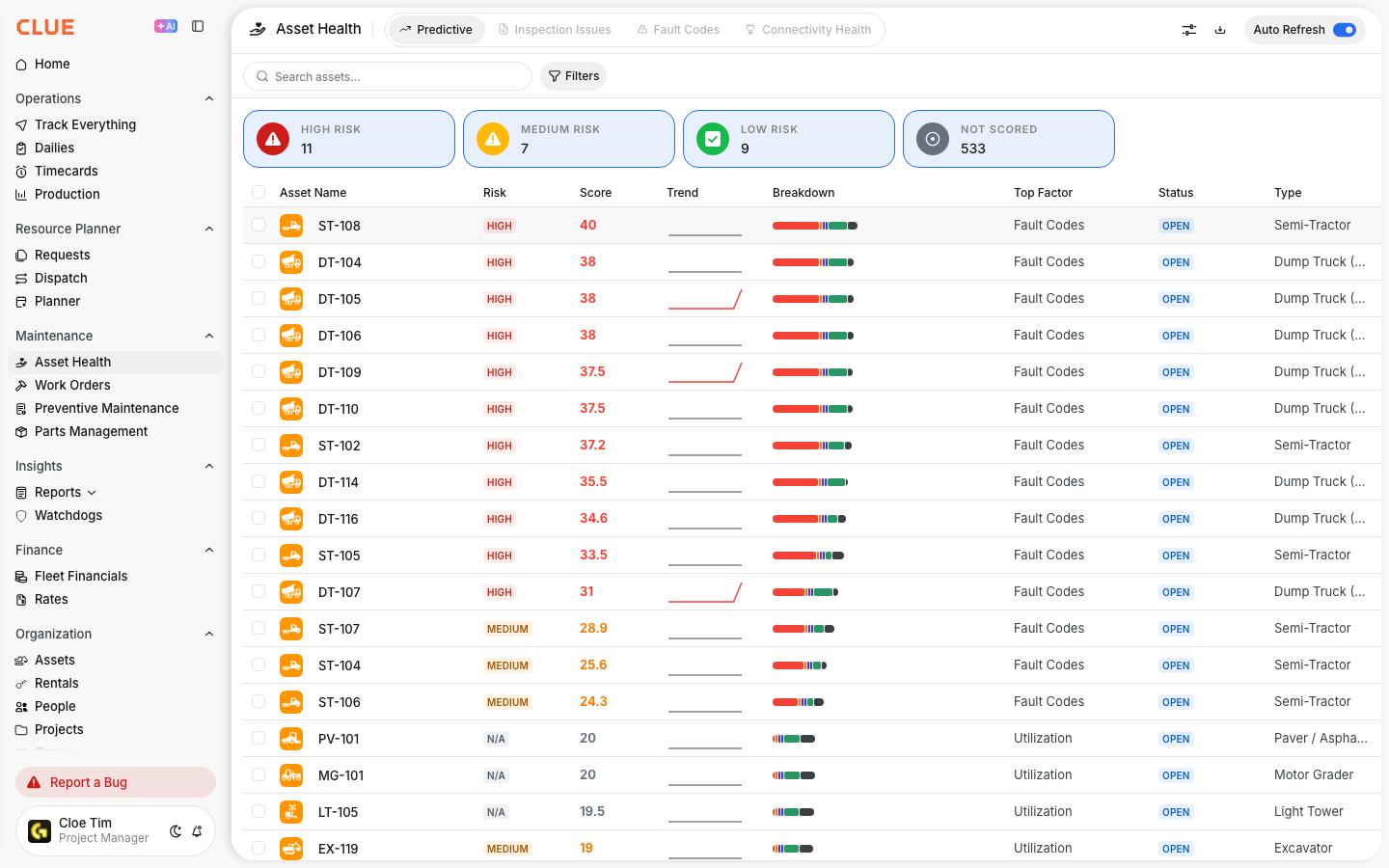
Fault codes come in from your equipment all day long. Some are critical and need a mechanic on site immediately. Others are nuisance codes that fire every time a machine starts up cold. Until now, you had to manually triage every single one.
The Fault Code Rules Engine lets you set rules once and let the system handle the rest. You pick a fault code, decide what should happen when it comes in, and Clue follows that rule every time. Critical codes can auto-create work orders. Nuisance codes can be auto-dismissed. Confusing OEM descriptions can be renamed to plain English your team actually understands. You stay in control without watching every alert.
Who is this for?
How to use it?
Step 1: Open Fault Code Rules
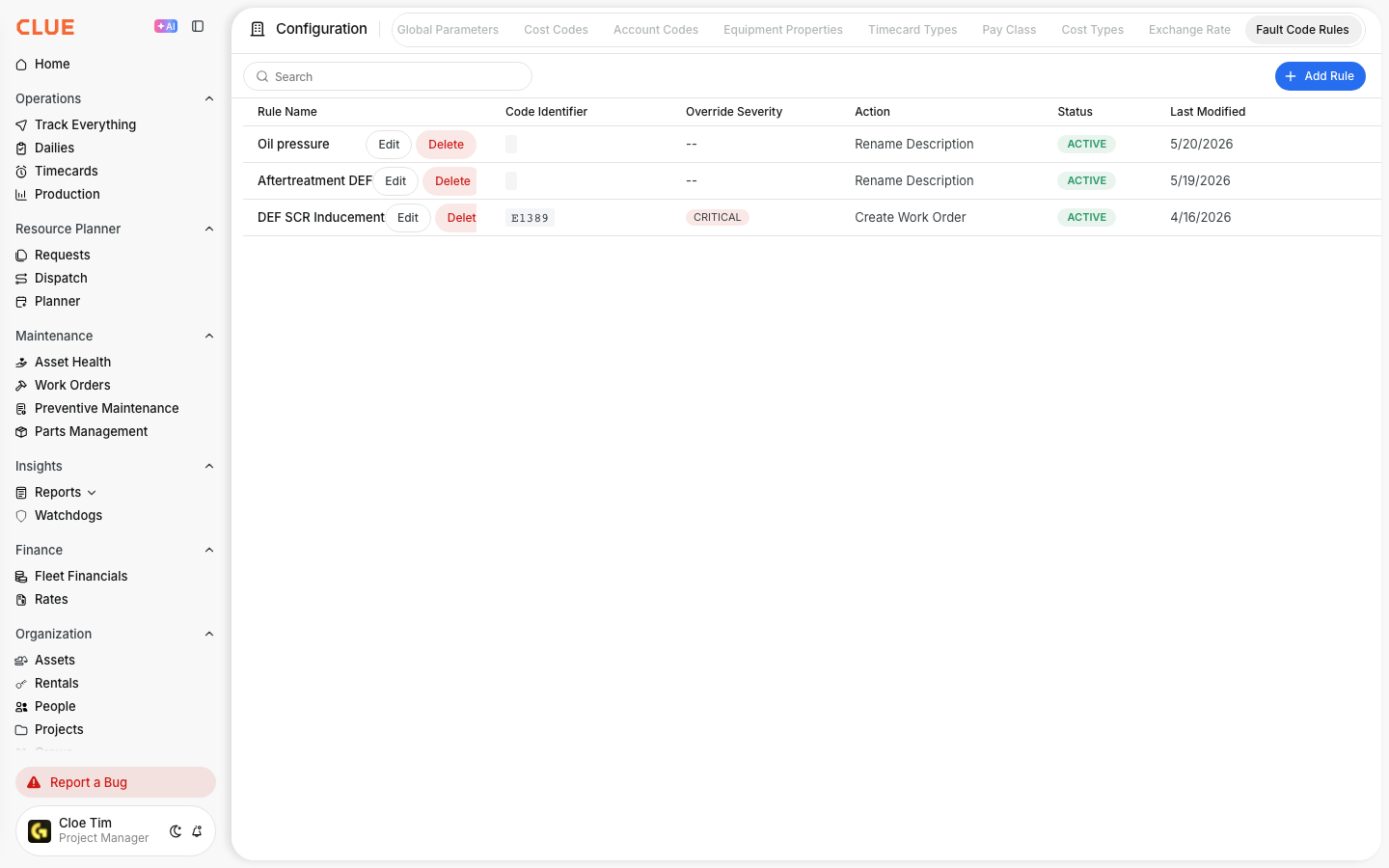
Go to Company Settings in the sidebar, then Configuration, then click the Fault Code Rules tab. You will see a list of all active rules for your company.
Step 2: Create a new rule
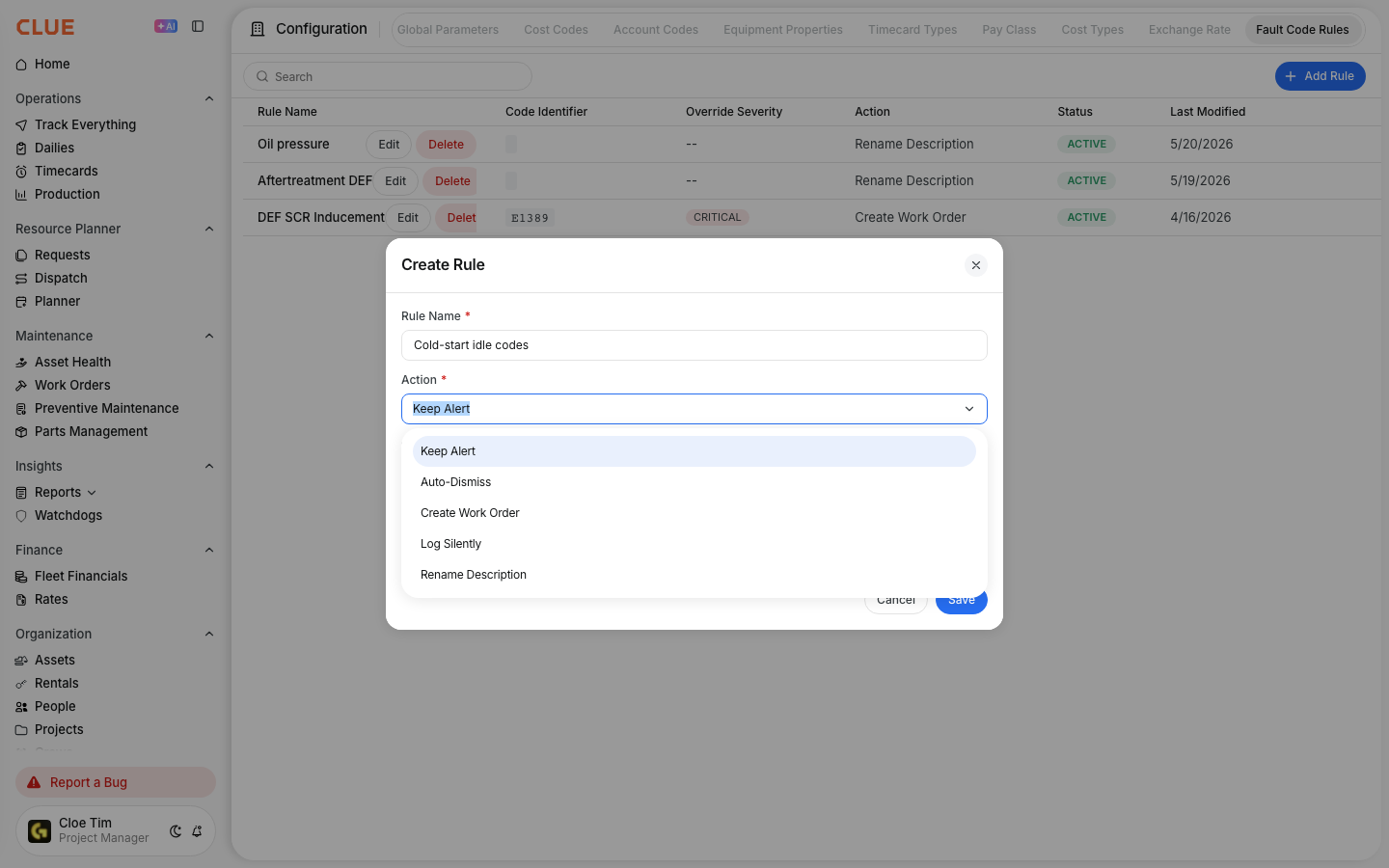
Click + Add Rule. Fill in the rule name, the fault code identifier, choose a severity override if needed, and pick the action.
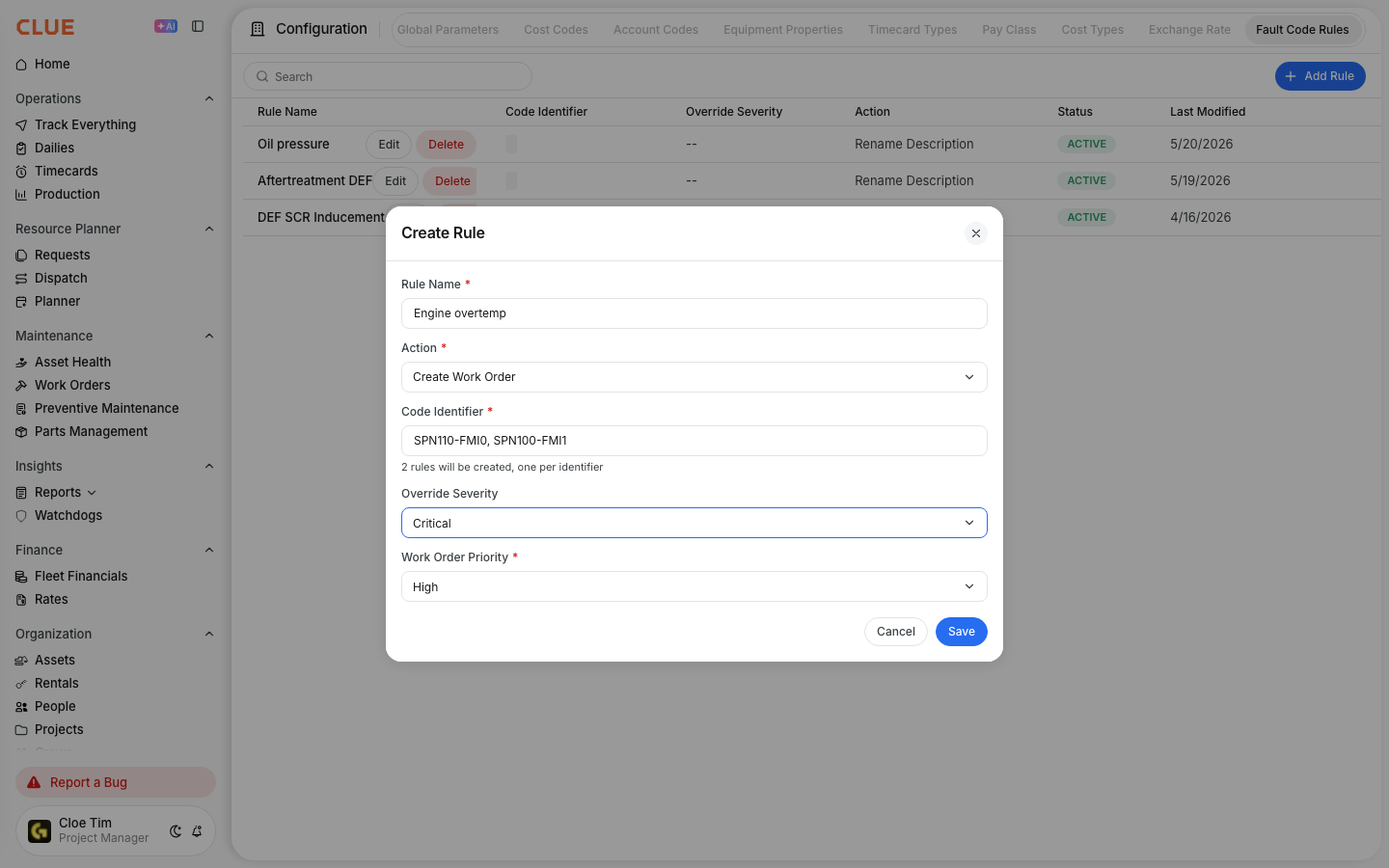
Each rule has four parts:
Step 3: Pick the right action
Every rule needs an action. Here is what each one does:
Common rules to set up
Here are examples that most fleets benefit from right away:
DEF/SCR inducement alerts (auto-create work order)
When a machine enters DEF inducement, it will derate or shut down if not addressed. Set code E1389 (or your OEM equivalent) to Create Work Order at High priority with severity Critical. A mechanic gets the job immediately.
Engine overtemp or low oil pressure (auto-create work order)
These are safety-critical. Continued operation causes permanent damage. Set these to Create Work Order at High priority. Better to pull a machine off the line than replace an engine.
DPF regen needed (keep alert, bump severity)
Not an emergency, but ignoring it leads to forced regen and downtime. Override severity to Monitor and use Keep Alert. The maintenance team sees it and can schedule a regen during a break.
Cold-start idle codes (auto-dismiss)
Many machines throw fault codes during cold startup that clear on their own. If a code fires every morning and resolves in 5 minutes, set it to Auto-Dismiss. It still shows in history if you ever need to look back.
Tire pressure monitoring (log silently)
Some tire pressure warnings trigger constantly on rough terrain. Use Log Silently to keep a record without filling the alert queue. Review the logs monthly to spot real trends.
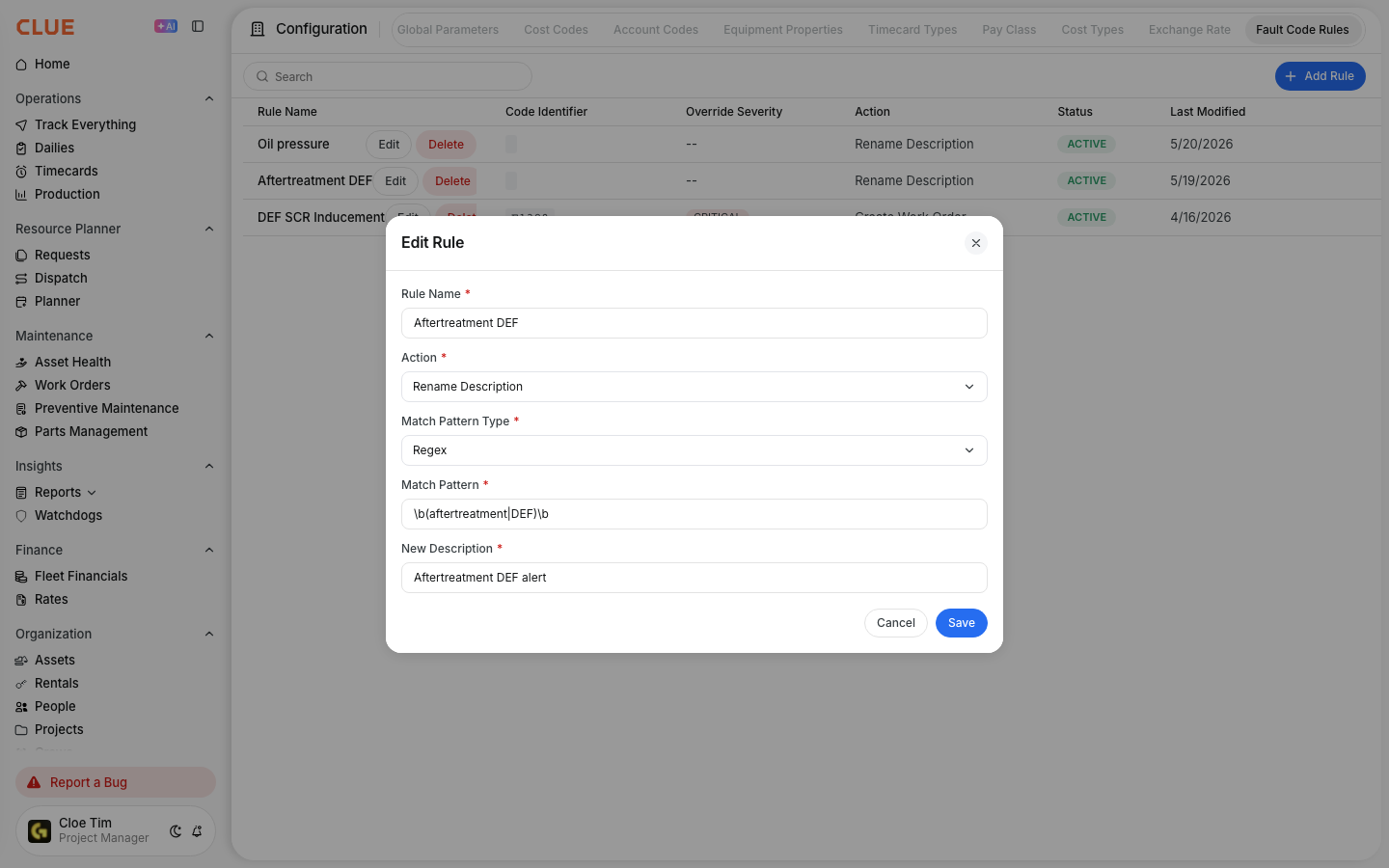
Rename confusing OEM descriptions (rename description)
OEM fault descriptions are often technical jargon. "Aftertreatment #1 SCR Operator Inducement Severity: High - least severe (1)" is hard to act on at a glance. Use Rename Description to replace any matching text with something your team understands.
Pick Glob for simple patterns (use * for any text, ? for a single character): *aftertreatment* matches every description containing "aftertreatment". Pick Regex for advanced patterns: aftertreatment|DEF matches descriptions with either word. Set the new description to whatever your team uses — for example, "Aftertreatment DEF alert" — and every matching fault code (existing and future) shows the cleaner name everywhere it appears: the alerts list, the dashboard, search results.
When you save the rule, Clue tells you how many existing fault codes match and offers to rename them in one click. Toggle the rule off later and the original OEM text comes back instantly.
The full details
Tips
Start narrow, then widen. When you write a glob or regex pattern, test it on one specific code first. Save the rule, look at the match count Clue shows in the confirmation dialog, and check whether that number looks right before you click Apply. It's much easier to broaden a tight pattern than to undo a rename that hit hundreds of unrelated codes.
Use Glob unless you really need Regex. *aftertreatment* catches every description containing the word and is easy for the next admin on your team to read. Reach for Regex only when you need alternation (def|aftertreatment) or anchoring (^E1389).
Name your rules so the next person understands them. "Rename DEF/aftertreatment alerts" is a much better rule name than "Rename rule 3." The rule list shows the name, not the pattern — make it count.
Toggle off before delete. If you're not sure a rule is still doing what you want, set it to Inactive first. Existing fault codes revert to their OEM descriptions immediately. If everything still looks right, delete it. If your team complains, flip it back on — though existing rows will need a re-apply since toggling on doesn't auto-rebuild past renames.
Re-apply when you edit. When you change a rule's pattern or new description and save, Clue prompts you to apply the new values to existing fault codes. Take the offer — otherwise you'll have a mix of old and new renamed text in the alerts list.
Auto-dismiss is not the same as ignore. Dismissed codes still log to history. If a code you auto-dismissed turns out to matter later, the original event is still there for diagnosis — Auto-Dismiss just keeps it out of the active alert queue.