Managing the Vendors Directory
Admin & Settings
Reading Time:
3 min read
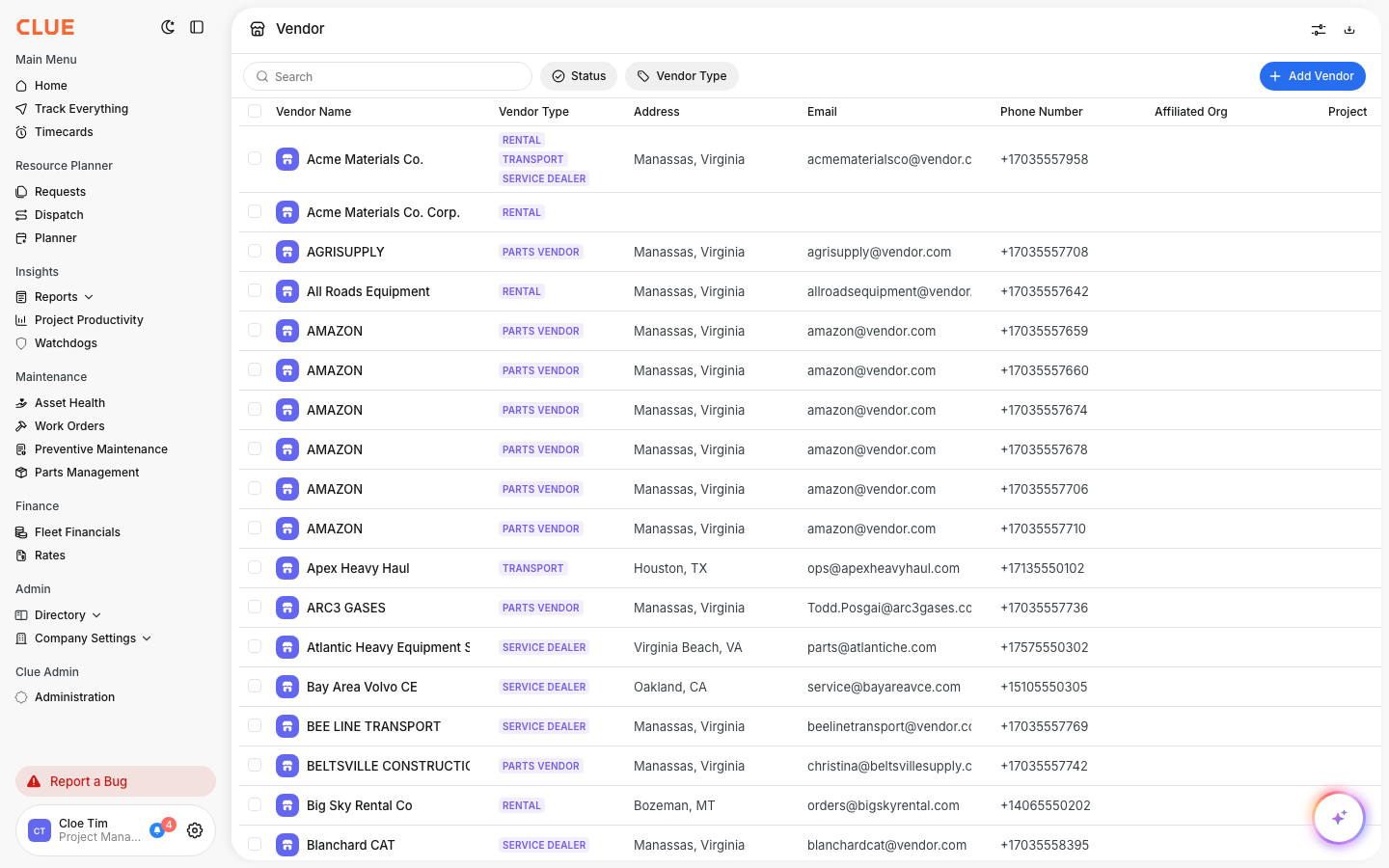
The Vendors Directory is where you keep every supplier your company works with. It stores each vendor's name, type, email, and phone number in one list, so your team always has the right contact. Vendors here connect to your parts and purchasing.
What is this?
The Vendors Directory is your address book for suppliers. Dealers, parts shops, rental houses, and service providers all live here, with the details your team needs to reach them.
Who's this for?
- Parts and purchasing, keep supplier contacts current for orders.
- Shop foremen, find the right vendor for a repair fast.
- Admins, keep the vendor list clean and complete.
How to use it
Step 1: Open the directory
In the main menu, open Directory, then click Vendors.
Step 2: Search and filter
Use the search bar to find a vendor by name. Filter by status or vendor type to narrow the list.
Step 3: Add a vendor
Click Add Vendor to create a new supplier. Fill in the name, type, and contact details.
The full details
- Works on: Web app
- Where to find it: Directory > Vendors
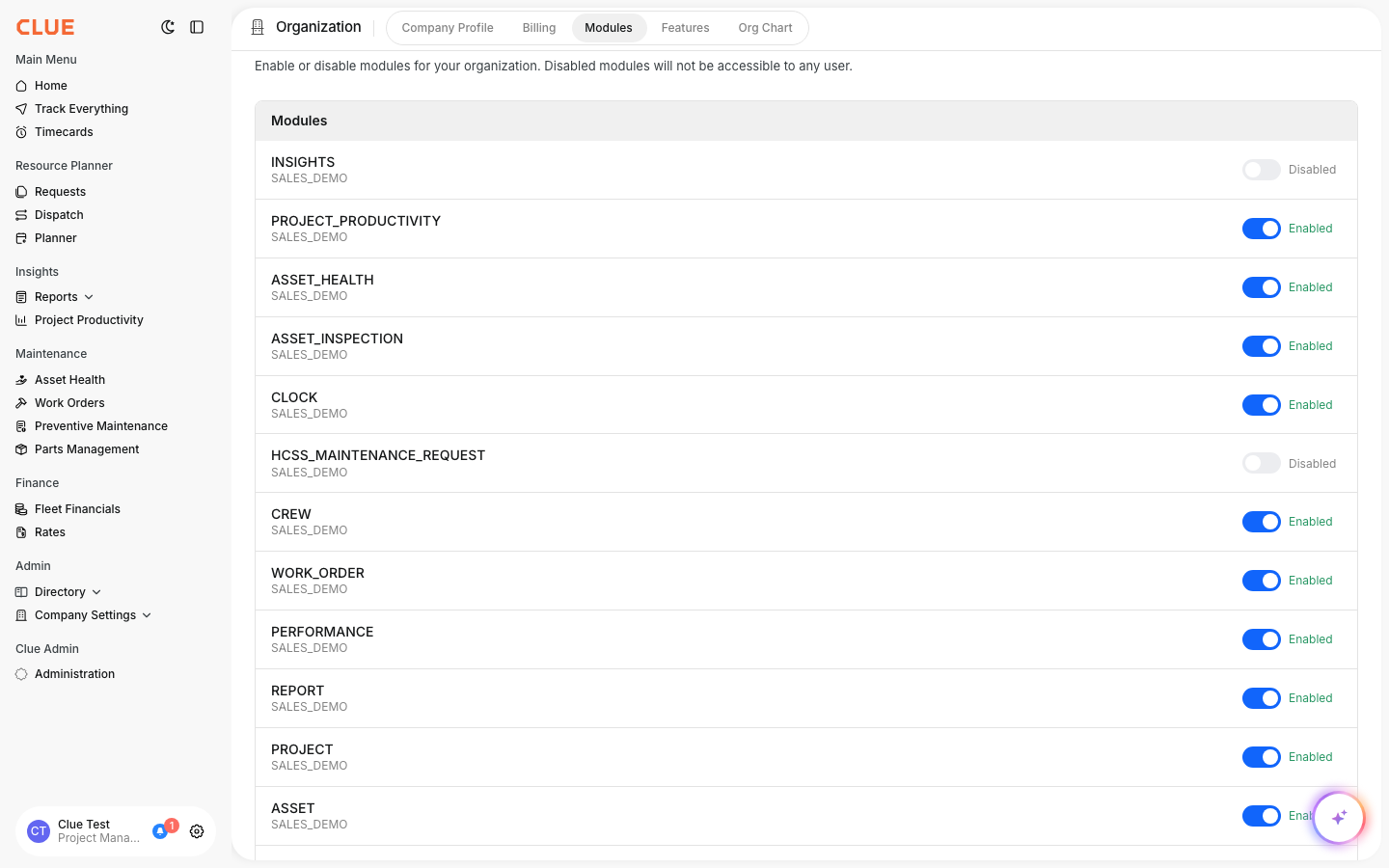
- Visibility: This directory shows only if your company has Vendors enabled.
Tips
- Set a vendor type so your team can filter to the right kind of supplier.
- Keep emails current, parts orders and messages use them.